

Connecting your Facebook Page
1
Navigate to Reputation Settings
Go to Reputation > Settings and scroll to the Platform integrations section.
2
Select the Facebook integration
Click the Facebook tile to begin the connection process.
3
Log in with Facebook
A Facebook login window will appear. Sign in with the Facebook account that owns or has admin access to your Facebook Business Page. Grant the requested permissions — these allow the platform to read recommendations and post responses on your behalf.
4
Select your Facebook Page
If your account manages multiple Facebook Pages, select the Page you want to connect. If you manage multiple business locations, you can connect additional Pages by repeating the process.
5
Confirm the connection
Once connected, your Page name will appear in the integrations list with an active status. Recommendations will begin syncing shortly.
You must be an admin of the Facebook Page you are connecting. Editor or Moderator roles do not have sufficient permissions to authorize the integration.
How Facebook recommendations sync
Facebook recommendations work differently from Google reviews:- Customers choose to Recommend or Not Recommend your business
- A written comment is optional — some recommendations have no text
- There is no numeric star rating on Facebook; the HoopAI platform maps recommendations to a display rating for consistency (Recommend = positive, Not Recommend = negative)
- Existing recommendations from your Page history
- New recommendations as they are posted
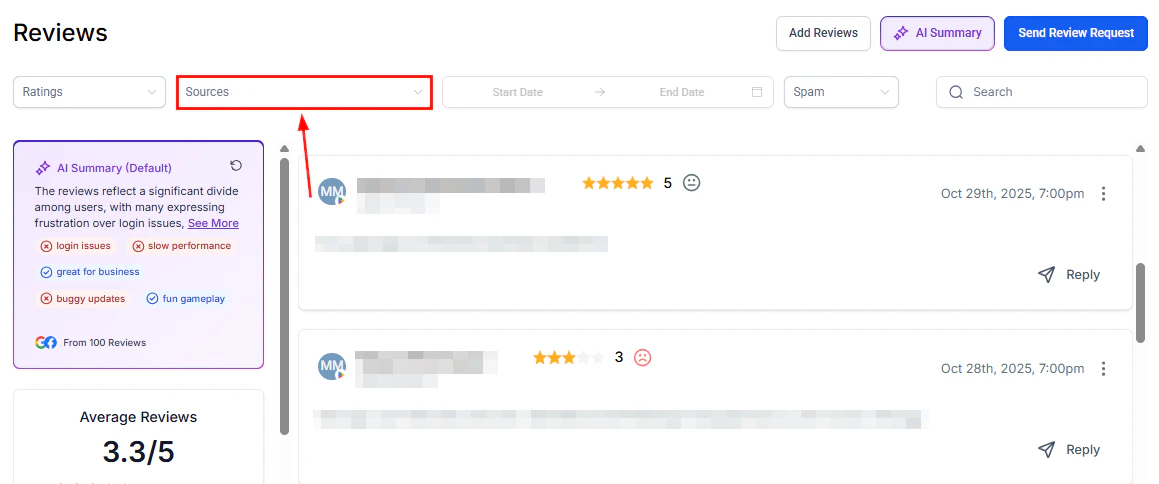
Reviews tab showing review sources including Facebook
Responding to Facebook recommendations from HoopAI
1
Filter by Facebook
In Reputation > Reviews, use the Sources filter to display only Facebook recommendations.
2
Open the reply field
Click the reply button on the recommendation card.
3
Write your response
Type your response. For Recommend posts, thank the customer warmly and encourage them to return. For Not Recommend posts, acknowledge their experience and invite them to contact you privately to resolve the matter.
4
Send
Click Send to post your response directly to the Facebook recommendation thread.
Facebook in review request campaigns
After connecting your Facebook Page, you can include a Facebook review link as a destination in your review request messages. Configure this in Reputation > Settings > Review link management:- Add your Facebook Page review link alongside your Google review link
- Set a balance ratio to distribute requests between platforms (for example, 60% Google / 40% Facebook)
- Contacts who receive a request will be directed to whichever platform the balance ratio determines for that outreach
Automated responses with the AI agent
The Reviews AI agent supports Facebook as a review source alongside Google. You can create:- A shared agent that handles both Google and Facebook recommendations
- Separate agents for each platform to apply different tones or response styles
- Navigate to Reputation > Settings > Reviews AI and create or edit an agent.
- Under Select review criteria, choose Facebook as the review source.
- Configure the star rating range and tone, then save.
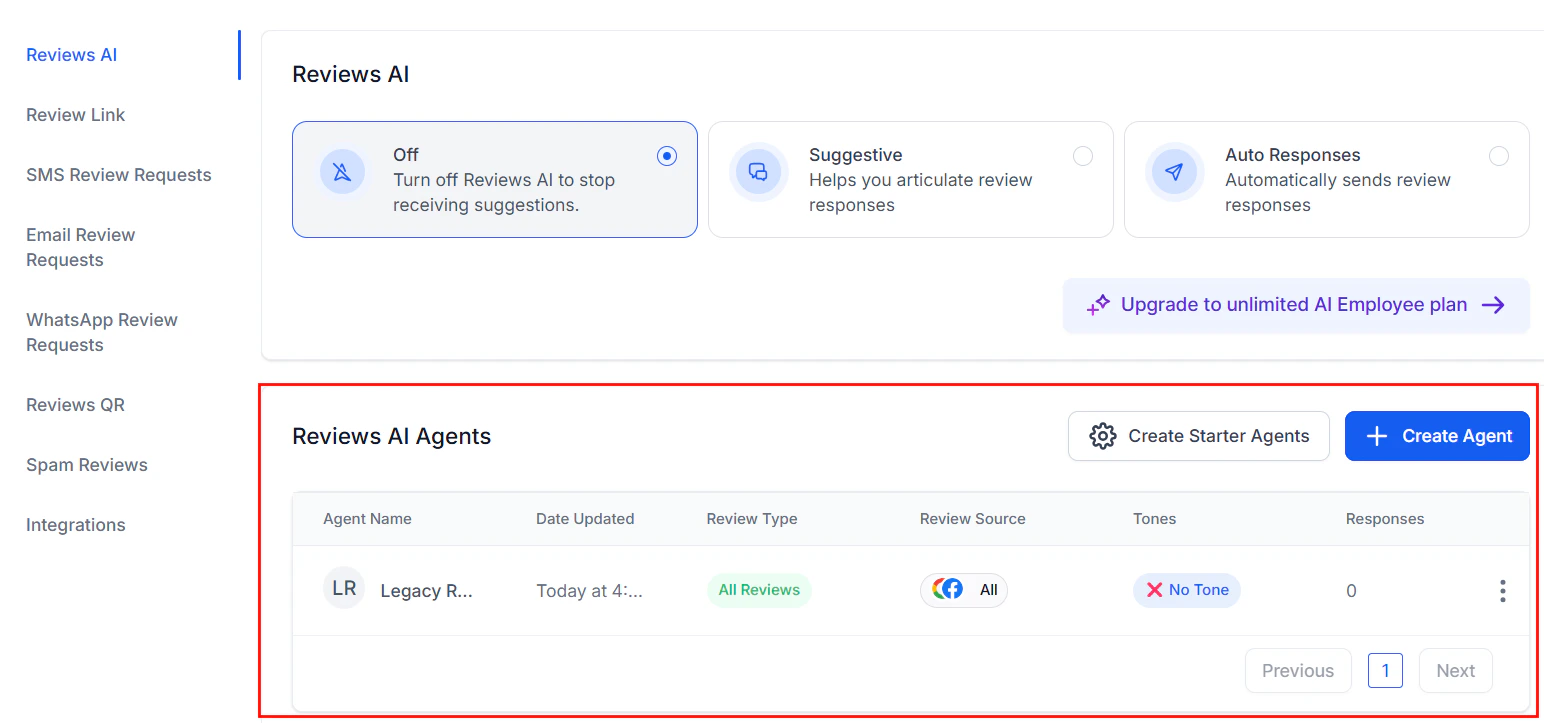
Reviews AI agent configuration for automated responses
Facebook recommendations vs. Google reviews: key differences
Understanding these differences is important when crafting response templates. A Facebook response doesn’t need to address a star rating; it should acknowledge the recommendation or the concern raised in the comment.
Disconnecting Facebook
To remove the Facebook integration:- Go to Reputation > Settings > Platform integrations.
- Click the Facebook tile and select the option to disconnect.
- Confirm disconnection.
FAQs
Can I connect more than one Facebook Page?
Can I connect more than one Facebook Page?
Yes. Repeat the integration process for each Facebook Page you manage. Switch between Pages using the source filter in the Reviews tab.
Do Facebook recommendations without written comments appear in HoopAI?
Do Facebook recommendations without written comments appear in HoopAI?
Yes. Recommendations with no written text appear in your Reviews tab showing the recommendation type (Recommend or Not Recommend) and the date posted, even without a comment. You can still respond to these.
Why are some Facebook recommendations not appearing?
Why are some Facebook recommendations not appearing?
Facebook’s API may not surface all recommendations depending on the privacy settings of the person who posted it. If a customer’s profile is set to restrict visibility, their recommendation may not be accessible through the integration.
Can I remove a negative Facebook recommendation from HoopAI?
Can I remove a negative Facebook recommendation from HoopAI?
No. The platform can flag a recommendation as spam in your internal system, but removal requests must be submitted directly through Facebook by reporting the recommendation for violating Facebook’s content policies. See Negative review handling for more information on the dispute process.
Will the Facebook AI agent respond to recommendations with no written comment?
Will the Facebook AI agent respond to recommendations with no written comment?
Yes, as long as the recommendation matches the agent’s configured criteria (source and sentiment type). The agent will post a response acknowledging the recommendation even when no comment was left.