

What the AI writer can do
Generate from scratch
Describe what you want to post — the topic, goal, tone, and platform — and the AI writes a complete caption ready for review and scheduling.
Rewrite existing content
Paste in existing copy or a rough draft and ask the AI to rewrite it for clarity, engagement, or a different tone.
Adjust tone
Shift copy from professional to casual, from formal to friendly, or from informative to persuasive with a single click.
Change length
Expand a short caption into a longer, detailed post — or condense a lengthy paragraph into a concise, punchy statement.
Generating a post from scratch
1
Open the AI writer
In the post composer, click Ask AI or the AI writing icon in the toolbar. This opens the Content AI panel alongside the composer.
2
Answer the guided questions
The AI panel asks a series of targeted questions to understand what you want to post. Questions adapt based on the platform you are posting to and the content type — a Facebook feed post, a LinkedIn article teaser, and a TikTok caption each have different best practices baked in.Typical questions include:
- What is this post about?
- What action do you want your audience to take?
- What tone should the post use? (Professional, casual, humorous, inspirational, etc.)
- Are there specific keywords, hashtags, or phrases to include or avoid?
3
Generate the caption
Click Generate. The AI produces a caption based on your inputs. The result appears in the composer where you can review it immediately.
4
Refine if needed
Use the editing options to adjust the output:
- Rewrite — generate a new version with a different angle
- Improve — enhance clarity, readability, and engagement without changing the core message
- Change tone — switch between professional, casual, persuasive, or other tones
- Make shorter or Make longer — adjust length to fit platform best practices
- Translate — convert the caption into another language
5
Accept and schedule
When satisfied with the result, click Use This to insert the caption into the composer. Continue adding media, hashtags, and scheduling details as usual.
Editing existing content with AI
If you have already written a caption and want help improving it:- Write your draft in the composer
- Select the text you want to improve
- Click the Edit with Ask AI button that appears in the toolbar
- Choose an action: Improve, Rewrite, Change Tone, Make Shorter, Make Longer, or Translate
- Review the result and accept or discard it
AI image generation
The AI writer also includes an image generation tool for creating unique visuals directly in the composer.1
Open the image generator
In the post composer, click the Generate Image option in the media section.
2
Describe the image
Write a text prompt describing the visual you want — for example, “A bright, airy coffee shop with morning light coming through the window, no people, photorealistic style.”
3
Generate and select
The AI generates one or more image options. Select the one that best fits your post.
4
Use or regenerate
Click Use Image to add it directly to your post, or adjust your prompt and regenerate for a different result.
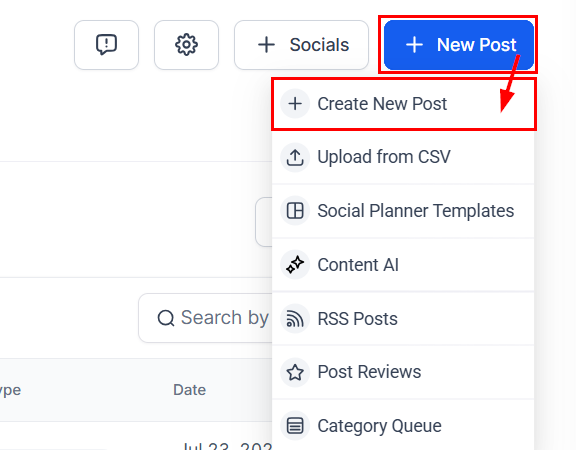
Creating a new social media post with the AI-assisted composer
Platform-aware content
The AI writer adapts its output based on the platforms selected for the post. When you are posting to LinkedIn, the AI generates more professional, longer-form content appropriate for a business audience. For TikTok or Instagram Reels, it produces shorter, punchy captions with relevant hashtag suggestions. For Google My Business, it focuses on local SEO-friendly language. If you are posting to multiple platforms simultaneously, the AI generates a single caption optimized for the primary platform. You can then use the per-platform customization options to adjust the caption for each platform individually.Hashtag suggestions
After generating or editing a caption, click Suggest Hashtags to have the AI recommend relevant hashtags based on the post content. Suggested hashtags can be added to your saved hashtag groups for reuse in future posts.Frequently asked questions
Does the AI writer remember my brand voice?
Does the AI writer remember my brand voice?
The AI writer uses the context you provide in each session — including tone preferences, keywords, and the guided questions — to generate content. For consistent brand voice across all posts, provide detailed tone instructions each time, or use saved templates as a baseline and refine with AI from there.
Can I use the AI writer for every supported platform?
Can I use the AI writer for every supported platform?
Yes. The AI writer is available in the composer for all connected platforms. The prompts and guided questions adapt based on the selected platform to ensure the generated content suits the format and audience expectations of that network.
Is there a limit to how many times I can use AI generation?
Is there a limit to how many times I can use AI generation?
AI usage is included in your HoopAI plan. Some plans may apply usage credits or monthly limits for Content AI features. Check your plan details under Settings > Plan for specifics.
Can the AI write posts in languages other than English?
Can the AI write posts in languages other than English?
Yes. Use the Translate option to convert a generated caption into another language, or include the target language as an instruction in your initial prompt (for example, “Write this post in Spanish”).
How do I ensure the AI does not include inaccurate information?
How do I ensure the AI does not include inaccurate information?
The AI generates content based on your prompts and general language patterns — it does not have access to your specific business data unless you include it in your prompt. Always review AI-generated content before scheduling to verify factual accuracy, especially for posts that include statistics, prices, dates, or specific product details.