

Why use a dedicated sending domain
Private sender reputation
Your domain reputation is isolated from all other senders. Good sending habits build a strong reputation that belongs entirely to your brand.
Branded email headers
Recipients and email clients see your domain — not a shared platform domain — in the From address and authentication headers.
Full authentication control
You configure and own the SPF, DKIM, and DMARC records for the subdomain, giving inbox providers the strongest possible verification signal.
Better inbox placement
A dedicated domain with proper authentication and a warm sending history significantly improves inbox placement rates compared to shared infrastructure.
Choosing a subdomain
Use a subdomain of your primary business domain rather than your root domain. This keeps your email sending reputation separate from your website, so a deliverability issue with email does not affect other domain-linked services. Recommended subdomain formats:mail.yourdomain.comemails.yourdomain.comsend.yourdomain.comno-reply.yourdomain.com
Setting up your dedicated domain
1
Go to email services settings
Navigate to Settings > Email Services and click the Dedicated Domain and IP tab.
2
Add your subdomain
Click + Add Domain and enter the subdomain you have chosen (e.g.,
mail.yourdomain.com).3
Choose your configuration method
The platform will display your required DNS records and offer two setup options:Auto-configuration (recommended): The platform detects your DNS provider (Cloudflare, GoDaddy, Namecheap, etc.) and configures the records automatically. Authorize the connection and the records are added for you.Manual configuration: If your DNS provider is not supported for auto-configuration, copy each record from the platform and add them manually in your DNS provider’s control panel.
4
Add the required DNS records
The platform will provide the following record types:
5
Verify your domain
After adding the DNS records, return to the platform and click Verify. The platform checks each record and marks them as verified once they are detected. DNS propagation can take up to 24–48 hours.
6
Set as default sending service
Once all records are verified, set the dedicated domain as your default email sending service. Navigate to Settings > Email Services and select the domain as the default.
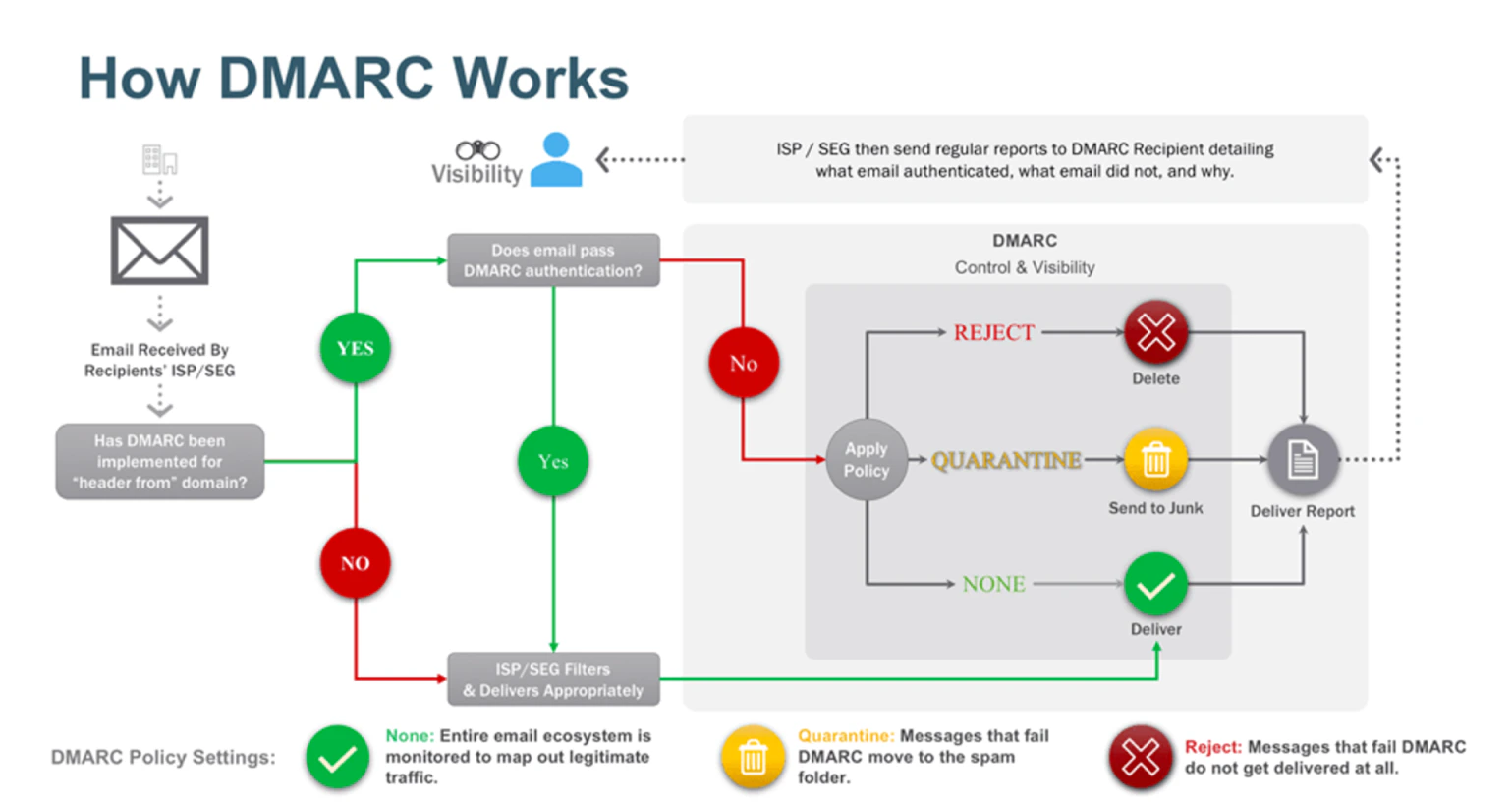
DMARC policy configuration for the sending domain
DNS records explained
SPF (Sender Policy Framework)
SPF authorizes the platform’s sending servers to send email on behalf of your subdomain. The record is a TXT entry on the subdomain itself. Only the authorized servers listed in the SPF record will pass SPF checks — all others will fail.DKIM (DomainKeys Identified Mail)
DKIM attaches a cryptographic signature to every outgoing email. The receiving server uses a public key (published in your DNS) to verify the signature was created by an authorized sender and that the message was not modified in transit. The platform generates your DKIM key pair and provides the DNS record to publish.DMARC (Domain-based Message Authentication)
DMARC tells receiving mail servers what to do when an email fails SPF or DKIM checks. It also provides reporting so you can monitor authentication failures. Recommended DMARC policy progression:If your root domain already has a DMARC record, you do not need to add a separate one for the subdomain unless you want a different policy. Subdomain DMARC policies can inherit from the root domain or be set independently with
sp= tags.MX record
The MX record for your sending subdomain points bounce notifications and auto-replies back to the platform’s bounce processing servers. This is required for accurate bounce tracking in your campaign statistics.SSL certificate
Once your dedicated domain is verified, an SSL certificate is automatically provisioned. This enables secure email headers and HTTPS for tracking pixels and click-redirect URLs, which some email clients and security gateways require.Domain warm-up
A newly configured sending domain has no historical reputation with inbox providers. Sending large volumes immediately from a new domain results in poor inbox placement because providers have no data to trust the domain on. Warm-up approach:- Start with small daily sends (100–500 emails per day)
- Gradually increase volume over 4–6 weeks
- Send exclusively to your most engaged contacts first (recent openers and clickers)
- Monitor bounce rates, spam complaint rates, and open rates closely throughout the warm-up period
Use the batch scheduling feature to control daily volume precisely during the warm-up period.
Monitoring domain health
Once your dedicated domain is active, monitor its reputation using: Google Postmaster Tools — Connect your domain to see Gmail-specific metrics including spam rate, domain reputation (Bad / Low / Medium / High), and IP reputation. Accessible from Settings > Email Services. Microsoft SNDS — Connect Microsoft’s Smart Network Data Services to monitor your sending IP’s reputation as seen by Outlook and Hotmail. Also available from email service settings. Both tools provide early warning of deliverability problems before they result in widespread inbox rejection.Multiple subdomains
You can add multiple dedicated sending domains to one account — for example:marketing.yourdomain.comfor promotional campaignstransactions.yourdomain.comfor receipts, confirmations, and notifications
Frequently asked questions
Do I need a dedicated domain, or can I use Gmail or Outlook?
Do I need a dedicated domain, or can I use Gmail or Outlook?
Gmail and Outlook connections are best for low-volume, conversational email that appears in contact conversation threads. For broadcast campaigns and automated marketing email, a dedicated sending domain is strongly recommended. It gives you full reputation control and better inbox placement at scale.
How long does DNS verification take?
How long does DNS verification take?
DNS propagation typically takes between a few minutes and 48 hours. If verification fails immediately after adding records, wait a few hours and try again. Check that you entered the exact record values provided by the platform — any extra spaces or punctuation will cause verification to fail.
Can I use my root domain instead of a subdomain?
Can I use my root domain instead of a subdomain?
Technically yes, but it is not recommended. Using the root domain for email sending adds email-specific DNS records to your main domain and risks affecting your website if there is a conflict. A dedicated subdomain keeps email records separate from your primary domain’s DNS.
Do I need to warm up my domain if I am migrating from another sending service?
Do I need to warm up my domain if I am migrating from another sending service?
Yes, even if your root domain has a strong reputation. The sending subdomain is a new entity with no history of its own. Inbox providers evaluate each subdomain independently. Warm up the new subdomain before migrating your full volume.
What DMARC policy should I start with?
What DMARC policy should I start with?
Start with
p=none to enable monitoring without blocking any messages. Review the DMARC reports over 4–6 weeks to confirm all legitimate sending sources are authenticated correctly. Then move to p=quarantine, and finally to p=reject once you are confident all legitimate sends are passing authentication.Can I connect a dedicated IP to my sending domain?
Can I connect a dedicated IP to my sending domain?
Yes. For high-volume senders who want to isolate their reputation at the IP level in addition to the domain level, a dedicated IP can be configured. Contact support to discuss dedicated IP options for your account.