

GBP posts require your Google Business Profile to be connected in Reputation > Settings > Integrations. Posts created through HoopAI are published directly to your connected GBP listing.
Types of GBP posts
What's New
What's New
General updates about your business — new products, service announcements, or noteworthy news. These are the most common post type and appear immediately on your listing.
Event
Event
Promote a specific event with a title, start and end date/time, and an optional description and call-to-action button. Event posts are displayed with the event dates prominently shown.
Offer
Offer
Highlight a promotion or discount. Include a title, offer details, valid dates, a coupon code (optional), and a link to redeem. Offer posts display a “View offer” label on your GBP listing.
Creating a GBP post
1
Navigate to Social Planner or GBP Optimization
You can create a GBP post from two places:
- Marketing > Social Planner — create and schedule posts alongside your other social content
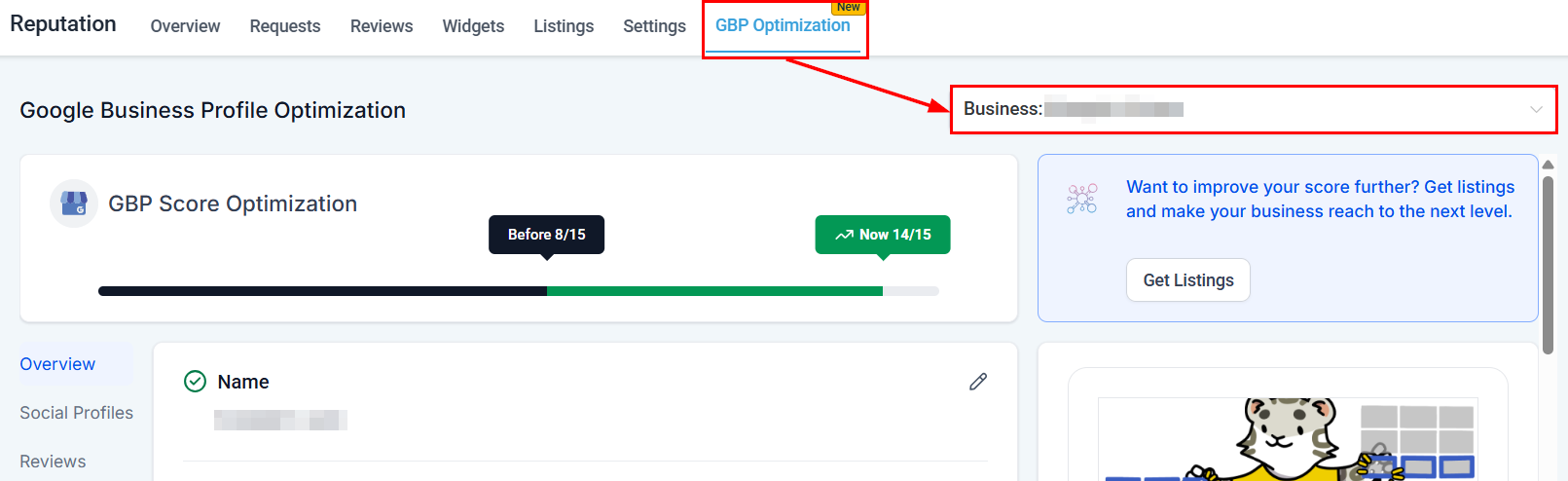
- Reputation > GBP Optimization > Scheduled Posts — click Go to Social Planner to open the planner with GBP pre-selected
2
Create a new post
Click New Post and select your connected Google Business Profile as the destination.
3
Select post type
Choose What’s New, Event, or Offer depending on your content.
4
Add content
Write your post text (up to 1,500 characters for What’s New posts). Add:
- A photo or image (recommended — posts with images attract more engagement)
- A call-to-action button (Book, Order online, Buy, Learn more, Sign up, or Call now)
- For Events: title, start/end date and time
- For Offers: title, coupon code, redemption link, and offer validity dates
5
Schedule or publish
Choose to Publish Now or Schedule the post for a specific date and time. Scheduled posts appear in the Social Planner calendar.
GBP posts visible under Scheduled Posts in GBP Optimization
Viewing and managing GBP posts
From Reputation > GBP Optimization, scroll to the Scheduled Posts section to see all upcoming GBP posts. Published posts appear under Preview > Updates on your live GBP listing preview. From the Scheduled Posts panel you can:- Edit a scheduled post before it publishes
- Reschedule to change the publish date and time
- Delete a post that is no longer needed
GBP post best practices
- Keep text concise — the first 100 characters are shown in the snippet before customers expand the post
- Always include a high-quality image — posts with photos consistently outperform text-only posts
- Use a clear call-to-action button matched to your goal (Book for appointments, Buy for products, Learn more for information)
- For offers, always set an expiry date to create urgency
- Avoid keyword stuffing — write naturally for the customer, not for the algorithm
FAQs
How long do GBP posts stay visible?
How long do GBP posts stay visible?
What’s New and Offer posts expire after 7 days by default. Event posts remain visible until the event end date passes. Google may remove expired posts automatically. For ongoing promotions, recreate or reschedule the post regularly.
Where do GBP posts appear?
Where do GBP posts appear?
Published GBP posts appear on your Google Business Profile listing in Google Search results and on Google Maps, visible to anyone who views your listing.
Can I post to multiple GBP locations at once?
Can I post to multiple GBP locations at once?
When managing multiple locations, select the specific GBP location in the Social Planner or switch locations using the dropdown in Reputation > GBP Optimization before creating a post. Bulk posting to multiple locations simultaneously depends on your Social Planner configuration.
What image size is recommended for GBP posts?
What image size is recommended for GBP posts?
Google recommends images at 720×540px or larger, with a minimum of 250×250px. Use landscape-oriented images for best display. JPEG and PNG formats are supported; file size should be under 10MB.
Do GBP posts affect my GBP profile score?
Do GBP posts affect my GBP profile score?
Yes. Having recent posts is one of the factors that contributes to your GBP profile completeness score shown in Reputation > GBP Optimization. Regularly publishing posts helps raise your score.
Can I schedule GBP posts in advance?
Can I schedule GBP posts in advance?
Yes. Use the Schedule option when creating a post to set a future publish date and time. All scheduled posts appear in the Social Planner calendar for easy management.