

Connecting your Google Business Profile
1
Navigate to Reputation Settings
Go to Reputation > Settings and scroll to the Platform integrations section.
2
Select the Google integration
Click the Google tile to begin the connection process.
3
Sign in with Google
A Google sign-in window will appear. Sign in with the Google account that owns or manages your Google Business Profile. Grant the requested permissions — these allow the platform to read reviews and post responses on your behalf.
4
Select your business location
If your Google account manages multiple GBP locations, select the location you want to connect. You can connect additional locations by repeating this process.
5
Confirm the connection
Once connected, your Google Business Profile name will appear in the integrations list with an active status. Review data will begin syncing immediately.
Google permissions include the ability to read and respond to reviews. HoopAI does not have the ability to delete reviews on your behalf — review removal must be requested through Google’s own reporting tools.
How Google reviews sync
After connection, the platform continuously syncs your Google reviews. New reviews posted to your GBP listing appear in Reputation > Reviews within a short time of being submitted by the customer. Each synced Google review includes:- Reviewer name and Google profile photo (when available)
- Star rating (1–5)
- Review text (if the reviewer wrote a comment)
- Review submission date
- Reply status (whether a response has been posted)
Responding to Google reviews from HoopAI
You can respond to Google reviews directly from Reputation > Reviews without opening Google Business Profile separately.1
Locate the review
In Reputation > Reviews, filter by source (Google) to see only Google reviews. Use the star rating filter to prioritize specific rating ranges.
2
Open the reply field
Click the reply button on the review card.
3
Write or paste your response
Type your response directly, or use a review response template as a starting point. Personalize with the reviewer’s name and a specific detail from their review.
4
Send
Click Send. The response is posted publicly to your Google Business Profile listing immediately.
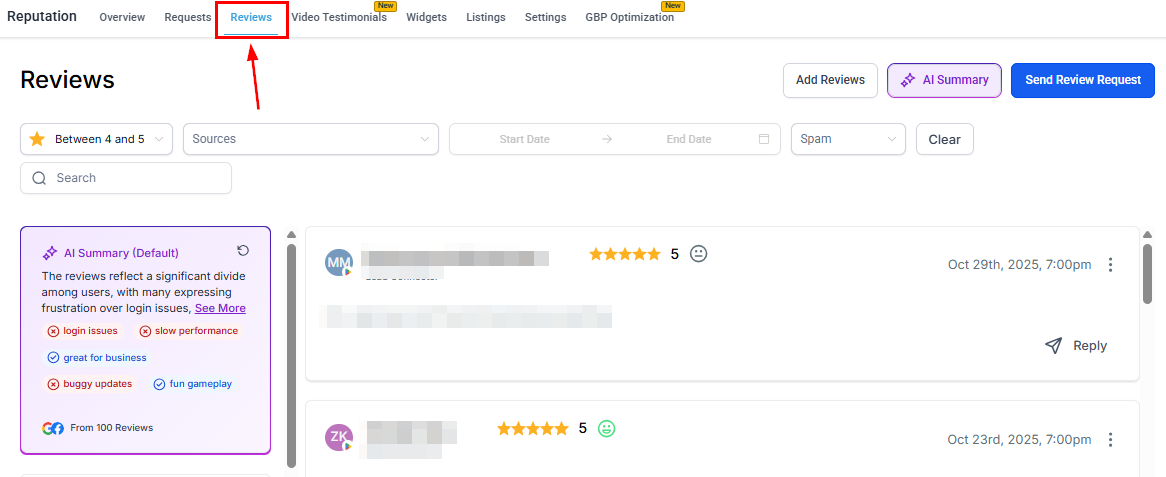
Reviews list showing Google reviews with reply options
Automated responses with the AI agent
The Reviews AI agent can be configured to respond automatically to Google reviews based on star rating. For example:- One agent set to handle 4–5 star Google reviews with a grateful, professional tone
- A separate agent set to handle 1–3 star Google reviews with an empathetic, service-recovery tone
Google Business Profile management
Beyond review management, the HoopAI platform lets you update your GBP listing data, track your profile completeness score, and schedule Google Posts — all from Reputation > GBP Optimization. See the following guides for full details:- GBP optimization — profile data, hours, photos, categories, and profile score
- GBP posts — creating and scheduling What’s New, Event, and Offer posts
Google review request links
When configuring review request messages (SMS, email, or WhatsApp), you select a review destination link. The Google review link directs customers to the “Write a review” dialog for your specific GBP listing. Configure your Google review link under Reputation > Settings > Review link management.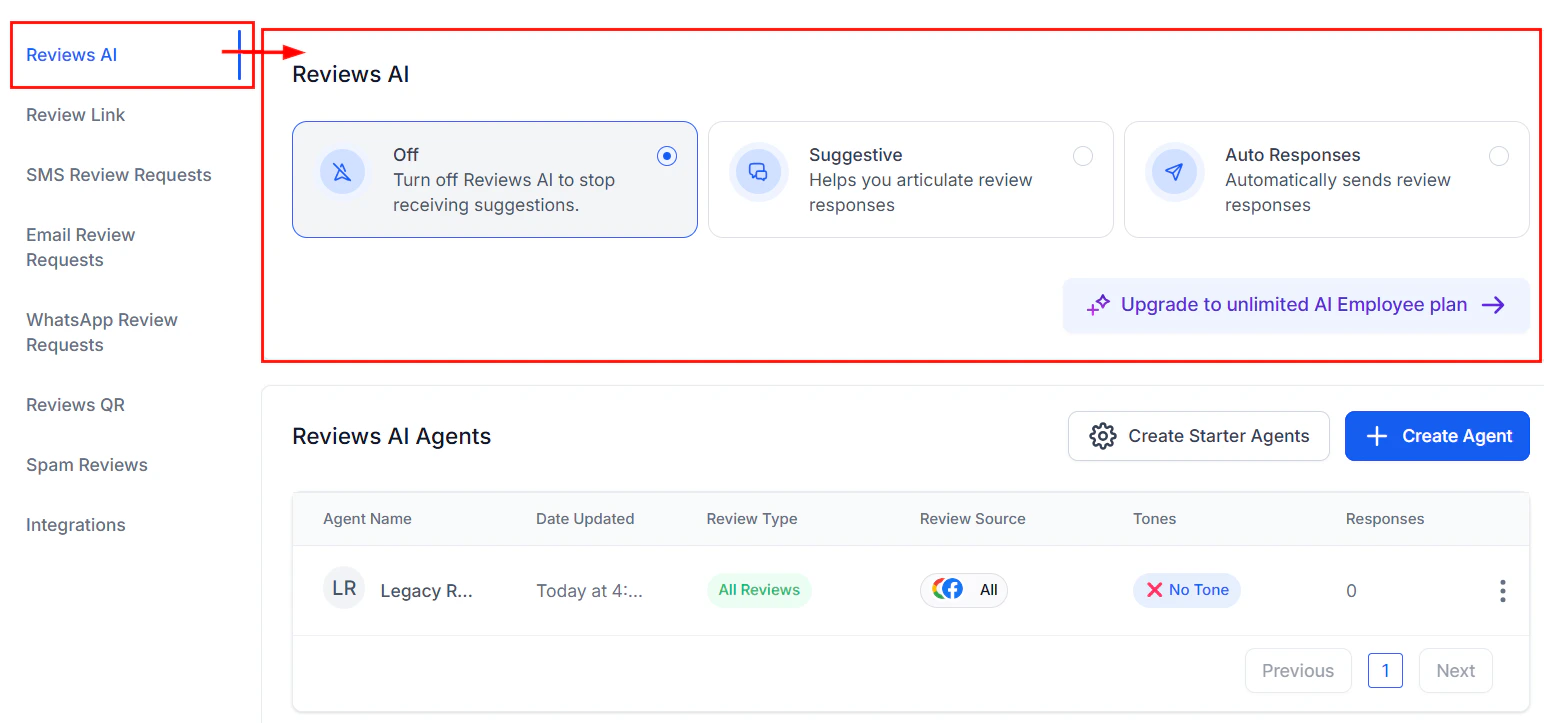
Reputation settings showing review link configuration
Google Business Profile chat
When GBP messaging is enabled on your profile, customers can send direct messages to your business via Google Search and Google Maps. The HoopAI platform routes these incoming messages to your Conversations inbox automatically, so you can reply without switching tools. Enable GBP messaging in Reputation > GBP Optimization by toggling the messaging option within your profile settings.Disconnecting Google
To remove the Google integration:- Go to Reputation > Settings > Platform integrations.
- Click the Google tile and select the option to disconnect.
- Confirm disconnection.
FAQs
Can I connect more than one Google Business Profile location?
Can I connect more than one Google Business Profile location?
Yes. Connect each location separately by repeating the integration process in Reputation > Settings. Once connected, use the location filter in the Reviews tab or the GBP Optimization dropdown to switch between locations.
How quickly do new Google reviews appear in HoopAI?
How quickly do new Google reviews appear in HoopAI?
New Google reviews typically appear in the platform within a few minutes of being posted. Sync timing depends on Google’s API availability, but delays beyond 15–30 minutes are uncommon.
Will my response posted from HoopAI appear on Google?
Will my response posted from HoopAI appear on Google?
Yes. Responses posted from the HoopAI platform are published directly to your Google Business Profile listing and are publicly visible on Google Search and Google Maps.
What happens to existing Google reviews when I connect my GBP?
What happens to existing Google reviews when I connect my GBP?
When you first connect, the platform imports your existing review history — not just future reviews. This gives you a complete historical record inside HoopAI from day one.
Can I dispute or remove a Google review from within HoopAI?
Can I dispute or remove a Google review from within HoopAI?
No. The platform can flag a review as spam within your internal system and prevent automated responses from being posted to it, but the formal Google review dispute process must be completed directly through Google Business Profile. See Negative review handling for the dispute workflow.
Do I need a Google Business Profile to use HoopAI's reputation features?
Do I need a Google Business Profile to use HoopAI's reputation features?
No. You can still collect manually added reviews, send review requests, and use widgets without a connected GBP. However, automatic review syncing, direct response posting, and GBP optimization features all require a connected Google Business Profile.