Build and embed fully branded review widgets on your website to showcase customer feedback from Google and Facebook.
Customizing review widgets is a valuable strategy for leveraging customer feedback to improve your brand’s online image and boost trust. The Review Widget Customization feature lets you tailor your review widgets to match your brand’s style and cater to your audience’s preferences.
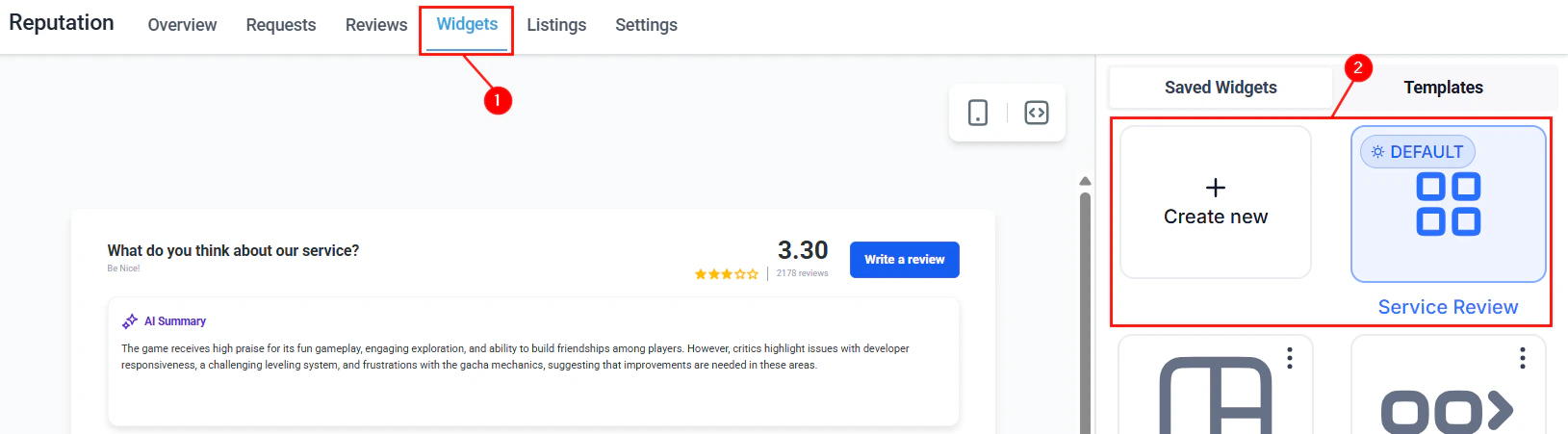
Navigate to Reputation > Widgets, then click Create Widget to start crafting your custom widget. You can also edit an existing widget or select a template from the Templates tab.
The Widgets tab in Reputation — widget list with type and source options
The Layout tab determines the basic structure of your widget.
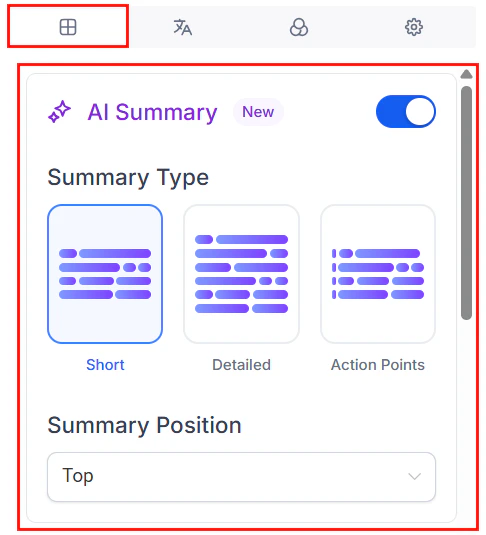
AI summary
Enable the AI summary to display a brief overview of your products or services based on customer reviews. Choose from Short, Detailed, or Action-Oriented formats, and decide whether to display it at the top of the widget or inline with individual reviews.
AI summary widget showing aggregated review insights
Review source
Choose where your reviews come from: Google My Business (GMB) or Facebook (FB).
Widget type
Choose from: List, Masonry, Grid, Carousel, Slider, Flash, or Legacy.
Review widget displaying individual review cards
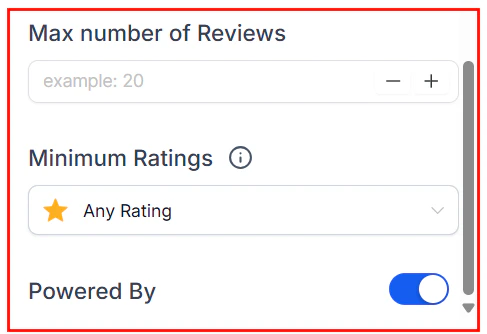
Maximum reviews displayed
Specify the maximum number of reviews to show, and optionally filter by rating.
Do not use review rating filtering if you reside in a jurisdiction where it is prohibited (such as the United States).
Powered by section
Toggle the “Powered by” attribution shown at the end of the widget.
Give your widget a meaningful name for easy identification.
2
Save or publish
Choose to save the widget for future use or make it live on your website immediately.
3
Manage saved widgets
View all saved widgets in the Saved Widgets tab. Use the three-dot actions menu to edit, duplicate, or delete any widget.
Default widgets cannot be deleted. You must first create a new widget and assign it as the default before deleting the original.
Create multiple widgets with different layouts for different pages — for example, a Carousel for your homepage and a Grid for your dedicated reviews page.
Widgets can display reviews from Google My Business (GMB) or Facebook. Select the source in the Layout tab when building your widget. You cannot mix sources in a single widget — create separate widgets for each platform if needed.
Can I filter which reviews appear in the widget by star rating?
Yes. In the Layout tab, set a minimum star rating filter under Maximum reviews displayed. Note that rating filters may be prohibited in some jurisdictions (including the United States) — check your local regulations before enabling this option.
How do I embed a widget on my website?
Go to the Settings tab within the widget builder and copy the embed code. Paste it into the HTML of your website where you want the widget to appear.
Can I have multiple widgets on the same website?
Yes. Create as many widgets as needed and embed each one separately. Use different layouts (Carousel, Grid, List) for different pages to optimize engagement in each context.
Why can't I delete my default widget?
The default widget is protected to ensure your site always has a fallback. Create a new widget, set it as default, and then you can delete the previous default.
Will manually added reviews appear in the widget?
Yes. Reviews added via CSV upload or manual entry appear in your review widgets alongside organic reviews from connected platforms like Google and Facebook.