

Connecting your Google Ads account
Before creating any Google campaigns, you must connect your Google Ads account to the Ad Manager.1
Open Ad Manager settings
Go to Marketing > Ad Manager and click the Settings option in the top-right area of the page.
2
Connect Google
Click Connect Google. You will be redirected to a Google sign-in screen to authorize the HoopAI platform to access your Google Ads account.
3
Grant all required permissions
When prompted, ensure all requested permissions are accepted. Partial permissions will limit the platform’s ability to create campaigns, read performance data, or manage ad settings.
4
Select your Google Ads account
After authorizing, select the Google Ads account (customer account) you want to manage. The Ad Manager supports one connected Google Ads account per account.
5
Confirm the connection
Once connected, your Google Ads account name appears in the Ad Manager settings. You are now ready to create campaigns.
You must have a Google Ads account with billing configured before connecting. If you do not have an account, create one at ads.google.com. The Ad Manager does not create a new Google Ads account — it connects to an existing one.
Campaign types
The Ad Manager supports two Google Ads campaign types.Google Search Ads
Text-based ads that appear in Google Search results when users search for keywords relevant to your business. Ideal for capturing intent-driven traffic from people actively searching for your products or services.
Google Demand Gen Ads
Visual ads distributed across Gmail, YouTube, Google Discover, and the Google Display Network. Ideal for top-of-funnel awareness campaigns reaching new audiences with image and video creatives.
Creating a Google Search campaign
1
Start a new campaign
In the Ad Manager, click Create Campaign and select Google Search Ad Campaign.
2
Name your campaign
Enter a descriptive campaign name that makes it easy to identify in your campaign list and in reporting.
3
Set your budget and schedule
Configure:
- Daily budget — the maximum you want to spend per day across all ad groups in the campaign
- Start date — when the campaign should begin serving ads
- End date (optional) — leave blank to run indefinitely, or set an end date for time-limited promotions
- Bidding strategy — choose from manual CPC or automated bidding options based on your optimization goal
4
Configure audience targeting
Set demographic targeting:
- Location — target by country, region, city, or radius around a specific address
- Language — target users whose Google interface is set to specific languages
- Gender — male, female, or unknown
- Age range — 18–24, 25–34, 35–44, 45–54, 55–64, 65+, or unknown
5
Add ad groups and keywords
Organize your campaign into ad groups — up to 10 ad groups per campaign. For each ad group:
- Add up to 40 positive keywords (terms that should trigger your ads)
- Add up to 40 negative keywords (terms that should not trigger your ads)
- Use keyword match types: broad match, phrase match, or exact match
6
Write your ad creative
For each ad group, create up to 3 ads for A/B testing. Each ad includes:
- Up to 3 headlines (30 characters each)
- Up to 2 descriptions (90 characters each)
- A final destination URL
7
Review and publish
Review all campaign settings, ad groups, keywords, and creatives. Click Publish to submit the campaign to Google for review. Google typically approves or rejects ads within 1 business day.
Creating a Google Demand Gen campaign
Demand Gen campaigns use visual creatives to reach users across Google’s properties. The setup follows the same general steps as a Search campaign, with these key differences:- Creative format — upload images (landscape, square, and portrait), logos, and videos instead of writing text-only headlines
- Audience targeting — target using Google Audience Segments (interest categories, demographics, in-market audiences) configured in the Ad Manager > Audiences tab
- Placement — ads appear across Gmail inboxes, YouTube feeds, and Google Discover rather than in search results
Google Ads audience segments
Build custom audience segments for Google campaign targeting in the Ad Manager > Settings > Audiences tab. Click + Create New Audience, select Audience Segment for Google Ads, and define the segment based on CRM data, website visitor behavior, or Google’s built-in audience categories. Segments created here are available for selection in the targeting step when creating any Google campaign.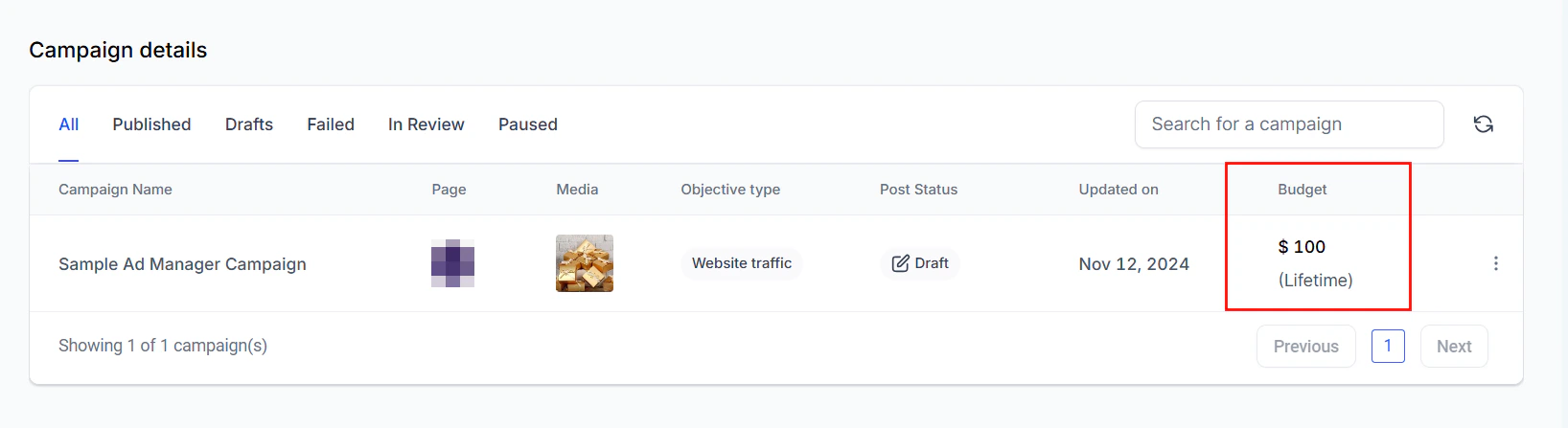
Campaign budget and scheduling configuration in the Ad Manager
Tracking conversions
For accurate conversion tracking — so Google can optimize bids toward actions that matter — configure conversion events:- Go to Settings > Integrations and locate the Google Ads integration
- Set up conversion goals (form submissions, purchases, phone calls, or custom events)
- The platform sends conversion data back to Google using the connected account, enabling Google’s Smart Bidding algorithms to optimize for real outcomes
Frequently asked questions
How many Google Ads accounts can I connect?
How many Google Ads accounts can I connect?
The Ad Manager supports one Google Ads account per account. If you manage multiple clients, each client should have their own account in the HoopAI platform so their Google Ads can be connected separately.
Can I manage existing Google campaigns from the Ad Manager?
Can I manage existing Google campaigns from the Ad Manager?
The Ad Manager is primarily designed for creating and monitoring campaigns. For complex edits to existing campaigns — such as bid adjustments, extensive keyword changes, or audience list modifications — use the Google Ads interface directly. Performance data from all campaigns (including those created outside the Ad Manager) is visible in the Statistics tab.
What is the difference between Search and Demand Gen campaigns?
What is the difference between Search and Demand Gen campaigns?
Search campaigns show text ads to users who are actively searching for your keywords — they capture existing demand. Demand Gen campaigns show visual ads to users who are not searching for your product — they create new demand by reaching people based on interests, demographics, and behavior. Both approaches have value in a complete marketing strategy.
Why are my ads not showing after I published the campaign?
Why are my ads not showing after I published the campaign?
Newly published campaigns go through a Google review process that typically takes up to 1 business day. During this time the campaign status will show as “In Review.” Additionally, check that your billing is active in your Google Ads account and that your daily budget is set high enough to compete in your target market.
Offline conversions
Send offline conversion data (phone calls, in-person sales) back to Google to improve campaign optimization:1
Configure offline conversion tracking
In Settings > Integrations > Google Ads, enable offline conversion tracking.
2
Map conversion events
Define which CRM events count as conversions:
- Opportunity moved to “Won” stage
- Invoice paid
- Appointment completed
- Custom status change
3
Automatic sync
The platform sends matched conversion data back to Google Ads, attributing offline actions to the original ad click.
Multiple ad groups
Organize your Google Search campaign into multiple ad groups for better targeting and relevance:- Create up to 10 ad groups per campaign
- Each ad group has its own set of keywords and ads
- Group keywords by theme or intent (e.g., “emergency plumbing” vs. “plumbing installation”)
- Write ad copy specific to each keyword group for higher Quality Scores
- Use negative keywords at the ad group level to prevent overlap between groups
Audience segments
Build custom audience segments for Google campaign targeting:- Go to Ad Manager > Settings > Audiences and click + Create New Audience
- Select Audience Segment for Google Ads
- Define the segment based on:
- CRM data — contacts matching specific tags, custom fields, or pipeline stages
- Website visitors — people who visited specific pages (requires Google tag)
- Google’s built-in audiences — in-market audiences, affinity audiences, and detailed demographics
- Apply the segment during campaign creation in the targeting step
Additional assets at campaign level
Enhance your Google Search ads with additional assets (formerly extensions):
Add assets during campaign creation or edit them after publishing. Assets improve ad quality and click-through rate by providing more information and click targets.