Manage customer reviews, review requests, listings, and your Google Business Profile from within the HoopAI Platform marketing workflow.
Reputation management is an integral part of your marketing strategy. The HoopAI Platform brings reviews, listings, and reputation tools directly into your workflow so you can build social proof and respond to customer feedback without switching between tools.
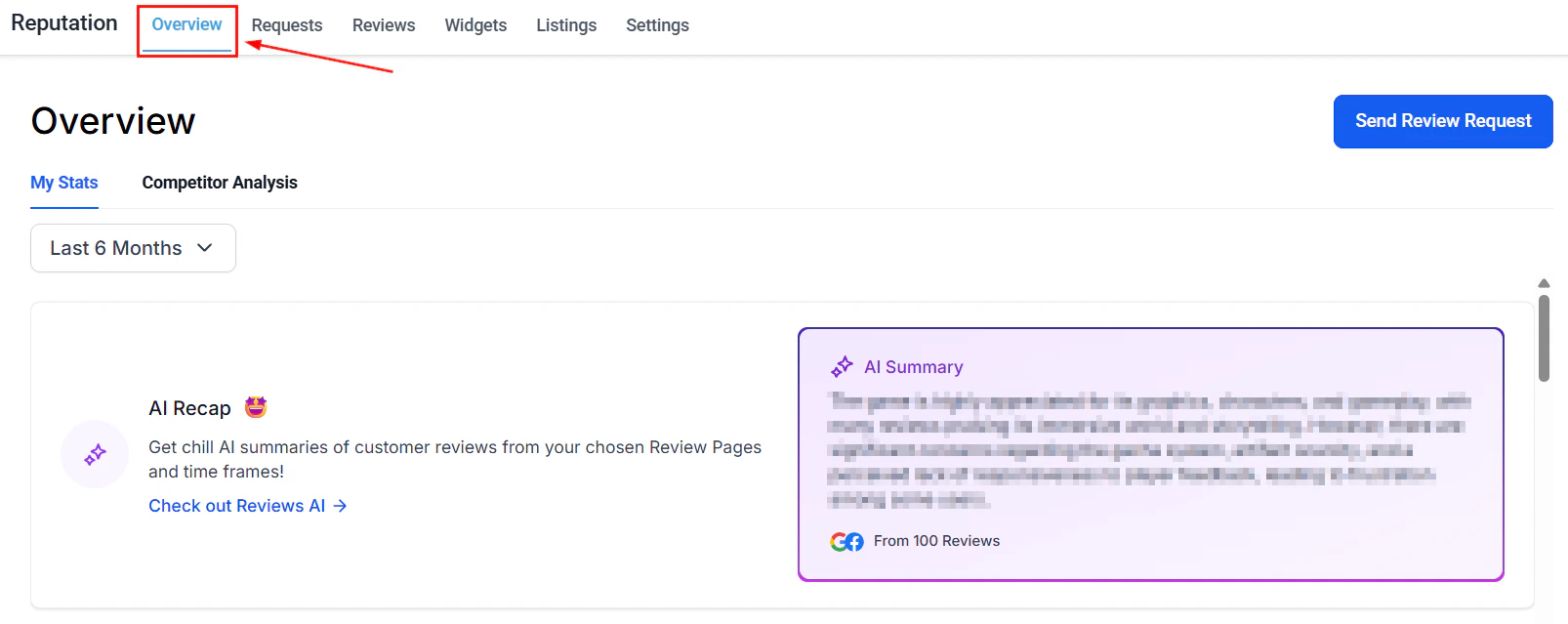
Reputation overview — review stats, invite trends, and rating breakdown across all platforms
For detailed documentation on all reputation features, see the Reputation section.
You can trigger review requests directly from automations and workflows. For example, automatically send a review request SMS or email a set number of days after a service appointment is completed.This integrates with:
Automation workflows — add a “Send Review Request” action to any workflow
Pipelines — trigger a review request when an opportunity moves to “Won”
Calendars — send review requests after appointments are completed
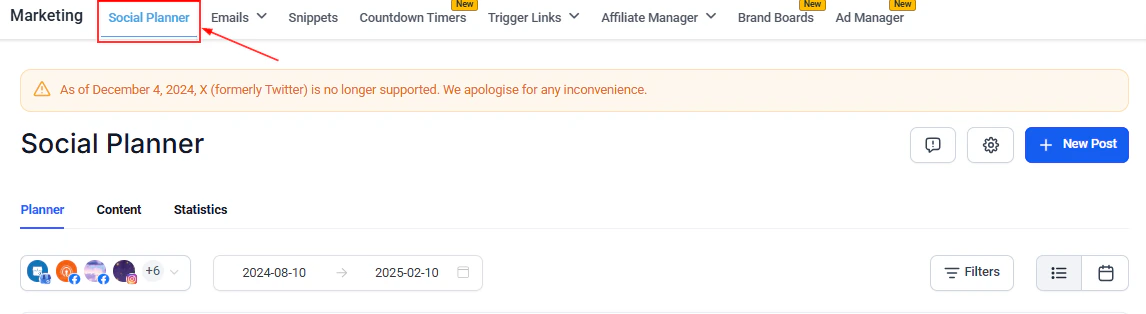
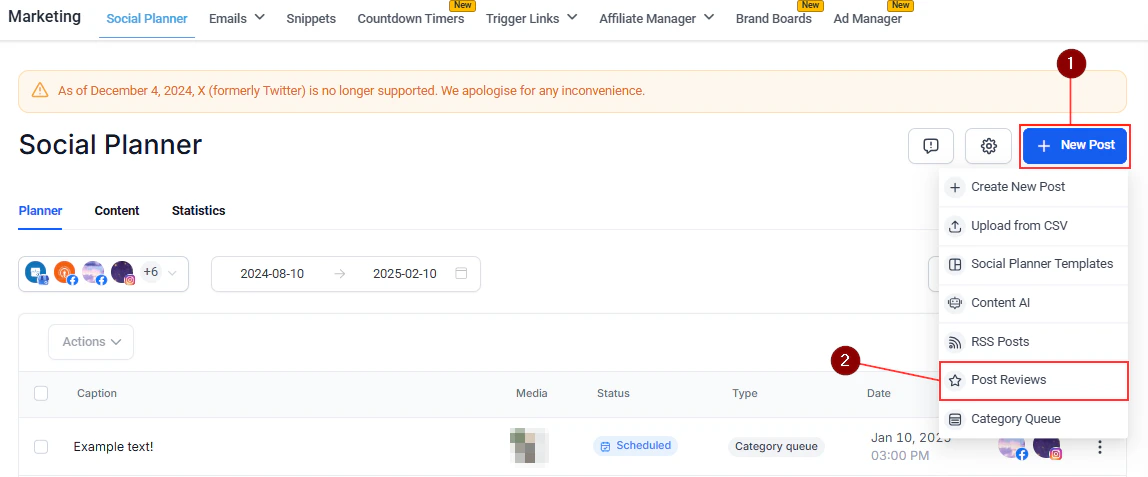
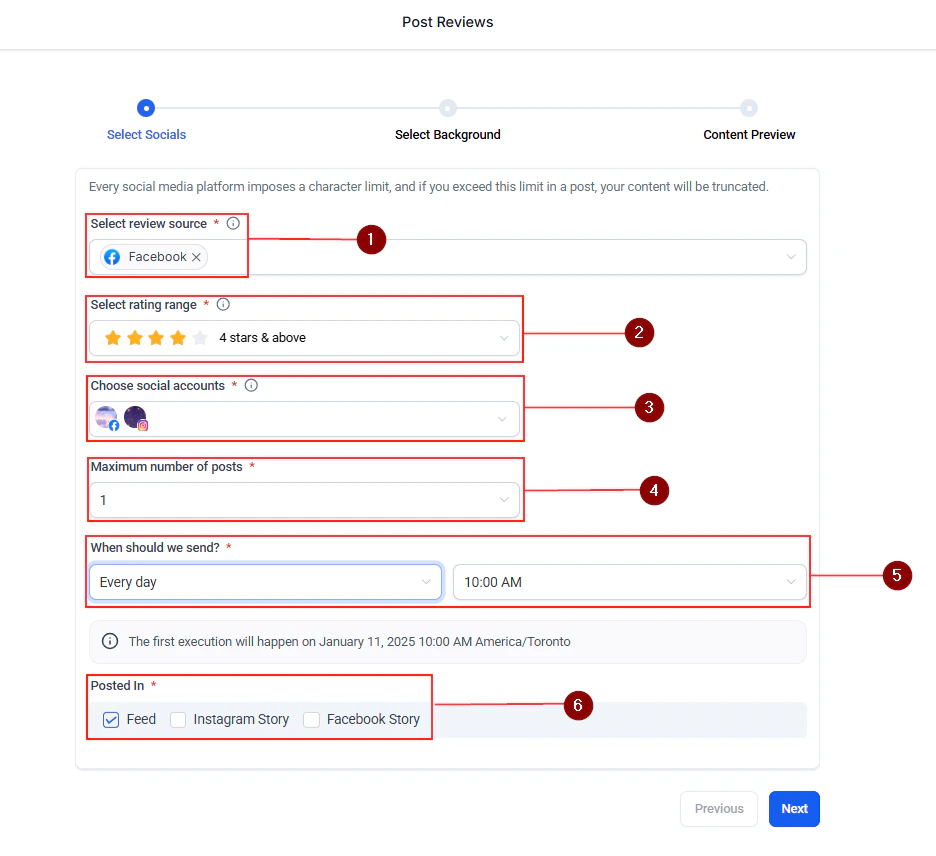
Share positive reviews directly to your connected social platforms from the Reputation section. This lets you turn your best reviews into social proof content quickly.
1
Go to reviews
Navigate to Reputation > Reviews.
Reviews list — browse all reviews with rating, date, and sharing options
2
Find a review to share
Browse your reviews and find one you want to share.
3
Share to social
Click the share icon and select which connected social accounts to post to. The platform generates a post with the review text and rating.
Sharing a review to social media — select platforms and preview the generated post
Review post preview — the platform generates a branded social post from your review content
If you manage multiple Facebook Pages (for example, for different locations or clients), you can connect them all and view their reviews in a unified dashboard.Navigate to Reputation > Settings to add additional Facebook Pages.
New to reputation management? The Review Setup Wizard walks you through connecting your review platforms, configuring your review request templates, and setting up your first review link — step by step.Navigate to Reputation > Settings > Setup Wizard to get started.
Add WhatsApp or text message as a contact method on your Google Business Profile. When customers tap the contact button on Google, they can message you directly.Configure this in Reputation > GBP Optimization > Overview.
Combining review requests, social sharing, and GBP optimization creates a compounding effect — more reviews lead to higher local search rankings, which drives more customers, which generates more reviews.
How do I automatically send review requests after a service?
Add a Send Review Request action to any automation workflow. For example, create a workflow that triggers when an appointment is marked as completed and sends a review request email or SMS a set number of days later. You can also trigger review requests when an opportunity moves to a Won stage in your pipeline.
Which review platforms can I connect?
The platform integrates with Google Business Profile, Facebook, Yelp, TrustPilot, TripAdvisor, Airbnb, Amazon, and more. Configure connections in Reputation > Settings > Integrations.
Can I manage reviews for multiple locations?
Yes. Connect multiple Google Business Profile locations and Facebook Pages in the Reputation settings. Reviews from all locations appear in a unified dashboard so you can respond without switching between platforms.
How do I share a review to social media?
Navigate to Reputation > Reviews, find the review you want to share, and click the share icon. Select which connected social accounts to post to. The platform generates a branded post with the review text and star rating.
What is the Review Setup Wizard?
The Review Setup Wizard is a guided walkthrough that helps you connect your review platforms, configure review request templates, and set up your first review link — step by step. Find it at Reputation > Settings > Setup Wizard.
Can customers message me directly from my Google Business Profile?
Yes. Add WhatsApp or text message as a contact method on your GBP through Reputation > GBP Optimization > Overview. When customers tap the contact button on Google Search or Maps, they can message you directly.