Build reusable email templates with the drag-and-drop builder — add elements, customize layouts, apply branding, and access the template library.
Email Templates are reusable layouts that serve as the foundation for your campaigns. Create custom templates aligned with your brand, incorporating images, videos, logos, and recurring content for use across multiple campaigns.Navigate to Marketing > Emails > Templates to access the Templates section.
Email Templates — the template library and builder in Marketing
The drag-and-drop email builder provides a comprehensive set of content elements.
The email builder with drag-and-drop elements — text, images, buttons, and more
Text element
Add headings and body text to your email. After dragging the element into the builder, format text using the toolbar: fonts, size, alignment, bold, italic, color, and heading types. Add text snippets by clicking the dog-eared paper icon. Adjust padding and background color from the left sidebar settings.
Image element
Drag and drop the image element to add visuals. Click the pencil icon to upload from your media library or create an AI-generated image. Set alt text, a redirect link, width and height, background color, alignment, and padding. Use the Visible In setting to show the image on Desktop, Mobile, or Both.
Button element (CTA)
Add a call-to-action button to drive clicks and conversions. Customize button text, font, size, alignment, full-width toggle, background color, border, border radius, and padding. Set the button action to URL, email, file, phone, or other.
Video element
Embed a video thumbnail with a play button that links to your hosted video. Supports YouTube (including Shorts), Vimeo, and other hosts. Customize the thumbnail, size, opacity, padding, and visibility by device. Use custom values for dynamic video URLs.
Configuring the Video element in the email builder
Social element
Add social media icons linked to your profiles. Click Add to add platforms, edit links, choose icons, and adjust padding. Supports all major platforms.
Logo element
Upload your company logo (JPG, PNG, or GIF). Set a redirect link, alt text, and dynamic URL using custom values. Use the pencil icon to replace and the trash icon to delete.
Footer element
Divider element
Add horizontal dividers to separate content sections. Customize height, width, alignment, line type (solid, dashed, dotted), color, and padding.
Spacer element
Add vertical spacing between elements without visual content. Set height and background color. Adapts responsively across Desktop and Mobile views.
Code element
For advanced users — drag in an HTML code block and write custom HTML in the built-in code editor. Useful for custom designs beyond the standard builder capabilities.
RSS header and RSS items elements
Use these elements to pull in dynamic content from an RSS feed, automatically populating email content with your latest blog posts or news updates.
Shopping cart element
Embed a product shopping cart element inside your email to showcase products and facilitate purchases directly from the email.
Image slider
Add a multi-image slider to display a gallery of images or product photos in a compact, interactive format.
Preview URL element
Add a browser link at the top of the email (“View in browser”) for recipients whose email clients block images or styling.
Template library — browse system templates and filter by category or type
The Email Template Library provides access to dozens of professionally designed, customizable templates.
1
Open the library
Navigate to Marketing > Emails > Templates, click +New, and select Email Marketing Templates.
2
Browse and filter
Browse by category or filter using:
All Templates — all available templates
My Templates — templates you have created or uploaded
Shared With Me — templates others have shared with you
System Templates — default templates available to everyone
Favourites — templates you have starred
3
Sort and select
Sort by name, date, or relevance. Hover over any template and click the heart icon to add it to your Favourites. Click to select and open it in the builder.
Email Template Library — browse and filter professionally designed system templates
Save elements for reuse
Save any individual element (button, text block, banner) to reuse it across multiple templates. Use the Save Elements feature to build a library of reusable components.
Conditional elements
Show or hide specific elements based on a contact’s custom field values. Use conditional elements to create personalized email experiences from a single template.
AI writing assistance
Use the Email AI tool to generate or refine email copy directly within the builder. Access it from the text element’s toolbar.
Custom field previews
Preview how custom field values (first name, company, etc.) will render in your email before sending using the Preview Custom Fields feature.
GIF support
Add GIFs to your emails by uploading them to the media library and using the Image element. GIFs animate in most email clients that support HTML.
Adding a GIF via the Image element in the email builder
Google Fonts
Use Google Fonts in your email templates by selecting them from the font picker in the Appearance tab or text element settings.
Plain text editor
Switch to the Plain Text Editor to create a simple, unformatted text-only version of your email — useful for transactional or personal-style emails.
Import from Mailchimp or ActiveCampaign
Import existing email templates from Mailchimp or ActiveCampaign into the builder to migrate your email designs without starting from scratch.
Mobile formatting
Preview your email in Mobile view and hide specific elements on mobile to optimize the reading experience for smartphone users.
Can I import templates from Mailchimp or ActiveCampaign?
Yes. The email builder supports importing HTML templates from Mailchimp, ActiveCampaign, and other platforms. Use the Import Email option when creating a new template.
How do conditional elements work?
Conditional elements let you show or hide specific blocks of content based on a contact’s custom field values. For example, you could show a different header image to contacts in different cities — all from a single template.
What is the difference between the Design Editor and the Code Editor?
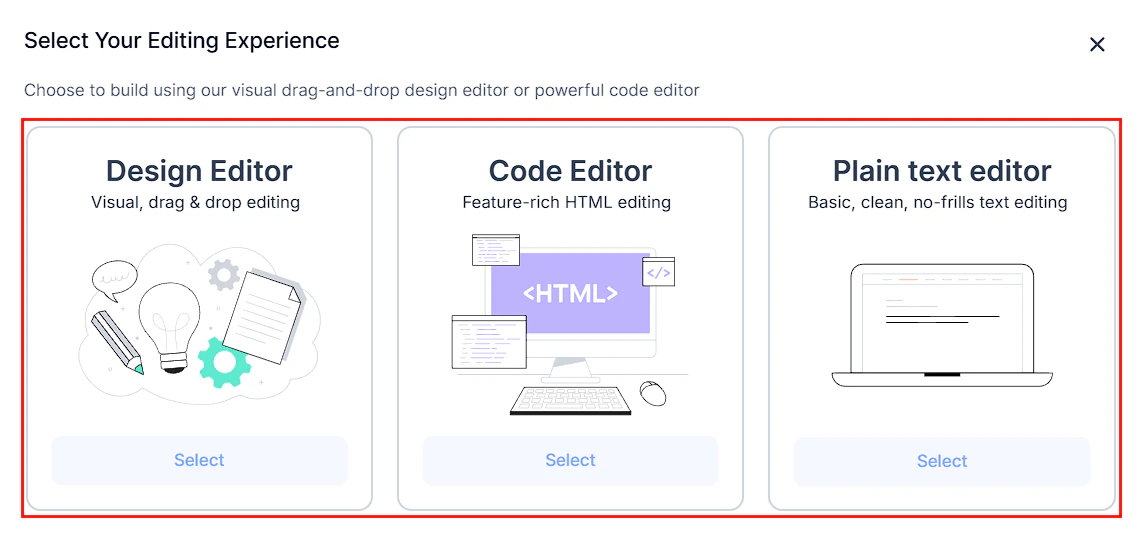
The Design Editor is the visual drag-and-drop interface. The Code Editor lets you write raw HTML for fully custom email layouts. You can start from a blank template in either mode.
Can I save individual elements to reuse across templates?
Yes. Use the Save Elements feature to save any element (button, text block, banner image) and insert it into other templates. This is useful for maintaining consistent CTAs or header designs.
How do I use custom fields in a template?
Insert custom field merge tags (such as {{contact.first_name}}) in text or subject lines. Use Preview Custom Fields to see how actual contact data will render before sending.
Do GIFs work in email templates?
Yes. Upload a GIF to the media library and insert it using the Image element. GIFs animate in most email clients that support HTML. Note that Apple Mail on iOS 15+ may show only the first frame due to GIF caching behavior.
Can I set default fonts and colors for all templates?
Yes. Use the Appearance tab in the email builder to set global defaults for fonts, button styles, link colors, and background colors. These apply to all content within that template.
You can import any HTML email template into the email builder:
1
Start a new template
Go to Marketing > Emails > Templates and click + New.
2
Select Import Email
Choose Import Email from the template creation options.
3
Paste your HTML
Paste your HTML code into the code editor. The builder will render it as a visual template that you can further edit with the drag-and-drop tools.
4
Review and adjust
Check the preview in both Desktop and Mobile views. Adjust any elements that did not import cleanly.
Complex HTML templates with heavy CSS may not convert perfectly. The builder works best with table-based email HTML (the standard for email compatibility). CSS grid and flexbox layouts may need manual adjustment.
Export the HTML — open the template in the code editor and copy the full HTML
Import in the target account — create a new template via Import Email and paste the HTML
Update merge tags and links — ensure all custom field references and tracking links are correct for the new account
Re-upload images — images referenced by URL from the original account’s media library may need to be re-uploaded to the new account’s media library
Maintain a master template library and import templates into additional accounts as needed. This ensures brand consistency while allowing per-account customization.