Schedule and publish posts across all major social platforms from a single calendar — with AI content, bulk scheduling, recurring posts, and social listening.
The Social Planner is your central hub for managing all social media activity. Create, preview, and schedule posts to Facebook, Instagram, LinkedIn, TikTok, YouTube, Pinterest, Google My Business, and more — all without leaving the HoopAI Platform.
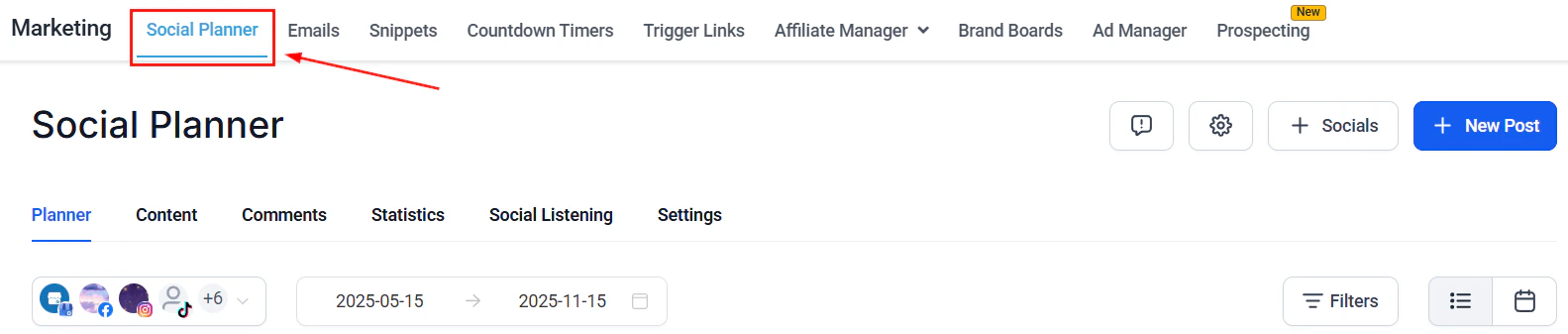
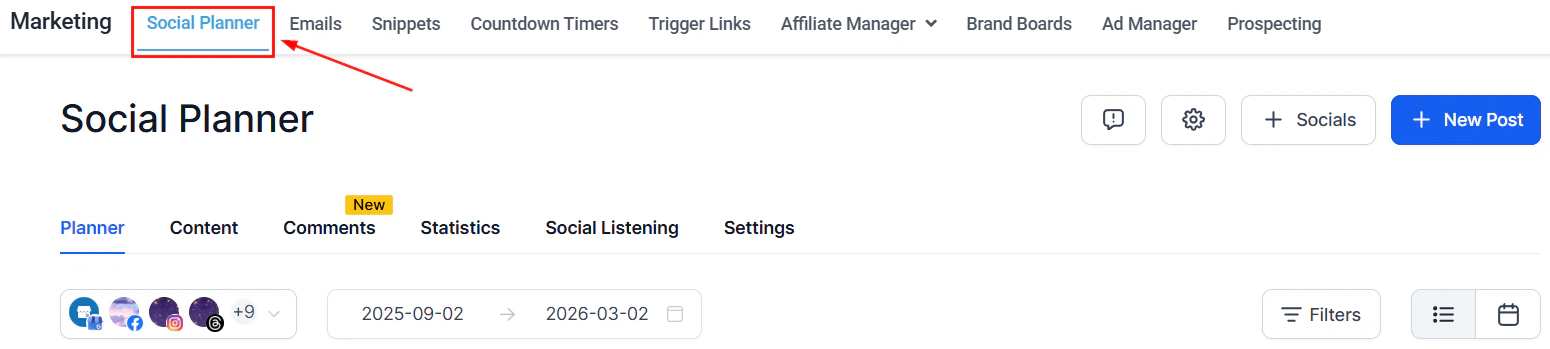
The Social Planner calendar view showing scheduled posts across connected platforms
To use the Social Planner, first connect your social accounts. Navigate to Marketing > Social Planner and follow the integration guides for each platform.Supported platforms:
Facebook Pages and Groups
Instagram (Business or Creator accounts)
LinkedIn
TikTok
YouTube
Pinterest
Google My Business
WhatsApp (ad creation)
Connect multiple accounts for the same platform to manage all your brands or locations from one place.
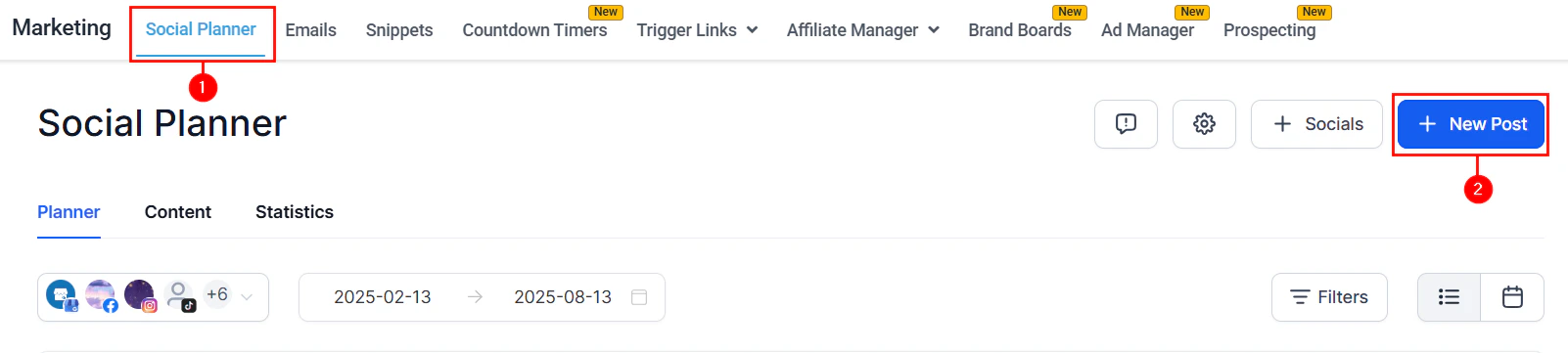
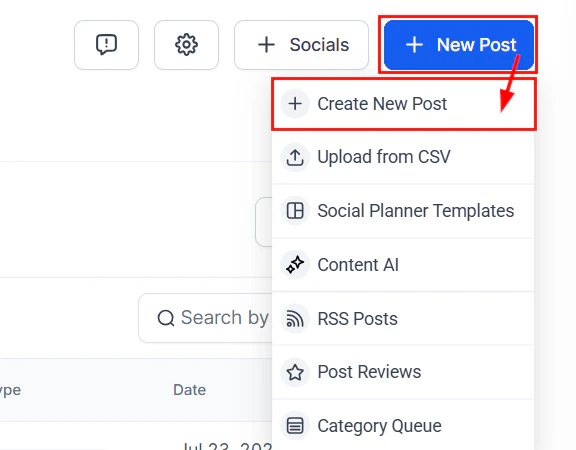
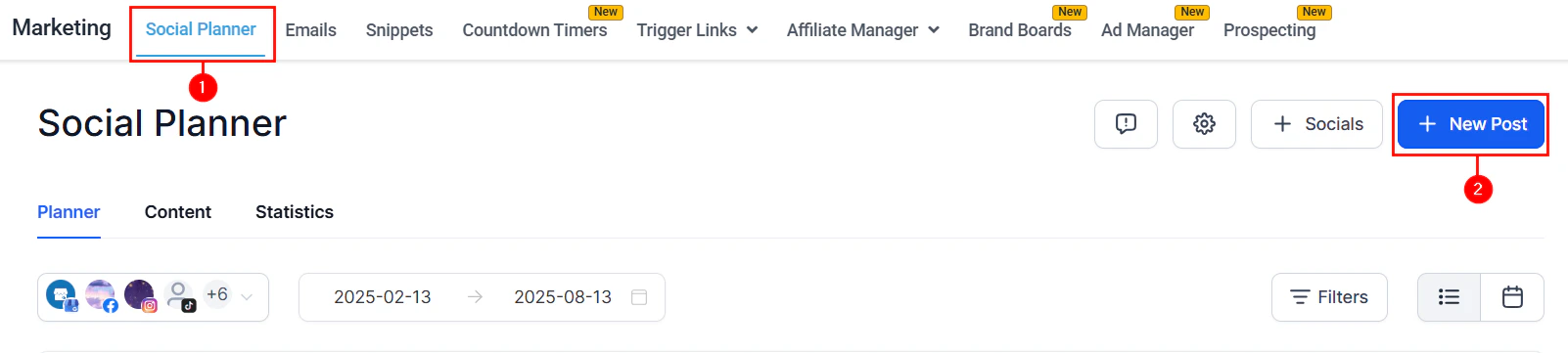
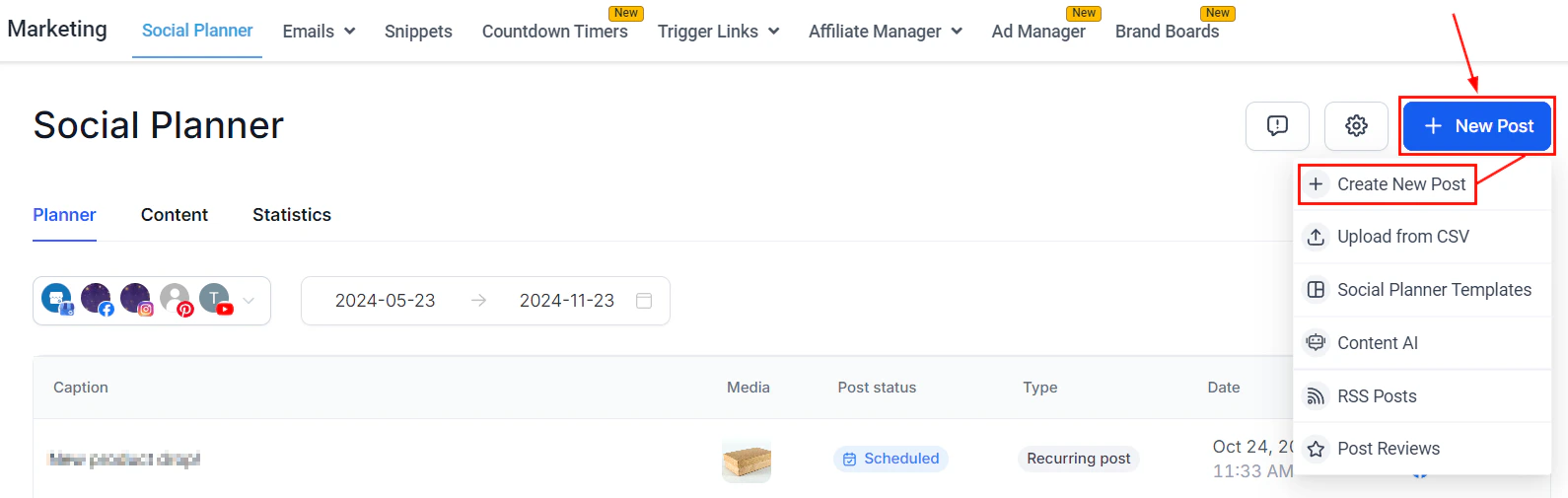
Go to Marketing > Social Planner and click New Post > Create New Post.
2
Select your posting accounts
Choose one or more social media accounts from the account selector. You can post to multiple platforms simultaneously.
Selecting accounts and platforms when creating a new post
3
Craft your content
Write your post content in the composer. Use Edit with Ask AI to refine content with natural language instructions — rewrite, simplify, expand, or adjust tone while keeping your brand voice.
4
Add hashtags
Create and save groups of up to 30 hashtags for reuse. Select from your saved hashtag groups and optionally randomize them to keep posts varied.
5
Add media
Attach images or videos. You can include both in a single post for simultaneous scheduling across Instagram, YouTube, and TikTok.
6
Preview your post
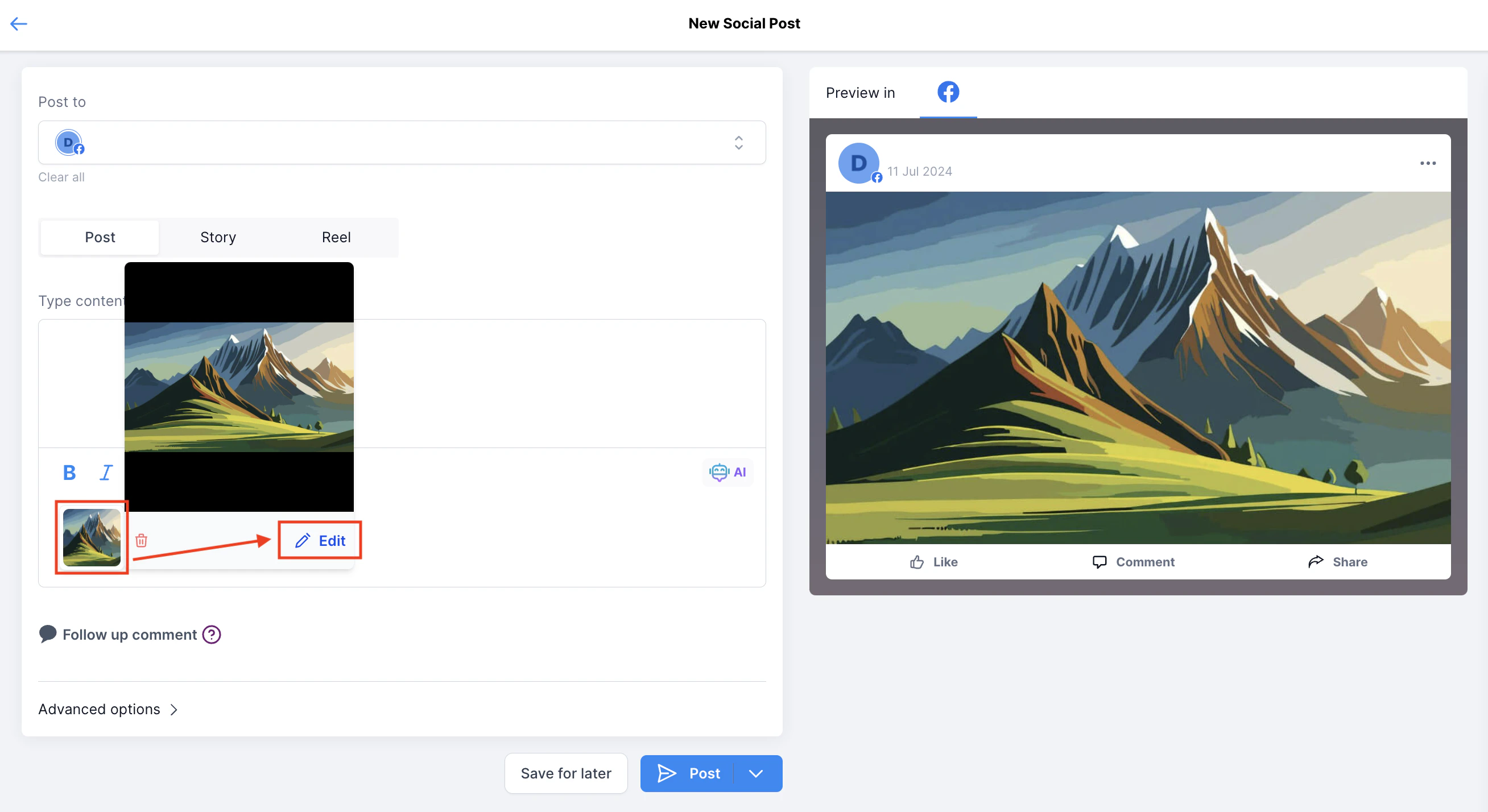
The right-hand panel shows a live preview of how your post will appear. Toggle between platform previews if posting to multiple platforms.
Post composer with live platform preview
7
Schedule or post
Click Post and choose from:
Post Now — publish immediately
Schedule Post — choose a date and time (the platform suggests best times based on audience engagement)
Send Post For Approval — route the post through your approval workflow
Schedule Recurring Posts — set up a recurring posting schedule
Organize posts into categories (e.g., “Educational”, “Promotional”, “Client Stories”) and assign each category a posting schedule. The queue automatically selects and publishes the next post in each category on schedule.
Route posts through an approval process before they go live. Team members can submit posts for review, and approvers receive a notification to accept or reject them.
Post to Pages and Groups. Use the image editor for formatting and add watermarks. Supports Reels, Stories, and standard posts.
Instagram
Connect via Facebook-linked integration or direct Instagram integration. Supports feed posts, Reels, and Stories (via push notification for mobile). Schedule Reels directly from the planner.
LinkedIn
Connect individual or company profiles. Share PDFs as images in LinkedIn Carousel posts. Clear link preview cache if needed.
TikTok
Connect and schedule TikTok videos directly from the Social Planner.
YouTube
Connect your YouTube account and schedule video uploads.
Pinterest
Connect multiple Pinterest accounts and schedule pins.
Google My Business
Schedule GBP posts including updates, offers, and events. Published posts appear in your GBP Optimization panel.
If a post fails to publish, the Social Planner shows a color-coded error message. Click the error to scroll directly to the issue for quick correction. Common causes include expired account connections, media format issues, or platform-specific restrictions.
Email notifications for expired accounts
Set up email notifications to be alerted when a connected social account’s token expires so you can reconnect before scheduled posts fail.
Facebook domain verification
Verify your domain with Facebook to enable link previews and certain ad features. Follow the Facebook Domain Verification guide in the Social Planner help articles.
Always check the latest platform guidelines, as size limits and format requirements may change. The Social Planner will display a warning if your media does not meet the current requirements for a selected platform.
Can I post to multiple platforms at the same time?
Yes. When creating a post, select multiple social accounts from the account selector. The post will be scheduled or published to all selected platforms simultaneously. Use the platform preview panel to see how the post will look on each platform before sending.
What is the best time to post feature?
When scheduling a post, the Social Planner suggests optimal posting times based on historical audience engagement patterns for your connected accounts. These suggestions help maximize reach and engagement, but you can override them with any date and time you choose.
How does bulk scheduling via CSV work?
Upload a CSV or XLSX file with your post content, dates, and platform options to schedule up to 90 posts at once. Download the sample file from the Social Planner to see the required format. Advanced format supports Stories, Reels, watermarks, and platform-specific settings.
What are category queues?
Category queues let you organize posts into themed buckets (like “Educational” or “Promotional”) and assign a posting schedule to each category. The queue automatically selects and publishes the next post in each category on schedule, keeping your profiles active without constant manual effort.
Do social account tokens expire?
Yes. Social media platforms periodically expire access tokens for security. Enable email notifications in Social Planner settings to be alerted when a reconnection is needed before any scheduled posts fail.
Can I edit a post after it has been scheduled?
Yes. Find the scheduled post in the List or Calendar view, click the three-dot menu, and select Edit. For recurring posts, you can choose to edit only one instance or all future instances in the series.
What is the post approval workflow?
The approval workflow routes posts through a review process before publishing. When creating a post, check the Submit for Approval option and select a reviewer. The reviewer receives a notification and can approve (schedules the post) or reject it (returns for edits). This is ideal for teams that require review and sign-off before publishing.