

Ways to avoid the spam folder
Send from a custom domain
Using free domains likegmail.com or yahoo.com to send emails dramatically increases the chance of landing in spam. Always send from a custom domain that aligns with your brand.
Set up a branded domain
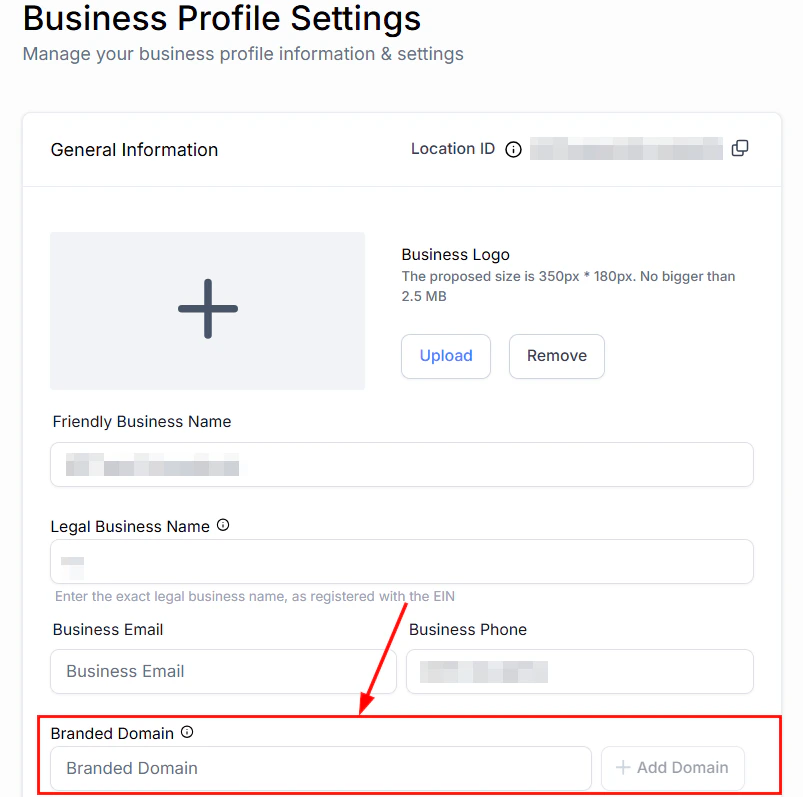
Branded Domain setting in Business Profile
Add a dedicated sending domain
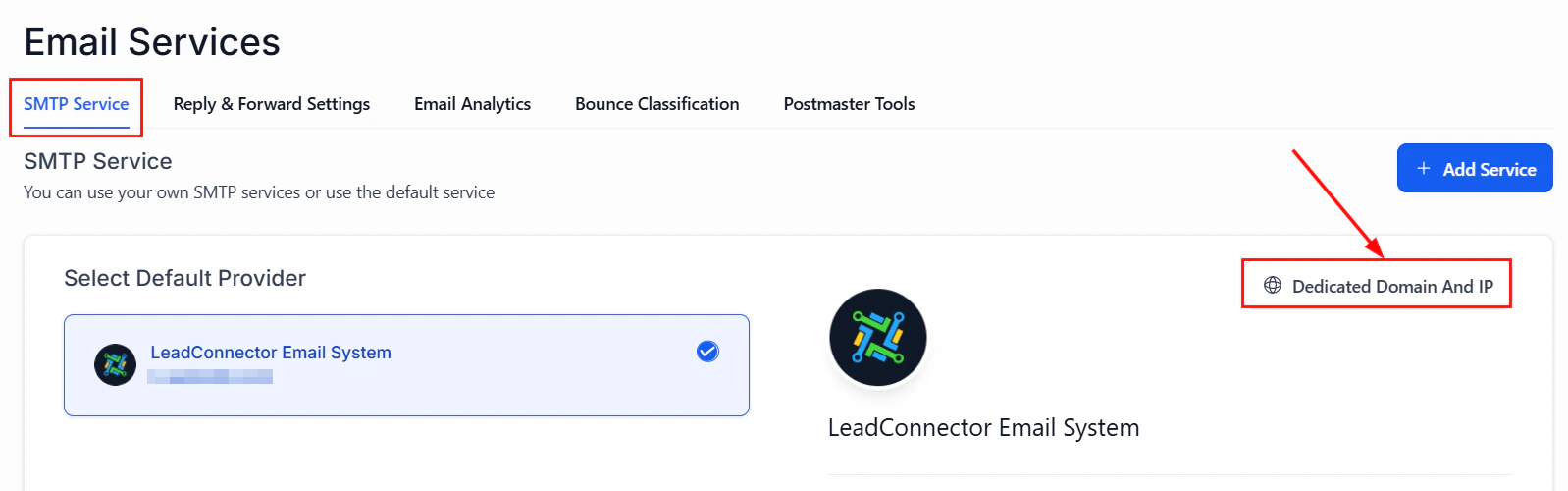
Dedicated domain configuration in Email Services
DMARC compliance
If the domain you use to send email has a DMARC policy, but you have not verified the domain with your SMTP provider, messages will likely go to spam. Verify your domain with your SMTP provider to ensure emails pass DMARC.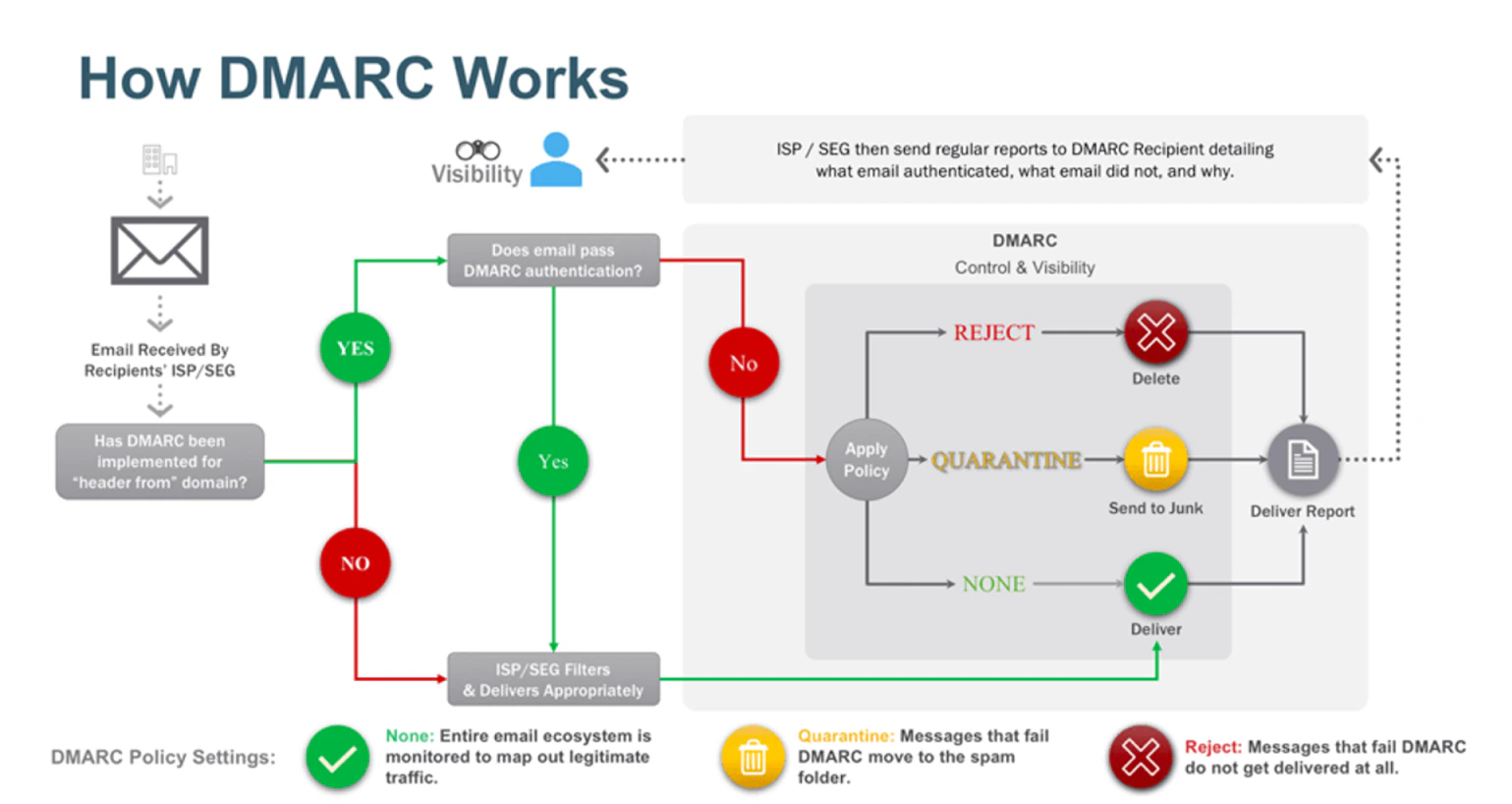
DMARC policy configuration
Internal mail routing
If you send messages within the same domain from which they originate, your mailbox may treat them as spoofed and route them to spam. To avoid this:- Use a different email address (e.g., a Gmail account) to test your campaigns
- Or have your domain administrator whitelist the IP address of your SMTP provider for internal mail
List health and collection
Ensure explicit consent
Ensure explicit consent
Implement double opt-in
Implement double opt-in
Clean your list regularly
Clean your list regularly
Maintain sending consistency
Maintain sending consistency
Setting up unsubscribe links
Unsubscribe links are legally required in most jurisdictions under laws such as CAN-SPAM and GDPR. Including them also reduces spam complaints and protects your sender reputation.Enable the default unsubscribe link
Go to Business Profile settings
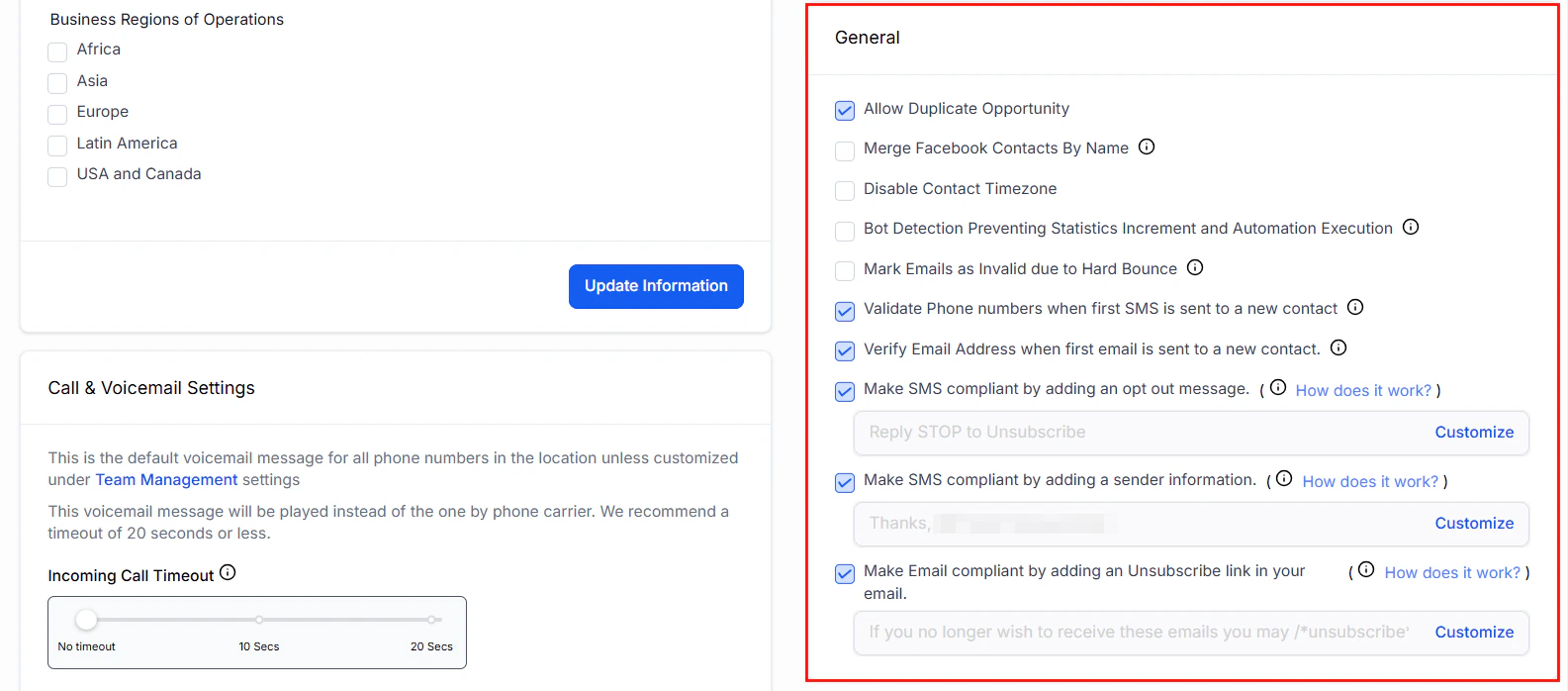
Business Profile general settings — configure email compliance and unsubscribe link settings
Enable the compliance setting
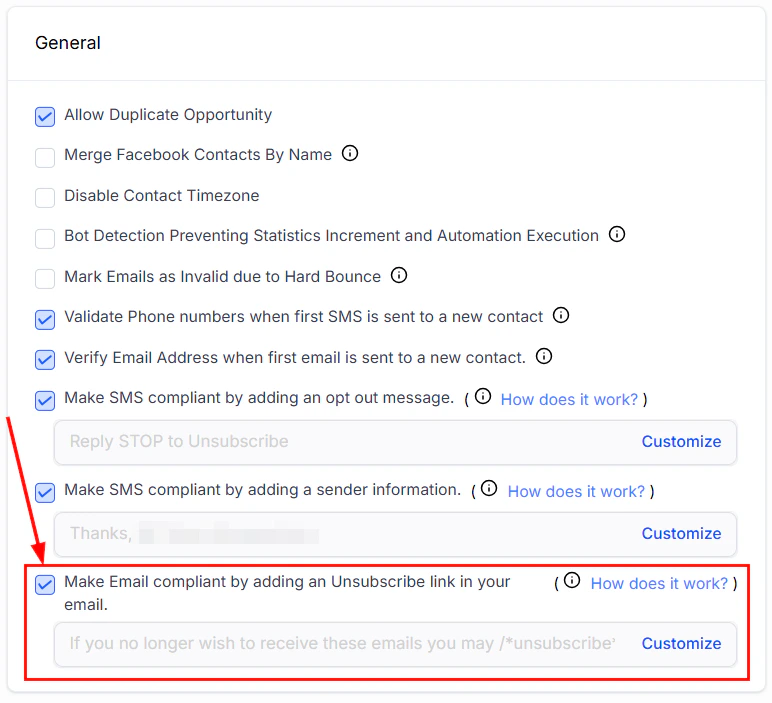
Email compliance setting — enable the automatic unsubscribe link in all outgoing emails
Customize your unsubscribe link
To create custom unsubscribe links tailored to specific campaigns:- Select Customize within the unsubscribe link settings
- Enter your custom content in the provided field
- Add the unsubscribe tag where the link should appear
- In the email builder, insert the unsubscribe tag directly into the footer of your template
List-unsubscribe header
The HoopAI Platform automatically adds alist-unsubscribe header to all outbound emails. This header is used by major email clients (Gmail, Outlook) to display a prominent unsubscribe button at the top of the message.
Benefits of the list-unsubscribe header:
- Reduces spam complaints by making it easy for recipients to opt out
- Protects your sending reputation
- Preferred by inbox providers for trusted senders
Understanding email bounce suspension
Email bounces occur when messages are not successfully delivered.When accounts get suspended
If your bounce rate exceeds the industry standard (typically above 5%), your account may be suspended. The optimal bounce rate is 0–3%.Fixing a suspension
If your account is suspended due to a high bounce rate:Review recent email activity
Pause all outgoing emails
Validate email addresses
Contact support
Preventing future suspensions
- Use a dedicated sending domain with proper email authentication (SPF, DKIM, DMARC)
- Send emails in smaller batches using the batch scheduling feature
- Require double opt-in from all new contacts
- Always include clear unsubscribe options
- Regularly validate and clean your contact list
Frequently asked questions
Why are my emails going to the spam folder?
Why are my emails going to the spam folder?
What is the difference between a hard bounce and a soft bounce?
What is the difference between a hard bounce and a soft bounce?
What bounce rate will trigger account suspension?
What bounce rate will trigger account suspension?
Do I need both SPF and DKIM, or just one?
Do I need both SPF and DKIM, or just one?
What is the list-unsubscribe header and can I disable it?
What is the list-unsubscribe header and can I disable it?
How often should I clean my email list?
How often should I clean my email list?