Connect Facebook, Instagram, LinkedIn, TikTok, Twitter/X, Bluesky, Threads, and Google My Business to the Social Planner for unified scheduling.
The Social Planner supports connections to all major social media platforms. Connect your accounts once, then create and schedule content across all of them from a single calendar. Navigate to Marketing > Social Planner to get started.
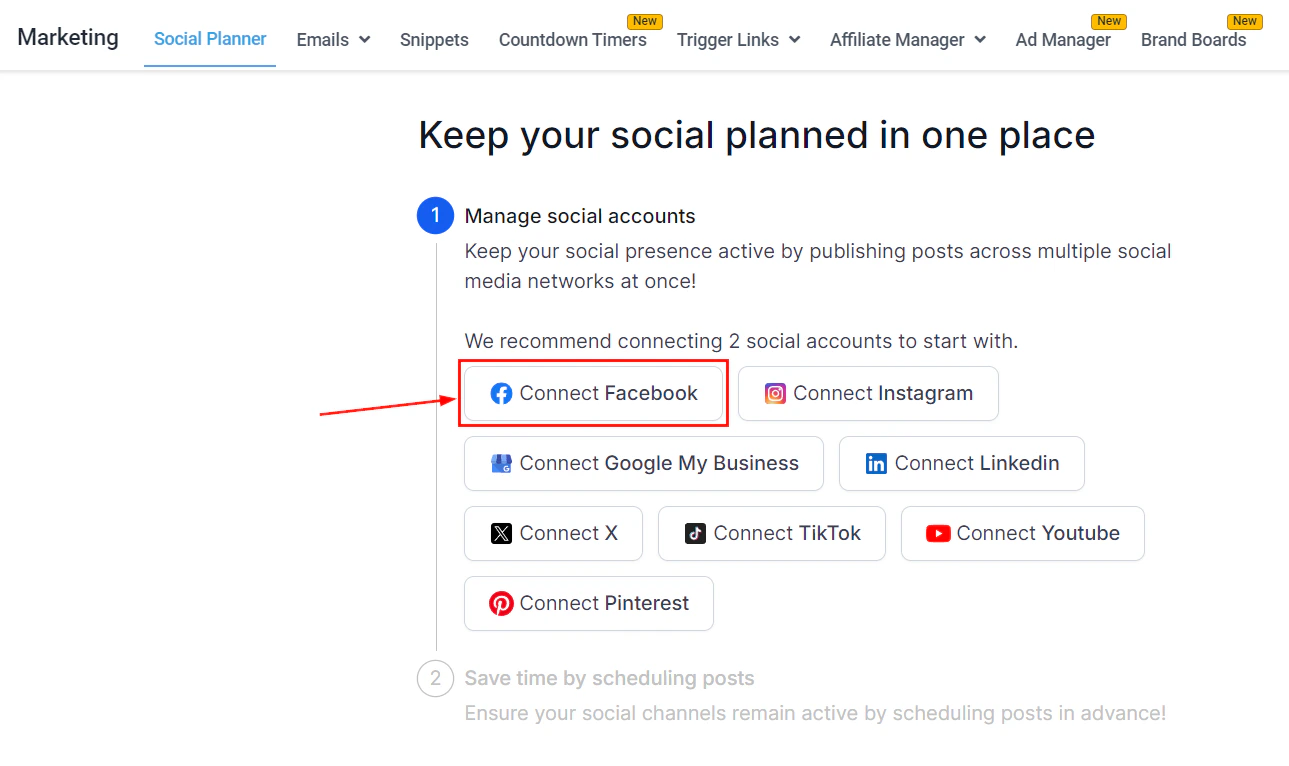
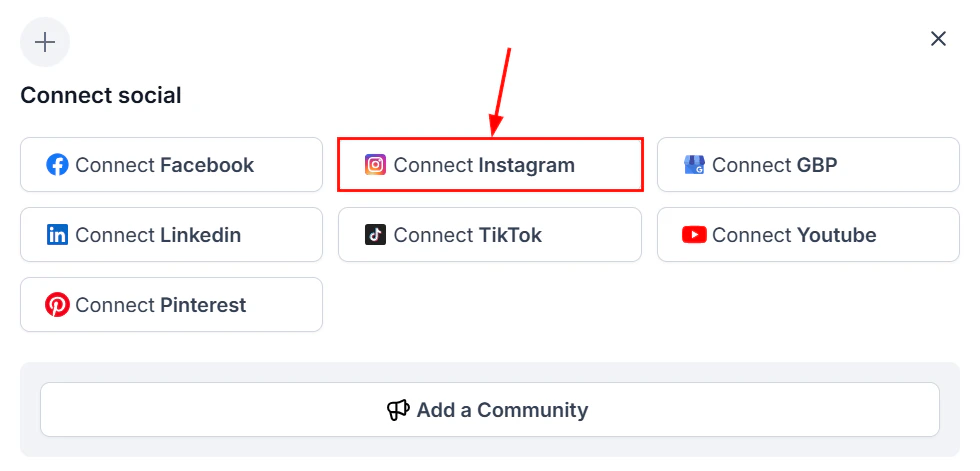
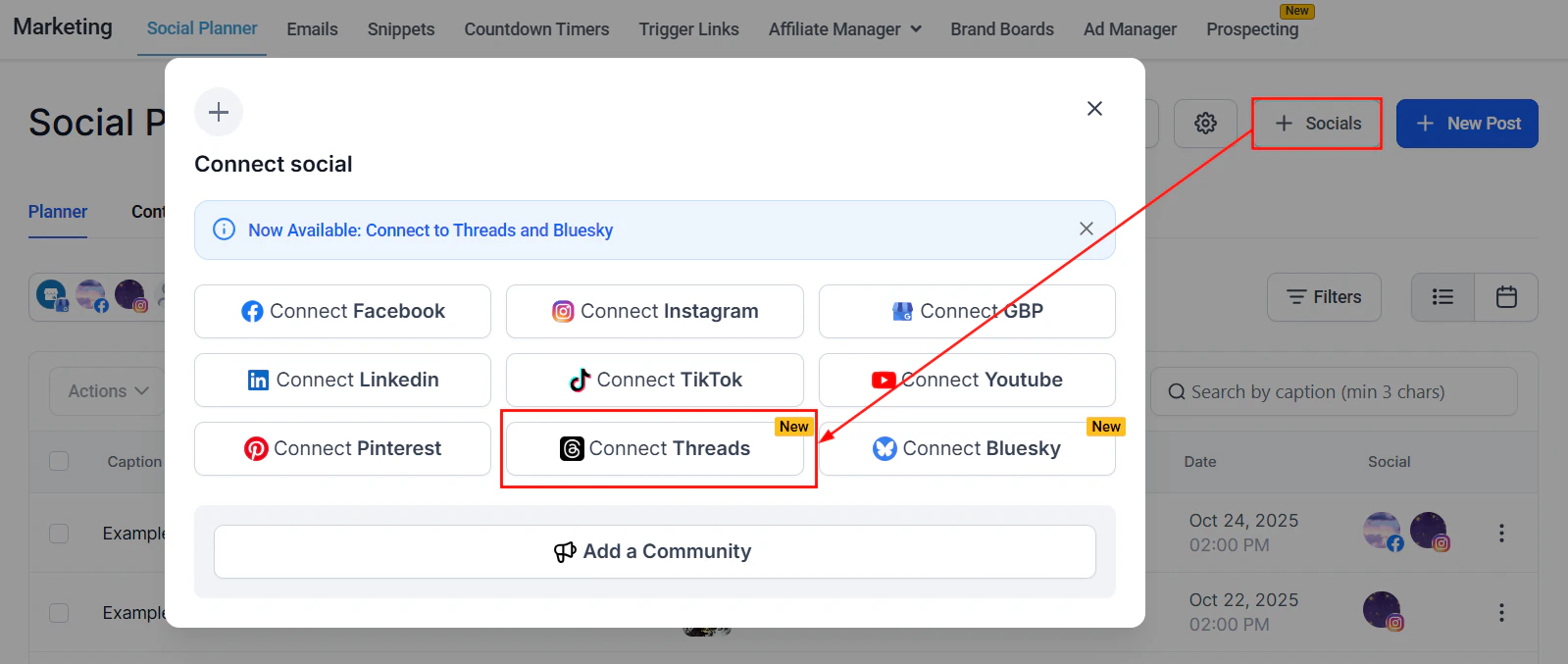
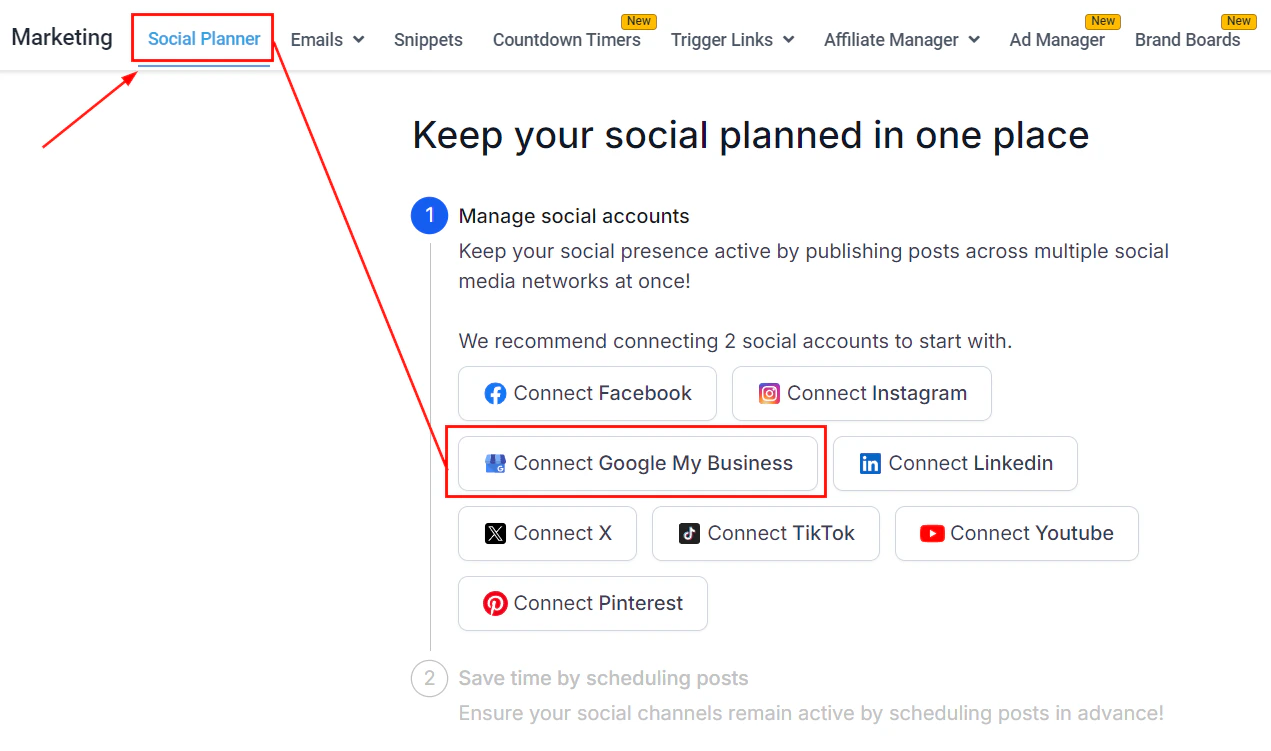
When you open the Social Planner without any connected accounts, a setup wizard displays icons for each supported platform. Click any icon to begin connecting that platform.If you already have accounts connected, click + Socials to add more platforms.
Access to the Social Planner and the ability to connect social accounts depends on your user permissions. Contact your account administrator if the option is not visible.
Connect Facebook Business Pages to schedule posts, Reels, Stories, and updates.Requirements:
A personal Facebook profile with admin rights to the Business Page you want to connect
You cannot connect personal profiles — only Business Pages and Groups
1
Open the Facebook connection
In the Social Planner, click + Socials and select Facebook.
2
Log in to Facebook
Log in to your personal Facebook account and grant the required permissions. This account must have admin rights to the Business Page.
3
Select your Business Page
Choose the Facebook Business Page(s) you want to connect by clicking Add. Pages from different personal profiles can all be added to the same Social Planner.
Selecting a Facebook Business Page to connect
You can connect pages from multiple different personal Facebook profiles — useful for businesses managing multiple brands or locations.
Connect Instagram Business or Creator accounts to schedule feed posts, Reels, and Stories.Requirements:
Your Instagram account must be a Business or Creator account (not a personal account)
For the Facebook-linked method, your Instagram account must be connected to a Facebook Page
Converting to a Business account:
Open your Instagram app settings
Switch from a personal account to a Business account
Connect your Instagram Business account to your Facebook account
1
Open the Instagram connection
In the Social Planner, click + Socials and select Instagram Account.
2
Choose a connection method
Select either Instagram with Facebook (recommended) or Direct Instagram Integration.
3
Authenticate
Via Facebook: Log in with the Facebook account linked to your Instagram Business account and grant permissions
Direct: Enter your Instagram credentials and allow the required permissions
4
Select your Instagram profile
Click Add next to the Instagram profile(s) you want to connect.
Instagram connection options in the Social Planner
If your Instagram Business Profile shows as unverified, it means the account is not yet connected to a Facebook Page — a requirement from Facebook for posting. Complete that connection in the Instagram app first.
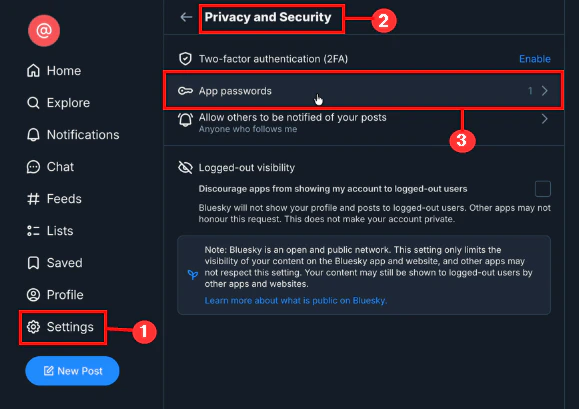
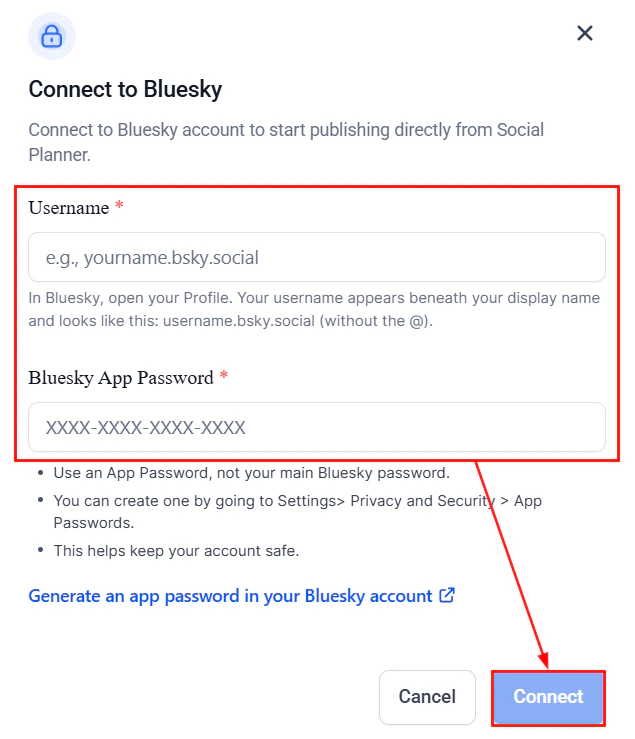
Connect your Bluesky account using an app password for secure authentication. Bluesky is a decentralized social network supporting text, images, and video.You will need:
Your Bluesky username (e.g., username.bsky.social)
An app password generated from your Bluesky account settings
Connect your Google My Business (GBP) locations to schedule business updates, offers, and events that appear directly in Google Search and Maps.
1
Open the GMB connection
In the Social Planner, click + Socials and select the Google My Business option.
2
Sign in with Google
Choose the Gmail account associated with your GMB locations and grant the required permissions by clicking Allow.
3
Select your GMB locations
Choose the GMB locations you want to add to the Social Planner and click Add next to each.
4
Verify connection
After setup, click the gear icon to open Settings. Your connected GMB locations will appear in the Social Accounts list.
Selecting GMB locations to connect
If a GMB location shows the message “This location belongs to a chain. The Local Post API is disabled for this location,” that location cannot be connected due to a Google restriction on chain locations. If the location is already added, you will see a message indicating it is already connected.
After connecting platforms, manage all accounts from the Social Planner settings:
Click the gear icon in the Social Planner
The Settings page lists all connected social accounts
From here you can reconnect expired accounts, remove accounts, or add new ones
Social account tokens expire periodically. Enable email notifications in Social Planner settings to be alerted when a reconnection is needed before scheduled posts fail.
Can I connect accounts from multiple different Facebook profiles?
Yes. You can connect Facebook Business Pages from multiple personal Facebook profiles in the same Social Planner. This is useful for businesses managing multiple brands or locations from one account.
Why does my Instagram show as unverified after connecting?
An unverified Instagram Business Profile means the account is not yet connected to a Facebook Page — a requirement from Meta for third-party publishing. Complete the Instagram-to-Facebook Page connection in the Instagram app first, then reconnect in the Social Planner.
Do I need a TikTok for Business account to run ads?
For social posting through the Social Planner, a personal or business TikTok account works. For TikTok Ads in the Ad Manager, you need a TikTok for Business account created at business.tiktok.com.
How do I generate a Bluesky app password?
Log in to Bluesky, go to Settings > Privacy & Security > App Passwords, click Add App Password, give it a name, and copy the password immediately — it is only shown once. Use this app password (not your Bluesky login password) when connecting in the Social Planner.
Can I post to private Threads accounts?
No. Only public Threads accounts are supported for publishing through the Social Planner. Private Threads accounts do not support third-party API posting.
Why is my GMB location showing as unavailable to connect?
Chain locations (locations that belong to a larger chain) have the Google Local Post API disabled by Google. This is a Google restriction and cannot be bypassed. Individual business locations that are not part of a chain can be connected normally.
How do I reconnect an expired social account?
Click the gear icon in the Social Planner to open Settings. Find the expired account in the Social Accounts list and click Reconnect. You will be prompted to re-authenticate with the platform. Once reconnected, all scheduled posts for that account will resume.
Can I post Twitter/X threads from the Social Planner?
No. Posting as a thread (chained tweets) is not currently supported. Each scheduled post publishes as a standalone tweet. Quote tweets are also not supported via the Social Planner.