Send review requests to contacts via SMS, email, and WhatsApp — manually or automatically — from the HoopAI Platform.
The Requests section provides a comprehensive overview of all review requests you have sent, whether completed or still pending. It also displays essential customer details, enabling you to closely track engagement with your review outreach.
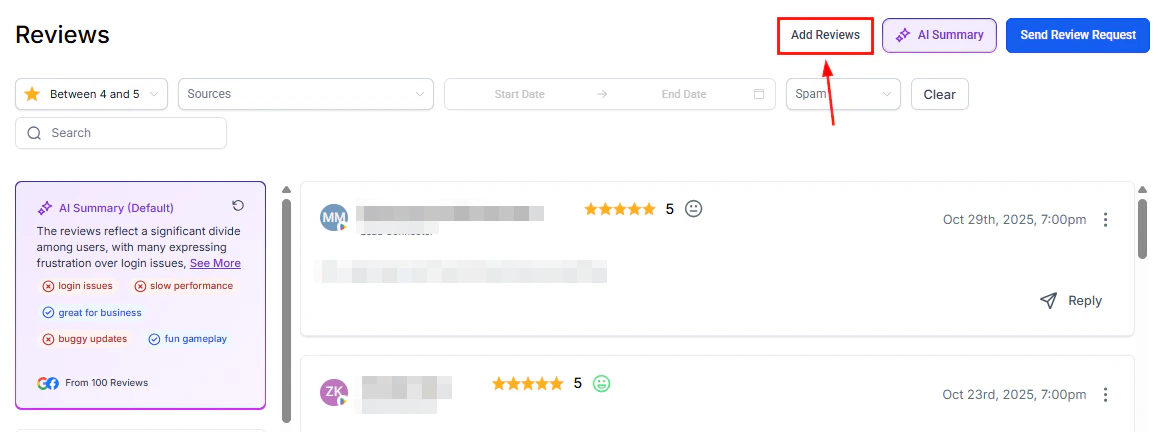
Click this button to issue a review request to a contact. You will be prompted to enter the contact’s name, provide their contact details, and select the preferred delivery channel.
WhatsApp review requests reach contacts on their preferred messaging app.
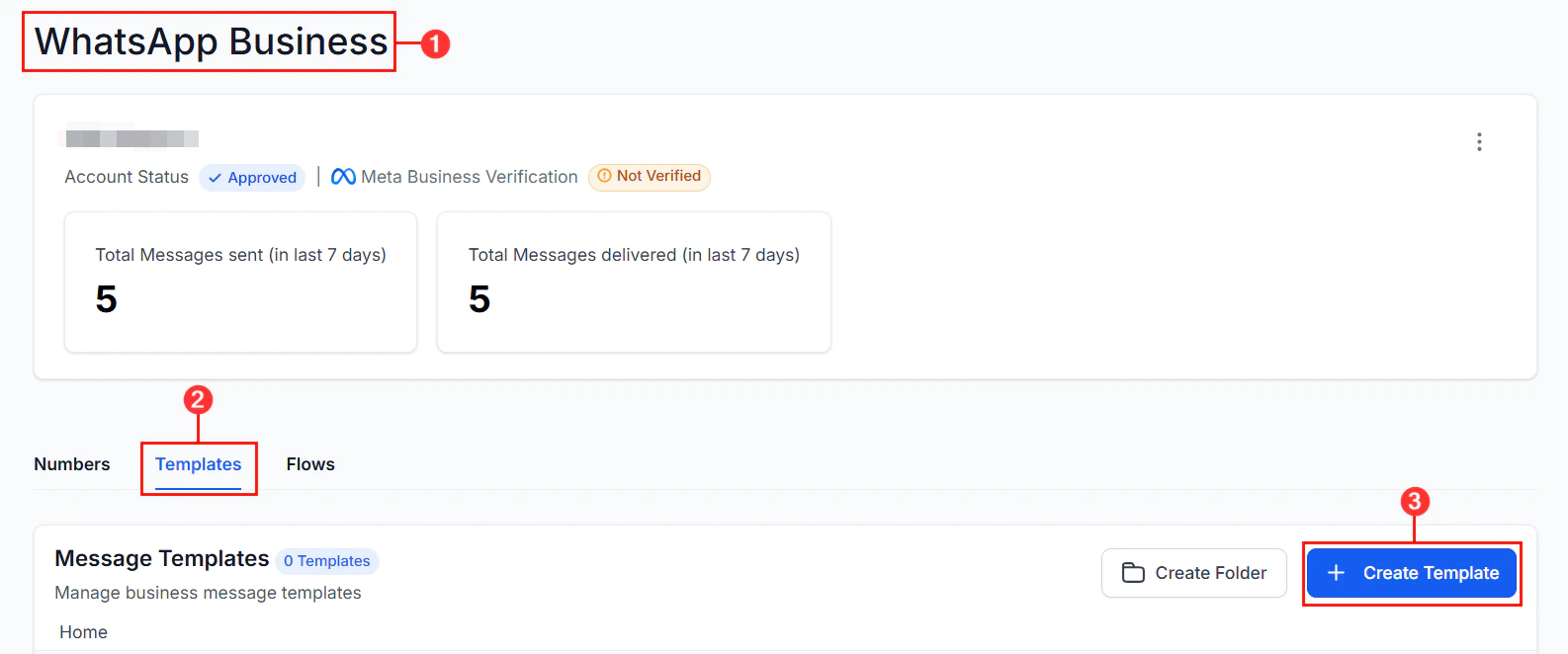
WhatsApp requests require a WhatsApp-enabled phone number and a Meta-approved message template. Template approval typically takes 1–2 minutes.
1
Enable WhatsApp in Reputation Settings
Navigate to Reputation > Settings and enable the WhatsApp Review Requests feature. Customize your message template with dynamic placeholders and a call-to-action link, then submit for Meta approval.
2
Send the request
Go to the Requests tab, click Send Review Request, fill in the contact details, and select WhatsApp as the delivery channel.
3
Monitor status
Track each request’s delivery status in the Requests tab.
WhatsApp review requests can also be sent via Automation workflows or directly from the Contacts tab, once the WhatsApp option is enabled in Reputation Settings.
WhatsApp review request — Meta-approved template with dynamic placeholders and review CTA link
Review requests can be triggered automatically through the Automation module — no manual action required after the workflow is configured.
1
Choose a trigger
Create or edit a workflow in Automation > Workflows. Common triggers for review requests include appointment status changes (Showed Up), invoice payments, or form submissions.
2
Add a review request action
Add a Send Review Request action to the workflow. Select the delivery channel (SMS, email, or WhatsApp) and confirm the template.
3
Set a delay (optional)
Add a Wait step before the review request to send it a few hours or days after the triggering event — giving the customer time to experience your service before being asked for feedback.
4
Activate the workflow
Enable the workflow. Review requests will now be sent automatically to contacts who meet the trigger criteria.
Automating review requests after appointments or completed jobs is one of the most effective ways to grow your review volume consistently without manual effort.
A Failed status typically means the phone number was invalid, the contact opted out, or a carrier-level block was applied. Verify the contact’s phone number and ensure it is a valid mobile number before retrying.
What is the difference between 'Sent' and 'Delivered' status?
Sent means the platform dispatched the request successfully. Delivered means Twilio confirmed the SMS was received on the contact’s device. Email requests via Mailgun do not provide delivery confirmation, so email requests remain at Sent.
Can I cancel a queued review request?
Yes. Click the Pause action next to any request with a Queued status. You can also resume it later by clicking Resume.
Can I send review requests via automation workflows?
Yes. Review requests can be triggered through Automation workflows, allowing you to send them automatically based on events like job completion, appointment status changes, or invoice payments.
How many attachments can I include in a review request?
You can attach up to 5 images per SMS or email review request. Use before-and-after photos or service snapshots to give context and increase the likelihood of a response.
Does WhatsApp require special setup?
Yes. You need a WhatsApp-enabled phone number and a Meta-approved message template. Enable WhatsApp Review Requests in Reputation > Settings, build your template, and submit it for Meta approval — which typically takes 1–2 minutes.