

Giving affiliates access to the portal
Affiliates access their portal through a login link. There are two ways to share access: Standard portal link: When you add an affiliate and assign them to a campaign, the platform sends a welcome email containing their portal login link and unique tracking link. Magic Link: Generate a Magic Link for any affiliate from their profile in the Affiliates section by clicking Generate Magic Link. A Magic Link provides one-click access to the portal without requiring the affiliate to set or remember a password. Magic Links are ideal for onboarding new affiliates quickly or for affiliates who have difficulty logging in. To generate a Magic Link:- Go to Marketing > Affiliate Manager > Affiliates
- Click on the affiliate’s name to open their profile
- Click Generate Magic Link
- Copy the link and send it to the affiliate directly
What affiliates see in the portal
Dashboard overview
The first screen affiliates see when logging in is their dashboard — a summary of their key performance metrics for the current period:- Total clicks — how many unique visitors have clicked their tracking link(s)
- Total leads — how many of those visitors submitted a lead form or inquiry
- Total customers — how many leads converted to paying customers
- Total earnings — their cumulative commission amount
- Conversion rate — the percentage of clicks that converted to customers
Referral links
The Links section shows all of the affiliate’s active tracking links — one per campaign they are enrolled in. From this section, affiliates can:- Copy their tracking link with one click
- See which campaign each link belongs to
- View the destination URL the link points to
Referrals
The Referrals section provides a detailed list of every lead and customer who came through the affiliate’s link:
Affiliates can use this data to understand how well their promotional efforts are converting and which campaigns are most productive for them.
Commissions
The Commissions section shows a breakdown of all commissions earned, organized by status:
Affiliates can see the total amount in each status bucket and drill into the details of individual commission records to see which sale generated each commission.
Payout method
The Payout section allows affiliates to add or update their preferred payment method. If your program uses PayPal automated payouts, affiliates add their PayPal email address here so the system knows where to send their payments. The platform will prompt affiliates to set up a payout method if none is configured — this nudge appears on the dashboard as a banner notification until the affiliate completes the setup.Media library
The Media section gives affiliates access to any promotional assets you have uploaded to the Affiliate Manager’s Media library. Affiliates can browse and download:- Images (product photos, banners, social media graphics)
- PDFs (brochures, one-pagers, lead magnets)
- Videos (product demos, testimonials, promotional clips)
- Ad copy (pre-written captions, email templates, scripts)
Sub-affiliate recruitment
If your campaign has Sub-Affiliate Sign Ups enabled, affiliates see a Recruit section in their portal with a unique sub-affiliate sign-up link. When someone signs up through this link, they become a sub-affiliate under the recruiting affiliate. The recruiter then earns Tier 2 commissions on all sales made by their sub-affiliates.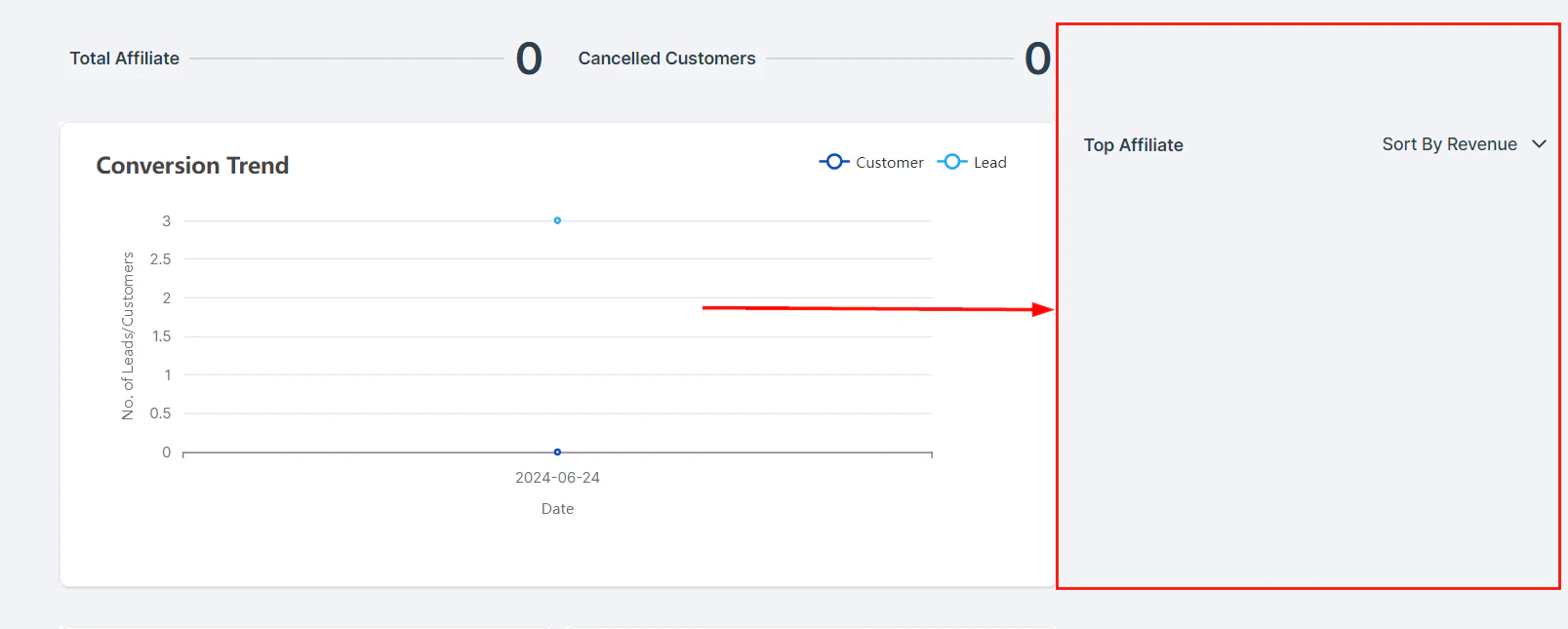
Affiliate leaderboard ranking top-performing affiliates by sales and commissions
Portal branding and label customization
You can customize the affiliate portal to match your brand identity and use your own terminology. Branding: Update the portal logo, colors, and name in Affiliate Manager > Settings to match your brand. Custom labels: Rename standard terms throughout the portal to match your program’s language. For example:- Rename “Affiliate” to “Partner” or “Ambassador”
- Rename “Commission” to “Reward” or “Earnings”
- Rename “Campaign” to “Program” or “Offer”
Frequently asked questions
Can affiliates update their own profile information?
Can affiliates update their own profile information?
Affiliates can update their payout method (PayPal email or bank details) in the portal. Other profile information such as name, email, and address is typically managed by the program owner in the Affiliates section of the Affiliate Manager.
What happens if an affiliate loses access to their portal login?
What happens if an affiliate loses access to their portal login?
Generate a new Magic Link for the affiliate from their profile in the Affiliates section. The Magic Link gives them instant access without needing a password reset. Magic Links expire after use, so generate a fresh one each time one is needed.
Can affiliates see other affiliates' data in the portal?
Can affiliates see other affiliates' data in the portal?
No. Each affiliate’s portal is completely isolated — they can only see their own clicks, referrals, commissions, and earnings. They have no visibility into other affiliates’ performance or personal information.
Can I restrict which sections of the portal affiliates can see?
Can I restrict which sections of the portal affiliates can see?
Portal section visibility can be configured in Affiliate Manager > Settings. You can choose to show or hide sections such as sub-affiliate recruitment or the media library depending on your program’s needs.
How do affiliates know when they have been paid?
How do affiliates know when they have been paid?
When a payout is processed and marked as Paid, the commission status in the affiliate’s portal updates from Approved to Paid. If you have email notifications configured, affiliates can also receive an automatic notification when their payout is processed.
Comprehensive guide for affiliates
Share this section with your affiliates to help them get the most out of the portal.Getting started as an affiliate
- Log in — use the portal link or Magic Link provided in your welcome email
- Find your tracking link — go to the Links section and copy the link for the campaign you are promoting
- Share your link — include it in your content, emails, social posts, and anywhere you reach your audience
- Track performance — check the Dashboard for clicks, leads, customers, and earnings
- Get paid — add your PayPal email in the Payout section so payments can be processed
Promotion tips for affiliates
- Share your link on social media with genuine recommendations
- Write blog posts or reviews about the product
- Include the link in your email signature
- Create video content demonstrating the product
- Share in relevant online communities (following their rules)
Sub-affiliates
If the campaign has sub-affiliate recruitment enabled, you can grow your earnings by recruiting other affiliates:- Go to the Recruit section in your portal
- Copy your unique sub-affiliate sign-up link
- Share the link with people who would be good promoters
- When they sign up and make sales, you earn Tier 2 commissions on their sales
Managing your sub-affiliates
From the portal, you can see:- How many sub-affiliates you have recruited
- Their total sales and your Tier 2 earnings
- Individual sub-affiliate performance
Performance-based level-up
Some programs offer tiered rewards — as you reach higher sales milestones, your commission rate increases automatically:
Your current level and progress toward the next level are displayed on your portal dashboard (when configured by the program owner). Level changes take effect immediately on future sales.