

Where to find email stats
Email performance data is available in two places:- Agent Reporting → Email section — per-agent email metrics (sent, opened, clicked, replied)
- Marketing → Email Statistics — campaign-level email performance for bulk sends
For individual agent email metrics, navigate to Reporting → Agent Reporting and scroll to the Email section. For bulk email campaign stats, navigate to Marketing → Email Campaigns.
Agent email metrics
The Email section within Agent Reporting provides a per-agent breakdown of email activity. Use the User filter to select a specific agent or view all agents together.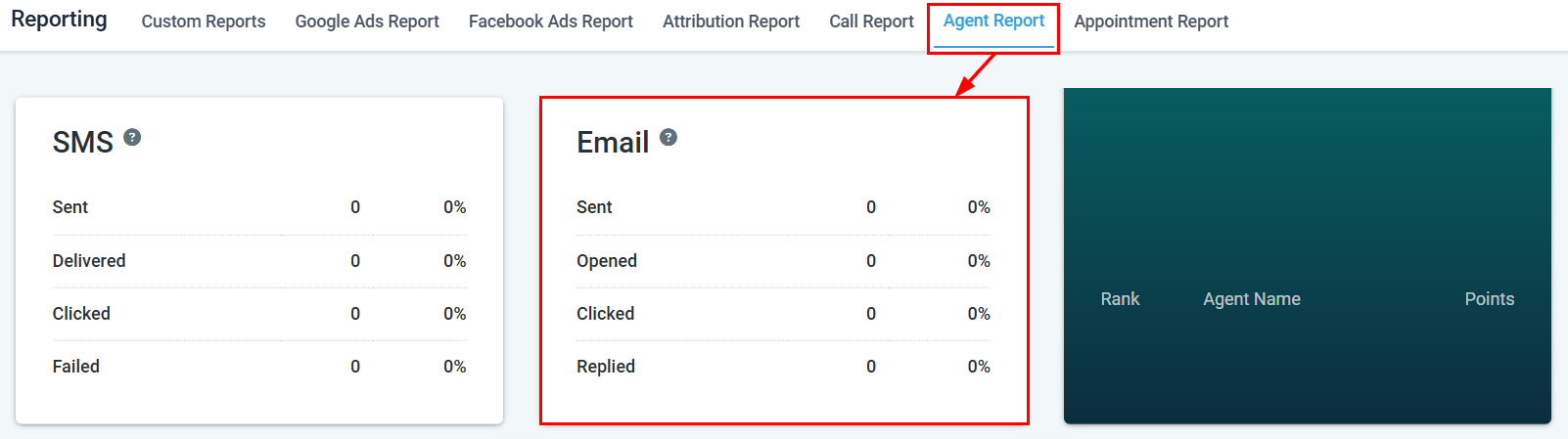
Agent email reporting metrics
Key metrics
Sent
Total number of emails sent by the agent in the selected date range.
Opened
Number and percentage of sent emails that were opened by the recipient.
Clicked
Number of recipients who clicked a link within the email.
Replied
Number of recipients who replied to the email.
Email campaign statistics
For bulk email campaigns, HoopAI tracks the following delivery and engagement metrics:Deliverability metrics
Engagement metrics
Improving email performance
Low open rates
Low open rates
Low open rates usually indicate issues with subject lines, sender reputation, or send timing. Try A/B testing subject lines, sending from a recognizable name, and experimenting with send times. Also check that your sending domain is properly authenticated (SPF, DKIM, DMARC).
Low click rates
Low click rates
If opens are healthy but clicks are low, the issue is likely in the email body. Ensure your call-to-action is prominent, your links are working, and your content is relevant to the segment you are targeting.
High bounce rates
High bounce rates
Hard bounces indicate invalid email addresses. Regularly clean your contact lists to remove invalid emails. A high bounce rate can damage your sender reputation over time.
High unsubscribe or spam rates
High unsubscribe or spam rates
High unsubscribes suggest your audience did not opt in clearly or is receiving irrelevant content. Review your list hygiene, segmentation, and email frequency.
Frequently asked questions
Where do I see open and click rates for a specific campaign?
Where do I see open and click rates for a specific campaign?
Navigate to Marketing → Email Campaigns, locate the campaign, and click it to view the full statistics including open rate, click rate, bounces, and unsubscribes.
Can I see email stats per agent?
Can I see email stats per agent?
Yes. In Reporting → Agent Reporting, use the User filter to select an agent and scroll to the Email section to see their sent, opened, clicked, and replied metrics.
Why are my open rates showing as zero?
Why are my open rates showing as zero?
Open tracking requires the recipient’s email client to load a tracking pixel. Some email clients (notably Apple Mail with Mail Privacy Protection) block pixel-based tracking, which can suppress open rates. Consider using click rate as a more reliable engagement signal.
How do I improve my email deliverability?
How do I improve my email deliverability?
Ensure your sending domain has SPF, DKIM, and DMARC records configured. Keep your contact lists clean, avoid spam trigger words, and maintain a consistent sending volume. See Email services for domain authentication setup.
Can I export email statistics?
Can I export email statistics?
Yes. Email campaign stats can be exported from the campaign detail view. Agent-level email data can be exported via a Custom Report filtered by user and activity type.