

Global time frame selector
The global time frame selector appears at the top of every dashboard and applies to all widgets simultaneously. Changing it updates every compatible widget in real time without requiring any edits to individual widget settings.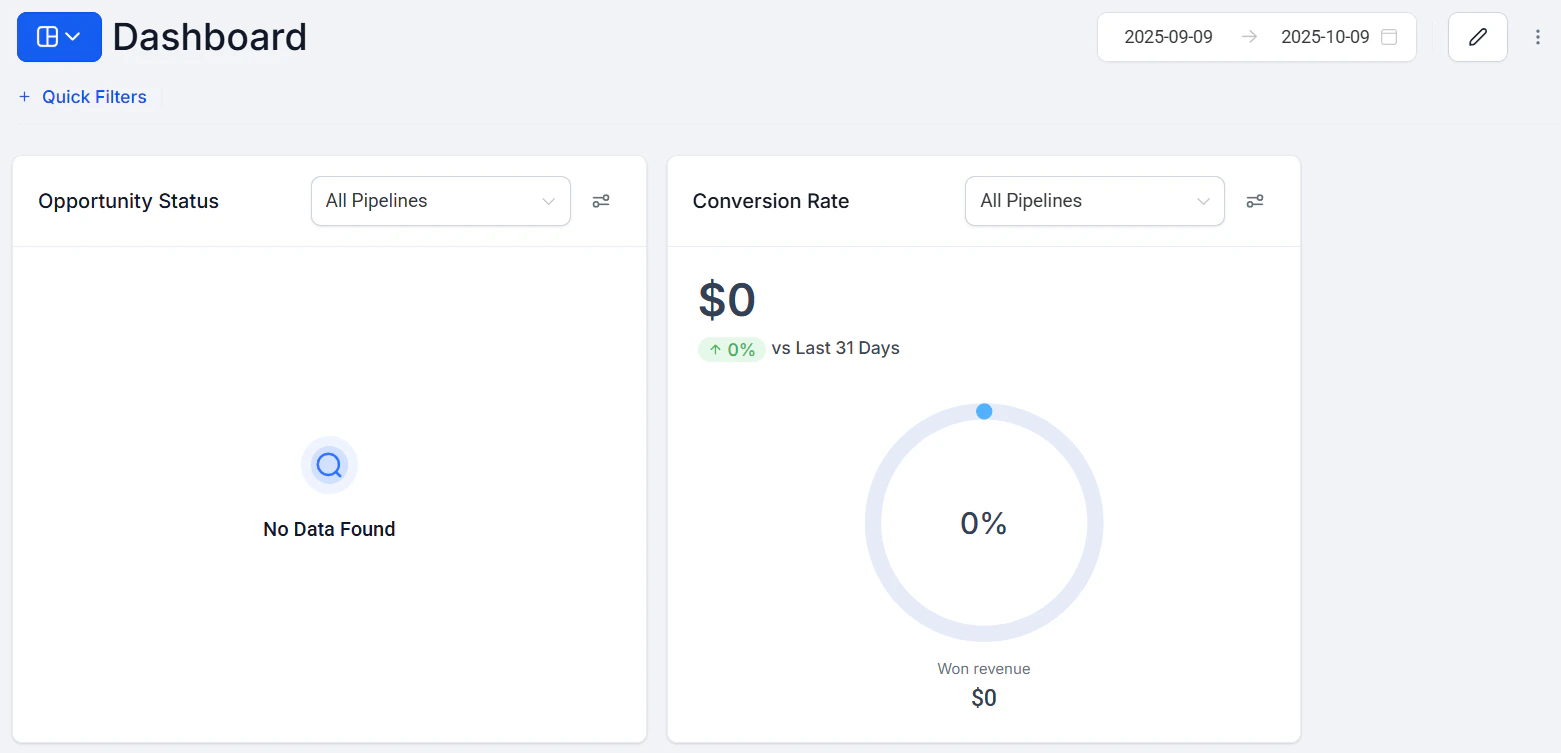
The global time frame selector at the top of the dashboard
- Navigate to your dashboard
- Click the time frame selector at the top of the page (it displays the current date range, such as “Last 30 days” or a custom range)
- Choose a preset range or define a custom date range using the calendar picker
- All widgets on the dashboard refresh automatically to show data within the selected period
Available preset ranges
The global time frame selector affects only widgets that use the dashboard’s default date range. Widgets with a Date Range Override applied will not change when you adjust the global selector.
Per-widget date range overrides
You can configure any individual widget to use a different date range than the global time frame selector. This is useful when you want most widgets to show “this month” data while keeping a specific widget pinned to “last 30 days” or a custom range regardless of what the global selector is set to. To set a widget-level date range override: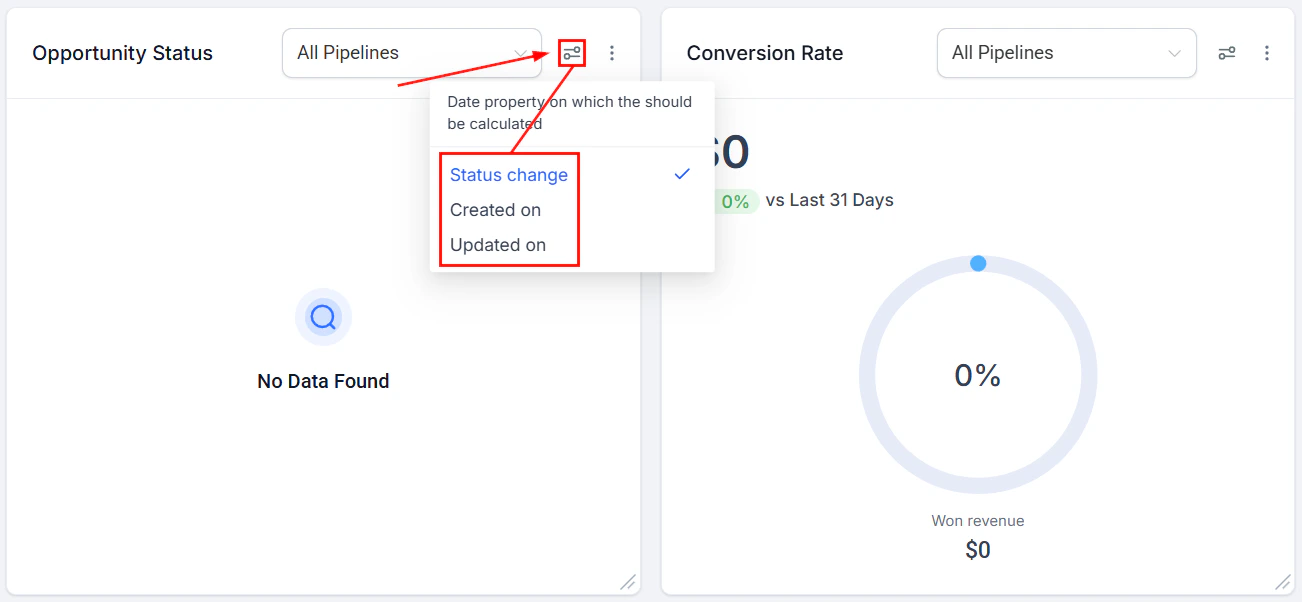
Setting a date range override on an individual widget
1
Enter edit mode
Click the pencil icon on your dashboard to enter edit mode.
2
Open the widget editor
Click the three dots on the widget you want to configure and select Edit.
3
Set the override
In the Configure tab, locate the Date Range Override setting. Select the specific date range you want this widget to always display.
4
Save
Click Save to apply the override, then click Save Changes to finalize.
Comparison date ranges
Widgets can display a comparison period alongside the primary date range. When a comparison is enabled, the widget shows both the current period’s value and the previous period’s value, along with a percentage change indicator. To add a comparison date range to a widget:- Open the widget editor and go to the Configure tab
- Find the Comparison Date Range field
- Select the comparison period (for example, “Previous period” or “Same period last year”)
- Save the widget
Opportunity date property filter
Opportunity widgets include an additional filter that lets you choose which date property is used to determine when an opportunity “falls” within a date range. The three options are:
This distinction matters when analyzing pipeline performance. For example, selecting Status change ensures that a “won opportunities” widget only counts deals that were marked as won during the selected period — not all opportunities ever created.
To change the date property for an opportunity widget:
- Enter edit mode and open the widget editor
- In the Configure tab, find the Date Property field
- Select the property that best matches your reporting goal
- Save the widget
Time zone considerations
All date range calculations use the time zone configured for your dashboard. To verify or change the time zone:- Click the three dots in the top-right corner of the dashboard
- Select “Manage Dashboard Time Zone”
- Choose between your personal time zone and the account’s default location time zone
Frequently asked questions
Why doesn't changing the global date range update some of my widgets?
Why doesn't changing the global date range update some of my widgets?
Widgets with a Date Range Override set will not respond to the global time frame selector. Open those widgets in edit mode and clear the Date Range Override if you want them to follow the global setting.
Can I save a custom date range as a default?
Can I save a custom date range as a default?
The global time frame selection is saved per user within your browser session. There is no account-wide saved default for custom date ranges, but you can set individual widgets to always use a fixed range via the Date Range Override.
Does the date range filter affect Quick Filters?
Does the date range filter affect Quick Filters?
The global date range and Quick Filter date ranges are separate settings. If you apply a date range through both mechanisms, both conditions apply using AND logic — meaning only data matching both date ranges will appear.
How do I compare this month's data to last month's?
How do I compare this month's data to last month's?
Set the global date range to “This month,” then enable the Comparison Date Range setting on individual widgets and set it to “Previous period.” This shows both the current and prior month values side by side within each widget.