Configure dedicated email domains, SMTP providers, Mailgun, DNS records, deliverability tools, and email compliance settings in the HoopAI Platform.
The Email Services section is where you configure how outbound emails are sent from your account. You can set up dedicated sending domains, connect third-party SMTP providers, manage DNS records, monitor deliverability, and ensure compliance with Google and Yahoo’s sender requirements.Navigate to Settings > Email Services to get started.
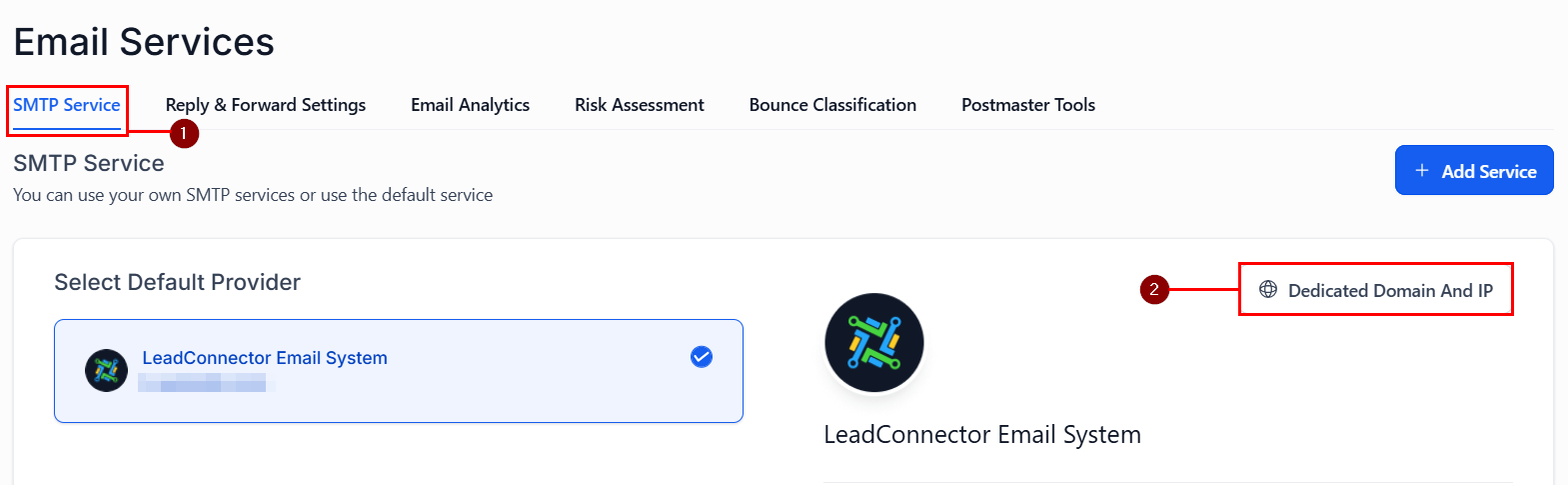
The Domain Configuration tab lets you customize email domain settings, manage default domains, and optimize email delivery.To access: Go to Settings > Email Services, then click the Dedicated Domain and IP tab.
Email Services — domain configuration
Setting up a dedicated sending domain
A dedicated domain improves your sender reputation and ensures emails are delivered reliably. Setting up a dedicated domain involves adding DNS records to your domain registrar.Steps:
Navigate to Settings > Email Services.
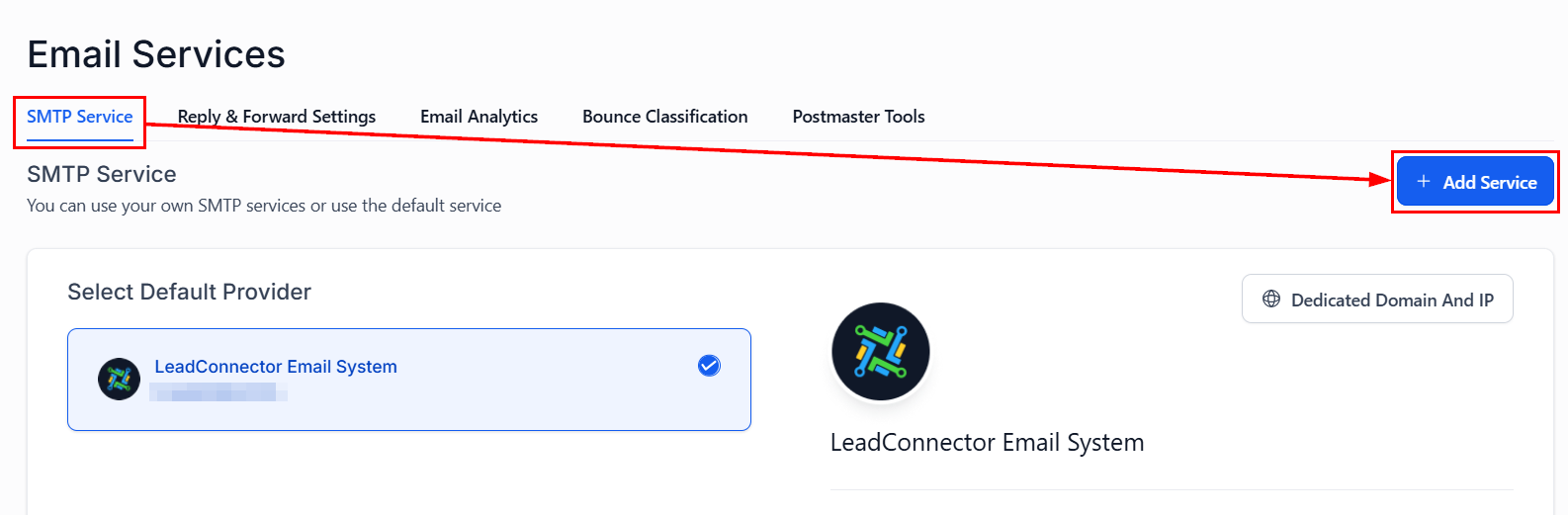
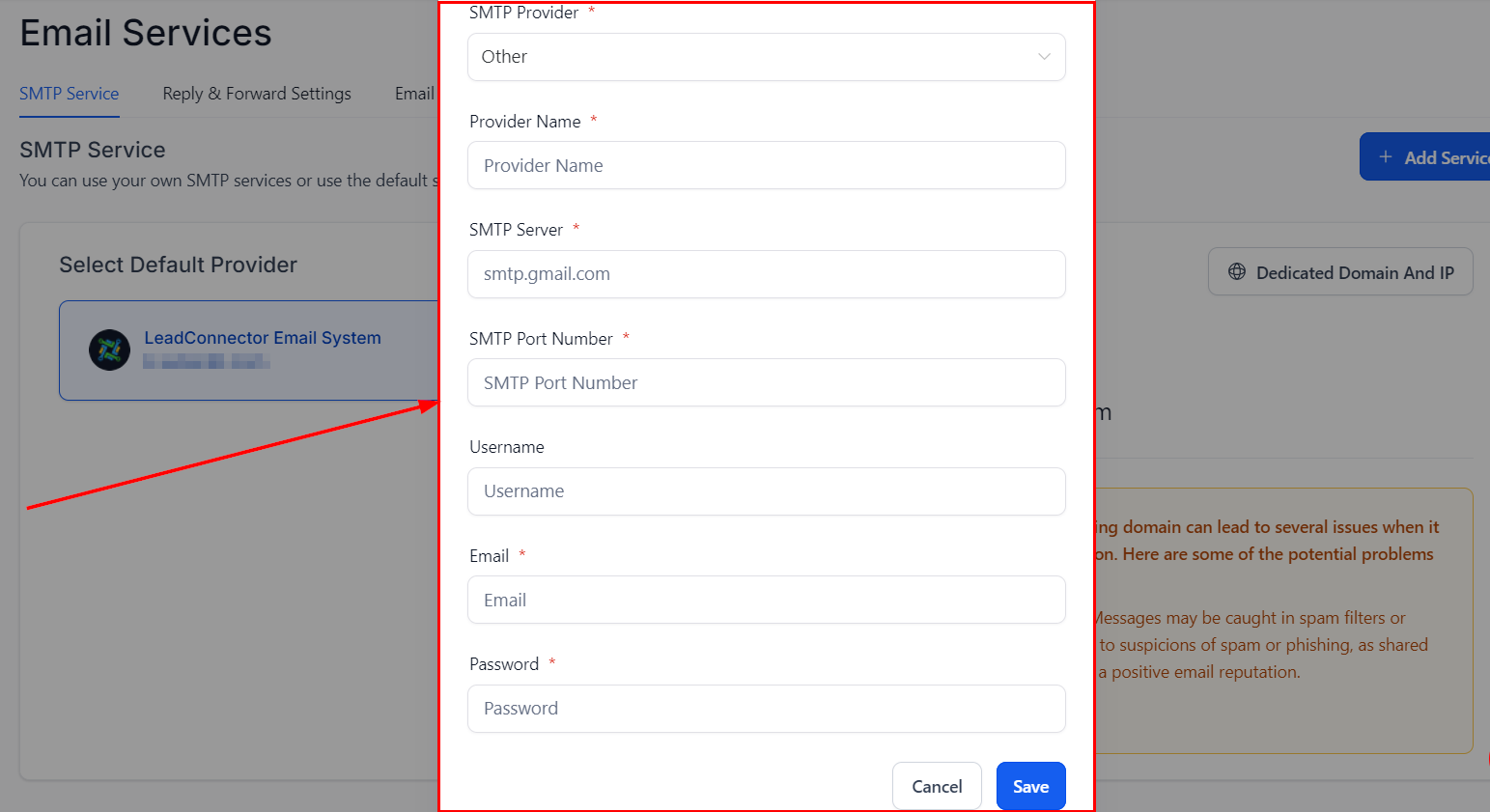
Click Add Domain or Dedicated Domain and IP.
Enter your domain name (e.g., mail.yourbusiness.com).
Copy the provided DNS records (DKIM, SPF, DMARC) and add them to your domain’s DNS settings.
Return to the platform and click Verify to confirm the DNS records are live.
DNS changes can take up to 48 hours to propagate. If verification fails, wait a few hours and try again.
Adding multiple domains
You can connect multiple sending domains to your account. This is useful if you send emails for multiple brands or sub-brands from the same account.
Go to Settings > Email Services.
Click Add Domain for each additional domain.
Complete DNS verification for each domain.
Email domain warmup
New sending domains need to be gradually warmed up to build a positive sender reputation. The platform supports fixed-stage email domain warmup, automatically throttling send volume for new domains.Monitor warmup progress in the Domain Configuration tab.
Securing email links with SSL
Enable SSL for tracked email links to ensure all tracking URLs use HTTPS. This is required for Google and Yahoo compliance and improves deliverability.Toggle SSL for Email Links in the Domain Configuration settings.
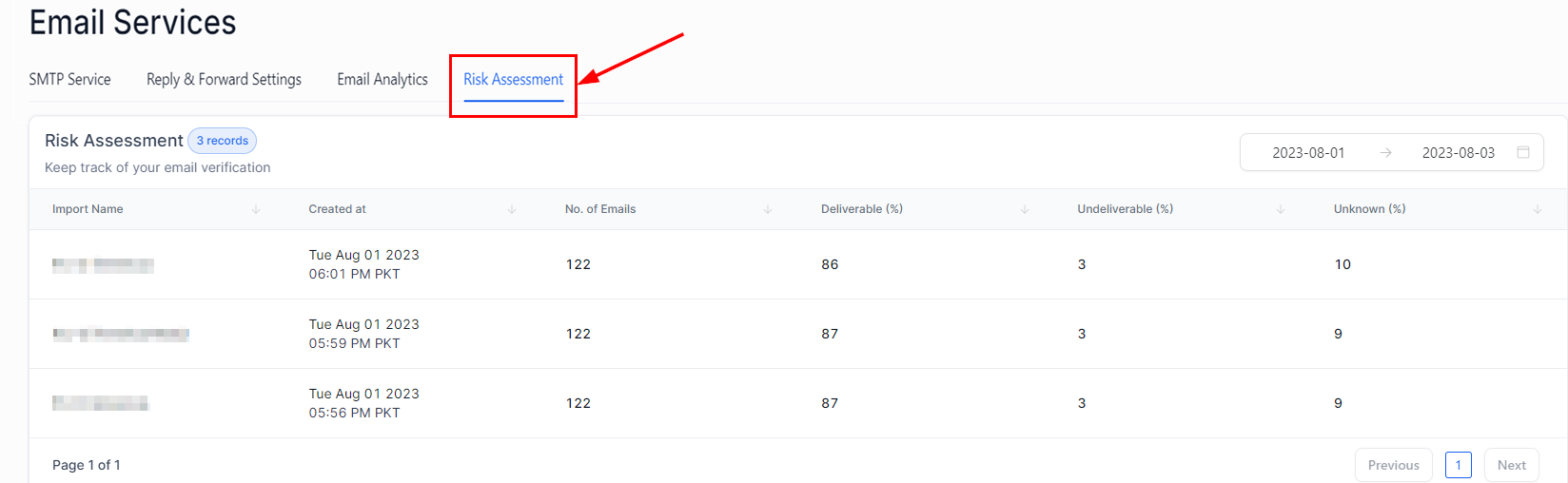
The Risk Assessment feature analyzes your imported contact list using bulk email verification. It categorizes email addresses into:
Deliverable — valid, active email addresses
Undeliverable — addresses that will bounce
Catch-all — domains that accept all email (quality unknown)
Unknown — addresses that could not be verified
Each category is further segmented by risk level: High, Medium, Low, and Unknown. Use this to clean your list before launching campaigns.
Risk Assessment dashboard
Email bounce classification
The platform automatically classifies email bounces as hard bounces (permanent delivery failures) or soft bounces (temporary failures). Hard-bounced addresses are suppressed from future sends automatically.
Email tracking
Control whether open tracking and click tracking are enabled for outgoing emails. Go to Settings > Email Services and toggle Email Tracking on or off.
Disabling tracking improves deliverability for some recipients, particularly those using strict privacy filters.
Google Postmaster Tools
Connect Google Postmaster Tools to monitor your domain reputation and spam rate for emails delivered to Gmail inboxes. Access this from the Deliverability section of Email Services.
Microsoft SNDS Tool
Connect Microsoft’s Smart Network Data Services (SNDS) tool to monitor email reputation for Outlook/Hotmail recipients.
In 2024, Google and Yahoo introduced strict requirements for bulk email senders:
Email authentication — SPF, DKIM, and DMARC records must be configured for your sending domain
One-click unsubscribe — all marketing emails must include a one-click unsubscribe option
Low spam rates — maintain a spam rate below 0.10% (keep below 0.30% to avoid blocking)
The platform helps you meet these requirements through dedicated domain setup, automatic unsubscribe handling, and bounce management.
Failing to meet Google and Yahoo’s requirements can result in your emails being sent to spam or blocked entirely. Ensure your sending domain has valid SPF, DKIM, and DMARC records before sending bulk campaigns.
If your domain uses Cloudflare as a DNS provider, ensure that DNS records for your email domain (DKIM, SPF, DMARC, MX) are set to DNS only (not proxied/orange cloud). Proxying email DNS records through Cloudflare can break email delivery.