

How goal tracking works
Goals are configured at the individual widget level. When a goal is set, the widget displays both the current value and the target value, typically with a progress indicator or color-coded status so you can assess performance at a glance. Goals are particularly useful for widgets that track cumulative metrics — such as total revenue, appointments booked, or opportunities closed — where hitting a defined number within a period is the key objective. Goal tracking works with the widget’s configured date range. If your widget is set to “this month” and you set a goal of 50 appointments, the widget tracks progress toward 50 appointments within the current month.Setting a goal on a widget
Configuring a goal target value in the widget editor
1
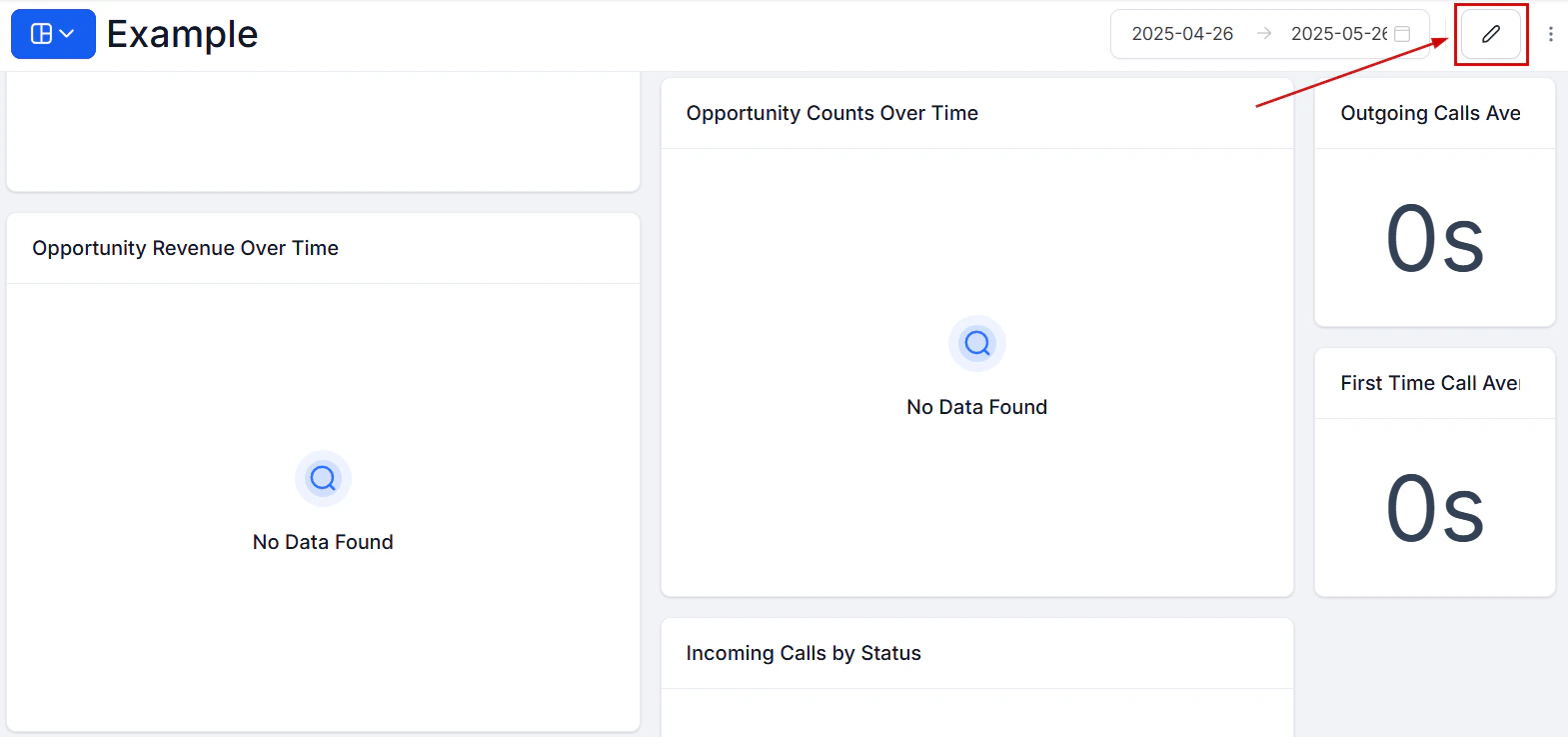
Enter edit mode
Click the pencil icon on your dashboard to enter edit mode.
2
Open the widget editor
Click the three dots on the widget where you want to set a goal and select Edit.
3
Navigate to the goal setting
In the widget configuration panel, look for the Goal or Target field. This field is available on numeric and count widgets that track a single primary metric.
4
Enter a target value
Type in the target number for the period. For revenue widgets, enter the target in the account’s configured currency. For count-based widgets (appointments, conversations, opportunities), enter the target as a whole number.
5
Save
Click Save, then click Save Changes to finalize the dashboard layout.
Goal fields are available on numeric widget types. Chart types such as line charts, bar charts, and donut charts do not support goal tracking — switch the widget to a Numeric chart type to access the goal setting.
Widget types that support goals
Goals can be configured on numeric widgets across these categories:Reading goal progress on your dashboard
Dashboard widget showing goal progress with a visual indicator and percentage
- Current value — the actual metric for the selected date range
- Goal value — the target you set
- Progress indicator — a visual bar or percentage showing how close you are to the goal
- Status color — green when on track or ahead, yellow when approaching the goal, red when below target relative to the time elapsed in the period
Adjusting or removing a goal
To change a goal, enter edit mode, open the widget editor, and update the value in the Goal field. To remove a goal entirely, clear the goal field and save the widget. The widget will revert to displaying only the raw metric without a progress indicator.Using goals for team accountability
Goal tracking is most effective when combined with user-level filtering. For example, you can create a set of widgets — one per team member — each showing their individual appointment count with a personal goal target. Place these widgets side by side on a shared dashboard so the entire team can see their own progress and compare it to their colleagues. To filter a widget to a specific team member:- Open the widget editor and go to the Conditions tab
- Add a User condition and select the specific team member
- Set a goal on the widget appropriate for that individual
- Repeat for each team member
Goal tracking with custom metrics
Custom metrics — formulas that combine multiple data sources — also support goal setting when displayed as numeric widgets. For example, a custom metric that calculates revenue per appointment can have a target set to track average deal efficiency over a month. See the custom widgets guide for instructions on building custom metrics.Frequently asked questions
Do goals reset automatically at the start of a new period?
Do goals reset automatically at the start of a new period?
Goals themselves do not reset — the target value you entered remains until you change it. However, because goals are calculated against the widget’s live date range (such as “this month”), the actual progress counter resets automatically when the new period begins. Your goal of 50 appointments this month will start fresh on the first of each new month.
Can I set different goals for different team members on the same widget?
Can I set different goals for different team members on the same widget?
A single widget has a single goal value. To set different goals per team member, create separate widgets for each person with individual goal values and filter each widget to the relevant user via the Conditions tab.
Why is the goal field not visible on my widget?
Why is the goal field not visible on my widget?
Goal settings are only available on numeric chart types. If your widget is displaying as a bar chart, line chart, or donut chart, switch it to Numeric in the Configure tab to access the goal field.
Can I track goals over a custom date range?
Can I track goals over a custom date range?
Yes. Set the widget’s Date Range Override to a custom date range and then assign a goal. The progress indicator will measure performance over your specified period rather than following the dashboard’s global time frame.