

Available appointment widget types
The HoopAI platform includes several pre-built appointment widget types under the Appointments category:Adding an appointment widget
1
Enter edit mode
Navigate to your dashboard and click the pencil icon to enter edit mode.
2
Open the widget panel
Click “Add Widget” in the top-right corner to open the widget selection panel.
3
Select the Appointments category
Click the Appointments tab in the widget panel to browse available appointment widgets.
4
Choose your widget
Click the widget type that matches your reporting need. The widget is added to your dashboard and can be repositioned in the layout.
5
Configure the widget
Click the three dots on the newly added widget and select Edit to open the configuration panel.
Configuring an appointment widget
The Configure tab contains the primary settings for each appointment widget:Title
Enter a descriptive name for the widget. For example: “Confirmed Appointments — This Month” or “Weekly Bookings by Rep.”Metrics
Select the metric to measure. For appointment widgets, common options include:- Count — total number of appointments
- Sum — if tracking a numeric custom field associated with appointments
Group by / View by
For donut or bar chart widgets, choose how to group the data — by assignee, by status, by calendar, or by another available dimension.Date range
By default, the widget uses the dashboard’s global time frame. To lock the widget to a specific period regardless of the global selector, set a Date Range Override in the Configure tab.Calendar filter
If your account has multiple appointment calendars (for example, separate calendars per service type or per team), you can filter the widget to show data from a specific calendar. This is done through the Conditions tab.Filtering appointment widgets
Use the Conditions tab to narrow appointment data to specific subsets: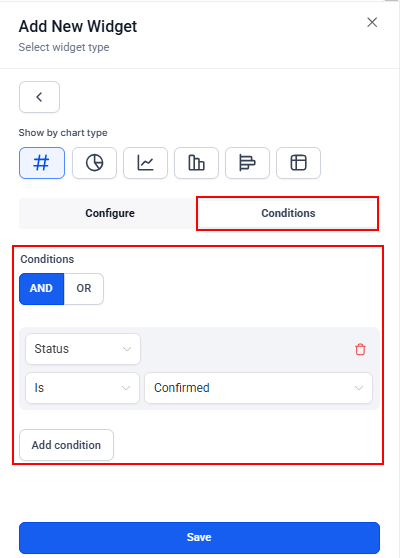
Conditions tab for filtering widget data
Filter by status
Filter by status
Add a condition for Appointment Status and select one or more statuses: Confirmed, Cancelled, Showed, No-Show, or New. For example, create a dedicated “No-Show Rate” widget by filtering to only show No-Show appointments and placing it next to a Total Appointments widget.
Filter by assignee
Filter by assignee
Add a User condition and select a specific team member, or use “Logged in User” so each person automatically sees only their own appointment data when they view the dashboard.
Filter by calendar
Filter by calendar
Add a Calendar condition and select the calendar or calendars you want to include. This is useful when you have separate calendars for different service types and want a dedicated widget for each.
Filter by appointment type
Filter by appointment type
Use the Appointment Type condition to segment widgets by the type of appointment (such as discovery call, demo, or follow-up).
Supported chart types for appointments
Appointment widgets support all standard chart formats:- Numeric — single large number ideal for KPI tiles
- Donut — shows distribution across groups such as statuses or assignees
- Line chart — shows booking trends over time
- Bar chart — compares appointment counts across a dimension such as assignee or calendar
- Horizontal bar — alternative orientation for bar comparisons
- Table — lists individual appointment records with columns such as contact name, date, status, and assignee
Adding appointment widgets from the reporting section
You can also add appointment widgets to your dashboard directly from the Appointment Report tab in the Reporting section:- Navigate to Reporting and open the Appointment Report tab
- Look for the grid icon in the report view
- Click it and select the dashboard you want to send the widget to
- The widget is added to the bottom of the selected dashboard where you can reposition it in edit mode
Frequently asked questions
Why is my appointment widget showing no data?
Why is my appointment widget showing no data?
Check the date range — if the global time frame selector is set to a period with no appointments, the widget will be empty. Also verify that any conditions applied in the Conditions tab are not too restrictive. If you have filtered by a specific calendar, confirm that calendar has appointments in the selected period.
Can I show upcoming appointments instead of past appointments?
Can I show upcoming appointments instead of past appointments?
Yes. Set the date range to a future period (such as “next 7 days”) using a custom date range override on the widget. The widget will then show appointments scheduled within that future window.
How do I track appointment cancellation rates?
How do I track appointment cancellation rates?
Create two separate numeric widgets: one filtered to all appointments (Total Appointments) and one filtered to Cancelled status only. Place them side by side so you can compare the count. For a percentage view, use a Custom Metric to divide cancelled appointments by total appointments.
Can I click on the widget to see individual appointment details?
Can I click on the widget to see individual appointment details?
Yes. Clicking on a data point in most appointment widgets opens the Granular Insights view, which lists the individual appointment records that make up that data point. You can review details or export the list as a CSV from that view.