

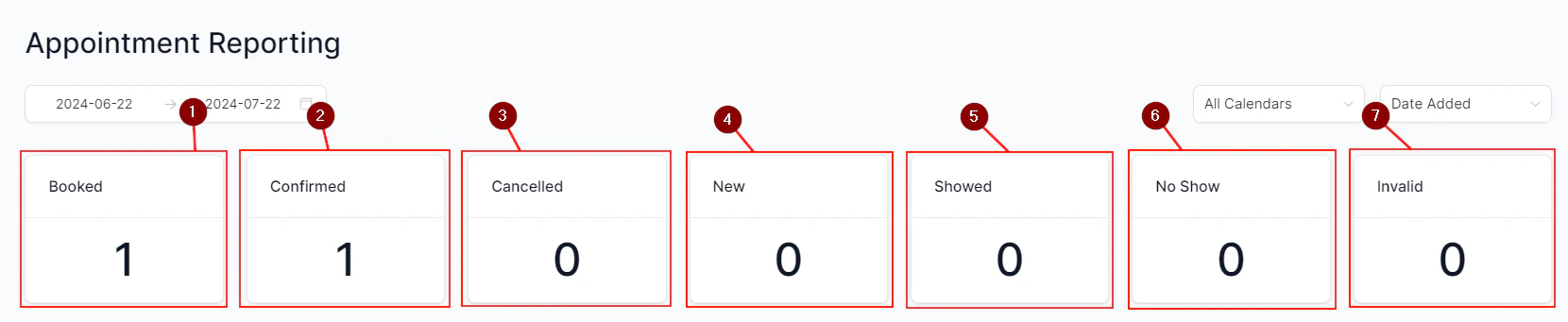
Reputation reporting dashboard with review metrics and trends
Accessing reputation analytics
Navigate to Reputation → Overview to open the reputation reporting dashboard. The dashboard displays data for all connected Google Business Profile and Facebook Page accounts under your HoopAI account.Key metrics
Total reviews received
Snapshot of all reviews collected across Google and Facebook for the selected time period.
Average rating
Your current average star rating calculated across all reviews from connected platforms.
Review trends
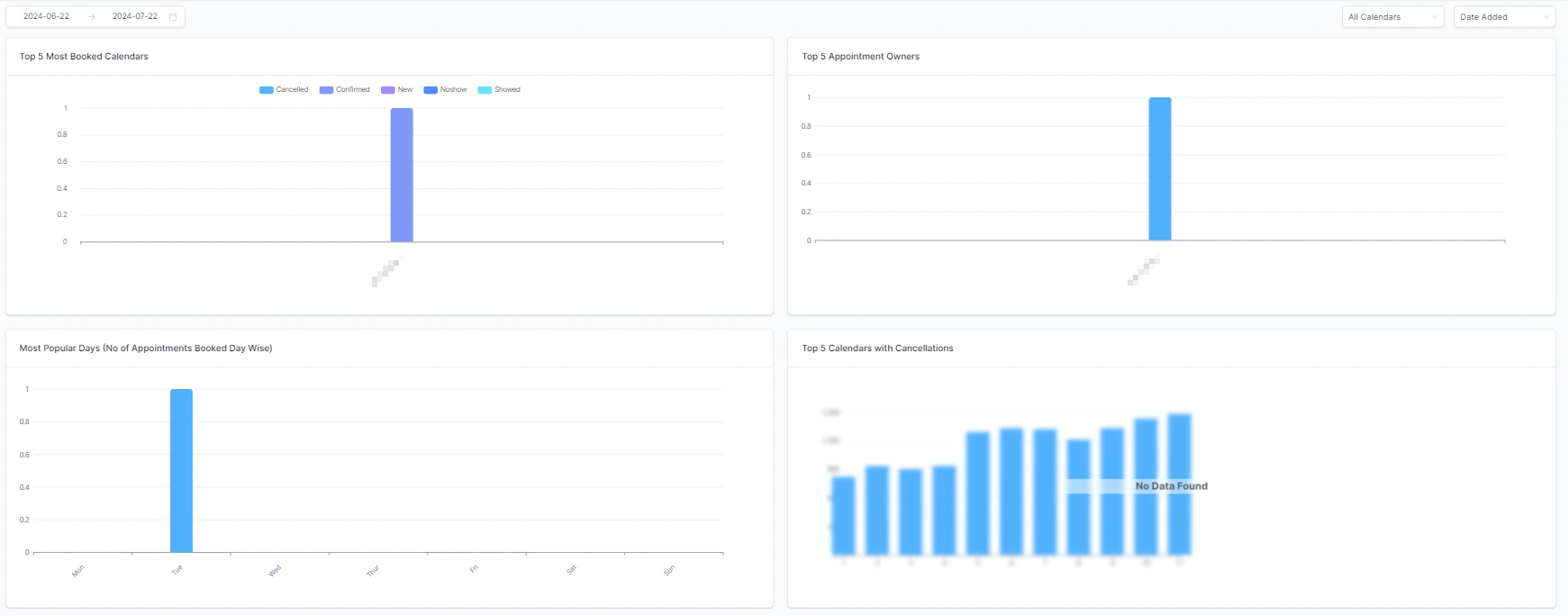
A bar graph showing the number of reviews received month-by-month, making it easy to spot spikes or drops in review volume.
Sentiment overview
A summary of the general tone of customer reviews — positive, neutral, or negative — based on review content analysis.
Invite trends
Total review requests sent via SMS and email within the selected time frame, with a breakdown by channel.
Response rate
Percentage of reviews that have received a response from your team, either manually or via AI-assisted replies.
Review volume trends
The monthly bar graph in the reputation dashboard gives you a historical view of review acquisition. Tracking this over time helps you:- Correlate review volume spikes with specific campaigns or promotions — for example, a post-service SMS review request sent to a batch of recent customers.
- Identify periods of low review acquisition and trigger a new request campaign to rebuild momentum.
- Benchmark your current volume against previous months to assess whether your review generation strategy is scaling with your business.
Review volume trend chart showing monthly review acquisition
Average rating tracking
Your average star rating is one of the most visible indicators of business health in local search. HoopAI displays your current average rating at the top of the reputation dashboard and tracks it over time so you can see whether your rating is improving, stable, or declining. A few things to keep in mind:- A single batch of negative reviews can significantly move your average if your total review count is low. Consistent, ongoing review generation creates a larger base that is more resilient to occasional negative feedback.
- Your average rating affects your visibility in Google Maps and local search results. Businesses with ratings above 4.0 generally appear more prominently in map pack results than those below.
Sentiment analysis
The sentiment section provides a qualitative overlay on top of raw review counts. Sentiment is calculated by analyzing the language in review text and classifying reviews as positive, neutral, or negative. Use sentiment data to:- Identify recurring themes in negative reviews (such as specific service issues or staff interactions) that may not be obvious from star ratings alone.
- Spot early warning signs of a service quality problem before it shows up as a drop in average rating.
- Validate that positive reviews are reflecting the specific attributes — responsiveness, expertise, value — that matter most to your brand.
Review request performance (invite trends)
The invite trends chart shows how many review requests you have sent over time and through which channels (SMS or email). Compare this against your received review volume to calculate your request-to-review conversion rate. A typical review request conversion rate ranges from 5–20%, depending on how the request is timed and worded. Key factors that affect conversion:- Timing — review requests sent shortly after a completed service or positive interaction convert at higher rates than those sent days or weeks later.
- Personalization — requests that reference the specific service or interaction feel more relevant than generic asks.
- Channel — SMS requests tend to have higher open and response rates than email for most service businesses.
Responding to reviews
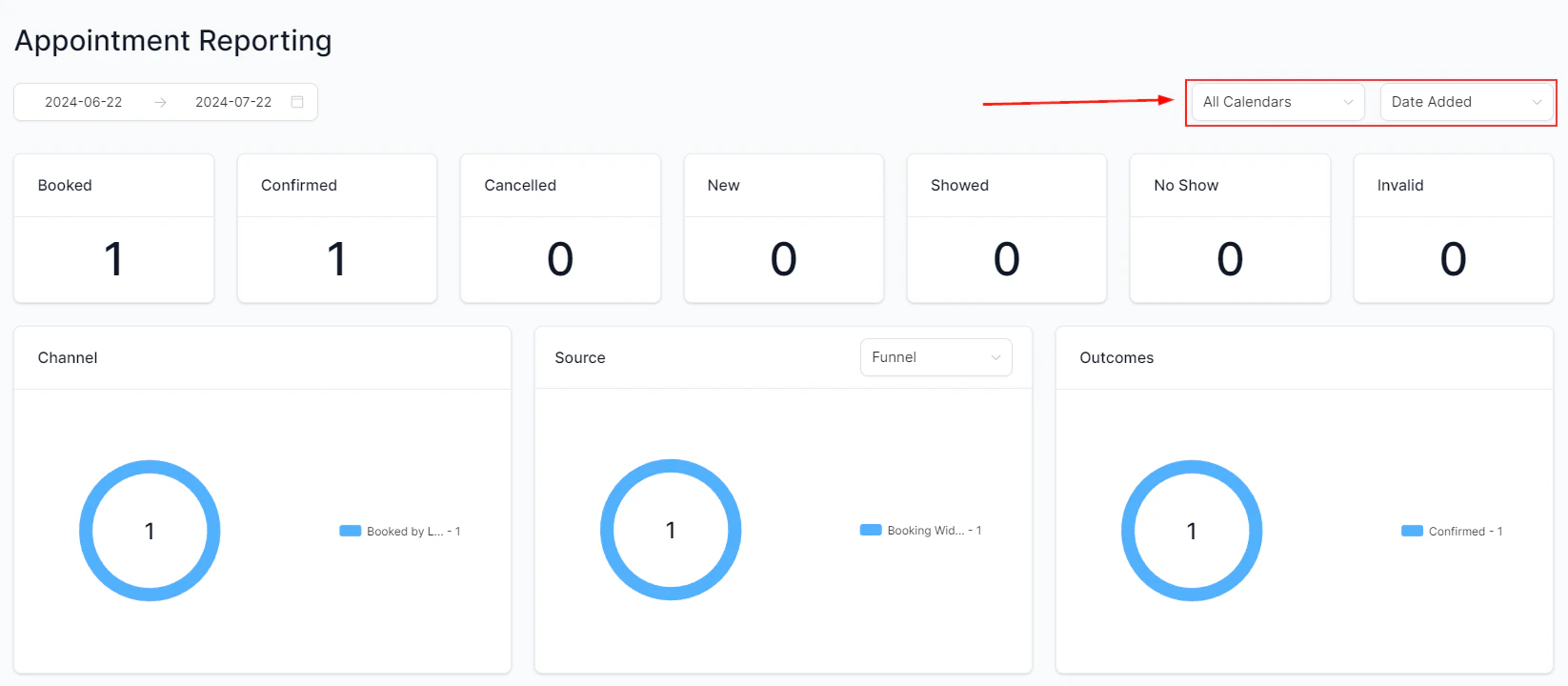
HoopAI allows you to read and respond to Google and Facebook reviews directly from the reputation dashboard without leaving the platform:- Navigate to Reputation → Reviews.
- Use the All, Positive, or Negative filter tabs to focus on the reviews you want to address.
- Click Reply on any review to compose and submit your response.
Review management interface with filter and reply options
Frequently asked questions
Which review platforms does HoopAI connect to?
Which review platforms does HoopAI connect to?
HoopAI connects to Google Business Profile and Facebook Pages for review monitoring and response. Reviews from other platforms (such as Yelp or Trustpilot) are not currently pulled into the reputation dashboard.
Can I automate review request sending?
Can I automate review request sending?
Yes. Build a workflow with an appointment completed trigger and add an SMS or email action using your review request template. This creates a fully automated post-service review request sequence that runs without any manual steps.
Why is my average rating in HoopAI different from what I see in Google?
Why is my average rating in HoopAI different from what I see in Google?
HoopAI pulls rating data from the Google Business Profile API and updates it regularly. There may be a short delay between a new review appearing on Google and being reflected in your HoopAI dashboard. If the discrepancy persists, reconnect your Google Business Profile integration.
Can I use AI to help respond to reviews?
Can I use AI to help respond to reviews?
Yes. HoopAI includes AI-assisted review response suggestions. When viewing a review, click the AI assist option to generate a draft response based on the review content. You can edit the draft before submitting it.
How do I handle a negative review?
How do I handle a negative review?
Respond promptly, acknowledge the customer’s experience without being defensive, offer to resolve the issue offline (provide a direct contact method), and keep the response professional. Avoid lengthy back-and-forth in the public reply thread.