

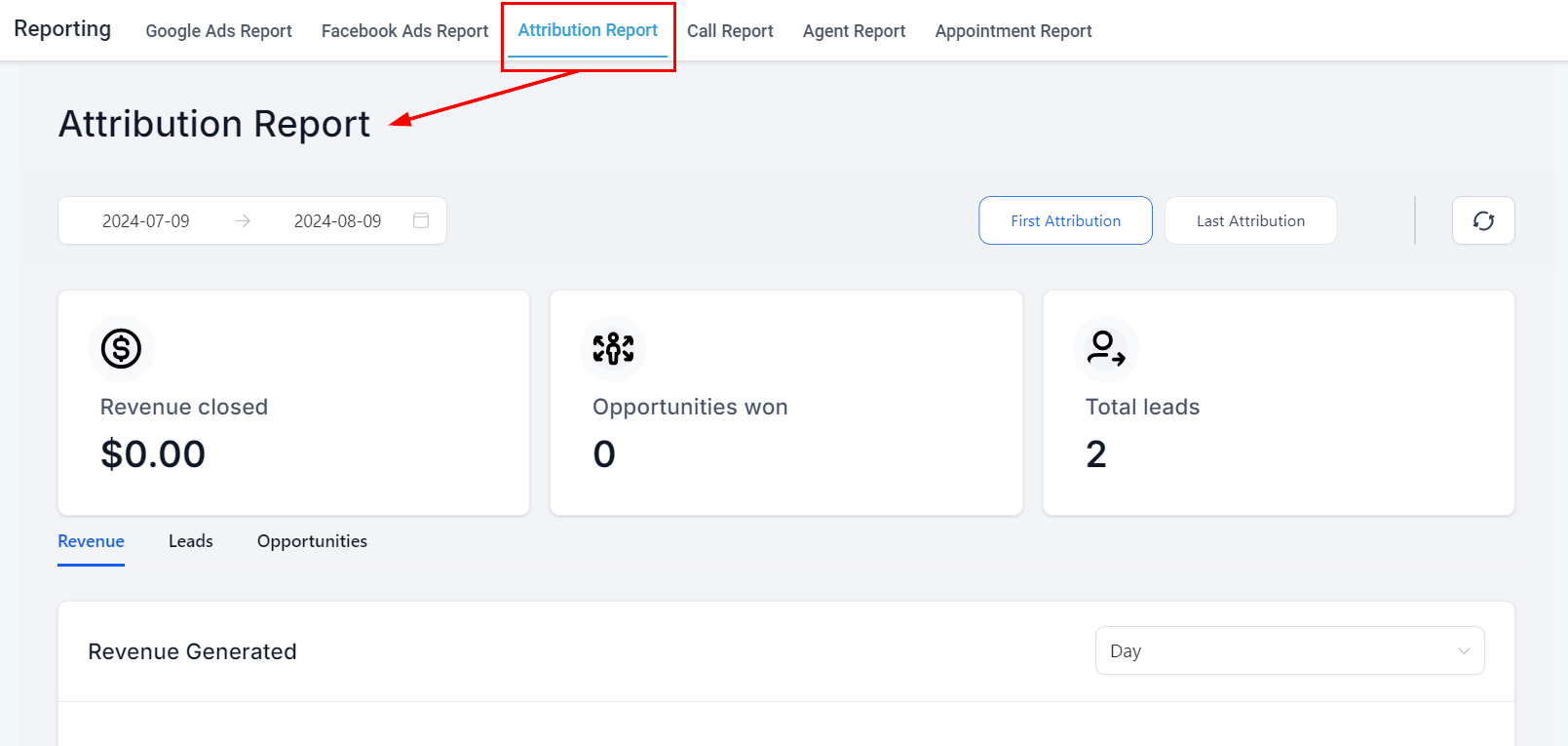
Attribution reporting overview showing source breakdown and conversion metrics
How attribution works
Every contact in HoopAI carries two attribution records:- First attribution — the channel, source, or campaign that brought the contact into your system for the very first time. This is set when the contact completes their first tracked action (form submission, calendar booking, chat widget interaction, or order form) and never changes.
- Latest attribution — the most recent channel or campaign associated with the contact. This updates each time the contact completes another tracked conversion action, giving you a view of the last touchpoint before a deal closes.
Attribution data is only captured when a contact completes an action through a native HoopAI tool — forms, surveys, calendars, chat widgets, or order forms. Actions taken on third-party tools that are not connected to HoopAI will not record attribution data.
Traffic source categories
HoopAI classifies every attributed contact into one of nine source categories:UTM parameter tracking
UTM parameters pass campaign metadata from your ads directly into contact records and attribution reports. HoopAI reads five standard UTM parameters:utm_source— the traffic origin (e.g.,adwords,fb_ad,newsletter)utm_medium— the marketing medium (e.g.,cpc,email,social)utm_campaign— the campaign nameutm_content— the specific ad creative or link variantutm_term— the keyword that triggered a paid search ad
UTM requirements
For UTM data to be captured correctly:- The contact must complete a conversion action on the same page where they arrived — moving to a different page before converting breaks the session and loses UTM data.
- Parameter names are case-sensitive. Use
utm_source=adwordsexactly, notAdwordsorADWORDS. - Use the HoopAI-provided UTM templates for Google Ads and Facebook Ads rather than custom parameter names, as the platform uses specific source values to classify traffic correctly.
Viewing attribution data
On a contact record
Open any contact and scroll to the Attribution section. You will see both the first and latest attribution records, including the source, medium, campaign, and any UTM parameters captured at the time of conversion.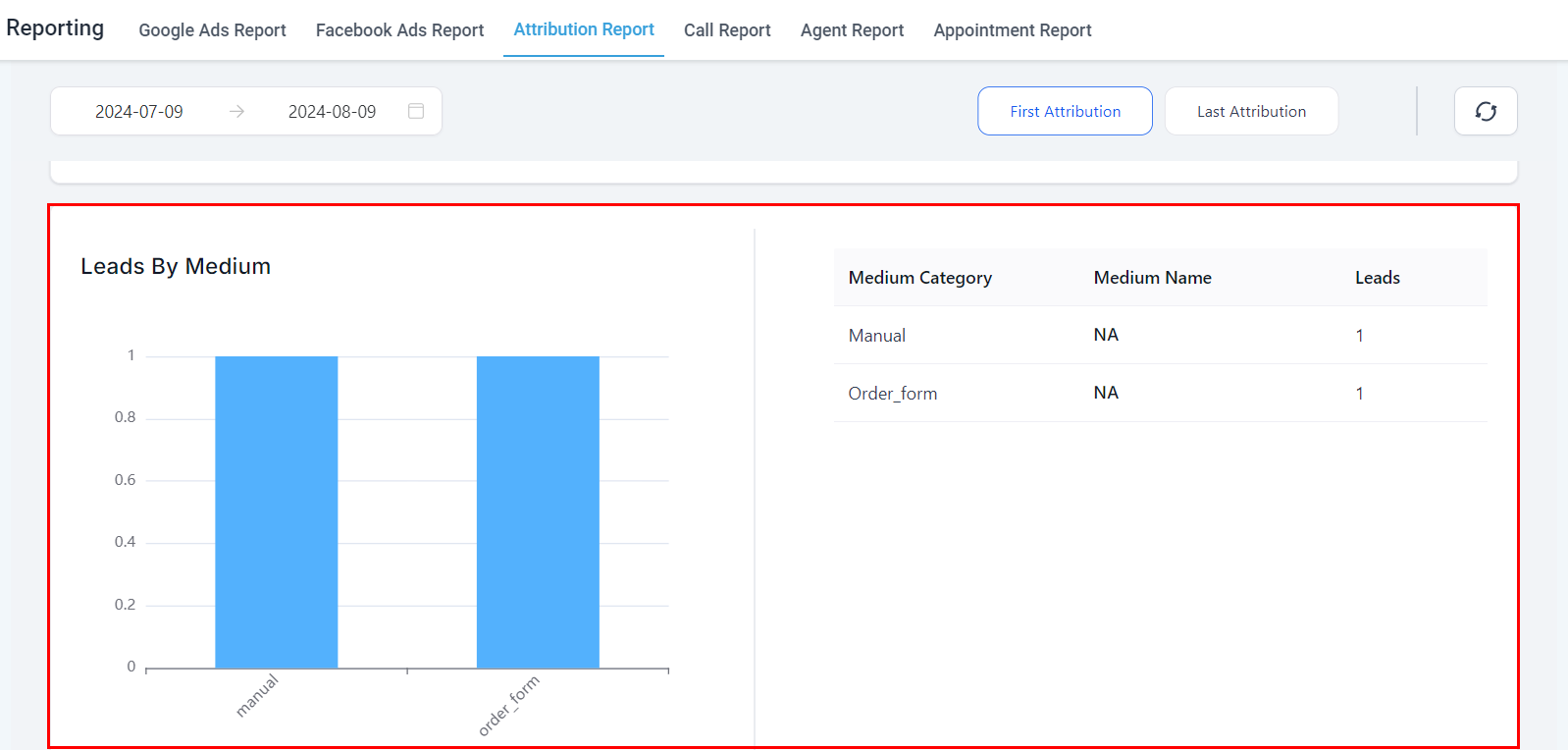
Attribution data on a contact record showing first and latest touch sources
In custom dashboard widgets
Attribution filters can be added to any contact or opportunity widget on your dashboard:- Edit your dashboard and add or open a widget from the Contacts or Opportunities category.
- Click the Conditions tab and select Add Condition.
- Choose Attribution and select either First Attribution or Latest Attribution.
- Add attribution fields such as UTM Campaign, UTM Source, UTM Medium, or Session Source.
- Save the widget.
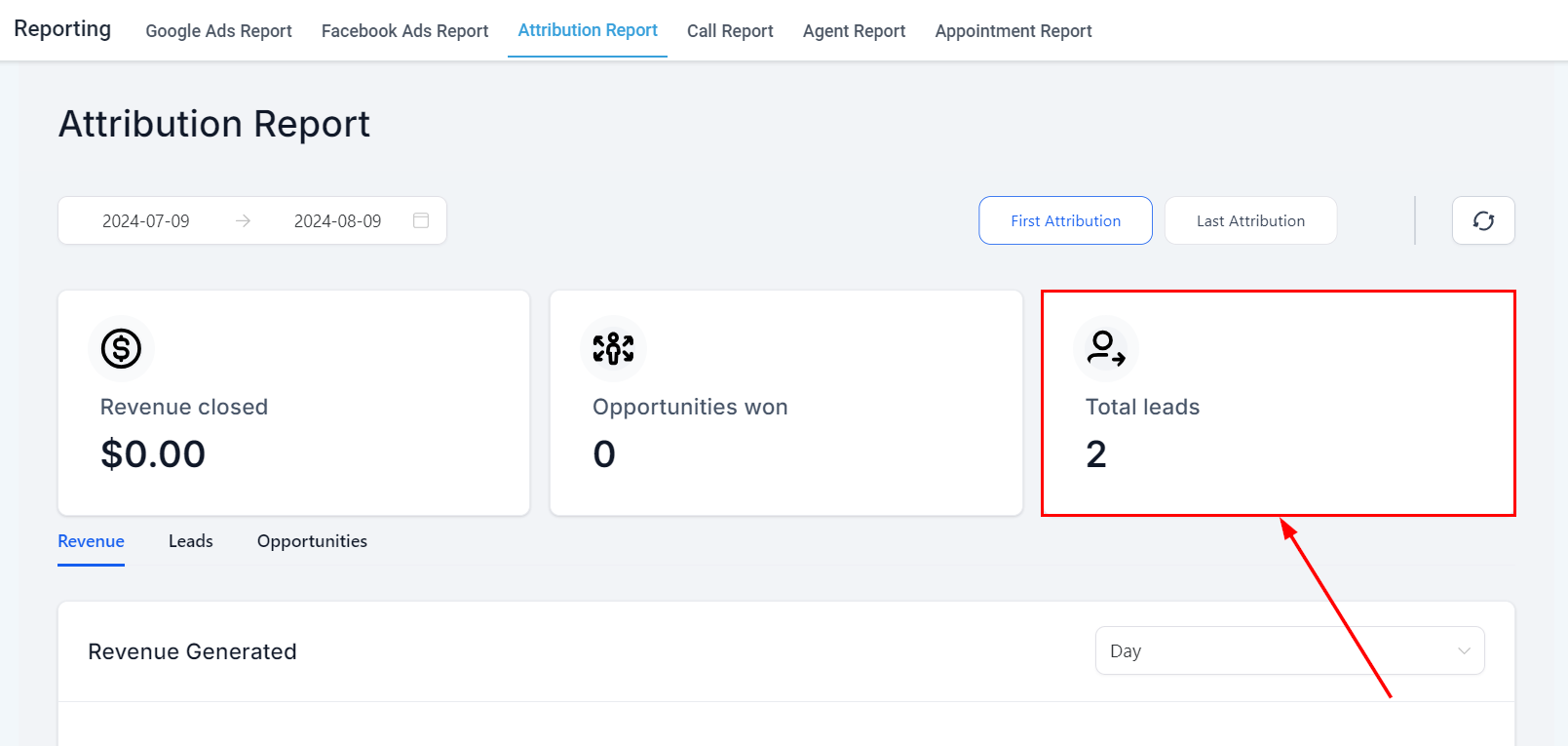
Attribution data displayed in a custom dashboard widget
CSV export
All attribution fields — including UTM parameters — are available in the granular insights table and can be exported as a CSV file. Add the attribution condition to a table widget and use the export option to download the data.Interpreting first touch vs. last touch
Neither attribution model is universally correct. Use them together to get a complete picture:- First touch tells you which channels are best at generating new awareness and bringing in fresh contacts. Use it to evaluate top-of-funnel investments.
- Last touch tells you which channels are closing deals. Use it to understand what finally converted a lead who may have interacted with your brand multiple times.
Chat widget attribution
When a contact initiates a conversation through your website’s chat widget, HoopAI captures attribution data from the page where the chat started. This includes:- Page URL — the specific page the visitor was on when they opened the chat
- Referrer — how the visitor arrived at that page (organic, paid, direct, referral)
- UTM parameters — if the visitor arrived via a link with UTM tags, those parameters are captured
- Session source — classified into the standard traffic source categories (organic search, paid search, direct, etc.)
Viewing chat widget attribution
- Open the contact record and navigate to the Attribution section
- Look for entries where the source action is Chat Widget
- The associated page URL, referrer, and UTM data are displayed
Using chat attribution in reports
Add a condition to any Contact or Opportunity widget filtering by Source Action = Chat Widget to isolate leads that originated from live chat conversations.Frequently asked questions
Why is a contact's attribution showing as 'direct traffic' when I know they came from an ad?
Why is a contact's attribution showing as 'direct traffic' when I know they came from an ad?
This typically happens when the contact navigated away from the landing page before completing a form or booking. UTM parameters are read at the moment of conversion on the same session. If the contact revisited the page later without clicking the ad link again, the UTM data would be absent.
Can I see attribution broken down by campaign inside a report?
Can I see attribution broken down by campaign inside a report?
Yes. Add a Table widget to your dashboard, apply a First or Latest Attribution condition, and include UTM Campaign as a column. This gives you a row-by-row breakdown of contacts by campaign, which you can also export as a CSV.
Does attribution work for contacts imported via CSV?
Does attribution work for contacts imported via CSV?
Contacts imported via CSV are classified as CRM UI or third-party integration sources. UTM parameters and session-based attribution do not apply to bulk imports since there is no live browsing session to capture.