

Google Ads reporting
Navigate to Reporting in the left sidebar, then select the Google Ads Reporting tab.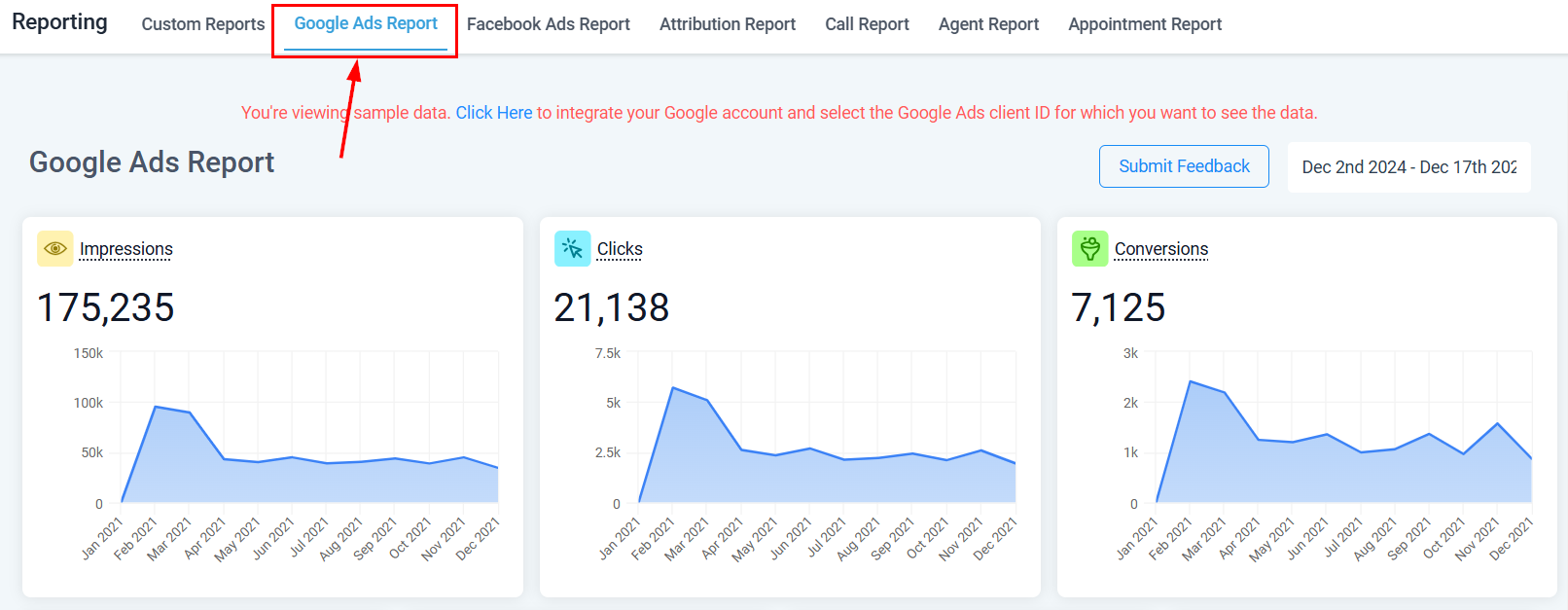
Google Ads Reporting tab
Key metrics
Impressions
How many times your ads were displayed over the selected date range.
Clicks
Number of users who clicked your ad, broken down by your chosen date range.
Conversions
Users who completed the intended action defined by your campaign objective.
Campaign metrics
Campaign-level stats including client spend, average CPC, cost per conversion, and conversion rate.
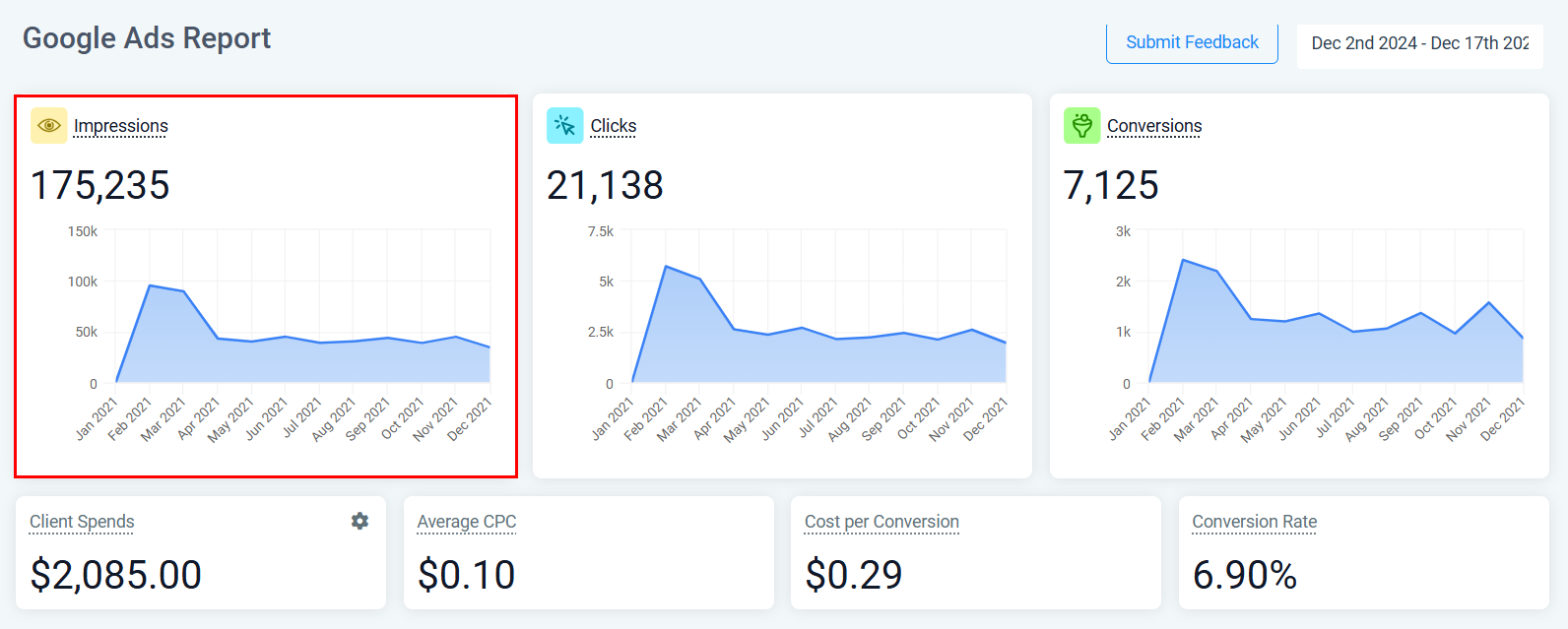
Google Ads impressions metric
Campaign data table
The campaign table shows individual campaign performance with columns including:- Campaign name and status
- Clicks, cost, revenue, ROI
- Impressions and CPC
- Leads and cost per lead (CPL)
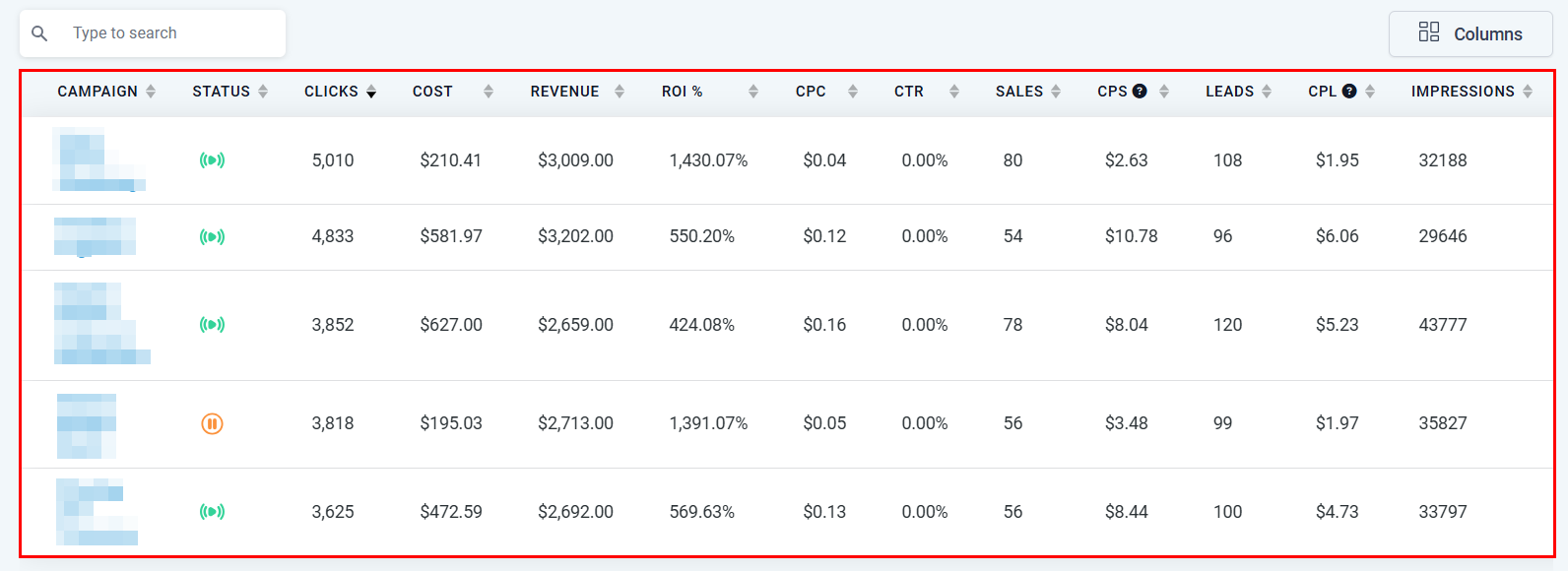
Campaign data table
Selecting a date range
Click the calendar icon in the top-right corner, select your date range, and confirm with the green checkmark to refresh the data.Submitting feedback
If you notice discrepancies between the report and your Google Ads account, click Submit Feedback to open a sidebar where you can compose a message, add a subject, and attach files.Facebook Ads reporting
Navigate to Reporting in the left sidebar, then select the Facebook Ads Reporting tab.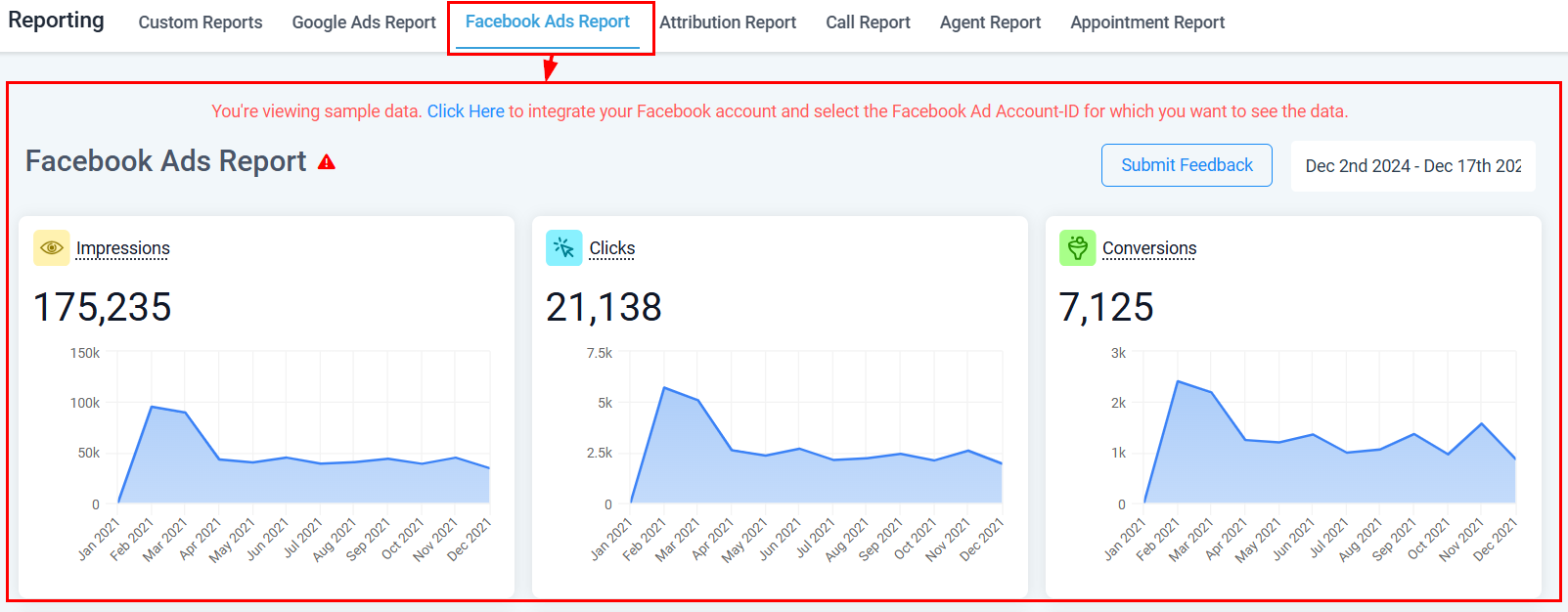
Facebook Ads Reporting tab
Key metrics
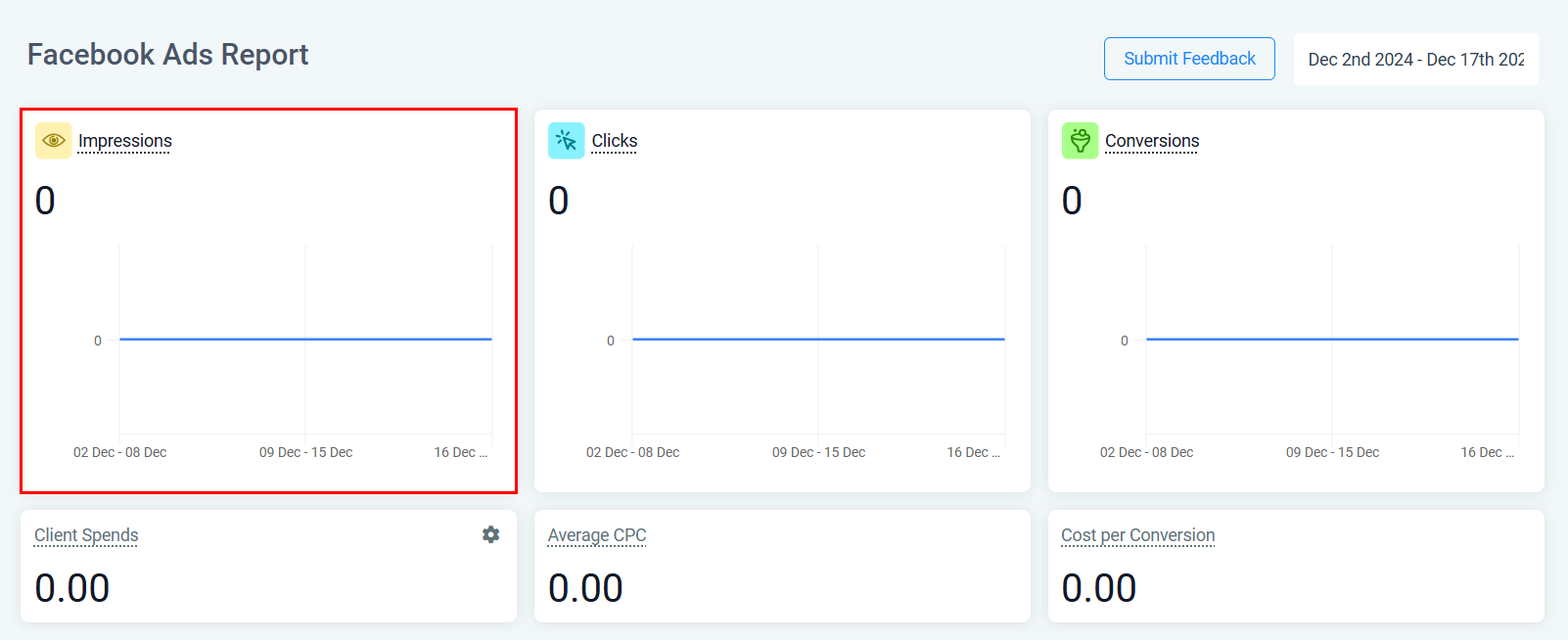
Impressions metric
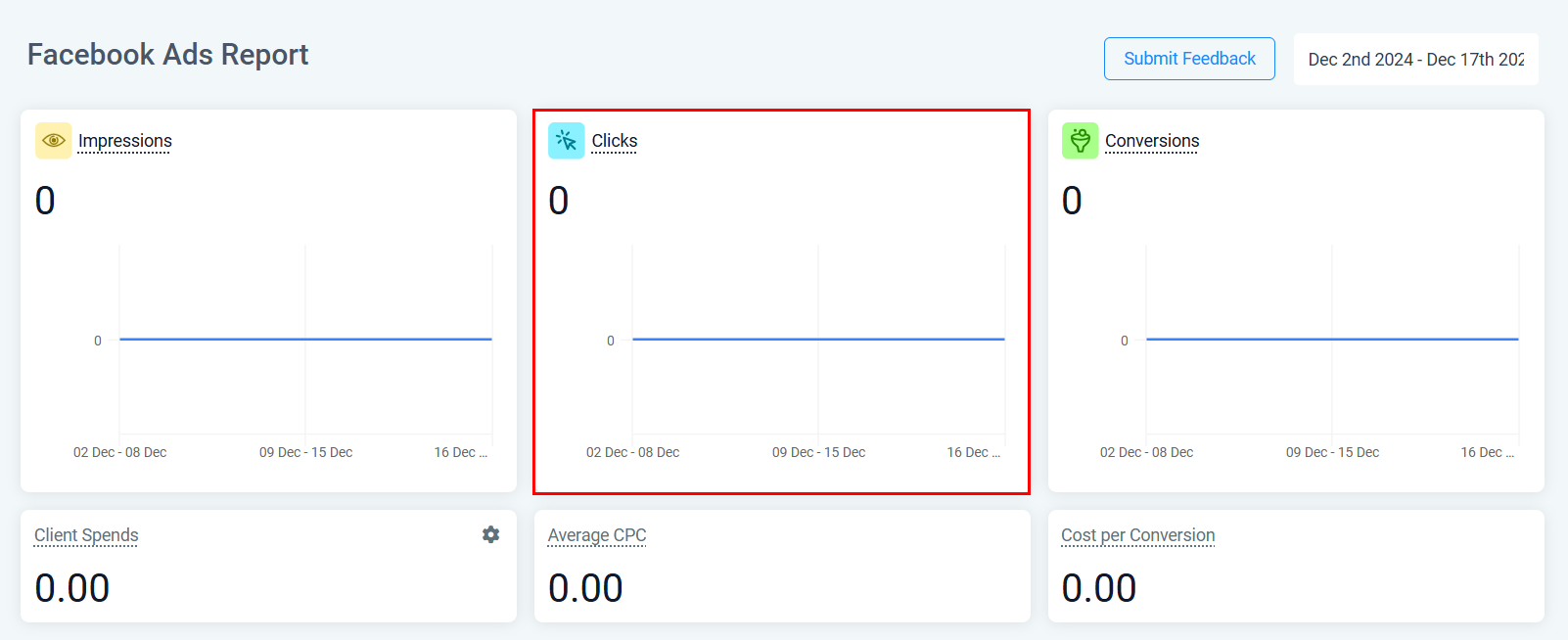
Clicks metric
- Impressions — how many times your ads were shown
- Clicks — total ad clicks
- Conversions — completed campaign actions
- Spend — total ad spend over the period
Ads data table
The table shows campaign, ad set, and ad-level data. Use the search bar to filter by name and the Columns selector to customize visible fields.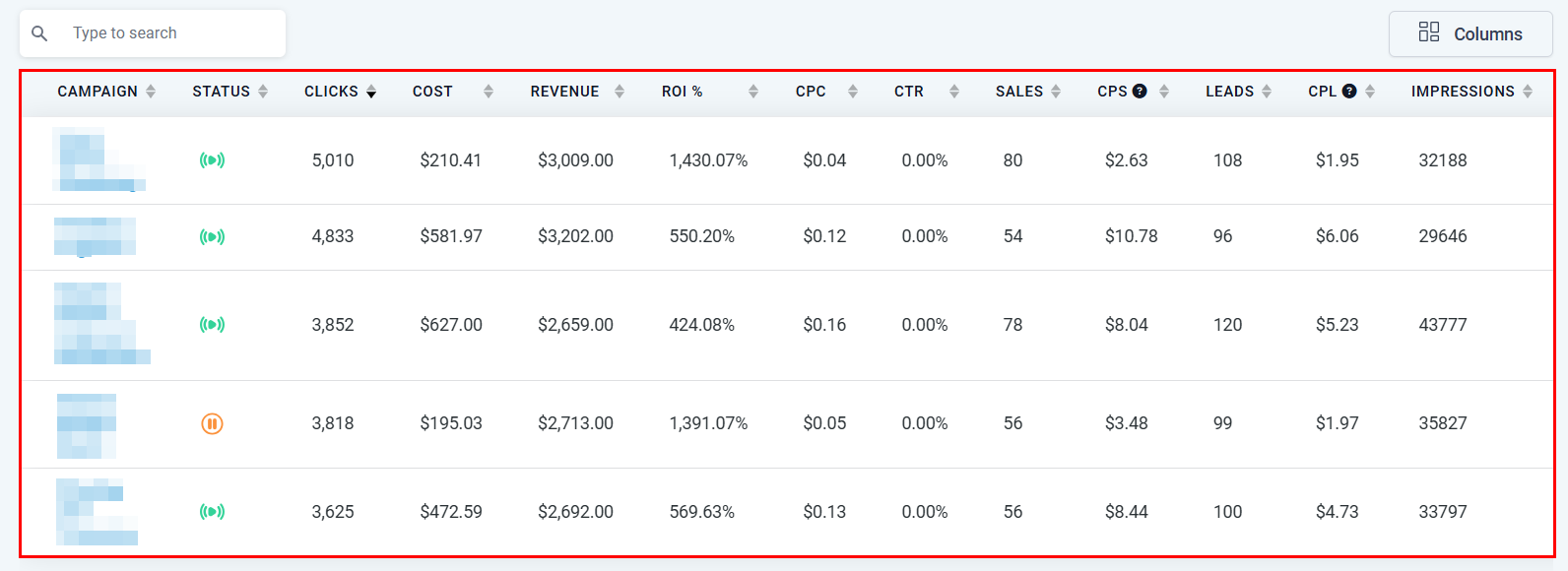
Facebook Ads data table
Connecting your Facebook account
To populate Facebook Ads data, connect your Facebook account under Settings → Integrations. Once connected, campaign data syncs automatically.Ad reporting data may have a slight delay compared to native Facebook or Google Ads dashboards. If you see discrepancies, allow up to 24 hours for data to sync, or use the Submit Feedback option.
Attribution report
The Attribution Report helps you trace which sources and marketing touchpoints are responsible for converting leads. Navigate to Reporting → Attribution Report to see a breakdown.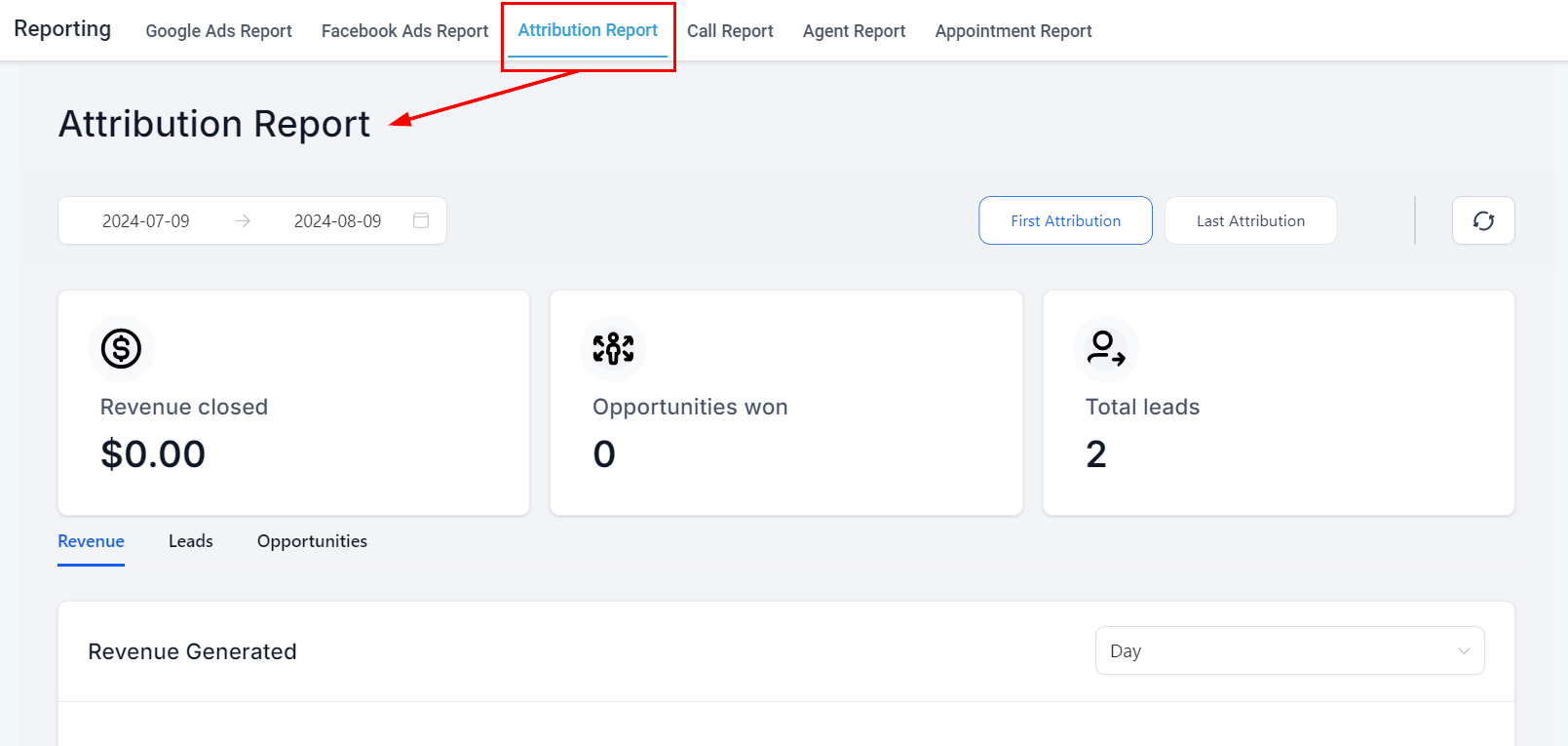
Attribution Report overview
Controls
- Date range — select any period to analyze attribution data
- Attribution model — choose how credit is assigned to touchpoints (first touch, last touch, etc.)
- Refresh — update the report to pull the latest data
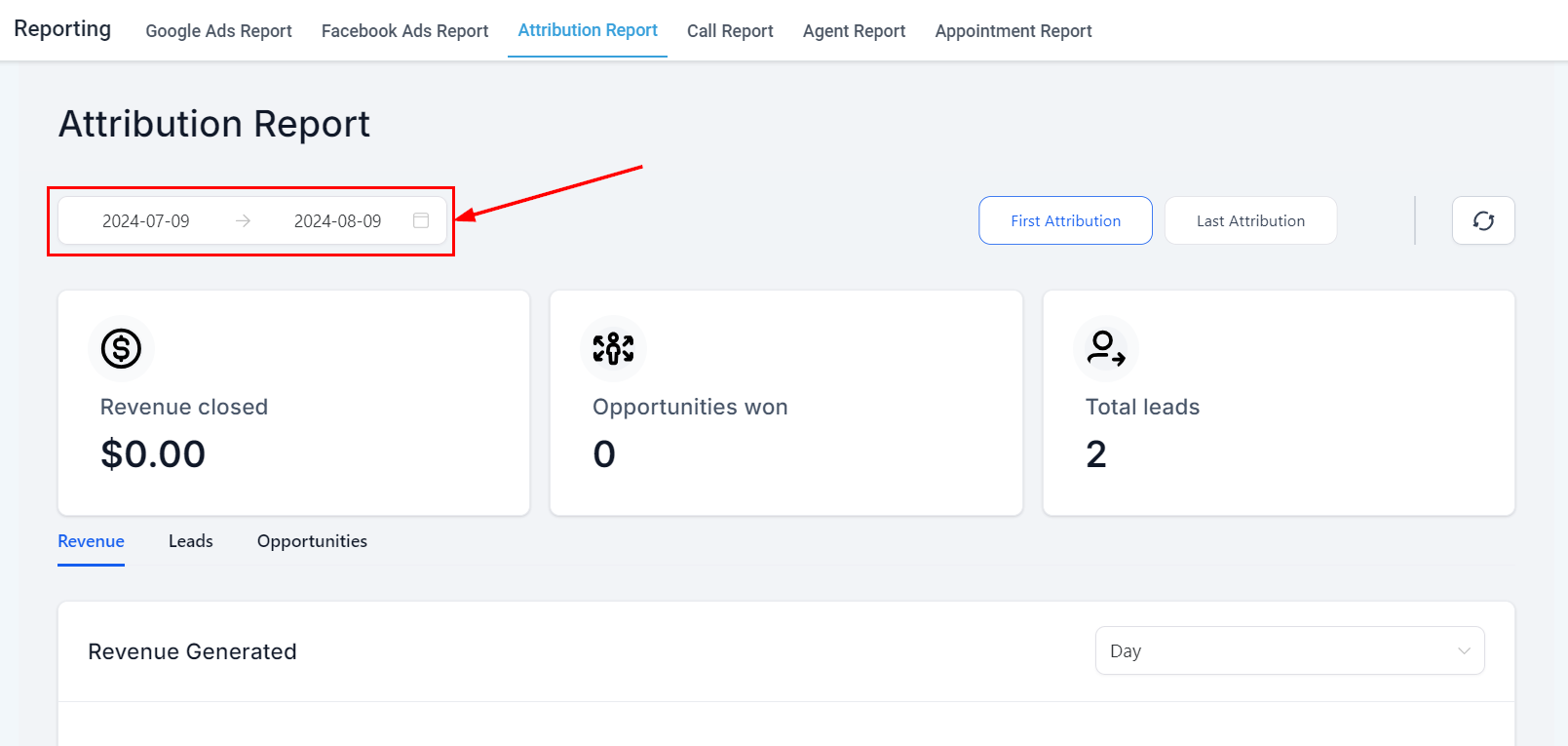
Date range selector
Key attribution metrics
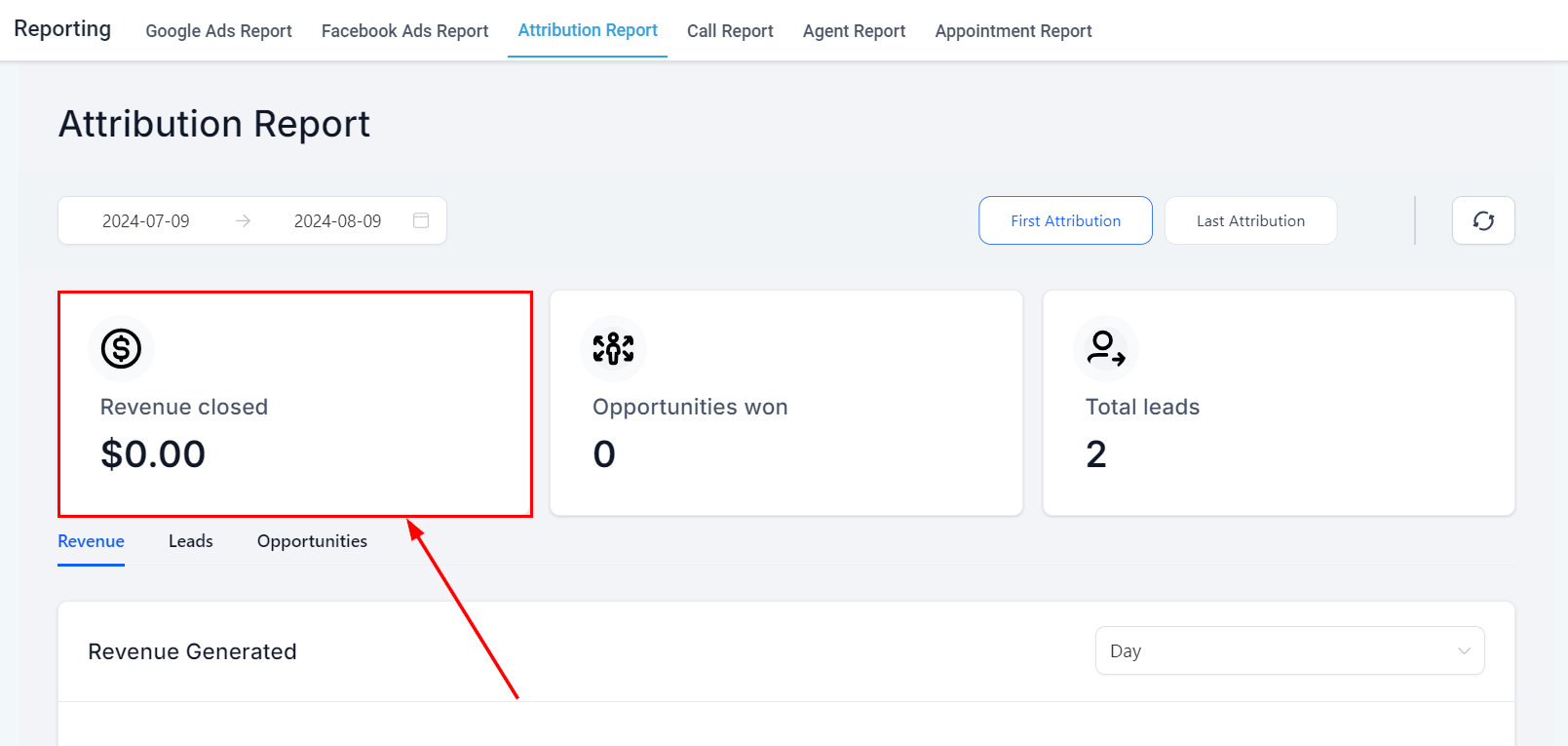
Revenue Closed metric
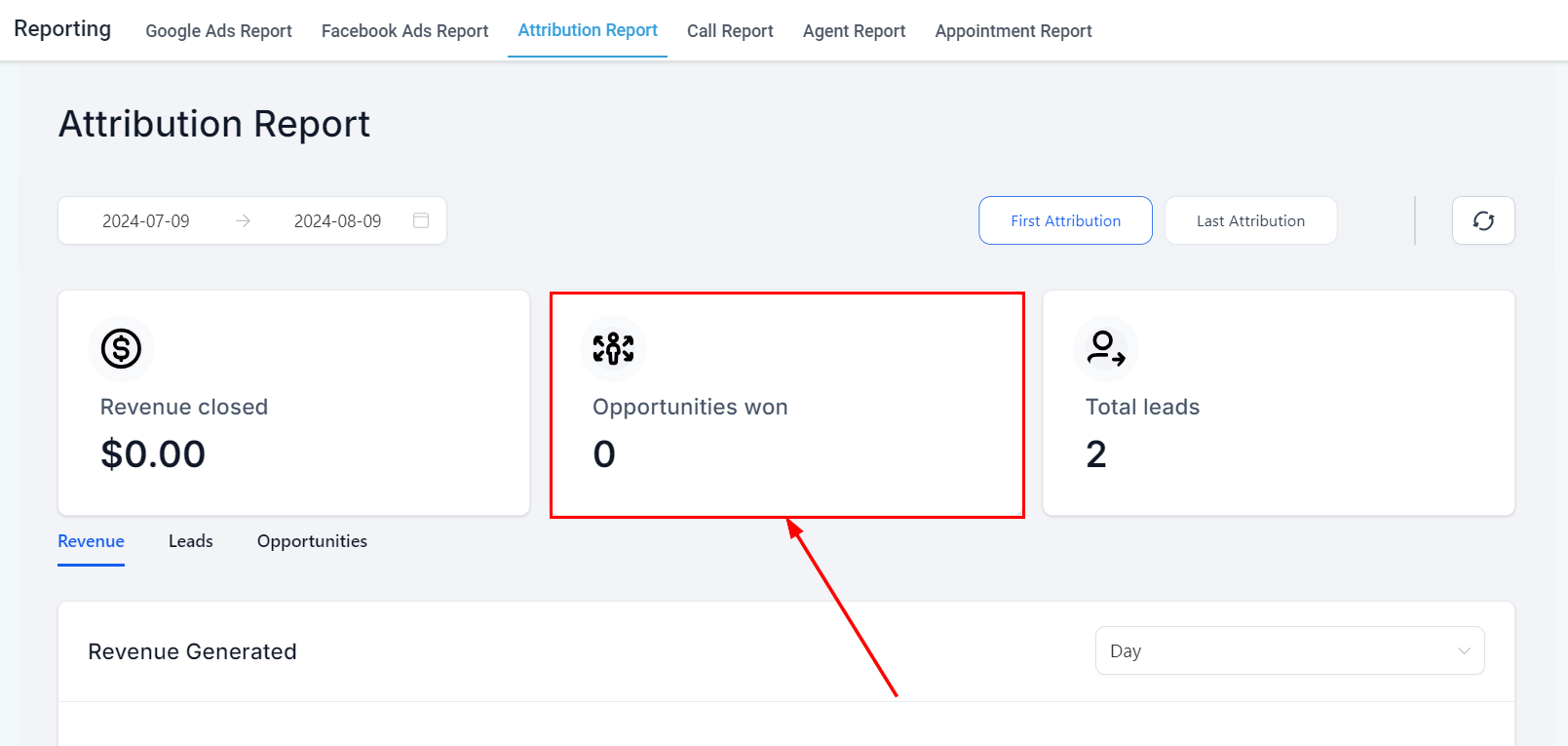
Opportunities Won metric
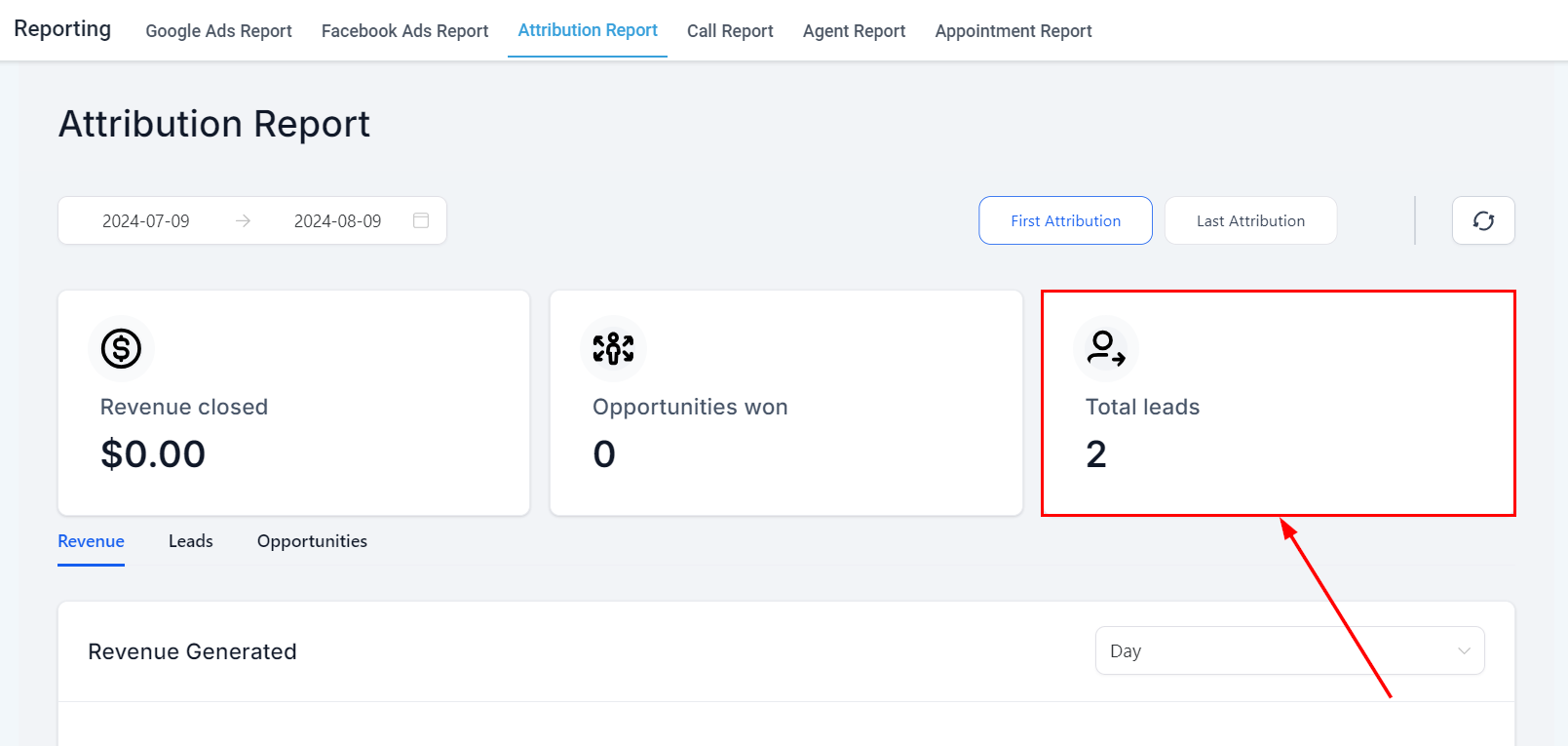
Total Leads metric
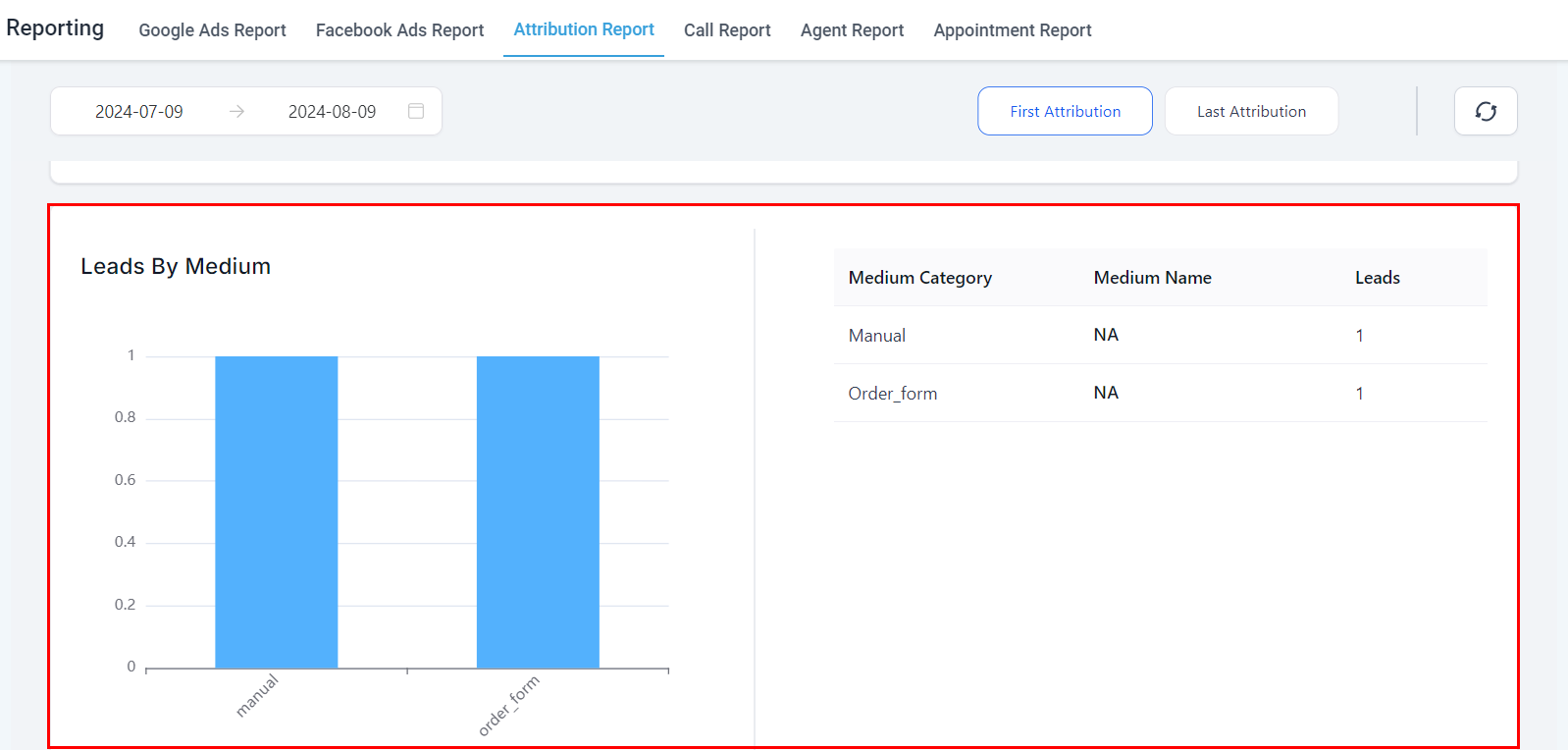
Revenue by medium breakdown
Conversion report
The Conversion Report within Attribution tracks and analyzes revenue generated from specific conversion events. Use it to measure how effectively your marketing converts leads into paying customers.Frequently asked questions
How do I connect my Google Ads account?
How do I connect my Google Ads account?
Connect Google Ads under Settings → Integrations. Once authorized, campaign data syncs automatically and appears in the Google Ads Reporting tab.
How do I connect my Facebook Ads account?
How do I connect my Facebook Ads account?
Go to Settings → Integrations and connect your Facebook account. After authorization, your Facebook campaign data will populate in the Facebook Ads Reporting tab.
Why is my ad data showing a delay?
Why is my ad data showing a delay?
Ad reporting data may lag behind native Facebook and Google dashboards by up to 24 hours. If discrepancies persist after 24 hours, use the Submit Feedback option in Google Ads Reporting to report the issue.
What attribution models are available?
What attribution models are available?
The Attribution Report supports multiple models including first touch, last touch, and linear attribution. Select your preferred model using the Attribution Model dropdown within the Attribution Report.
Can I see cost-per-lead data for my campaigns?
Can I see cost-per-lead data for my campaigns?
Yes. The Google Ads campaign data table includes a CPL (cost per lead) column alongside impressions, clicks, spend, and ROI metrics.
What is the Conversion Report?
What is the Conversion Report?
The Conversion Report within Attribution tracks revenue generated from specific conversion events, helping you measure how effectively your marketing converts leads into paying customers.