

The HoopAI dashboard showing business performance at a glance
Custom widgets
Add, remove, and arrange widgets to build a dashboard tailored to your workflow.
Dashboard elements
Explore all available widget types and what data each one displays.
Managing dashboards
Create, rename, duplicate, and delete dashboards across your account.
Dashboard permissions
Control which users and roles can view or edit each dashboard.
Dashboard theme
Switch between light and dark themes or apply custom color settings.
Quick filters
Refine widget data on the fly without permanently editing the dashboard layout.
Appointment widget
Track scheduled and completed appointments across your team.
Conversation widget
Monitor open conversations, response times, and messaging volume.
Revenue widget
View revenue totals, payment trends, and transaction breakdowns.
Reputation widget
Track review counts, average ratings, and reputation trends over time.
Funnel widget
Visualize leads moving through each stage of your pipelines.
Goal tracking
Set targets for key metrics and measure progress against them.
Date range filters
Apply custom date ranges to control the time period shown across all widgets.
Dashboard sharing
Share dashboards with team members or external stakeholders via links.
Google Analytics widget
Display Google Analytics traffic data directly inside your dashboard.
Exporting dashboards
Download dashboard data as a report for offline review or distribution.
Getting started
1
Open the dashboard
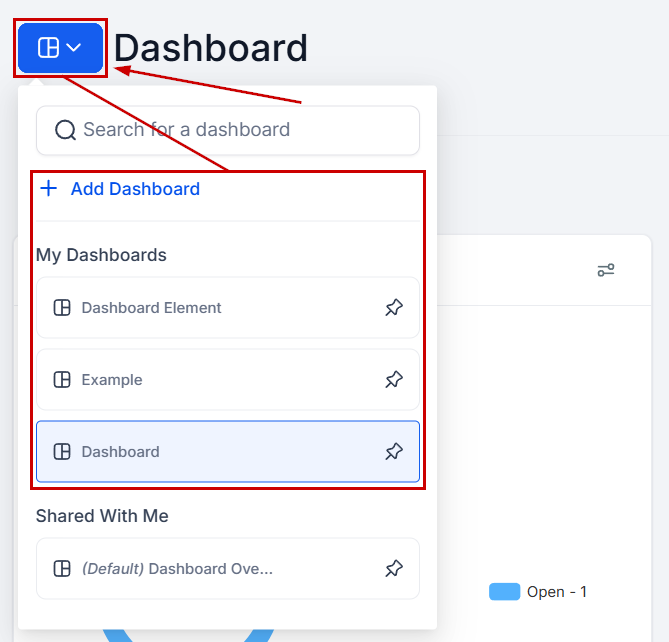
Navigate to Dashboard in the left sidebar. If multiple dashboards exist, use the switcher at the top to select the one you want to work with.
2
Set a date range
Use the time frame selector to set the date range for all widget data. This applies globally to every widget on the current dashboard.
3
Customize your layout
Click the Edit icon to enter edit mode. Add widgets from the widget library, drag them to reorder, and resize them to fit your workflow.
4
Apply quick filters
Use Quick Filters to refine data across widgets — for example, filtering by a specific pipeline, team member, or lead source — without permanently changing the layout.
5
Share or export
Share the dashboard with your team using the sharing options, or export the data as a report for stakeholder review.
Frequently asked questions
Can different users see different dashboards?
Can different users see different dashboards?
Yes. Dashboard permissions let you control which users or roles have access to each dashboard. You can create separate dashboards for different teams — for example, one for sales, one for marketing, and one for management — and restrict access accordingly.
Do quick filters affect other users?
Do quick filters affect other users?
No. Quick filters are saved per user. When you apply a quick filter, it only changes the view for your own session and does not affect what other users see on the same dashboard.
Can I add widgets from other parts of the platform?
Can I add widgets from other parts of the platform?
Yes. From pages like the Call Report tab, Appointment Report tab, or Opportunities section, look for the grid icon to send a widget directly to a selected dashboard without entering edit mode.
How do I change the time zone for dashboard data?
How do I change the time zone for dashboard data?
Click the three dots in the top-right corner of the dashboard and select Manage Dashboard Time Zone. You can switch between your location’s time zone and your personal time zone. The setting applies across all dashboards you view.
Can I have more than one dashboard?
Can I have more than one dashboard?
Yes. Use the dashboard switcher at the top of the page to toggle between dashboards or add a new one. There is no hard limit on the number of dashboards you can create.
What happens to a dashboard if I delete a widget type's data source?
What happens to a dashboard if I delete a widget type's data source?
The widget will display an empty or error state until the data source is reconnected or the widget is removed. Deleting a pipeline or disconnecting an integration does not automatically remove the widget from the dashboard.