

Accessing the appointment report
Navigate to Reporting in the left sidebar, then select the Appointment Report tab.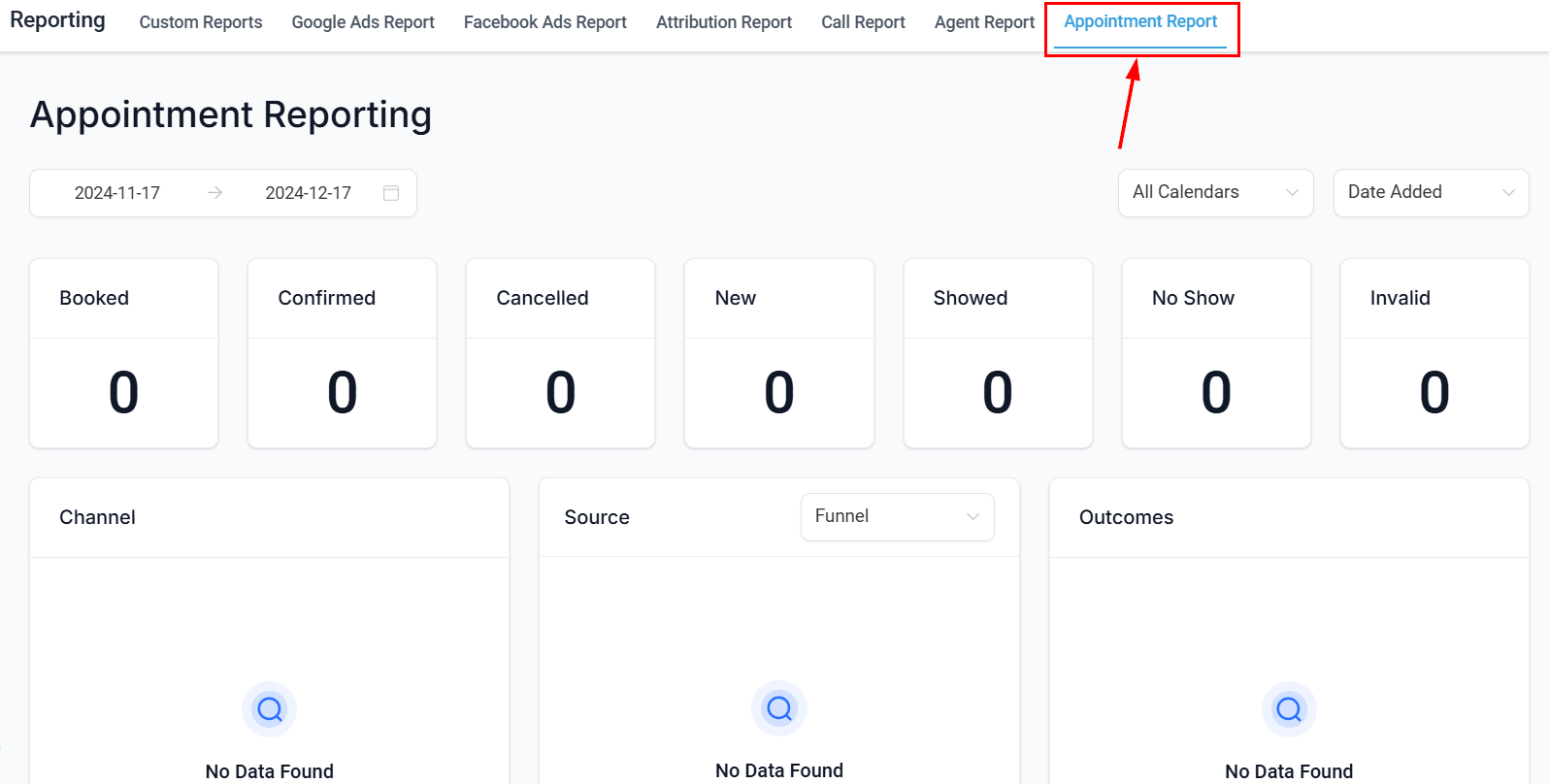
Appointment Report tab
Filtering appointments
Click the Filter button at the top of the report to narrow your appointment data.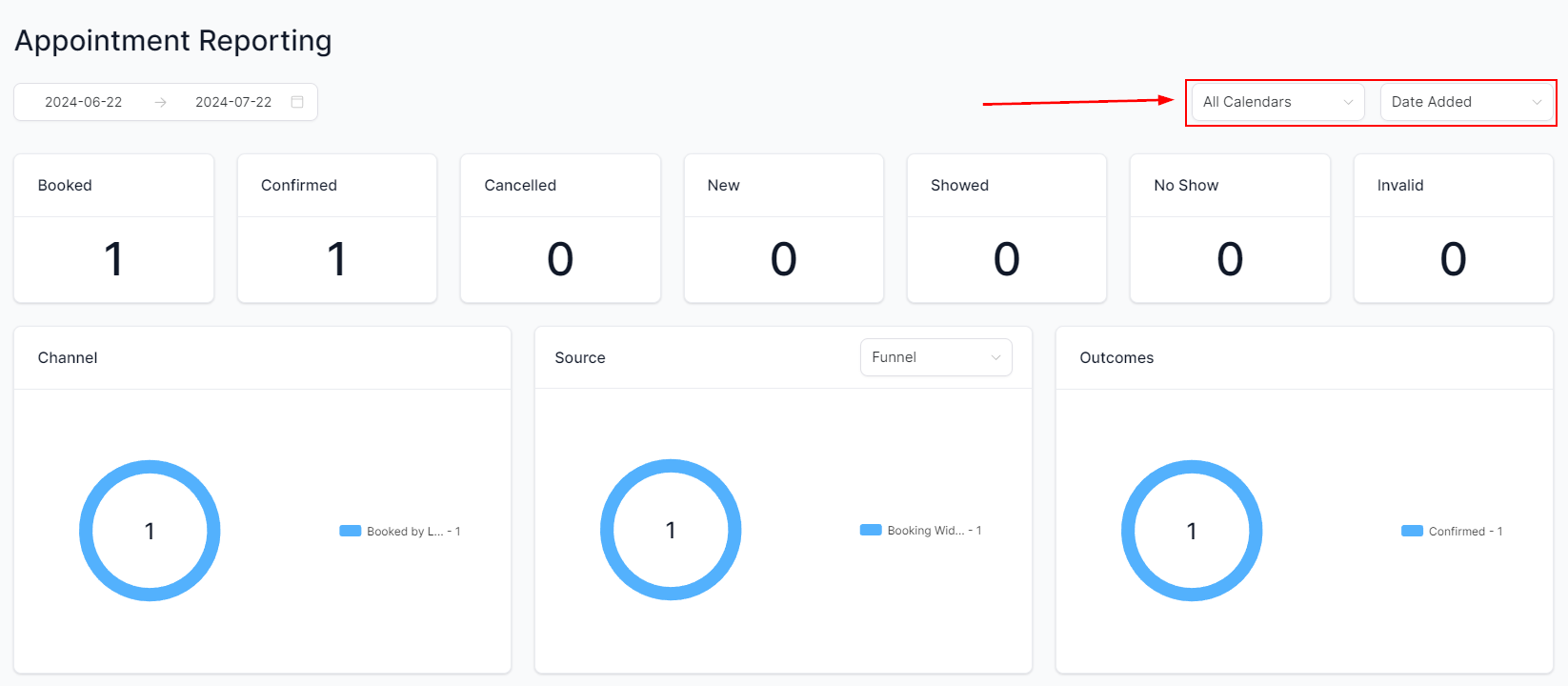
Filter controls
- Calendar — select one or more specific calendars
- Date filter type — filter by date the appointment was added or by appointment start date
- Date range — set a custom time frame
- Status — filter by booked, confirmed, cancelled, showed, or no-show
- Assigned user — isolate appointments by team member
Report sections
Overview metrics
The Overview section displays top-level metrics for the selected period: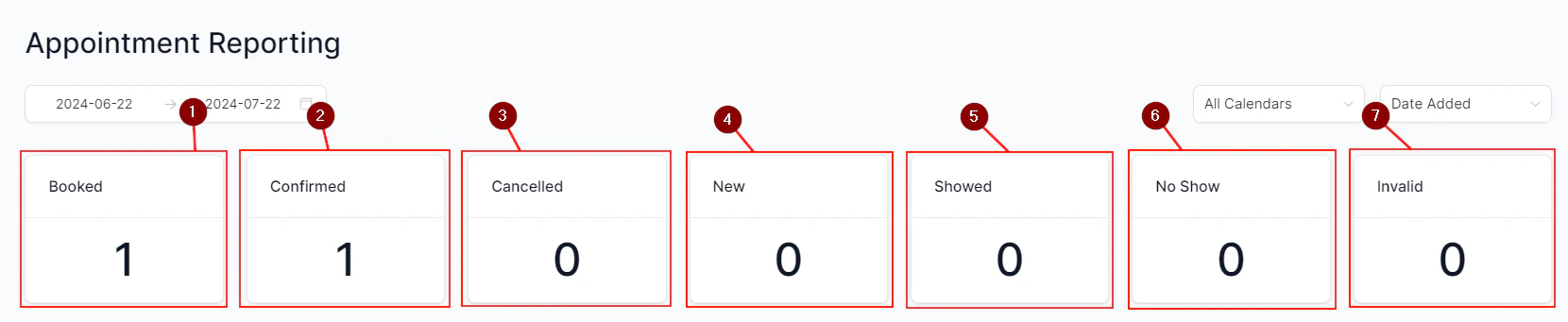
Overview metrics
Booking channel breakdown
The Channel section shows which booking channels are driving appointments — for example, direct booking, website widget, or manual entry.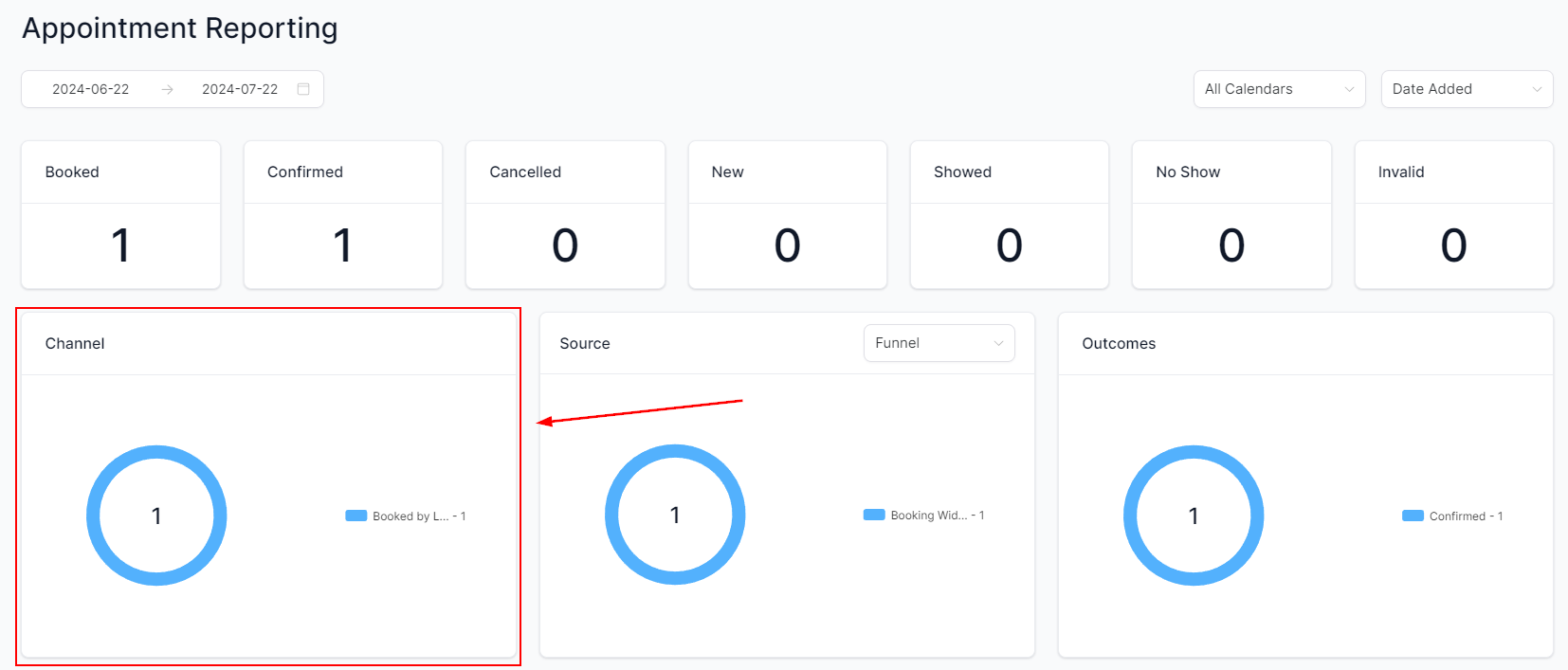
Booking channel breakdown
Appointment source
The Source section identifies where appointments originated, helping you understand which marketing or outreach activities are generating calendar bookings.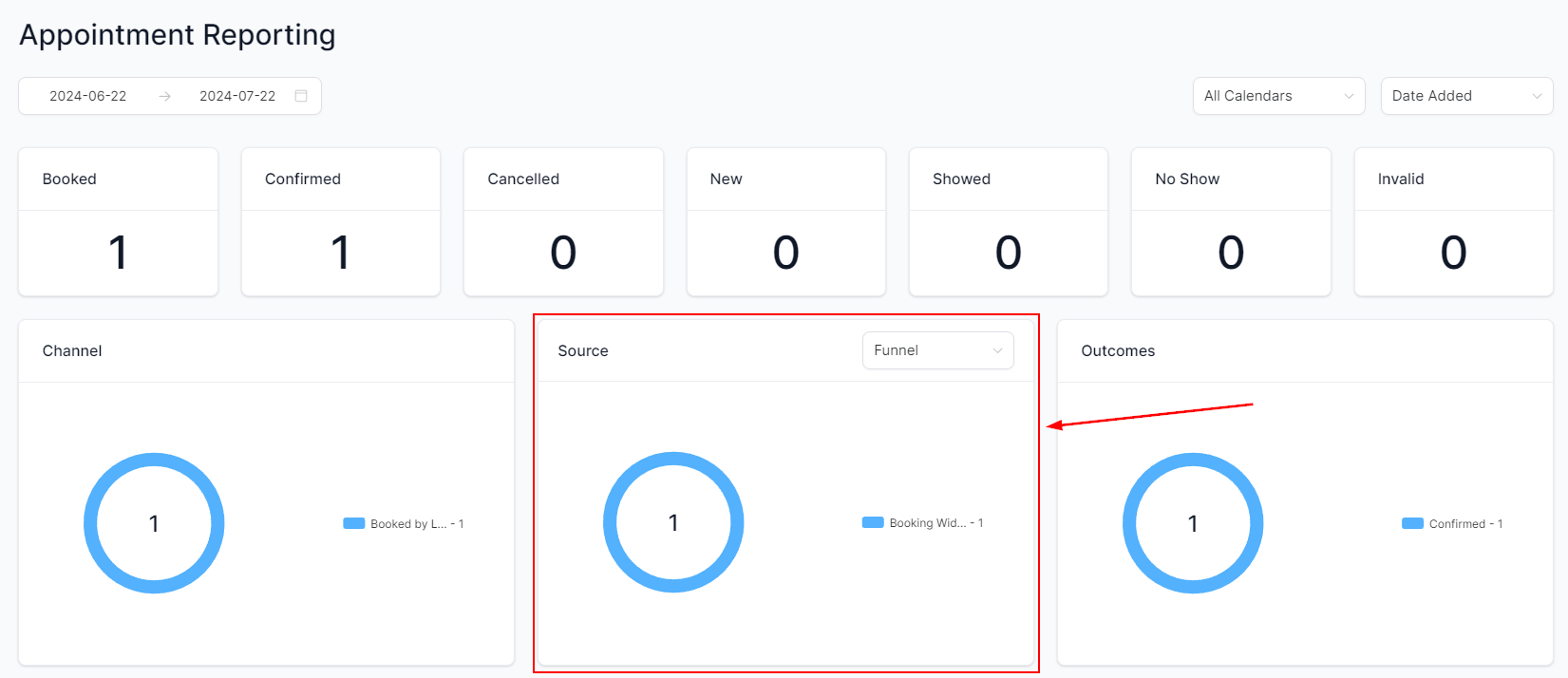
Appointment source
Appointment outcome
The Outcome section breaks down how appointments concluded — showed, cancelled, no-show, or rescheduled.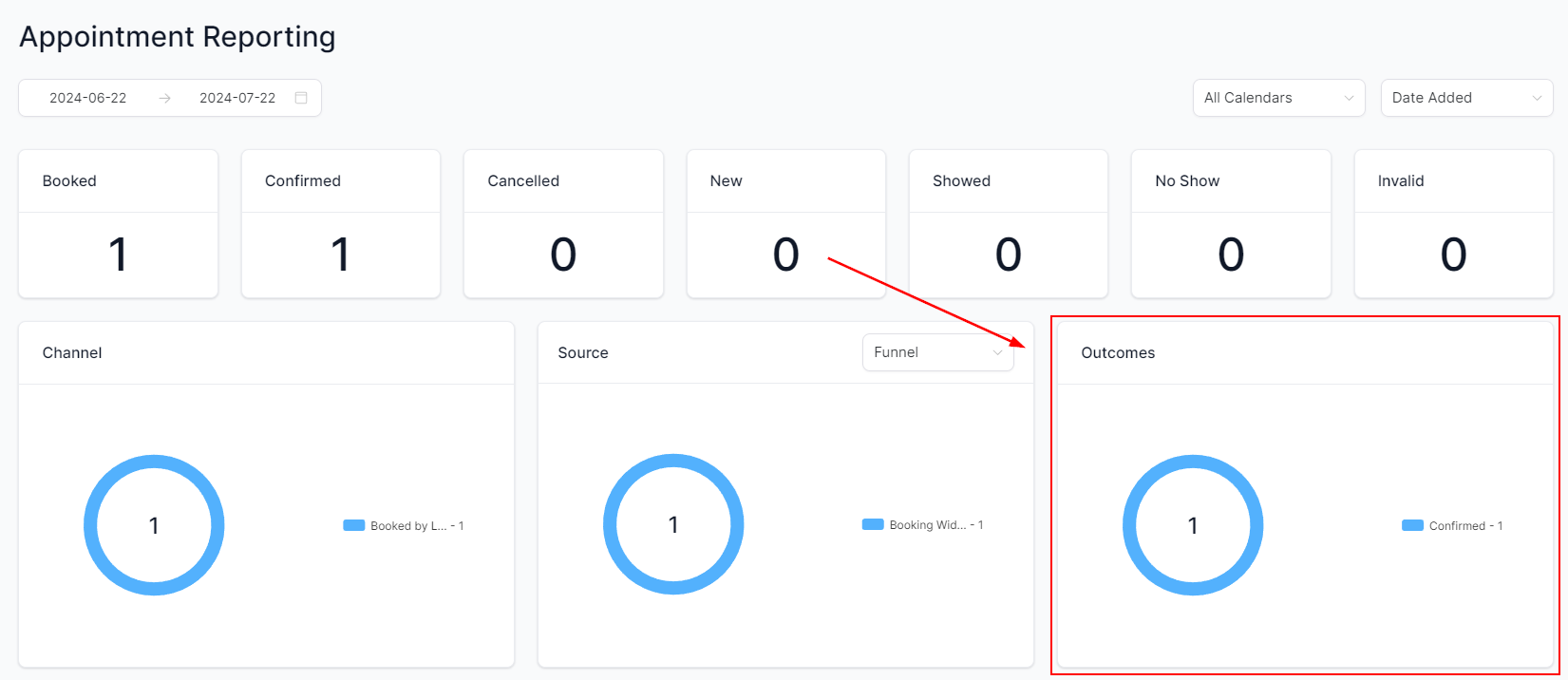
Appointment outcomes
Top graphs
Summary graphs at the top of the report provide a visual overview of appointment trends, highlighting:- Most booked calendar
- Top appointment owners (by team member)
- Calendars with most cancellations
- Most popular booking days of the week
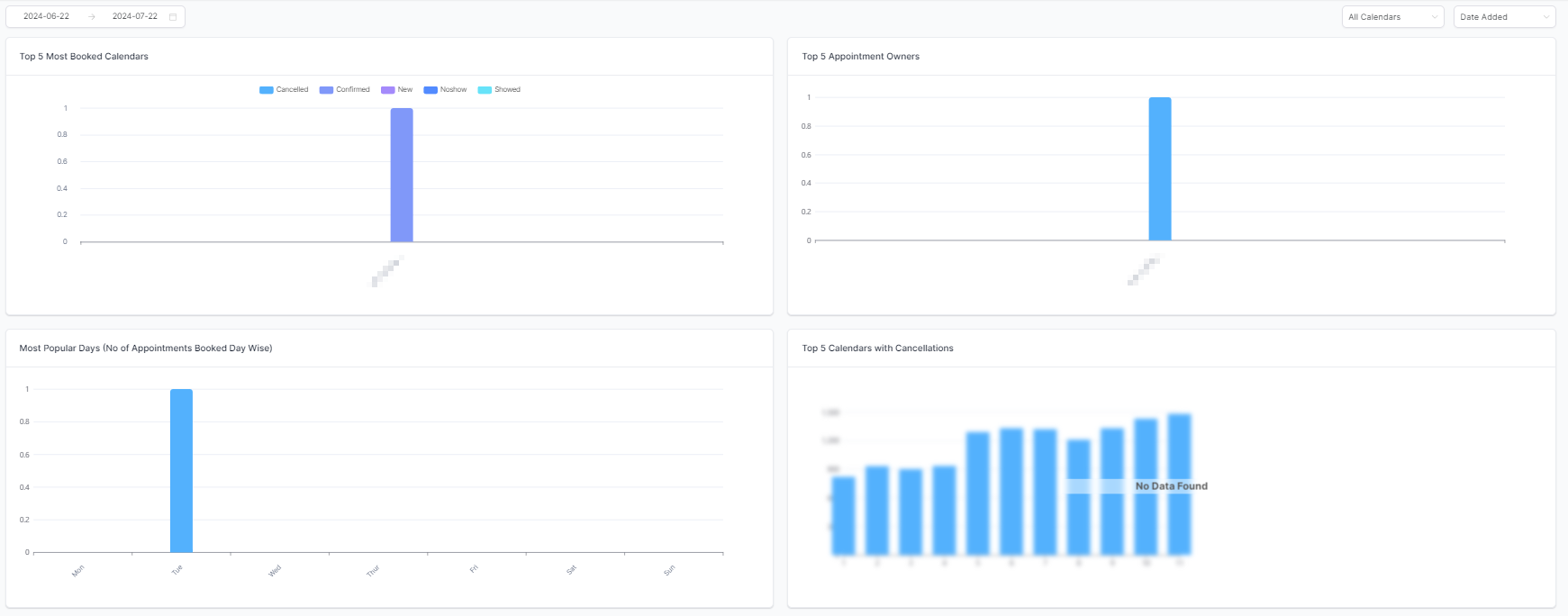
Summary trend graphs
Appointment data table
The full data table lists every individual appointment with columns including:- Calendar used
- Requested appointment time
- Booking time
- Booking party (who made the booking)
- Source
- Outcome
Filtering by outcome
Use the Appointment Outcome Filter above the table to show only contacts with a specific result — for example, all no-shows or all cancellations.Customizing columns
Click the column selector to toggle which fields appear in the table. Available columns include: Appointment ID, Calendar, Requested Time, Date Added, Contact Name, Email, Phone, Appointment Owner, Created By, Mode, Source, and Outcome.Exporting appointment data
Click the Export button to download the table as an Excel spreadsheet for further analysis or record-keeping.Access to specific reporting components may vary depending on your user permissions. Contact your account administrator if a section appears unavailable.
Frequently asked questions
What is the difference between Booked and New appointments?
What is the difference between Booked and New appointments?
Booked counts all appointments scheduled within the period, including rescheduled ones. New counts only appointments being scheduled for the first time, excluding reschedules.
How do I filter appointments for a specific team member?
How do I filter appointments for a specific team member?
Use the Assigned User filter in the Filter panel at the top of the report. Select the team member’s name to see only their appointments.
Can I see which marketing channel is driving the most bookings?
Can I see which marketing channel is driving the most bookings?
Yes. The Channel and Source sections break down bookings by booking method and originating marketing source respectively.
How do I export appointment data?
How do I export appointment data?
Click the Export button at the top of the data table to download all visible appointment records as an Excel file.
Why does a calendar not appear in the filter dropdown?
Why does a calendar not appear in the filter dropdown?
Only calendars connected to your account appear in the filter. If a calendar is missing, ensure it has been created and that you have permission to view it. Contact your administrator if needed.
What does the Invalid appointment status mean?
What does the Invalid appointment status mean?
Invalid appointments are those that do not meet the validity conditions configured for your calendar — for example, appointments booked outside allowed time windows or with missing required information.