

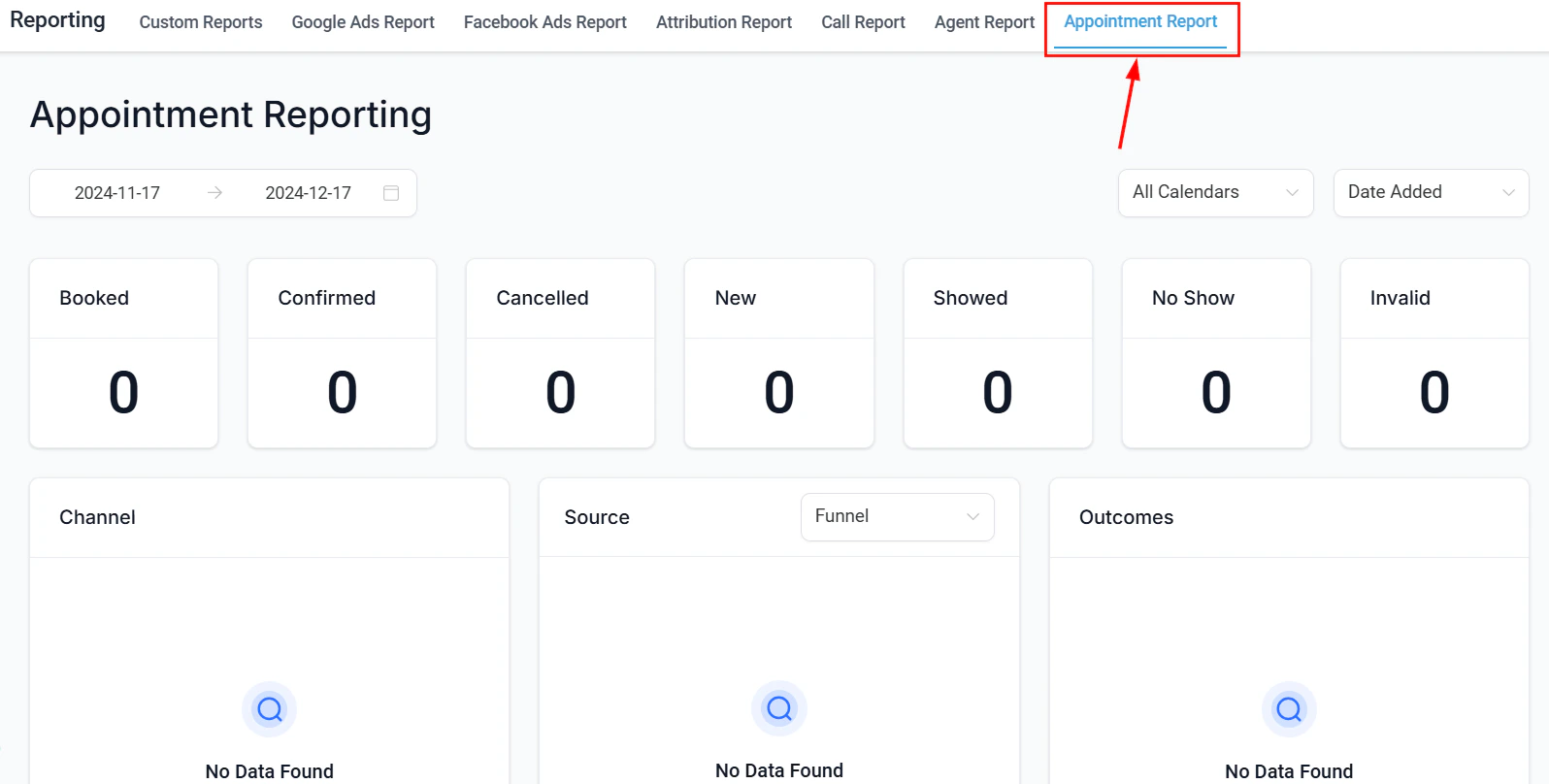
Workflow reporting dashboard showing enrollment and execution metrics
Accessing workflow statistics
There are two primary ways to view workflow performance data in HoopAI:- Automations list view — click the accordion arrow next to any workflow name and select Stats to see a high-level performance summary without opening the workflow.
- Workflow builder → Stats view — inside the workflow editor, toggle Stats View on to see per-action metrics embedded directly in the workflow diagram.
Workflow overview dashboard
The Workflow Overview Dashboard provides a summary of all automation activity across your account in one place. Navigate to Automations → Overview to see:- Total active workflows — count of workflows currently enabled and accepting enrollments
- Total enrollments — how many contact enrollments have occurred across all workflows in the selected period
- Trigger insights — a breakdown of which triggers are firing most frequently and which are producing mismatches
Per-workflow metrics
For each individual workflow, the stats view exposes performance at both the workflow level and the step level.Workflow-level metrics
Step-level metrics (email and SMS actions)
For communication actions within a workflow, HoopAI tracks:- Sent — number of contacts who reached this step and triggered the message
- Delivered — messages successfully received by the carrier or mail server
- Opened (email) — recipients who opened the email
- Clicked (email) — recipients who clicked a link in the email
- Replied — contacts who replied to the message
- Bounced (email) — messages that could not be delivered
Step-level stats are currently available for email and SMS actions. WhatsApp and IVR (phone call) actions do not yet display per-step metrics in the stats view.
Trigger statistics
Trigger Stats gives you a real-time view of how each workflow trigger is performing. Access it by opening a workflow and navigating to the Trigger Stats tab. For each trigger you will see:- Attempted — total number of times the trigger condition was evaluated
- Matched — attempts that met all conditions and resulted in a workflow enrollment
- Unmatched — attempts where the contact did not meet one or more trigger conditions
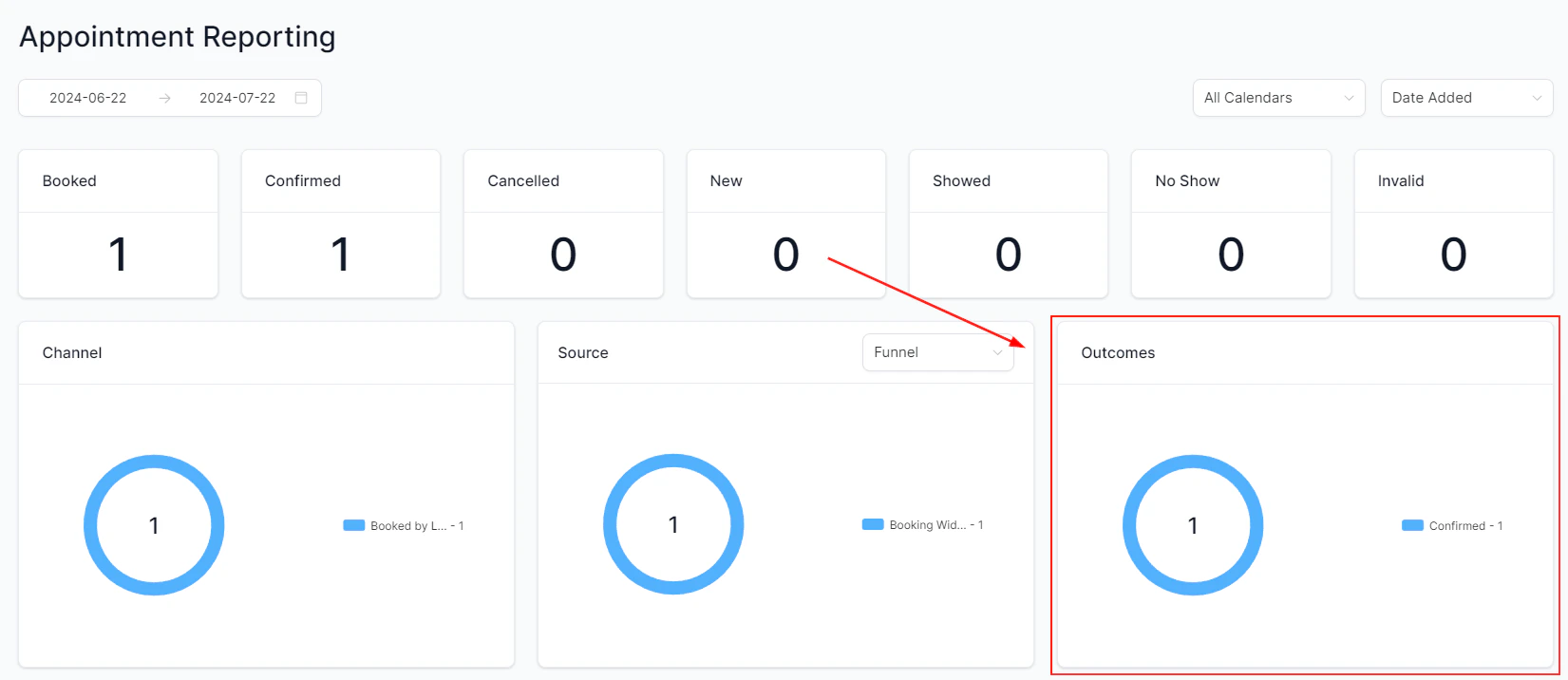
Trigger statistics showing matched and unmatched enrollment attempts
Execution logs and enrollment history
For granular contact-level tracing, use the Execution Logs and Enrollment History tabs in the workflow editor.Execution logs
Execution logs show a timestamped record of every action taken for every contact in the workflow:- Action name and type
- Execution timestamp (with timezone)
- Status — success or error
- Error details when applicable, with a link to the specific action in the workflow builder
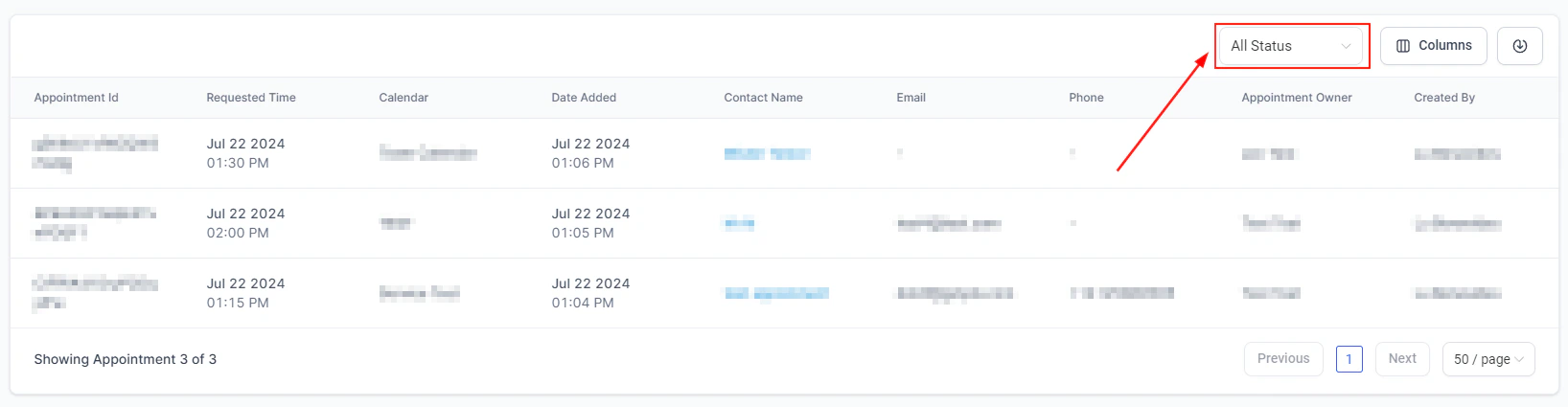
Workflow execution logs with timestamped action records and error details
Enrollment history
Enrollment history shows when each contact entered and exited the workflow and the reason for their exit:- Workflow completed — contact finished all steps
- Removed by workflow action — a “Remove from workflow” action triggered exit
- Removed manually — a team member removed the contact
- Exited due to goal — a goal trigger fired and moved the contact to a different path
Comparing workflows
To compare performance across multiple workflows without opening each one:- Go to Automations and look at the workflow list.
- Use the accordion button next to each workflow to expand the stats summary row.
- Compare enrollments, completion rates, and error counts side by side.
Frequently asked questions
Why are contacts enrolling in a workflow but not reaching later steps?
Why are contacts enrolling in a workflow but not reaching later steps?
Check the execution logs for those contacts. Common causes include: wait steps holding contacts, filter conditions at intermediate steps removing contacts, or action errors stopping the journey. Use the Highlight Contact Path feature to trace the exact path a contact took.
Can I see stats for a workflow that has been paused or archived?
Can I see stats for a workflow that has been paused or archived?
Yes. Stats are stored for all workflows regardless of their current status. Historical data from paused or archived workflows remains accessible from the stats view.
How do I find out why a specific contact was not enrolled in a workflow?
How do I find out why a specific contact was not enrolled in a workflow?
Open the workflow, navigate to Trigger Stats, filter by the contact name, and review the Unmatched records. The detail view will show which trigger condition was not satisfied for that contact.
Can I export workflow execution data?
Can I export workflow execution data?
Execution log data can be exported for individual contacts by downloading their contact activity history. For bulk exports of workflow performance data, use the Custom Reports feature and filter by workflow activity type.