Permission levels
Choose from four distinct permission levels:| Level | Capabilities |
|---|---|
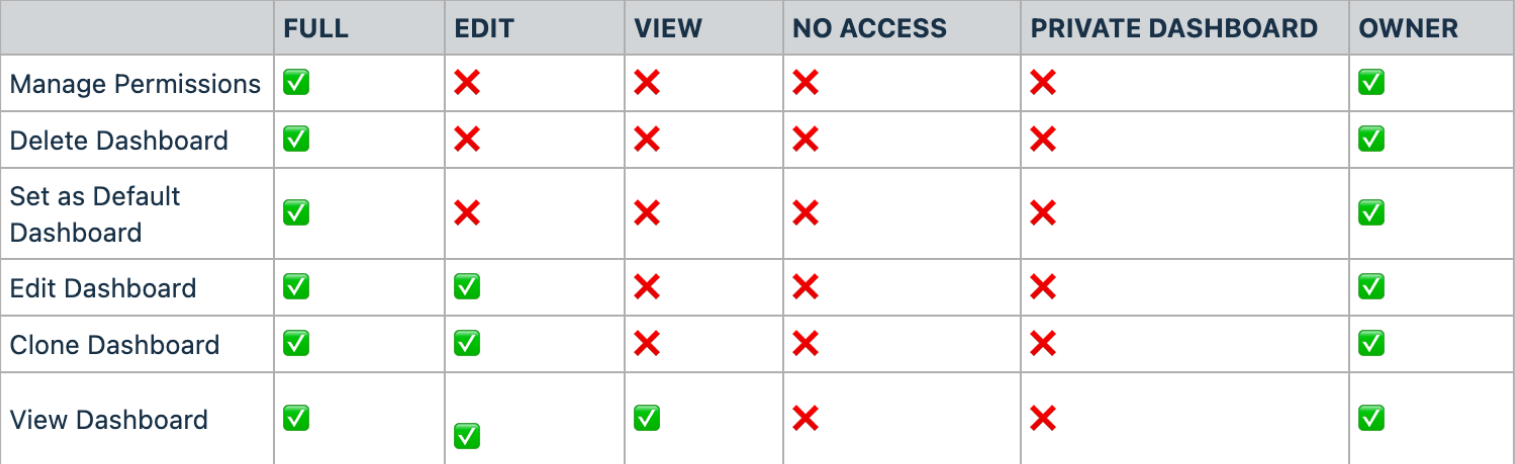
| Full | Create, edit, share, and delete dashboards |
| Edit | Edit a dashboard and its widgets — cannot delete |
| View | Read-only access to the dashboard |
| No Access | Restricted — dashboard is entirely hidden |
Role-based access
- Account Admin — Full view access to all dashboards unless otherwise configured
- Account User — Access based on their assigned user permissions
Permissions follow role hierarchy. Lower-level roles cannot have higher access than higher-level roles in your account.
Setting up permissions when creating a dashboard
When creating a new dashboard, you are prompted to configure permissions before finishing setup:- Toggle the Private Dashboard option if you want the dashboard to be visible only to specific users
- Assign permission levels to individual users or user roles
- Click Confirm to proceed
Managing permissions on an existing dashboard
Open the options menu
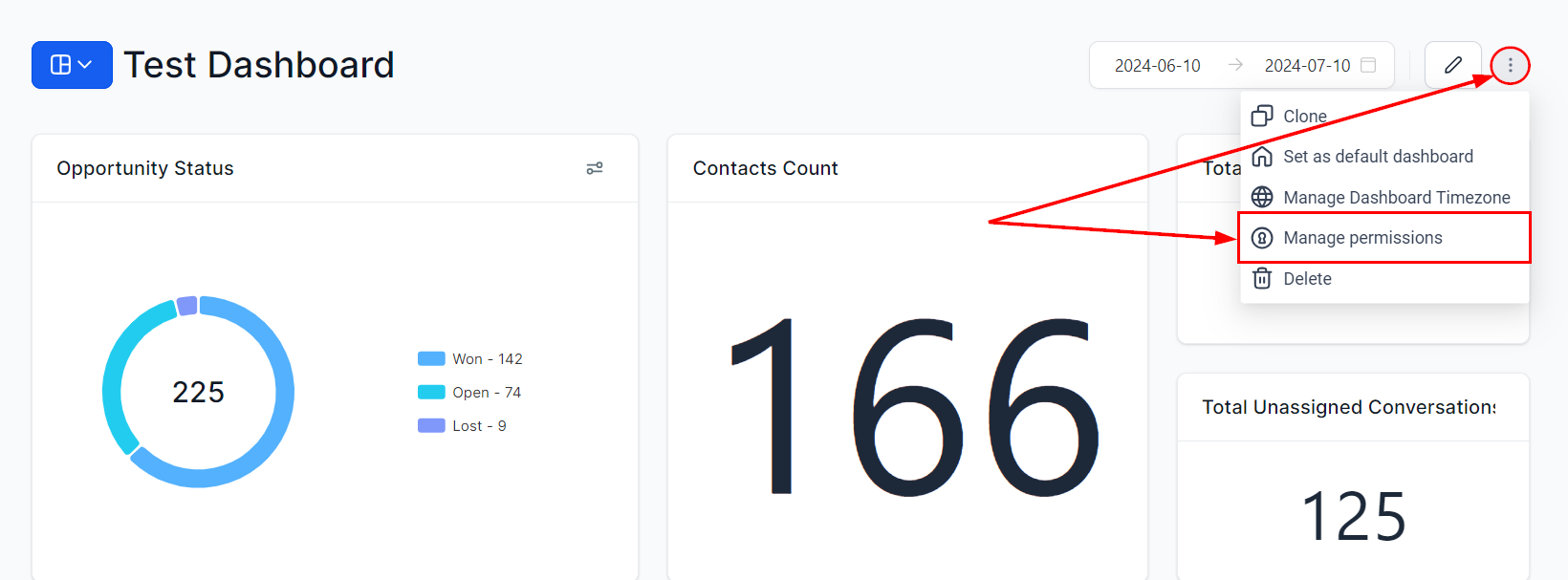
Click the three dots at the top-right corner of the dashboard and select “Manage Permissions”.

Configure access
Toggle the Private Dashboard option if needed, then choose the desired permission level for each user.
The four permission levels are available for each user: Full, Edit, View, and No Access.

Displaying user-specific data in widgets
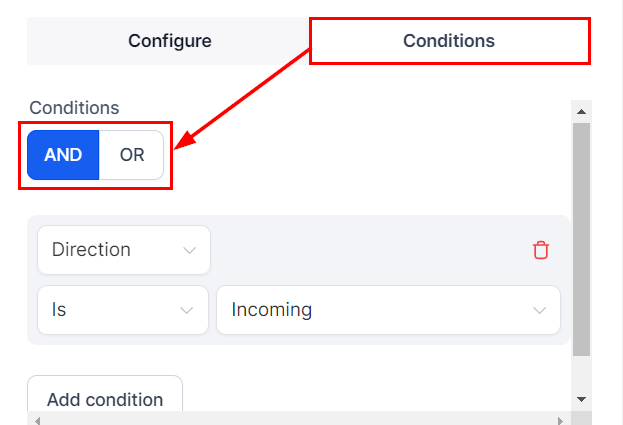
To configure widgets so each team member only sees their own data:- Open the widget’s Conditions tab
- Add a User condition
- Set the operator to “Logged in User”
Frequently asked questions
How do I set permissions when creating a new dashboard?
During the creation process, you will have the option to set permissions. Toggle the Private Dashboard option if required and assign the desired permission levels before clicking Confirm.
Can I update permissions after creating a dashboard?
Yes. Click on the three dots at the top right corner of the dashboard and select “Manage Permissions” to update permissions at any time.
What are the four permission levels?
Full (create, edit, share, delete), Edit (edit only), View (read-only), and No Access (completely restricted).
Why can't I update permissions on a dashboard?
Ensure you have Full access to the dashboard. Users with Edit or View permissions cannot manage dashboard permissions — only owners and Full-access users can.
Users cannot see the dashboard even though permissions are set
Confirm the correct permission level is assigned. Check whether the dashboard is set to Private and ensure the affected user is explicitly granted access.
.png?fit=max&auto=format&n=EQK5eX9kTD8NzWwA&q=85&s=878008bf159fcc4964d0c0d508b6e400)
.png?fit=max&auto=format&n=EQK5eX9kTD8NzWwA&q=85&s=e7fddd192d86dd299bb26a190e6a7e96)