

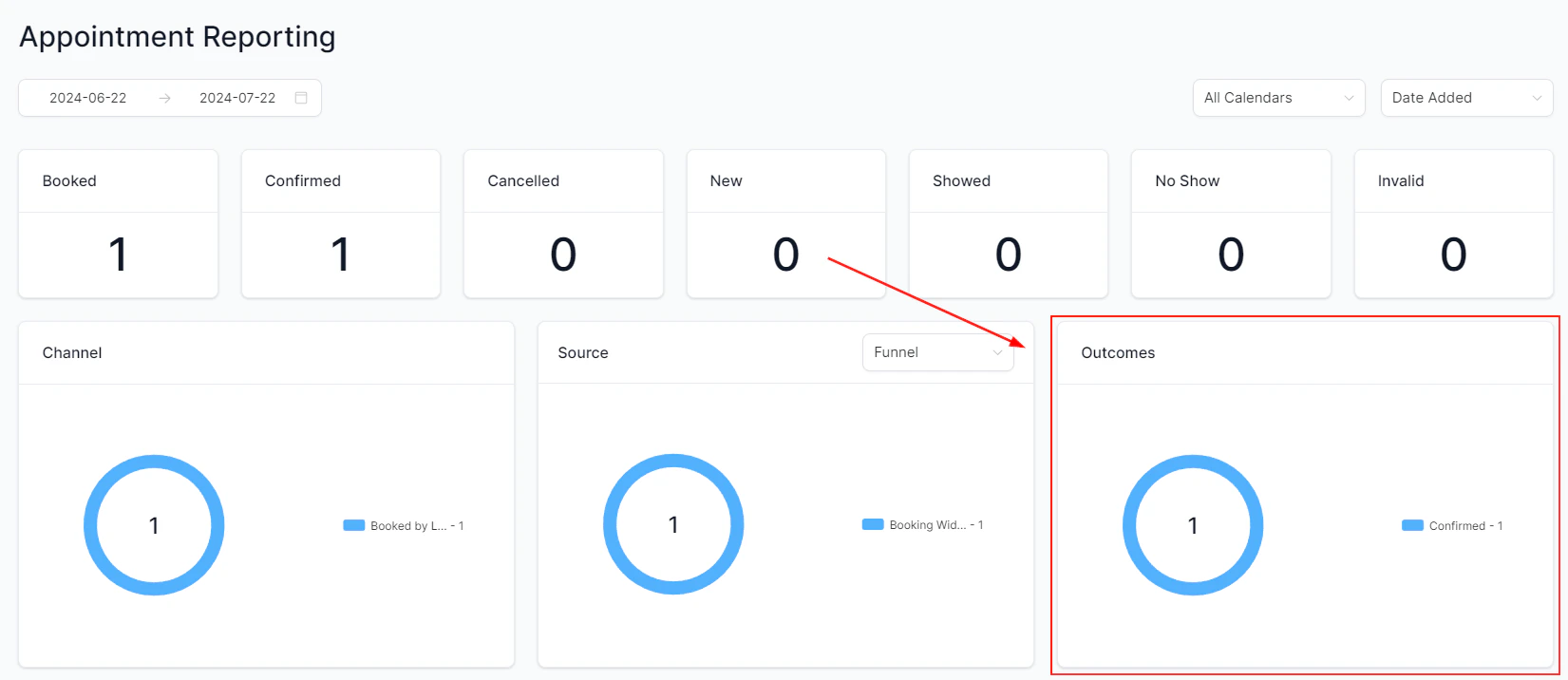
Conversion reporting dashboard showing key funnel metrics
What counts as a conversion
In HoopAI, a conversion is recorded whenever a contact completes a defined action through a native platform tool. The four primary conversion types are:
Each conversion event is timestamped and associated with the contact’s attribution data, giving you a direct line from traffic source to conversion.
Site and funnel analytics
The primary place to view conversion performance across your web assets is Sites → Funnels (or Sites → Websites). Selecting a funnel or website and clicking the Analytics tab opens the conversion dashboard.Metrics available
Page views
Total number of times each funnel step or website page was viewed in the selected date range.
Unique visitors
Number of individual visitors who reached each page, deduplicated across sessions.
Opt-in conversions
Number of visitors who completed a conversion action — form submission, booking, product purchase, or survey.
Conversion rate
Opt-in conversions divided by unique visitors, expressed as a percentage.
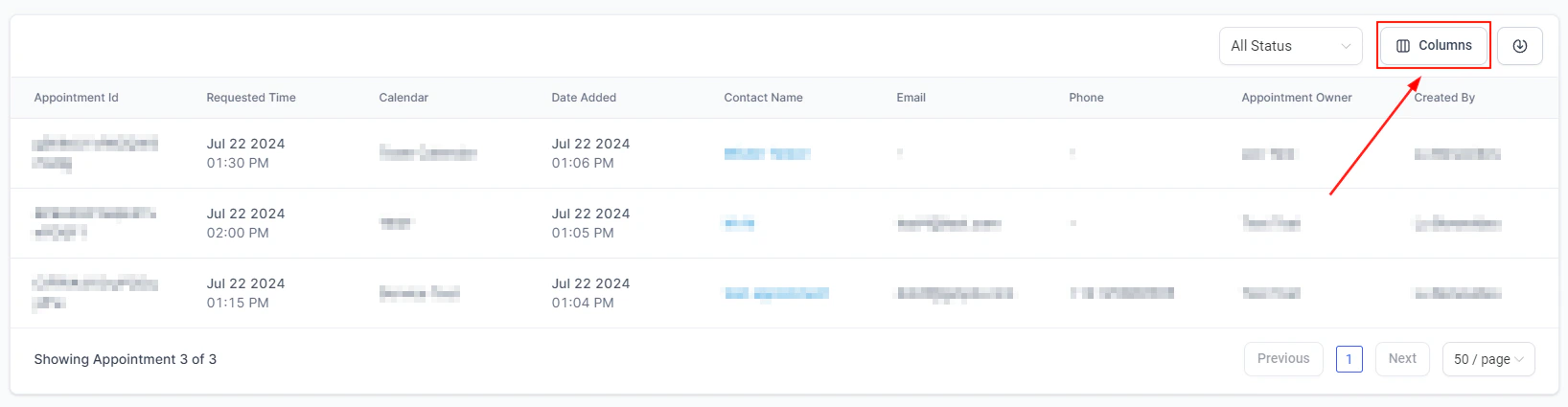
Funnel analytics with page views, conversions, and conversion rates
Marking a funnel step as a conversion
By default, HoopAI tracks all form and booking submissions automatically. You can also designate a specific funnel step — such as a thank-you or confirmation page — as your conversion point:- Open the funnel in the Sites → Funnels builder.
- Select the funnel step you want to mark (typically your confirmation or thank-you page).
- Click Settings for that step.
- Enable the Mark as conversion toggle.
Tracking conversions from external sources
If you embed forms or use landing pages outside of HoopAI, you can still capture conversion data using the HoopAI tracking snippet:- Navigate to Settings → Tracking Code and copy your account’s unique tracking snippet.
- Paste the snippet into the
<head>section of your external website or landing page. - Every native HoopAI form submitted on that external page will be recorded in your CRM, along with attribution data from the session.
The tracking snippet only records submissions made through native HoopAI forms embedded on the external page. Third-party form tools (such as Typeform or Gravity Forms) require a separate integration to pass data into HoopAI.
Conversion data in custom reports
Attribution and conversion events are also available as data sources in custom dashboard widgets:- Use the Opportunity or Contact widget categories and apply date and source filters to see conversions broken down by channel, campaign, or time period.
- Add a Table widget with the conversion event type as a column to export raw conversion data as a CSV.
- Combine attribution conditions (first or latest touch) with conversion counts to understand which traffic sources produce the most form submissions or bookings.
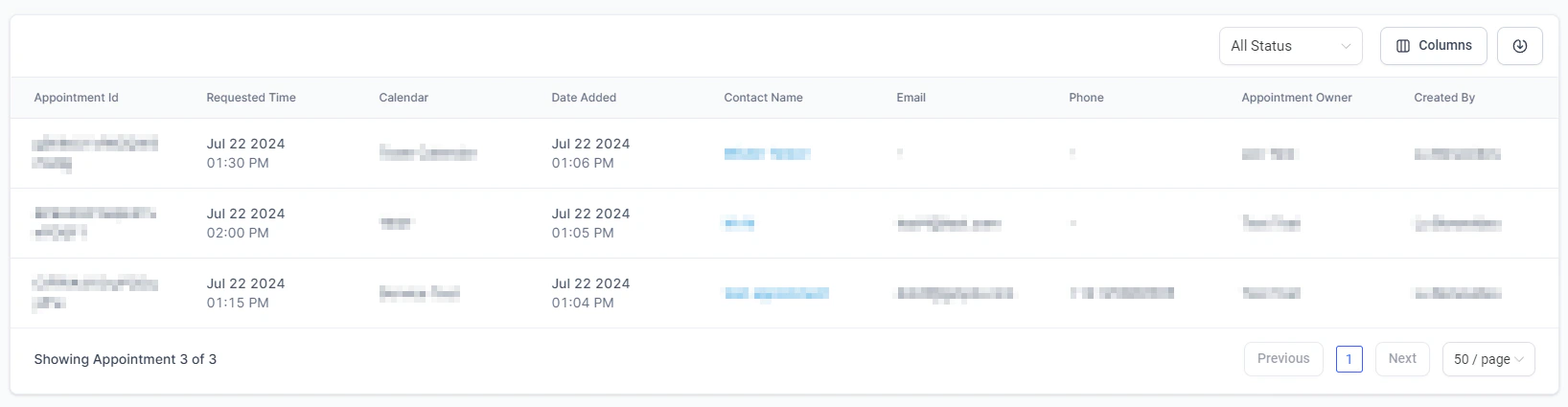
Custom report table with conversion data and attribution filters
Form and survey conversion tracking
Every native form and survey in HoopAI tracks submission counts automatically. To see submissions for a specific form:- Navigate to Sites → Forms (or Sites → Surveys).
- Open the form and click the Submissions tab.
- Filter by date range to see submission volume over time, along with each respondent’s contact details.
Booking conversions
Appointment bookings are tracked through the calendar system. To view booking conversion data:- Go to Reporting → Appointment Report for a full breakdown of bookings by calendar, agent, date range, and outcome.
- Use Reporting → Call Reporting if you want to see which inbound calls resulted in a booked appointment.
Frequently asked questions
Why is my conversion rate lower than expected?
Why is my conversion rate lower than expected?
Common causes include: visitors landing on the wrong step of a funnel (bypassing your form page), UTM parameters being lost mid-session, or traffic being counted before visitors reach the form. Review your funnel step order and confirm that your tracking snippet is placed correctly on every relevant page.
Can I track revenue from order form completions?
Can I track revenue from order form completions?
Yes. Order form submissions that include a payment capture pass transaction data into HoopAI. This data is available in Revenue Reporting and can be included in custom widgets filtered by payment status.
Does HoopAI track partial form completions?
Does HoopAI track partial form completions?
No. Only fully submitted forms are counted as conversions. Contacts who start but do not complete a form are not recorded unless they trigger a separate tracked action.
How do I set up conversion tracking for Google Ads?
How do I set up conversion tracking for Google Ads?
See Google Analytics integration for GA4 conversion event setup, and Attribution reporting for UTM parameter configuration that feeds conversion data back to your Google Ads campaigns.