

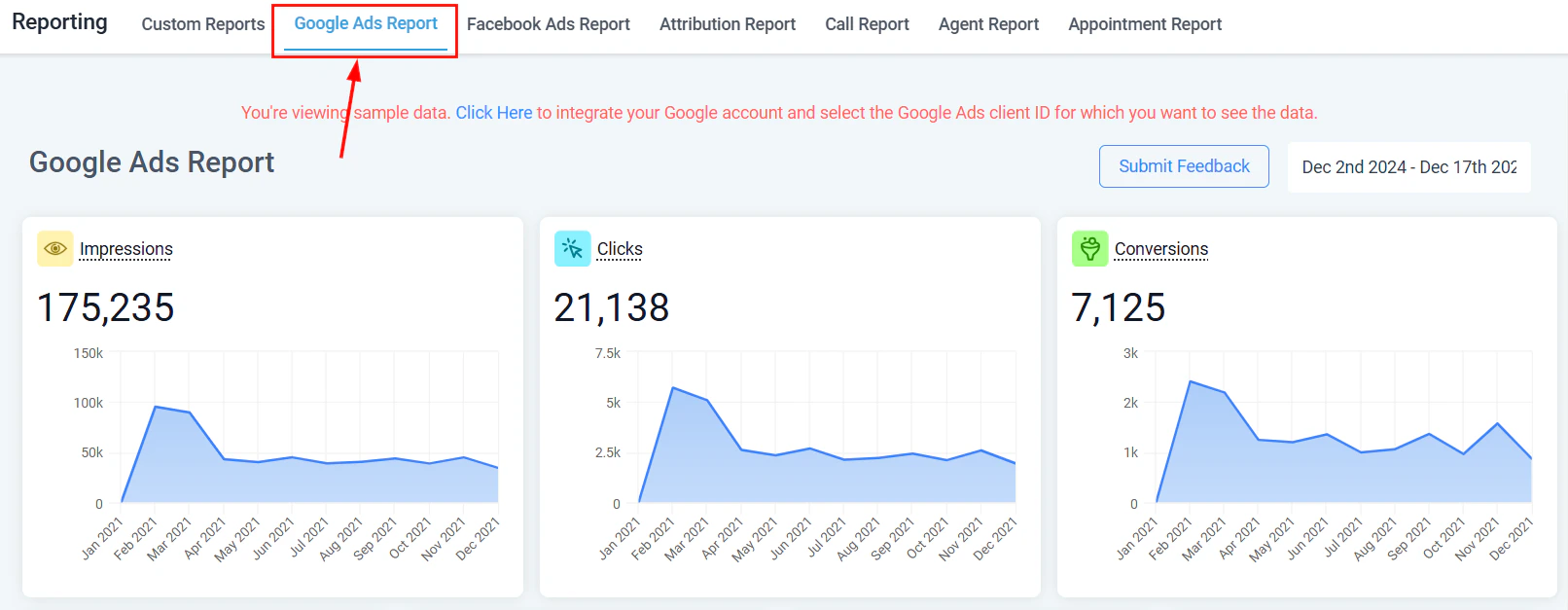
Google Ads reporting dashboard with impressions and click metrics
What you can track
The GA4 integration with HoopAI supports three primary use cases:- Website and funnel page tracking — standard GA4 page view and session data on pages built in HoopAI, using your GA4 Measurement ID.
- Custom event firing from workflows — send custom events to GA4 at any point in an automation, such as when a contact submits a form, books an appointment, or makes a purchase.
- Chat widget tracking — capture GA4 events when visitors interact with a HoopAI chat widget on your site.
- GA4 dashboard widgets — pull GA4 metrics (users, sessions, traffic sources, top pages) directly into your HoopAI dashboard without leaving the platform.
Setting up GA4 tracking on funnels and websites
To add your GA4 Measurement ID to a funnel or website:- In your Google Analytics account, go to Admin → Data Streams and select your web data stream.
- Copy the Measurement ID (format:
G-XXXXXXXXXX). - In HoopAI, open the funnel or website in the builder.
- Go to Settings → Tracking and paste your Measurement ID into the Google Analytics field.
- Save the settings.
Sending custom events from workflows
You can use the Add to Google Analytics workflow action to fire custom events at any point in an automation. This is useful for tracking high-value actions that go beyond standard page views — such as appointment bookings, order completions, or stage transitions in your CRM pipeline.Steps to configure
- Open or create a workflow in Automations.
- Add a new action and search for Add to Google Analytics.
- Select Google Analytics 4 as the action type.
- Enter your Measurement ID from your GA4 data stream.
- Enter your API Secret — found in GA4 under Admin → Data Streams → Measurement Protocol API Secrets. Create a new secret if none exists.
- Enter an Event Name that describes the action (for example,
appointment_bookedororder_completed). This name will appear in your GA4 events report. - Optionally enter an Event Value — a numeric value such as estimated lead value or purchase amount — that will be associated with the event in GA4.
- Save the action and activate the workflow.
GA4 event data sent via the Measurement Protocol (the method used by workflow actions) can take 24–48 hours to appear in the GA4 interface. This is a Google-side processing delay and is not specific to HoopAI.
Tracking chat widget activity
HoopAI’s chat widget can fire GA4 events when visitors interact with the widget. To enable this:- Make sure your GA4 Measurement ID is added to the page where the chat widget is embedded (via the site or funnel tracking settings).
- The widget automatically sends events to GA4 for interactions such as widget open, message sent, and contact captured.
GA4 dashboard widgets in HoopAI
You can bring GA4 data directly into your HoopAI dashboard using the built-in GA4 widget integration:- Edit your dashboard and click Add Widget.
- Select Google Analytics as the data source.
- Connect your GA4 property using your Google account credentials.
- Choose a metric to display — options include Users, Sessions, Engaged sessions, Traffic sources, and Top pages.
- Save the widget.

Google Analytics metrics displayed alongside CRM data in the HoopAI dashboard
Getting the most from the integration
Event naming conventions
GA4 event names should be descriptive and use underscores instead of spaces (for example,form_submitted, appointment_booked, payment_received). Consistent naming makes it easier to build segments and funnels in GA4’s Explore reports.
Using event parameters
The Event Value field in the workflow action sends a numeric parameter to GA4. If you are tracking revenue-generating events (such as order completions), pass the actual or estimated order value here. GA4 can then use this data to calculate total event value in your reports.Combining with Google Ads
If you run Google Ads campaigns, you can import GA4 conversion events into Google Ads as conversion actions. This enables bidding strategies to optimize for the specific actions — bookings, purchases, form completions — that you have defined in your HoopAI workflows.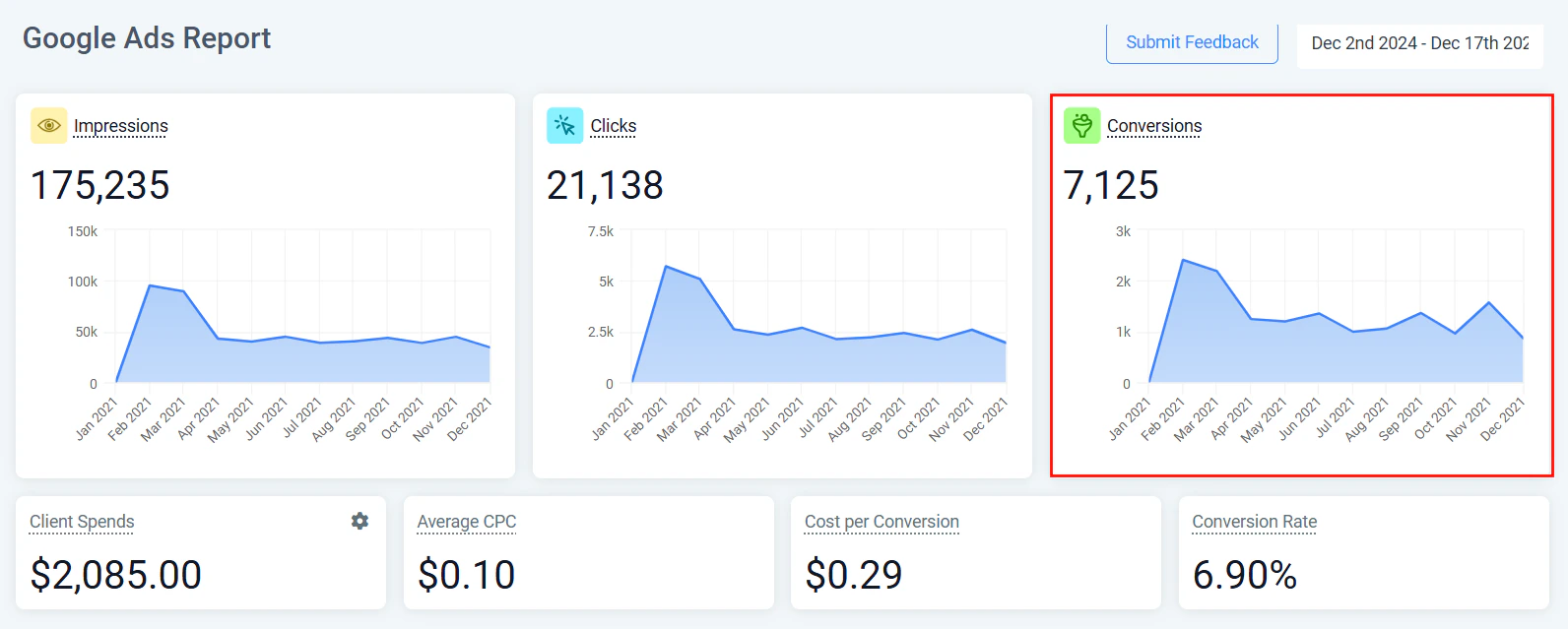
Google Ads conversion tracking with impressions, clicks, and conversions
Frequently asked questions
Do I need to use Google Tag Manager to set up GA4 tracking?
Do I need to use Google Tag Manager to set up GA4 tracking?
No. You can add your GA4 Measurement ID directly in HoopAI’s funnel and website settings without using Google Tag Manager. However, if you are using GTM for other tracking on the same pages, you can also manage the GA4 tag through GTM and omit the direct Measurement ID entry in HoopAI.
Why are my workflow-fired events not showing in GA4?
Why are my workflow-fired events not showing in GA4?
The most common reasons are: incorrect Measurement ID or API Secret, a typo in the event name (GA4 event names are case-sensitive), or the 24–48 hour processing delay. Verify your Measurement ID and API Secret in GA4 under Admin → Data Streams → Measurement Protocol API Secrets.
Can I track multiple GA4 properties from the same HoopAI account?
Can I track multiple GA4 properties from the same HoopAI account?
Yes. Each funnel or website can have its own Measurement ID, and each workflow action can specify a different Measurement ID. This allows you to route data to different GA4 properties for different clients or brands managed within the same HoopAI account.
How do I verify that GA4 is receiving events from HoopAI?
How do I verify that GA4 is receiving events from HoopAI?
Use the GA4 DebugView (Admin → DebugView) to see events arriving in real time during testing. Trigger the workflow for a test contact and watch for the event to appear in DebugView within a few seconds. Note that DebugView requires a debug-enabled session, which is not the same as the Measurement Protocol events sent by workflows.