

Accessing call reporting
Navigate to Reporting in the left sidebar, then select the Call Reporting tab.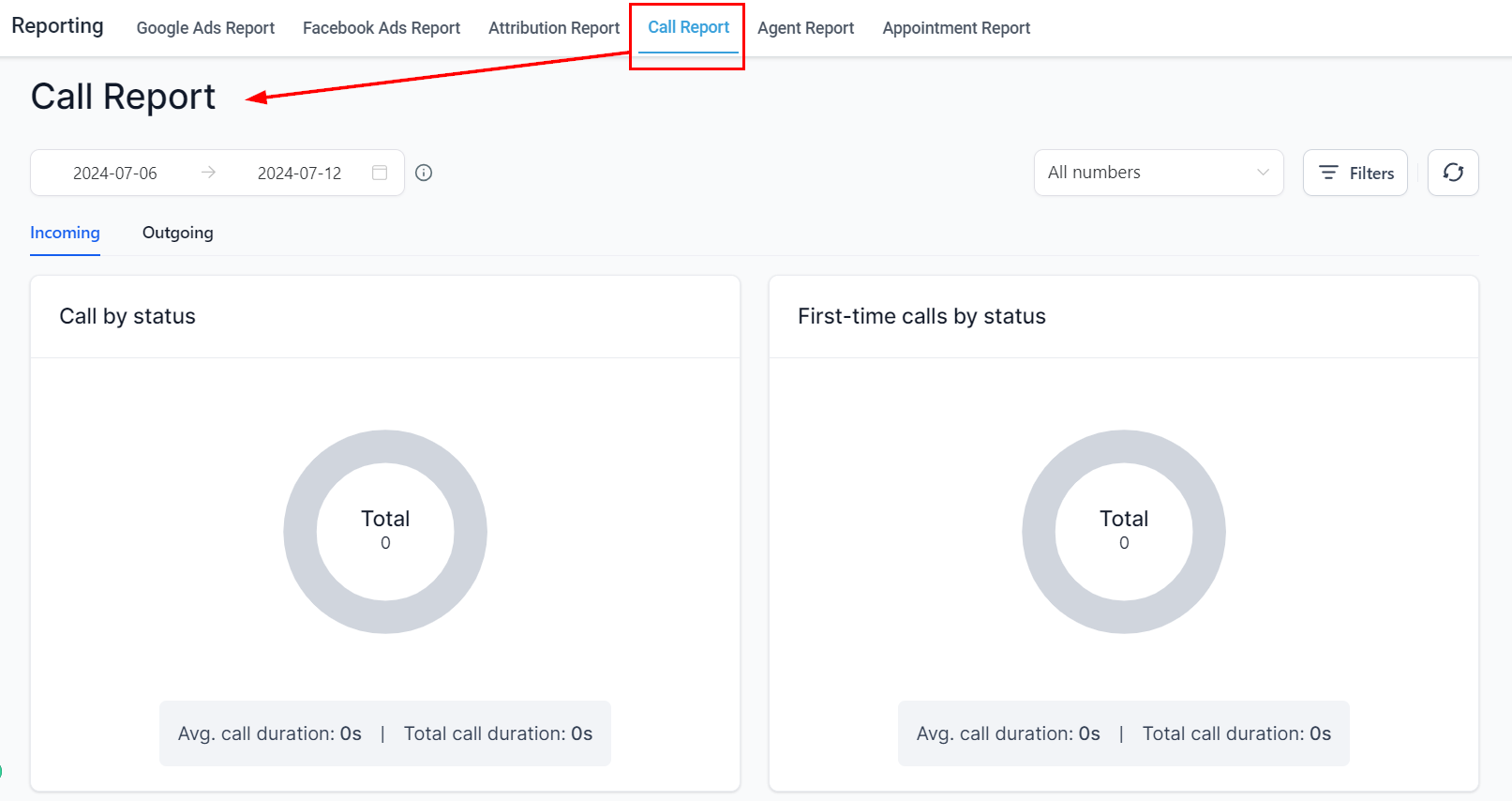
Call Reporting tab in the Reporting section
Overview controls
Select date range
To accurately examine call data, setting specific date ranges is essential. Click on the date range selector to choose the desired date range (up to 180 days).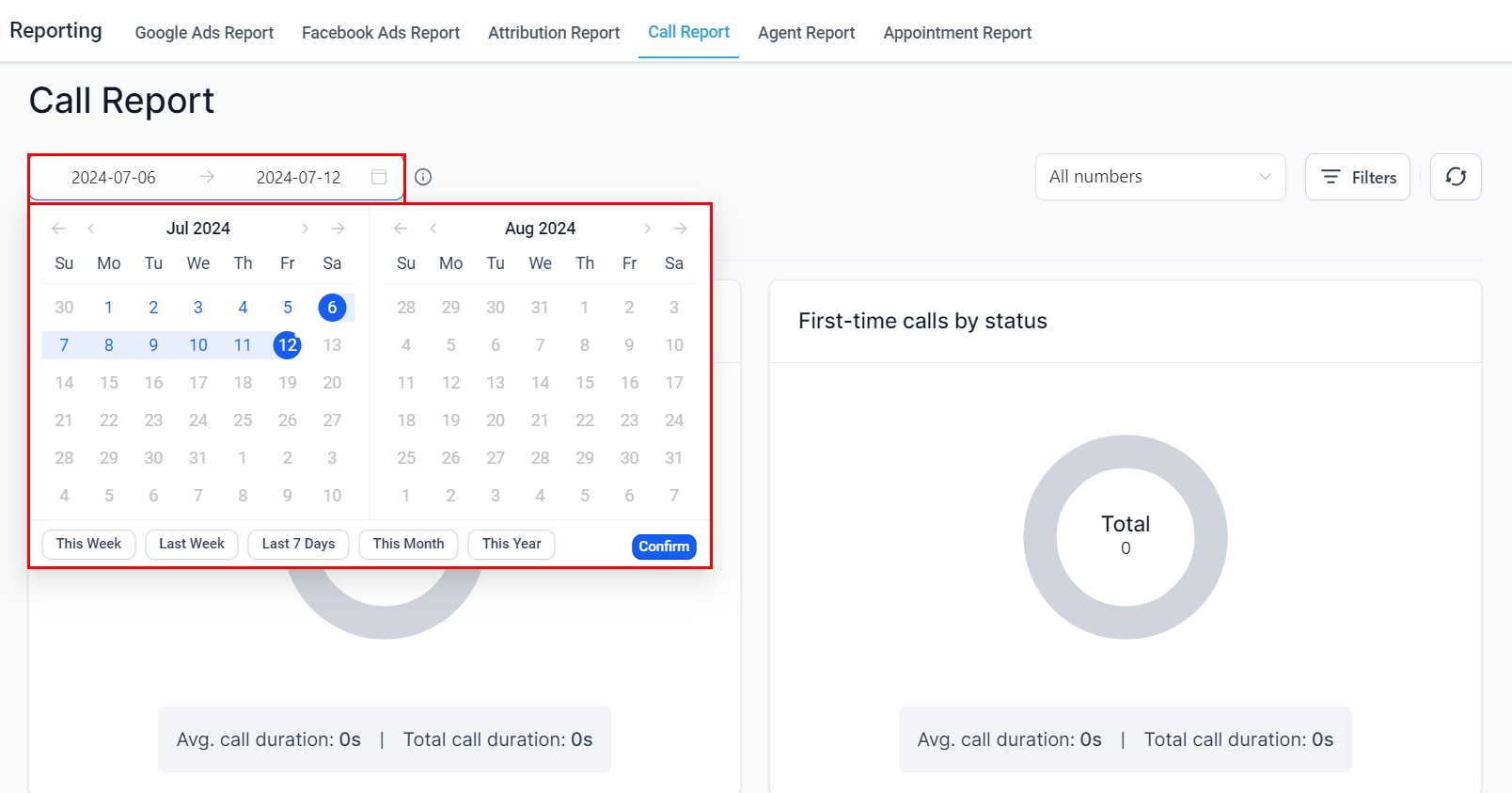
Date range selector
All numbers
Click the All Numbers dropdown to select a specific phone number or analyze multiple numbers simultaneously if your business has more than one phone number integrated.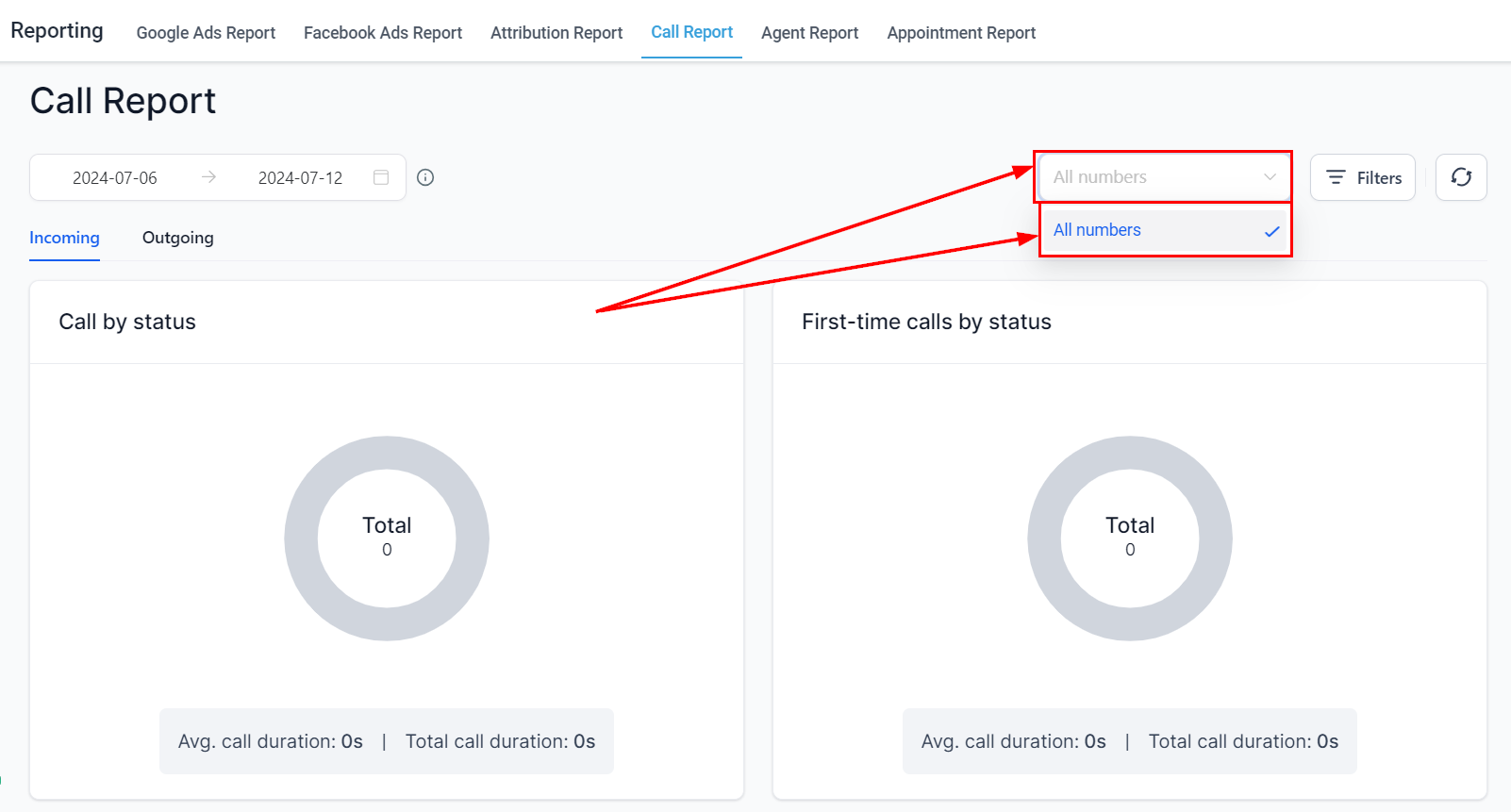
Phone number selector
Filter call data
Click the Filter Call Data button to refine your results for more precise reporting.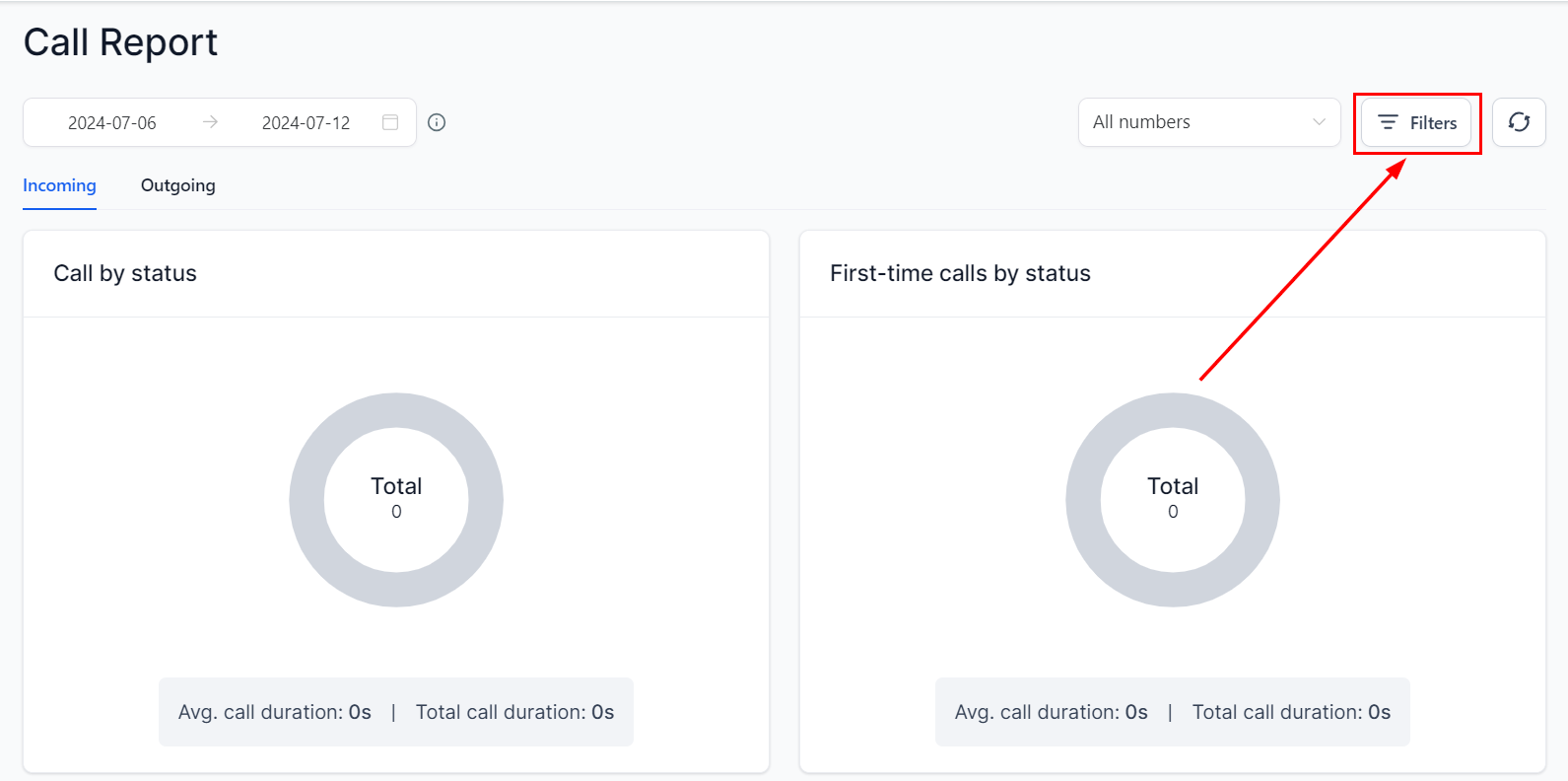
Filter call data controls
Incoming calls
Call by status
View calls categorized by their status — answered, failed, busy, or missed. The total percentage of each status is displayed in a chart, with average call duration and total duration listed below.First-time call by status
View the status of first-time callers, broken down by answered, failed, busy, and missed categories, including average and total call duration.Top call source
View the sources of all calls within the selected date range. The table shows:- Source — origin of incoming/outgoing calls (Unknown, Direct, Paid Search, etc.)
- Total calls — total inbound calls per source
- Won deals — deals won through each call source
- Avg duration — average call duration per source
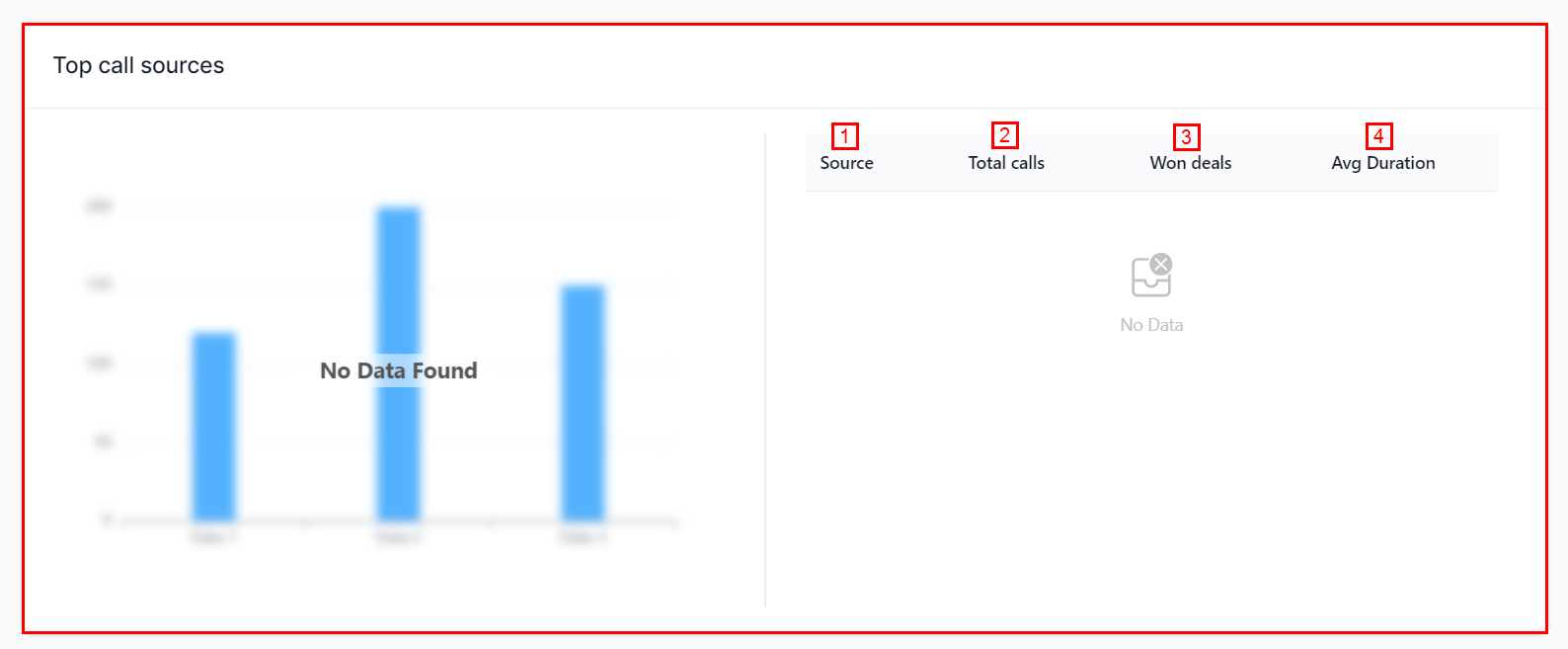
Top call source table
Call reporting table
The Call Reporting Table presents recent phone calls with associated data. You can filter the view by Incoming, Outgoing, or All calls. Columns include: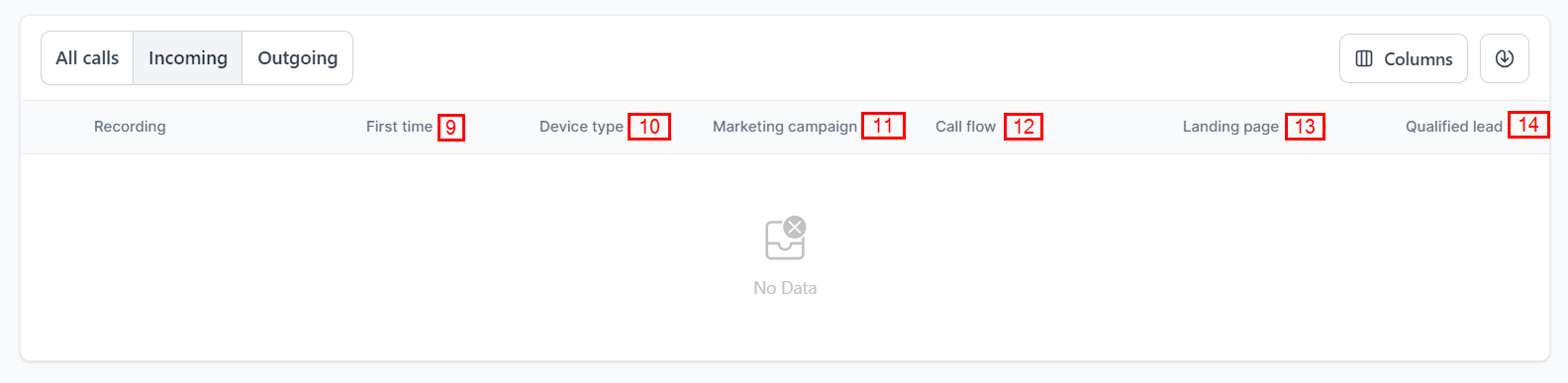
Call reporting data table
Customize columns
Click Columns to choose which data columns to display. Select or deselect columns and click Apply Columns to update your view.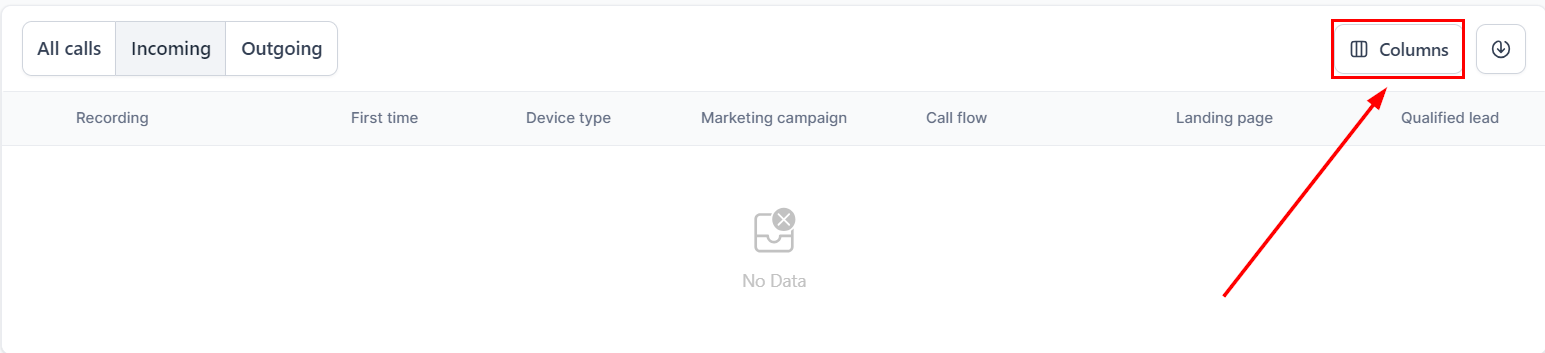
Column customization
Export data
Click Download Call Reporting Data to export all call data to an Excel spreadsheet.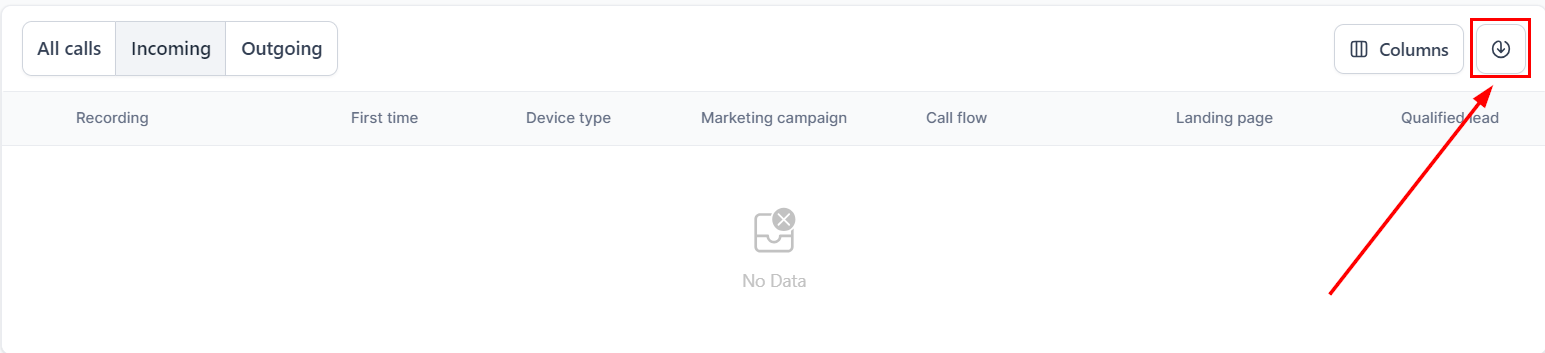
Export call data
Outgoing calls
Call by status
View the status of outgoing calls categorized as Answered, Failed, Busy, or Missed.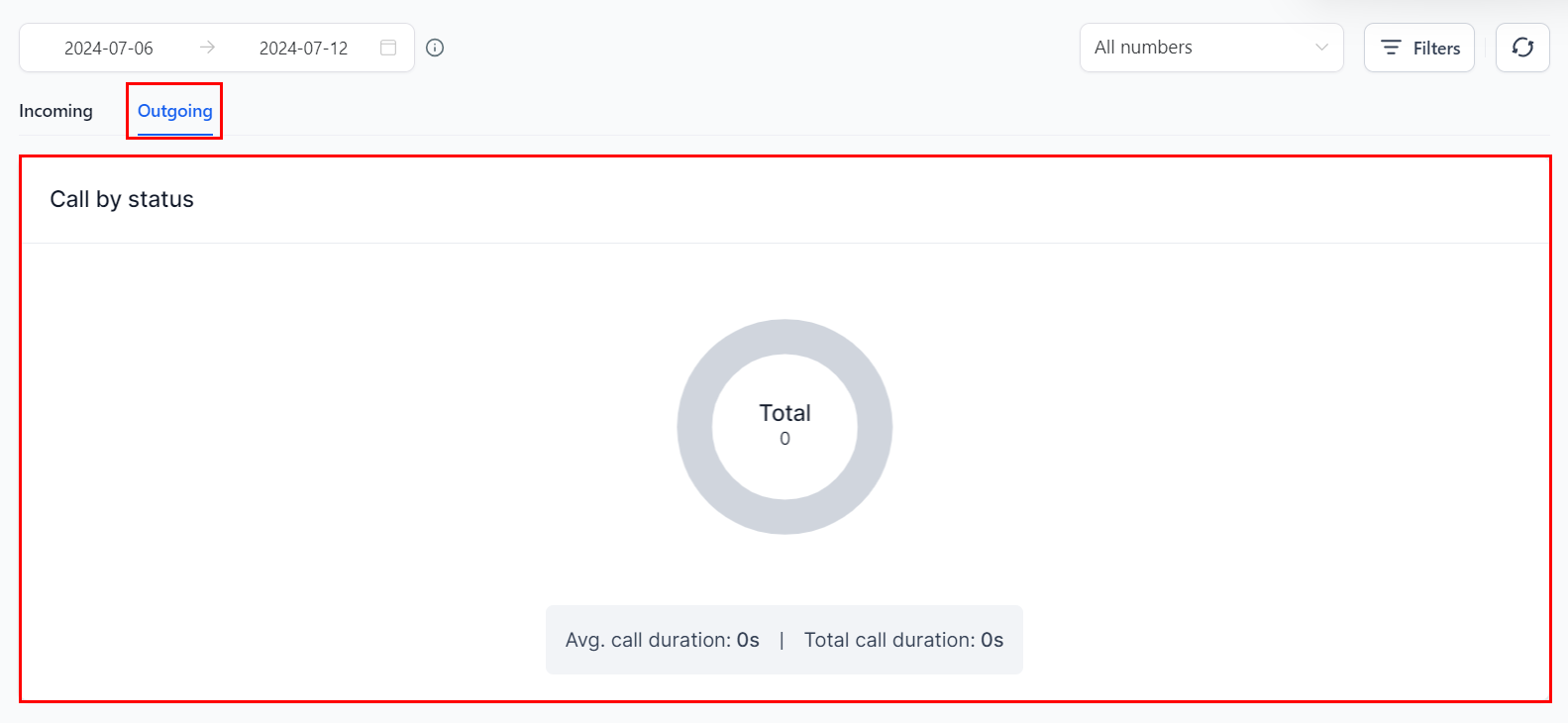
Outgoing calls by status
Top call agents
View the most prominent agents by call volume. Metrics include:- Agents — agents who made/received calls
- Total calls — total calls made
- Avg duration — average call duration
- Unique leads — qualified leads generated from all calls
Accessing and using call recordings
Call recordings provide valuable insights into customer interactions and support quality assurance and training.Finding recordings under Contacts
Go to Contacts
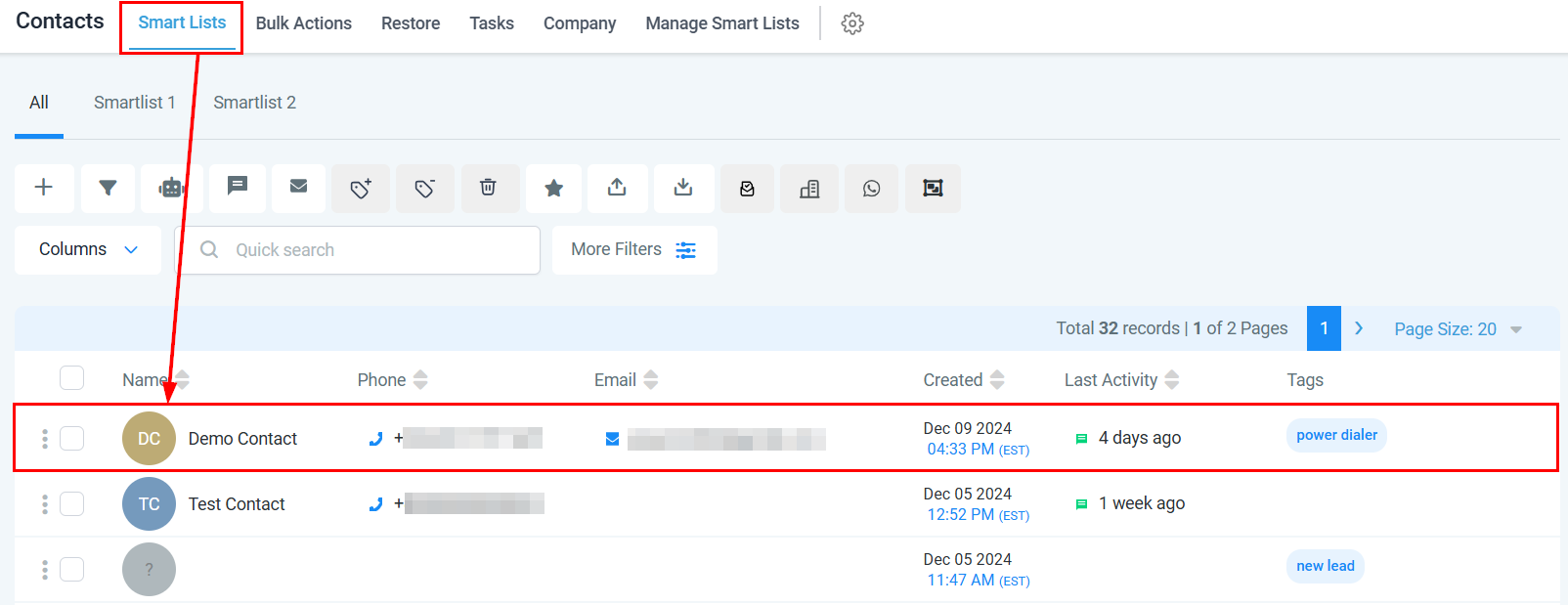
Contacts Smart Lists view
Search for the contact
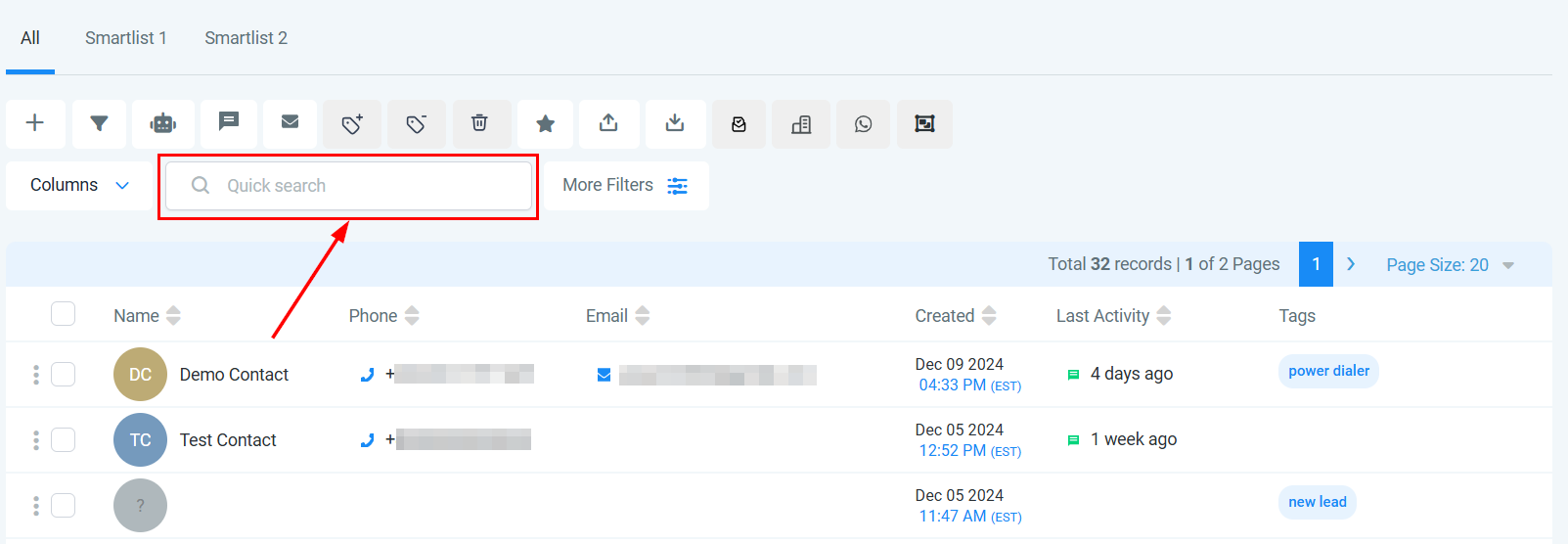
Contact search
Open the conversation timeline
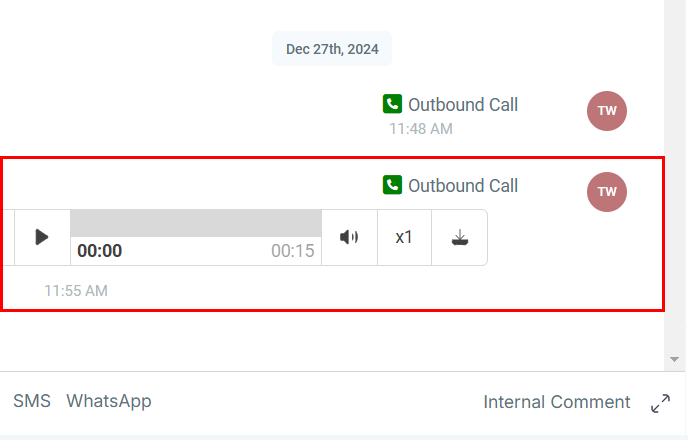
Call recording in timeline
Play or download the recording
- Play — listen directly in the platform
- Audio — mute/unmute
- Playback Speed — adjust listening speed
- Download — save the recording externally
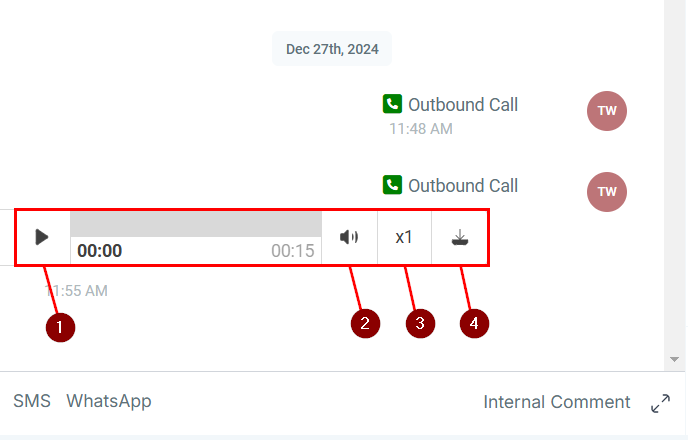
Call recording player
Finding recordings under Call Reporting
Navigate to the Call Report tab within Reporting to view multiple recordings in one place.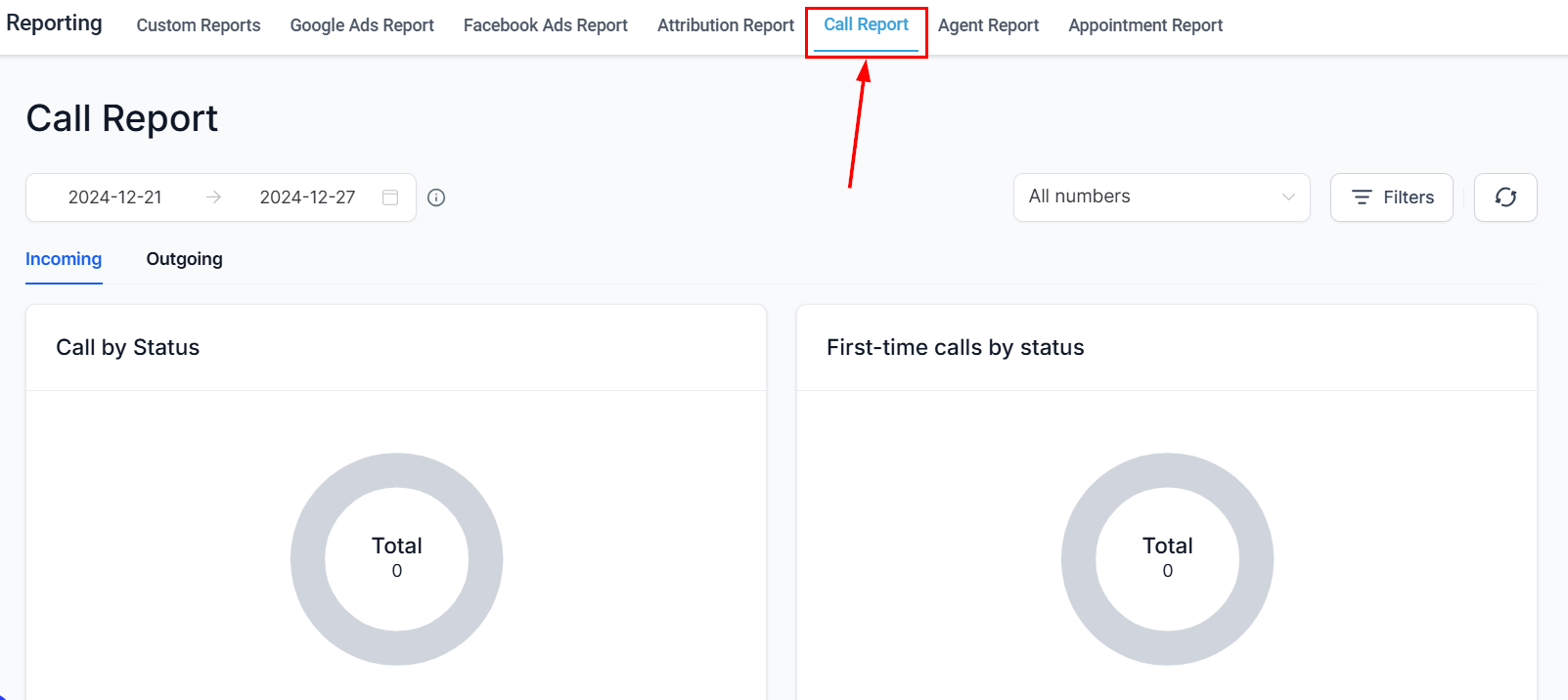
Call recordings in reporting
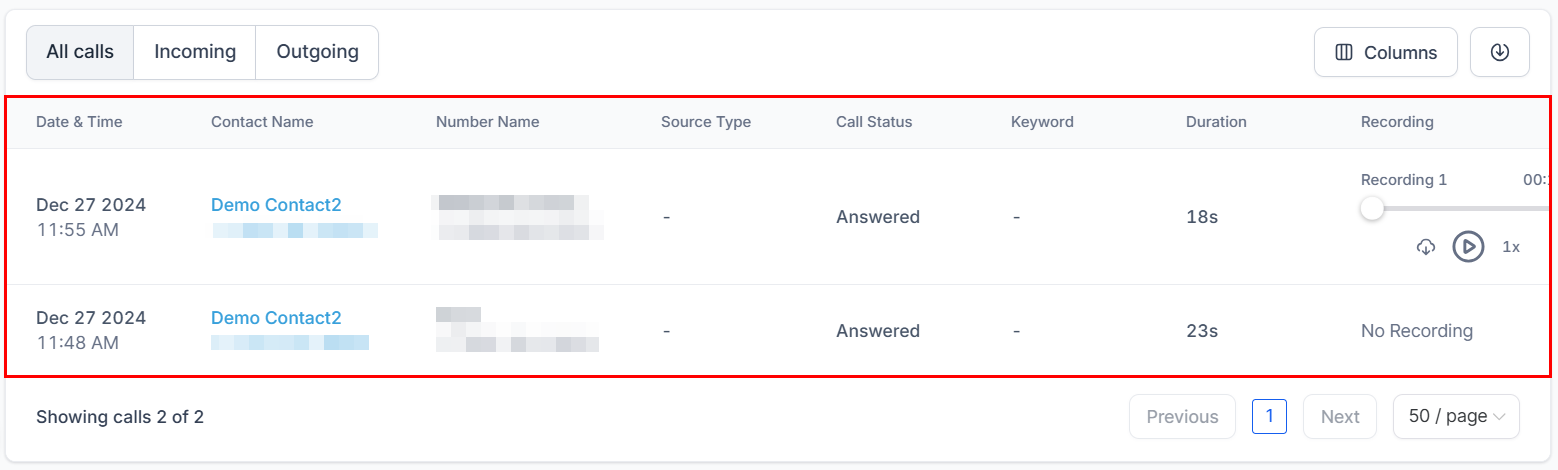
Call recording details
Advanced call reporting filters
Advanced filters let you refine call data by source type, keywords, campaigns, landing pages, referrers, and more. Click the Filters button at the upper right of the Call Report tab to open the filters panel.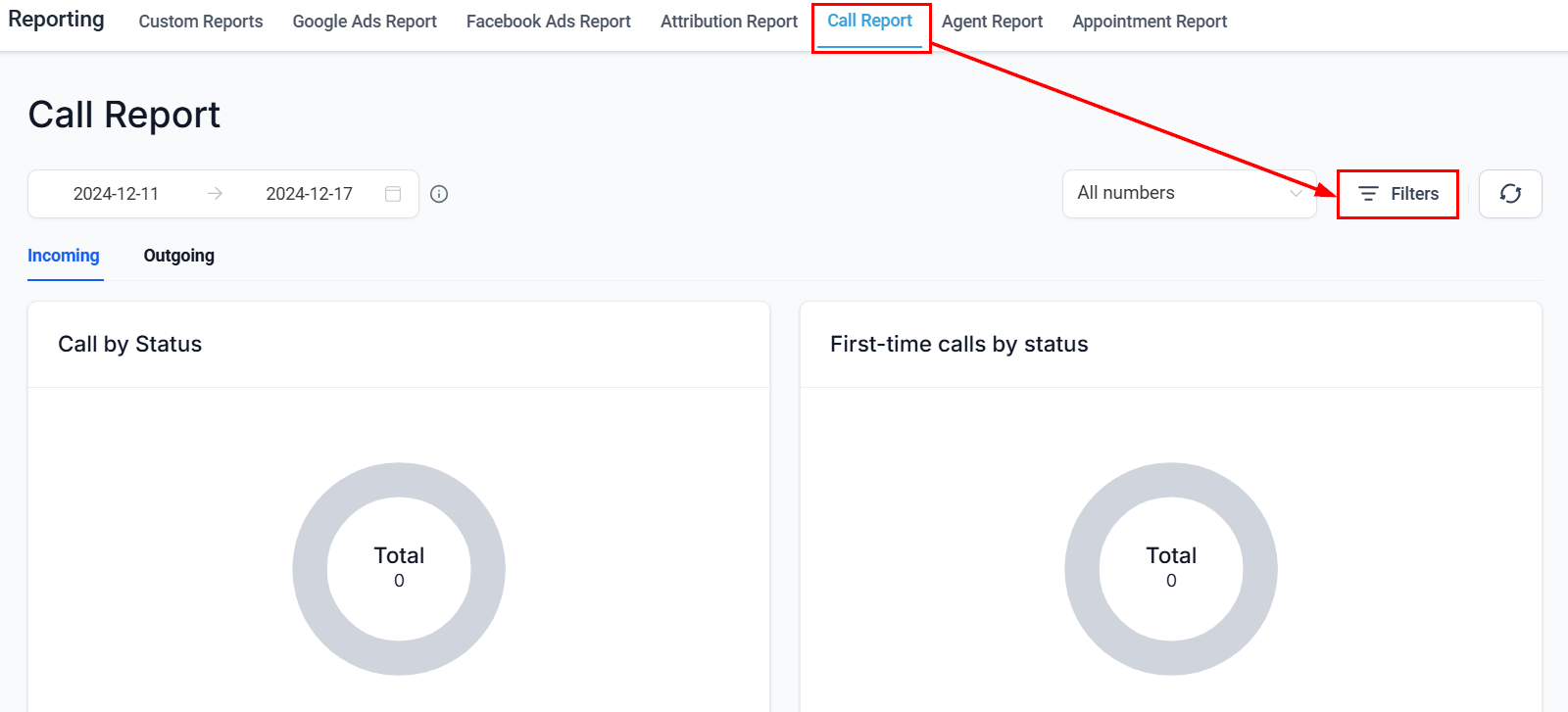
Advanced filters panel
Source and campaign
Source and campaign
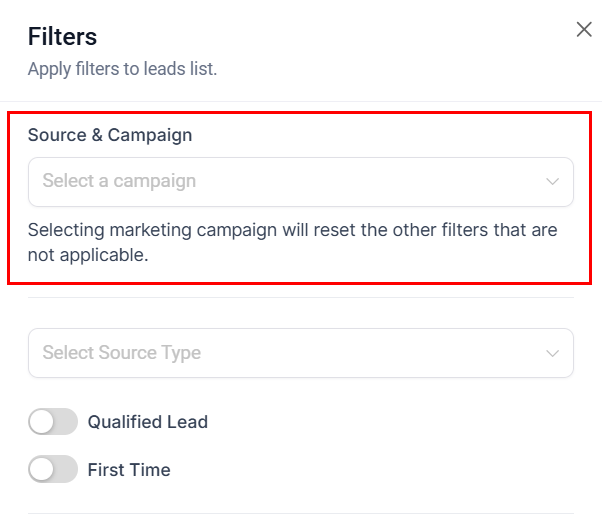
Source and Campaign filter
Source type
Source type
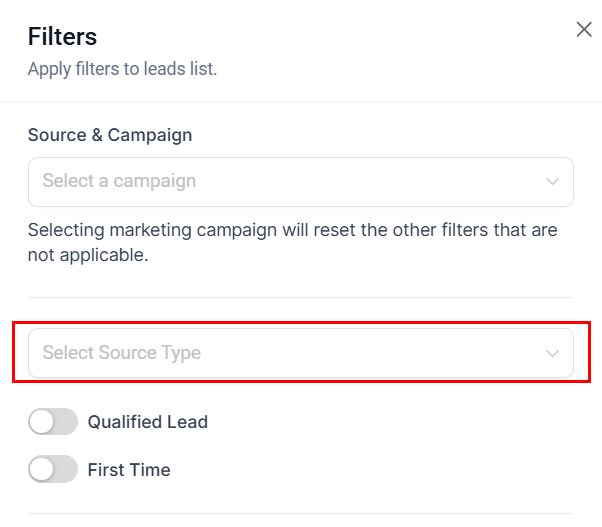
Source Type filter
Qualified callers
Qualified callers
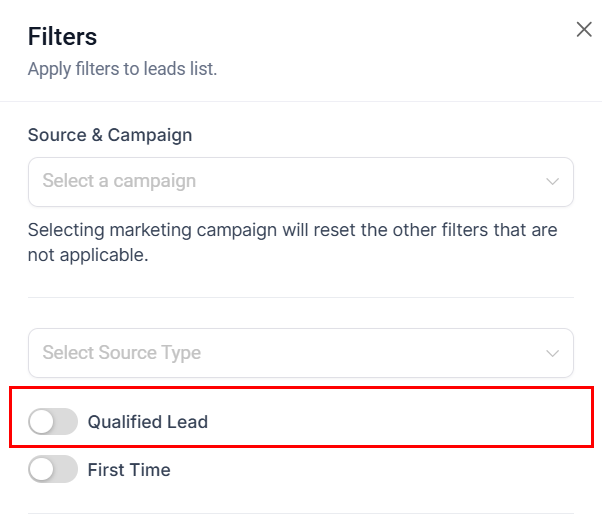
Qualified Lead filter
First-time callers
First-time callers
Call status
Call status
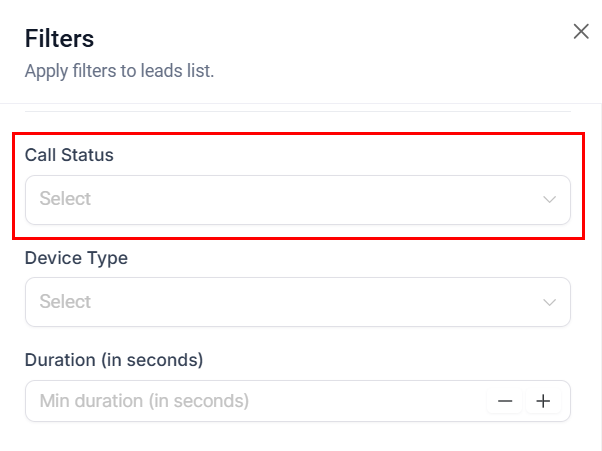
Call Status filter
Duration
Duration
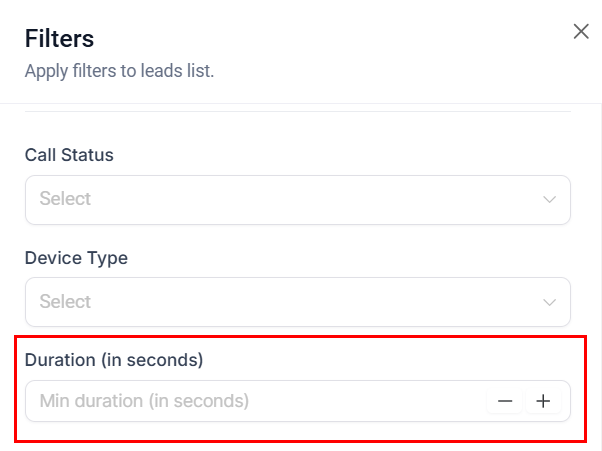
Duration filter
Keywords
Keywords
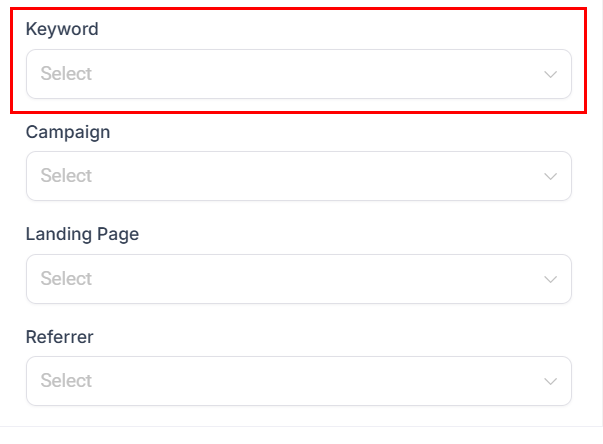
Keyword filter
Landing page
Landing page
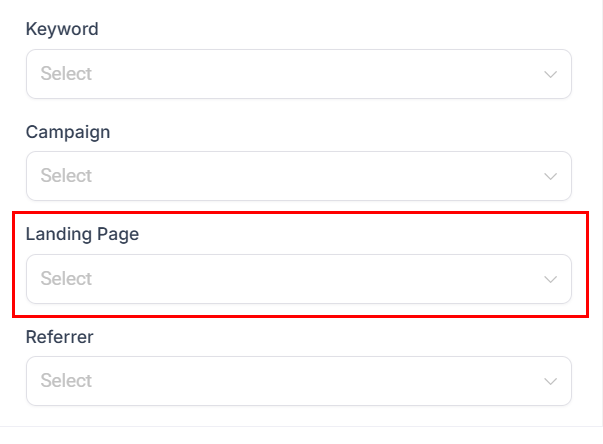
Landing Page filter
Frequently asked questions
How can I view call data for a specific date range?
How can I view call data for a specific date range?
Can I analyze multiple phone numbers at once?
Can I analyze multiple phone numbers at once?
Is it possible to download call data?
Is it possible to download call data?
I can't find a specific call recording. What should I do?
I can't find a specific call recording. What should I do?