

What revenue widgets track
Revenue widgets pull data from the Payments section of the HoopAI platform and surface key financial metrics:- Total revenue — the sum of all completed payments within the selected date range
- Total transactions — the count of individual payment transactions processed
- Revenue over time — a trend visualization showing how revenue fluctuates day by day, week by week, or month by month
- Payment status breakdown — distribution of payments by status (paid, pending, failed, refunded)
- Revenue by product or service — breakdown of revenue attributed to specific products, subscriptions, or invoice line items
Adding a revenue widget
1
Enter edit mode
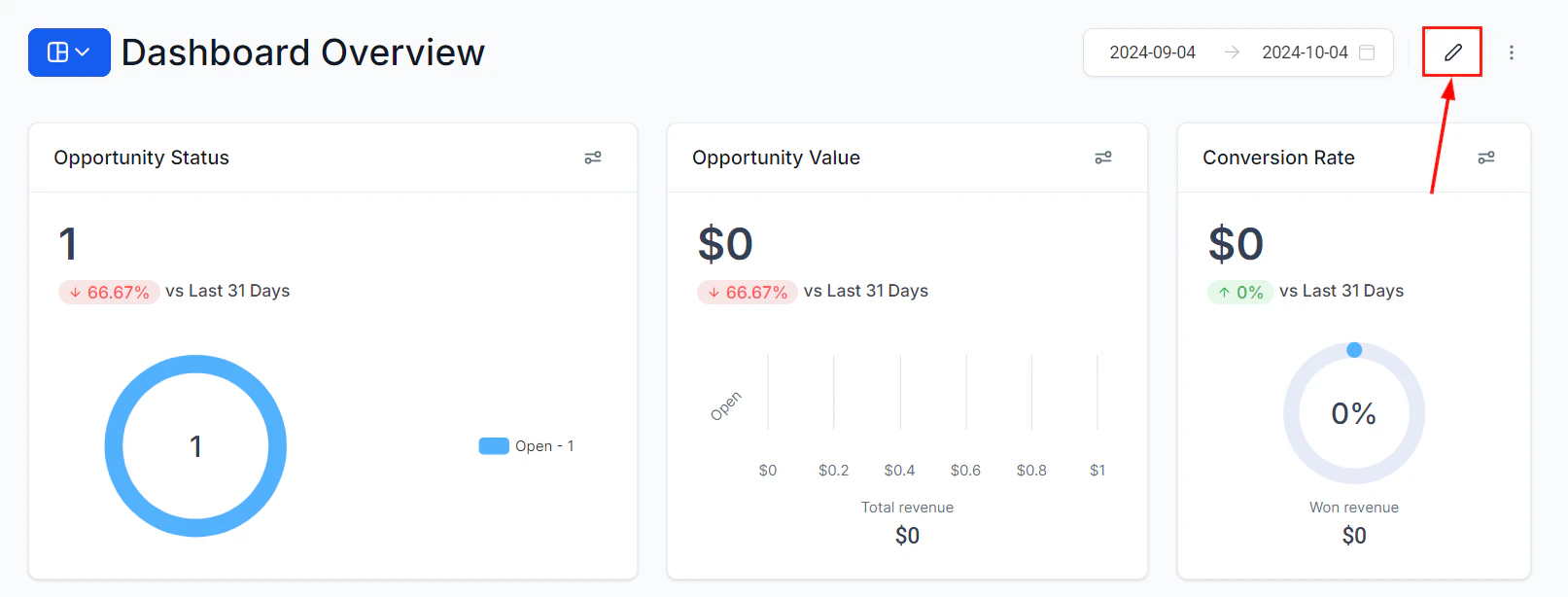
Click the pencil icon to enter dashboard edit mode
2
Open the widget panel
Click “Add Widget” to open the widget selection panel.
3
Select the Payments category
Click the Payments tab in the widget panel to browse all available revenue and payment widgets.
4
Choose a widget type
Select the widget that matches your reporting need — for example, Total Revenue for a KPI tile or Revenue Over Time for a trend line.
5
Configure and save
Click the three dots on the widget and select Edit to configure the title, metrics, date range, and any conditions. Click Save, then Save Changes.
Available payment widget types
Configuring the total revenue widget
The total revenue widget is the most commonly used payment widget. When configuring it: Metrics: Select Sum as the metric and choose the revenue amount field. This gives you the total dollar amount collected within the selected period. Date range: By default, the widget uses the dashboard’s global time frame. Apply a Date Range Override to lock the widget to a specific period — for example, always showing the current month’s revenue regardless of what the global date selector is set to. Comparison date range: Enable a comparison period to show revenue alongside the prior period’s figure. This adds a percentage change indicator that immediately shows whether revenue is up or down versus the comparison period.Filtering revenue widgets
Use the Conditions tab to segment your payment data:Filter by payment status
Filter by payment status
Add a Payment Status condition to isolate specific transaction states. Common uses include a “Pending Payments” widget (filter to Pending status) placed alongside a “Collected Revenue” widget (filter to Paid status) to show outstanding versus received amounts.
Filter by product or service
Filter by product or service
If your account uses products or services in invoices and payment links, add a Product condition to show revenue from a specific offering. This helps you understand which products are driving the most revenue.
Filter by contact or pipeline
Filter by contact or pipeline
Add a Contact Tag or Pipeline condition to segment revenue by a particular customer segment or sales process. For example, show revenue from contacts tagged as “Enterprise” separately from “SMB.”
Supported chart types
Revenue widgets support all standard visualization formats:Building a revenue performance dashboard
For a comprehensive financial overview, combine multiple payment widgets on a dedicated revenue dashboard:- Total revenue this month — numeric widget with a current-month date range override
- Revenue vs. last month — same widget with a comparison date range enabled
- Revenue over time (30 days) — line chart showing daily revenue trend
- Payment status breakdown — donut chart showing paid versus pending versus failed
- Monthly recurring revenue — numeric widget filtered to subscription payment types
- Top revenue products — horizontal bar chart ranked by total revenue per product
Revenue data in the dashboard reflects payments processed directly through the HoopAI platform’s Payments features. Payments processed through external systems not connected to the platform will not appear in these widgets.
Frequently asked questions
Why is my total revenue widget showing zero?
Why is my total revenue widget showing zero?
Confirm that the selected date range covers a period during which payments were collected. Also verify that any conditions applied in the Conditions tab are not filtering out all transactions. Check that the Payment Status condition (if applied) is set to “Paid” rather than “Pending” or another status.
Can I track recurring subscription revenue separately from one-time payments?
Can I track recurring subscription revenue separately from one-time payments?
Yes. Use the Conditions tab to filter by payment type. Add a condition for the subscription or payment plan type to isolate recurring revenue from one-time transactions.
How do refunds affect the total revenue figure?
How do refunds affect the total revenue figure?
Refunded transactions are recorded with a Refunded status. The total revenue widget filtered to Paid status will not include refunded amounts. To account for refunds, use a custom metric that subtracts refunded amounts from total collected revenue.
Can I export revenue data from the widget?
Can I export revenue data from the widget?
Yes. Click on a data point within the revenue widget to open the Granular Insights view, which lists individual transaction records. Use the export icon to download the records as a CSV for further analysis.