

What the funnel widget shows
The funnel widget displays your pipeline as a series of stages stacked vertically, with each stage narrowing to reflect the drop-off as leads advance. For each stage you can see:- Lead count — the number of opportunities currently at or that passed through that stage within the selected period
- Stage value — the total monetary value of opportunities at that stage
- Conversion percentage — the percentage of leads that moved from one stage to the next
Adding the funnel widget to your dashboard
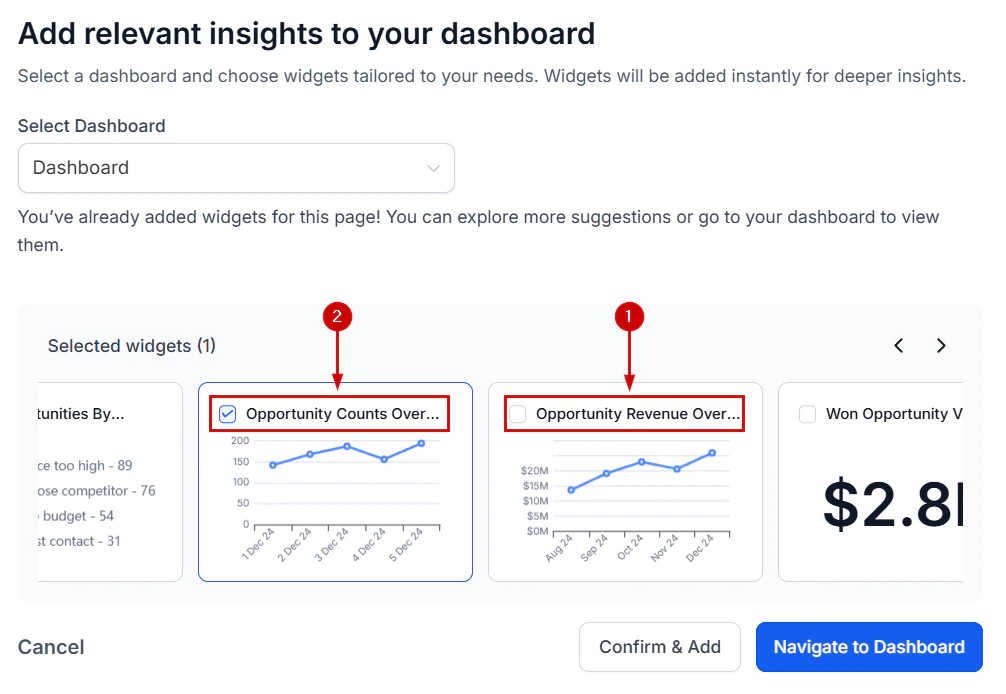
Adding a funnel widget from the Opportunities category in the widget panel
1
Enter edit mode
Navigate to your dashboard and click the pencil icon to enter edit mode.
2
Open the widget panel
Click “Add Widget” in the top-right corner. The widget selection panel opens on the right.
3
Find the funnel widget
Navigate to the Opportunities category. Look for the Funnel widget type, or use the search bar and type “funnel.”
4
Add the widget
Click the funnel widget to add it to your dashboard. It will appear in the dashboard layout ready for configuration.
5
Configure the widget
Click the three dots on the widget and select Edit to open the configuration panel.
Configuring the funnel widget
Once you open the configuration panel, adjust the following settings to tailor the funnel to your needs:Pipeline selection
Choose which pipeline to display. You can only display one pipeline per funnel widget. If you manage multiple pipelines, add separate funnel widgets — one per pipeline — to compare them side by side on the same dashboard.Stage selection
By default, all stages in the selected pipeline are included. You can include or exclude specific stages using the Conditions tab. For example, filter to only show the stages that matter most for a particular team or reporting purpose.Date range
Set the date range to define which opportunities are included in the funnel. The funnel counts opportunities that were active within the selected period based on the date property you choose (Created On, Updated On, or Status Change).Display metric
Choose whether the funnel stages display:- Count — number of opportunities per stage
- Value — total monetary value per stage
- Both — displays count and value together
Filtering the funnel by pipeline stages
To narrow the funnel to specific stages — for example, only showing the bottom-of-funnel stages relevant to a closing team:- Open the widget editor and go to the Conditions tab
- Click Add Condition and select Pipeline — choose your pipeline
- Click + And and select Stage
- Choose the specific stages you want to include
- Save the widget
Reading the funnel visualization
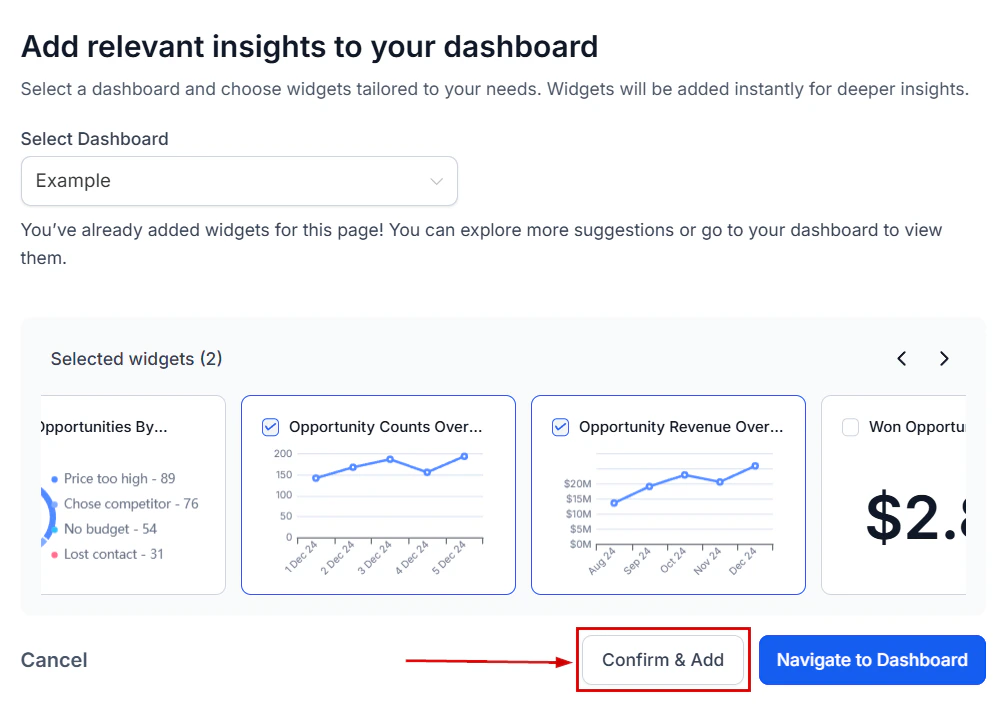
Funnel widget showing pipeline stages with lead counts and conversion percentages
Using the funnel alongside other opportunity widgets
The funnel widget works best alongside complementary widgets that provide additional context:- Total opportunities widget — shows the overall pipeline count for quick reference
- Opportunity value widget — displays total open, won, and lost value
- Conversion rate widget — provides the overall won/total ratio
- Lost opportunities by reason widget — shows why deals are falling out of the funnel
Frequently asked questions
Can I show multiple pipelines in a single funnel widget?
Can I show multiple pipelines in a single funnel widget?
No. Each funnel widget is tied to a single pipeline. To compare multiple pipelines, add separate funnel widgets for each and arrange them side by side on the dashboard.
Why are some stages not appearing in my funnel?
Why are some stages not appearing in my funnel?
If you have applied stage conditions in the Conditions tab, only the specified stages will appear. Additionally, stages with zero opportunities in the selected date range may be hidden — check that your date range is set correctly and that opportunities exist in the selected pipeline.
How is the conversion rate between stages calculated?
How is the conversion rate between stages calculated?
The conversion rate between two adjacent stages is calculated as the count (or value) at the lower stage divided by the count (or value) at the stage directly above it, expressed as a percentage.
Can I export the funnel data?
Can I export the funnel data?
Yes. Click on any stage bar within the funnel widget to open the Granular Insights view, which lists the individual opportunity records at that stage. From there, use the export icon to download the records as a CSV file.