

What the reputation widget shows
Reputation widgets surface the following data from your connected review platforms:- Average rating — your current average star rating across all reviews within the selected period
- Total review count — the total number of reviews collected
- Reviews over time — a trend chart showing how your review volume and average rating change over time
- Review breakdown — distribution of reviews by star rating (1 through 5 stars)
- Platform-specific rating — rating and count data segmented by source (Google, Facebook, etc.)
Prerequisites
Before your reputation widgets display data, your Google Business Profile and/or Facebook page must be connected to the HoopAI platform:- Navigate to Settings and locate the Integrations section
- Connect your Google Business Profile using your Google account
- Connect your Facebook page if applicable
- Return to the dashboard — reputation data will begin populating once the connection is established
Review data is pulled based on the connected profiles in your account settings. If multiple locations are connected, you may see combined or per-location data depending on your configuration.
Adding a reputation widget
1
Enter edit mode
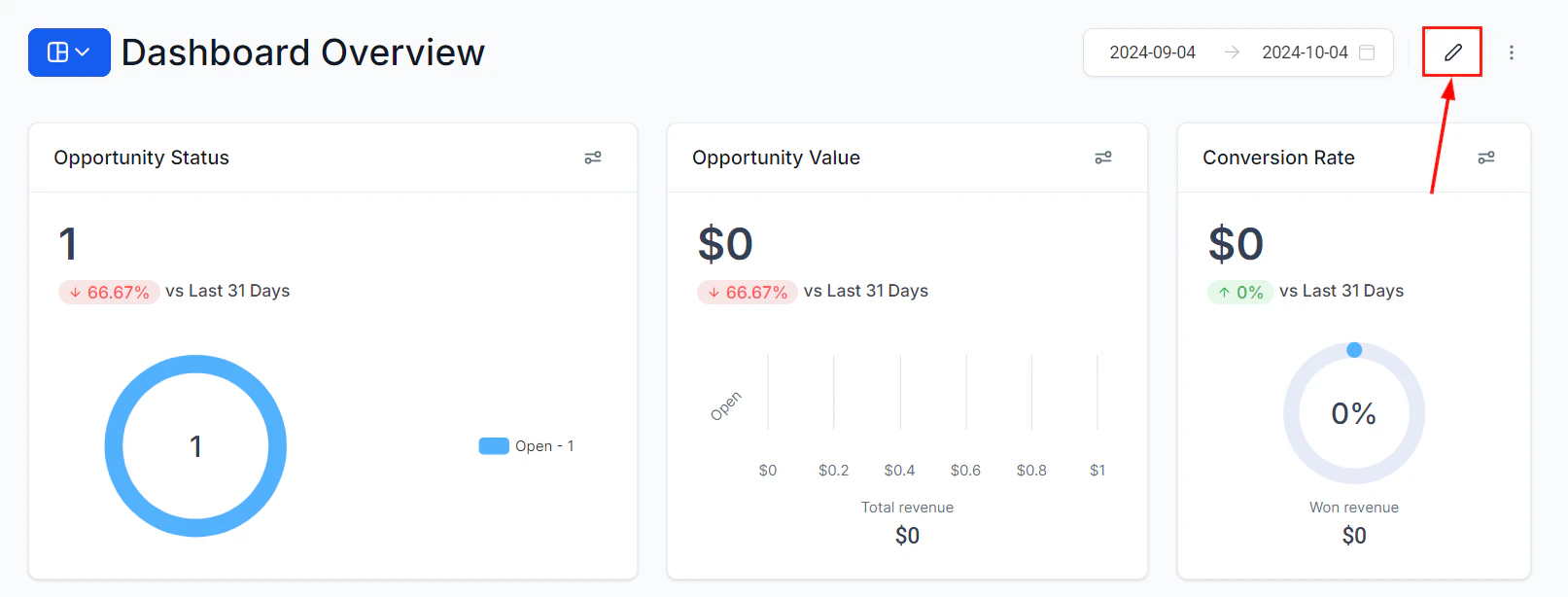
Click the pencil icon to enter dashboard edit mode
2
Open the widget panel
Click “Add Widget” to open the widget selection panel.
3
Find reputation widgets
Go to the General category in the widget panel and look for the reputation or reviews widget, or search for “reputation” or “reviews” using the search bar.
4
Add the widget
Click the widget to add it to your dashboard. Reputation widgets in the General category display pre-configured data from your connected review sources.
5
Resize and position
Drag the widget to your preferred position and use the corner handles to resize it. Click Save Changes when the layout looks right.
Reputation widgets in the General category are read-only and cannot be edited, duplicated, or filtered with custom conditions. They display your connected account’s live review data as-is.
Understanding the average rating display
The average rating widget shows your current mean star rating based on all reviews within the selected period. The rating is calculated as a simple arithmetic mean of all review scores. The widget typically displays:- The numeric average rating (for example, 4.7)
- A star visualization reflecting that rating
- The total number of reviews that contribute to the average
- A trend indicator showing whether the average is improving or declining compared to the previous period
Review volume and trends
Pair the average rating widget with a review volume widget to understand whether your rating improvement is driven by genuine reputation growth or by a small number of reviews that happened to skew high. A high average rating backed by a high review volume is a much stronger indicator of reputation health than a high rating based on only a few reviews.Using reputation data for internal reporting
Reputation widgets are useful for client-facing dashboards. If you manage marketing for multiple businesses, you can create separate dashboards per client — each with a reputation widget showing that client’s own Google or Facebook review data. Share these dashboards with your clients at the View permission level so they can monitor their own reputation performance.Automated review request integration
The reputation widget works most effectively when your account actively collects reviews using the HoopAI platform’s Reputation Management features. Automated review request workflows send SMS or email prompts to contacts after a key interaction — such as a completed appointment or closed opportunity — encouraging them to leave a review. As review request campaigns run and new reviews are collected, the reputation widget updates automatically to reflect the incoming ratings. This creates a closed feedback loop: you can see the impact of your review campaigns in real time on your dashboard.Frequently asked questions
Why is my reputation widget not showing any data?
Why is my reputation widget not showing any data?
Verify that your Google Business Profile or Facebook page is connected in Settings under Integrations. If the connection was recently established, allow a short time for initial data to sync. If the connection is confirmed and data is still not appearing, disconnect and reconnect the integration.
Can I filter the reputation widget to show only Google reviews or only Facebook reviews?
Can I filter the reputation widget to show only Google reviews or only Facebook reviews?
The General category reputation widget shows combined data from all connected sources. For platform-specific filtering, check whether your account has separate platform-specific review widgets available in other widget categories.
How frequently does review data update?
How frequently does review data update?
Review data syncs from Google and Facebook on a periodic basis. There may be a delay of several hours between when a new review is posted on Google or Facebook and when it appears in your dashboard widget.
Can I respond to reviews from the dashboard widget?
Can I respond to reviews from the dashboard widget?
The reputation widget is a monitoring tool — it displays review data but does not support responding to reviews directly. To respond to reviews, navigate to the Reputation Management section of the platform.