

How dashboard sharing works
Every dashboard in the HoopAI platform has its own access settings. By default, a new dashboard is accessible only to the user who created it. To make it available to others, you need to assign them a permission level through the Manage Permissions panel. There are four permission levels that control what a shared user can do:Sharing a dashboard with team members
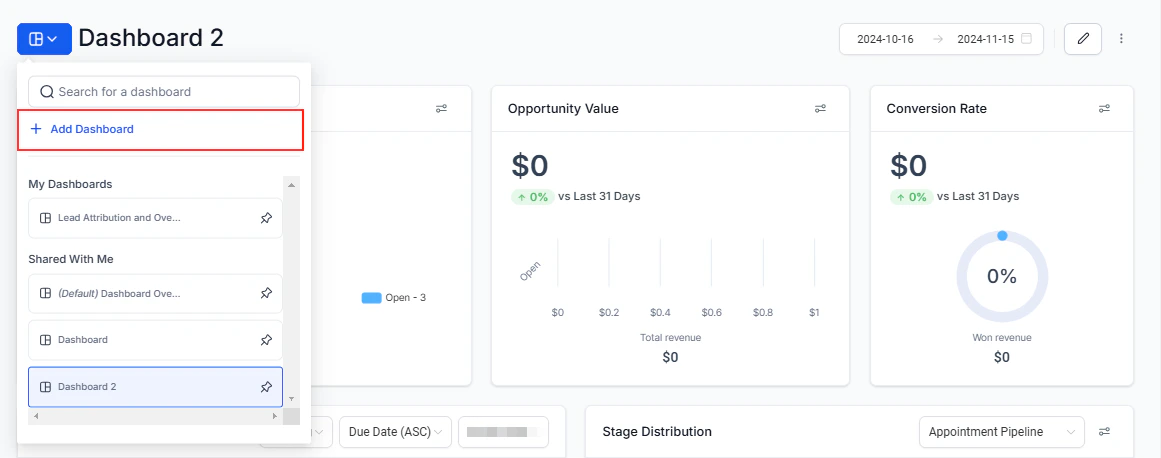
The Manage Permissions panel showing team member access settings
1
Open the dashboard options menu
Navigate to the dashboard you want to share. Click the three dots icon in the top-right corner of the dashboard header.
2
Select Manage Permissions
Choose “Manage Permissions” from the dropdown menu. The permissions panel will open, listing all users in your account.
3
Set access levels
Find each team member you want to share with and select their permission level from the dropdown next to their name. You can share with multiple users at different levels simultaneously — for example, give a team lead Edit access and give account executives View access.
4
Save your changes
Click Save to apply the updated permissions. The selected users will now have access to the dashboard immediately.
Private dashboards
When creating or editing a dashboard, you can toggle the Private Dashboard option. A private dashboard is hidden from all users by default and must be explicitly shared with individuals one at a time. Use private dashboards for sensitive reporting — for example, executive performance data or financial summaries — that should only be visible to specific people. To make a dashboard private after it has already been shared:- Open the dashboard options menu and select Manage Permissions
- Toggle the Private Dashboard switch to on
- Review the user list and adjust individual permissions as needed
- Click Save
Sharing with clients
The HoopAI platform supports client-facing dashboards that allow your clients to view their own data. To set up a client-facing dashboard:- Create a dedicated dashboard with widgets scoped to that client’s data
- Use widget-level Conditions to filter data to the relevant contact or pipeline
- Assign the client’s user account View access through the Manage Permissions panel
- Optionally mark the dashboard as Private so it is only visible to that client and your internal team
Clients with View access can apply Quick Filters to adjust the data they see, but they cannot add, edit, or remove widgets from the dashboard.
Sharing vs. cloning
Sharing a dashboard gives another user access to the same dashboard — any changes made (by users with Edit or Full access) affect the shared version that everyone sees. Cloning a dashboard creates an independent copy for another user or team. Use cloning when you want multiple teams to have their own customizable version of a dashboard without interfering with each other. To clone a dashboard, click the three dots menu and select “Clone Dashboard”. The clone is created as a separate dashboard and can then be shared independently.Role-based access considerations
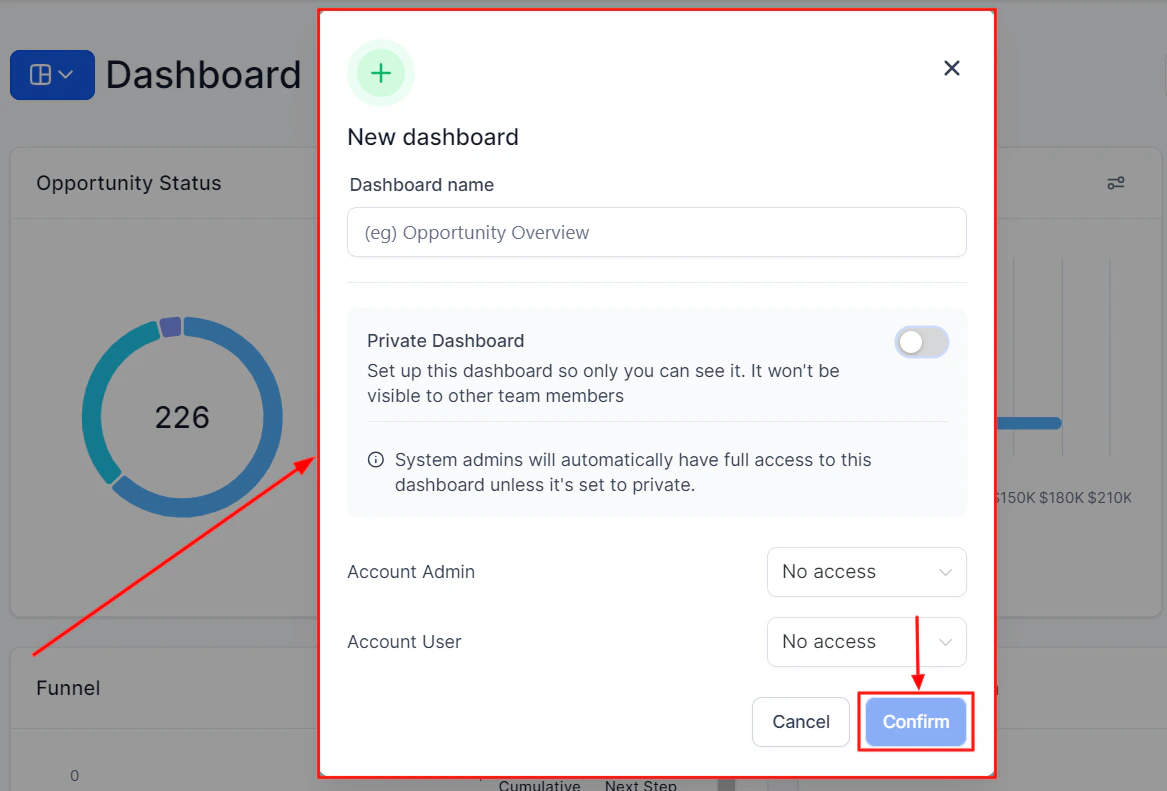
Managing dashboard permissions and role-based access
- Account Admins have default Full view access to all dashboards unless explicitly restricted
- Account Users see only dashboards they have been granted access to
- Lower-level roles cannot be granted higher access than is permitted by their role in the account settings
Only users with Full permission on a dashboard can manage that dashboard’s sharing settings. Users with Edit or View access cannot modify who else has access.
Frequently asked questions
How do I remove someone's access to a dashboard?
How do I remove someone's access to a dashboard?
Open the dashboard options menu, select “Manage Permissions,” find the user, and set their permission level to No Access. Click Save to apply.