Apply a color theme to your dashboard to match your brand and improve visual clarity for your team.
Your dashboard is the face of your account. Adding custom colors and themes makes it feel more personal, easier to read, and aligned with your brand identity. Dashboard themes let you quickly switch between preset color schemes or build a fully custom palette.
Theme settings are per-dashboard. Changes you make to a theme apply only to the dashboard you currently have selected. Custom theme colors are preserved when you clone a dashboard.
Click the pencil icon in the top-right corner of the Dashboard section to enter edit mode.
2
Open the Themes tab
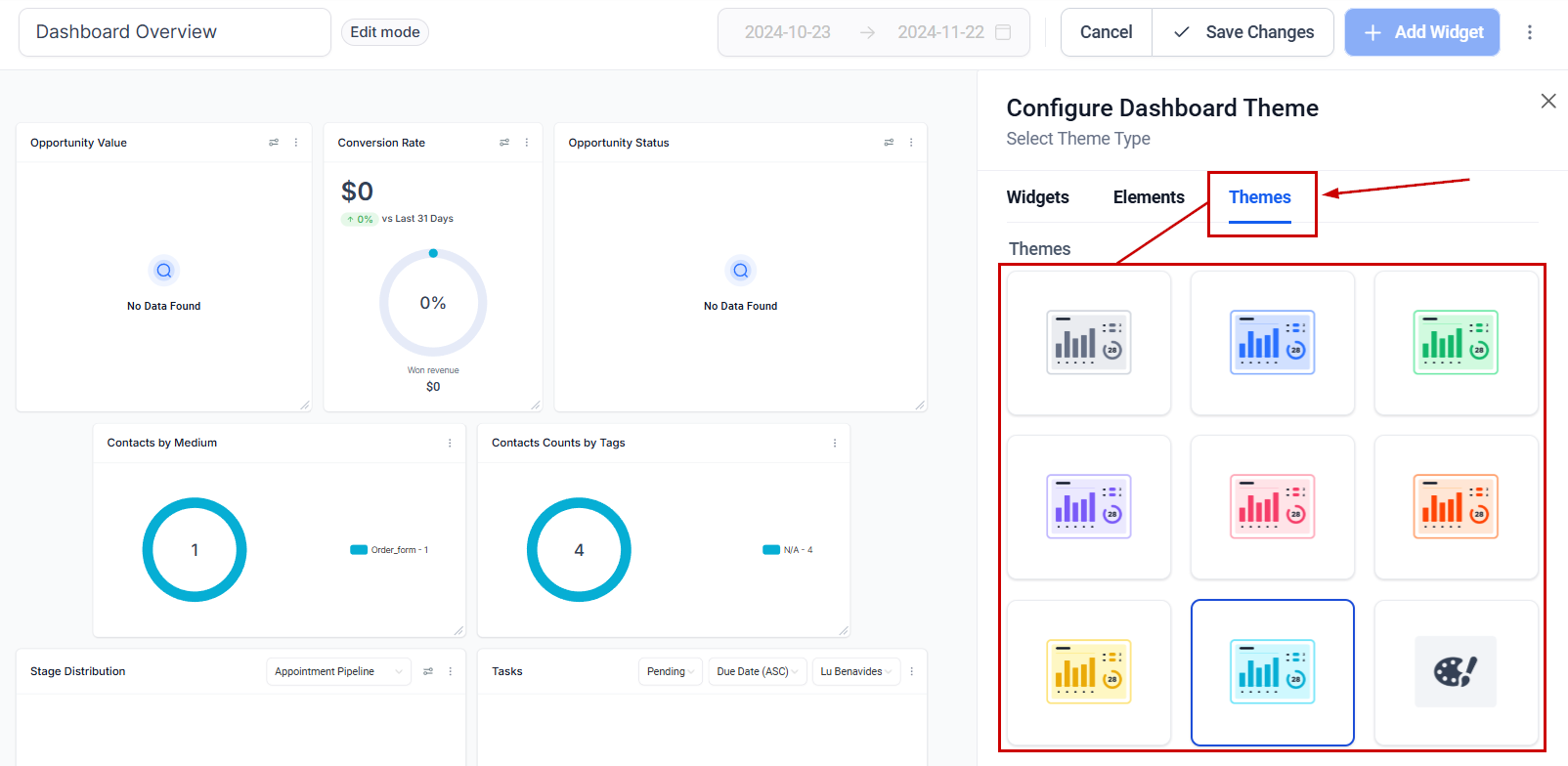
Click +Add Widget to open the right-side panel, then switch to the Themes tab.
The Themes tab for selecting a dashboard color scheme
Selecting one of the predetermined options immediately switches your dashboard’s color scheme.
3
Create a custom theme
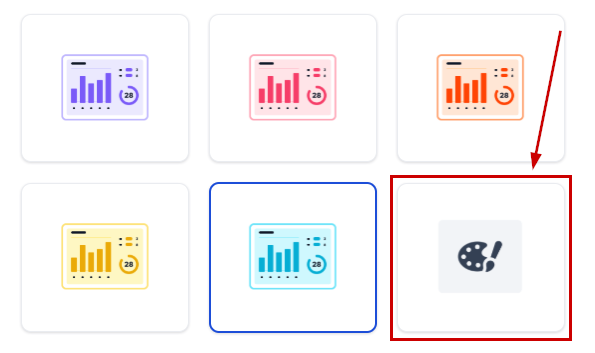
Click the paint palette icon to open the custom color settings.
Custom color settings for personalizing dashboard widget colors
Set your desired colors for each element — including widget backgrounds, chart colors, text, and borders. You have full control over each part of your widgets and charts.
4
Save changes
Once you are satisfied with your colors, click Save Changes to apply the theme to your dashboard.
Dashboard theme scope — themes apply per dashboard and carry over when cloning