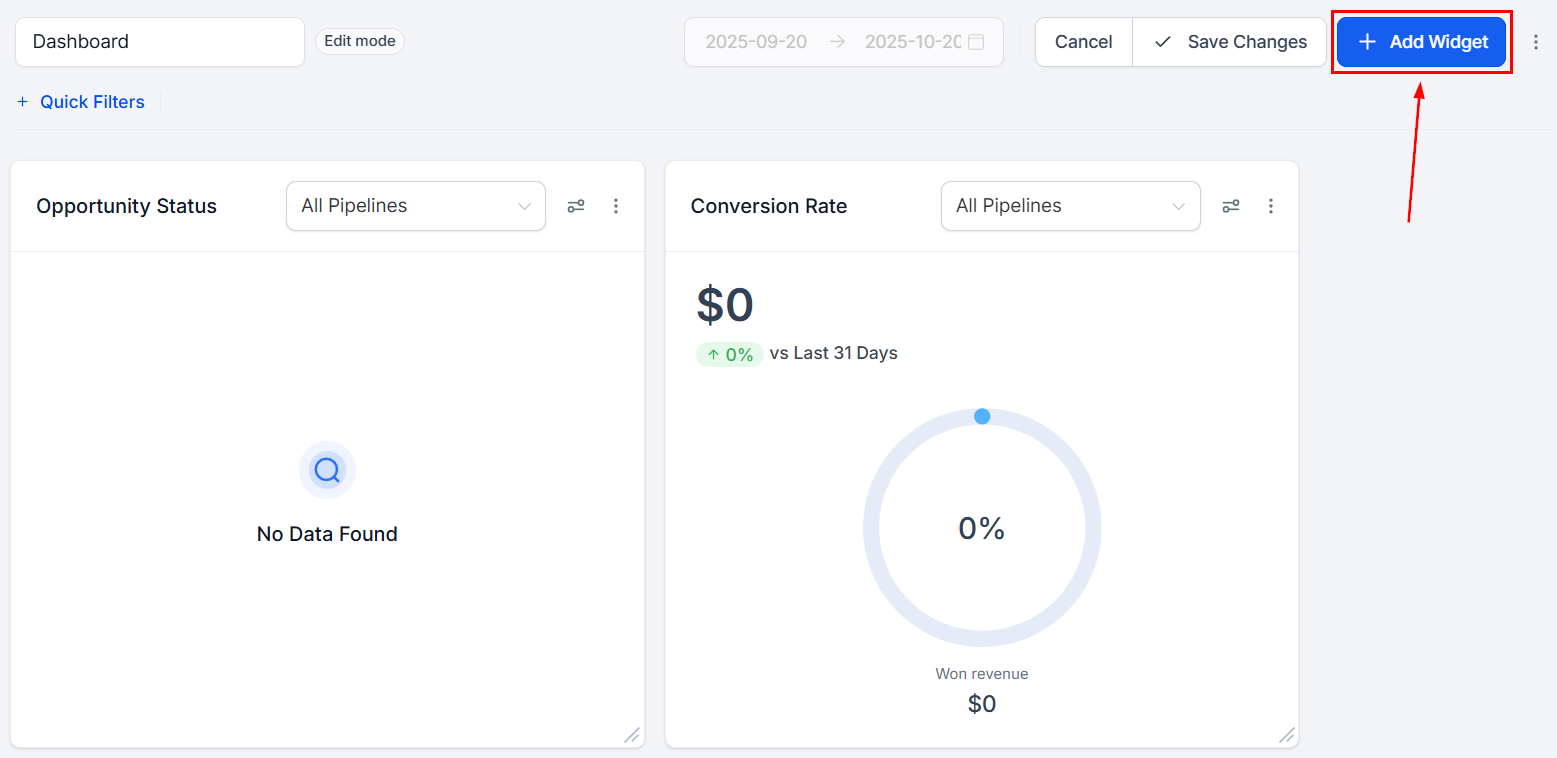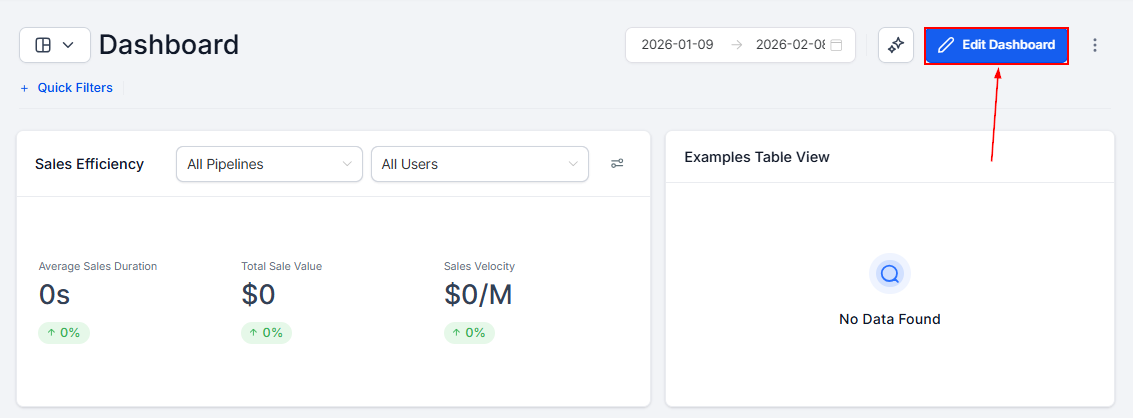
Widgets are versatile, customizable data visualization tools that let you analyze and present your business data for enhanced insights and reporting. You can add, modify, or delete widgets from the Dashboard section by clicking the Edit Dashboard button.
Edit dashboard mode
To add a widget, click the “Add Widget” button in the top-right corner of your dashboard.

Widget categories

Widget categories
Manage and analyze leads, focusing on tags, activity, or assigned team members.
Track and optimize meetings, view by status or assignee, and monitor appointment trends.
Gain insights into deal status, monetary value, and progression over time.
Analyze visitor interactions and engagement metrics.
View key email metrics such as click-through and open rates.
Monitor call activities, duration, and trends by attendee or status.
Track and analyze communication threads across various channels.
Track transactions, revenue trends, and payment statuses to monitor business performance.
Track and analyze Meta Ads performance trends to monitor paid traffic at a glance.
Analyze social media publishing performance, engagement trends, and content activity across connected platforms.
View website performance data including traffic sources, user behavior, conversion metrics, and engagement trends.
Create object-specific widgets for relationships or processes beyond standard CRM objects.
Access predefined performance data across platforms like Google, Facebook, and tasks. Note: General widgets cannot be edited or duplicated.

Supported chart types

Select the chart type that displays your data in the most useful way:
  • Numeric / Count
  • Donut charts
  • Line charts
  • Bar charts
  • Horizontal bar charts
  • Tables

Supported metrics

For widgets that aggregate data, choose from these metric options:
MetricDescription
SumTotal value of the selected metric
MinimumLowest value within the selected data range
MaximumHighest value in the selected dataset
AverageAverage value across the dataset
CountTotal number of items meeting the chosen criteria
For line, bar, and horizontal bar chart widgets, you can add a second metric for side-by-side comparison.

Adding a widget

1

Enter edit mode

Navigate to the Dashboard and click the pencil icon to enter edit mode. An “Add Widgets” panel will open on the right.
2

Select your widget

Browse widget categories, search by name, or filter by chart type. Each widget has a default chart type that you can adjust by clicking the chart icon.
3

Customize the widget

In the Configure tab, set the title, metrics, grouping, and date range. Use Conditions to apply AND/OR filters. Optionally apply a custom Theme to match your dashboard style.
4

Save

Click Save to add the widget to your dashboard. Then resize and reposition it, and click Save Changes to finalize.

Widget configuration options

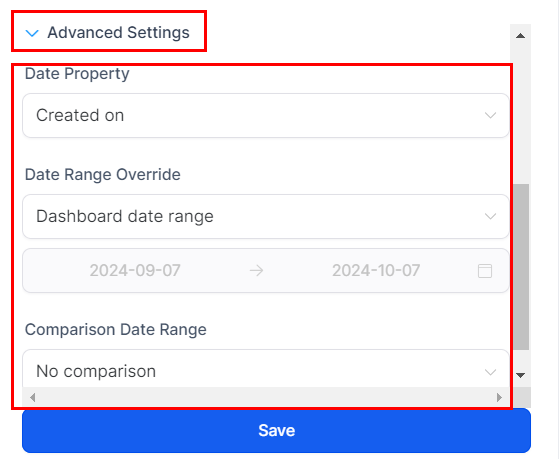
When configuring a widget in the Configure tab, you have access to these settings:
SettingDescription
TitleCustomize the widget’s display name
MetricsChoose specific data points for the widget
GroupDefine groupings for donut charts
View BySelect secondary dimensions for bar and line charts
BreakdownAdjust frequency of intervals (weekly, monthly, etc.)
Date PropertySelect the date property to filter data (Created Date, Updated Date, etc.)
Date Range OverrideOverride the default date range set on the dashboard
Comparison Date RangeCompare data across different time periods
OrderDisplay results ascending or descending
LimitSet a cap on the number of results displayed
Widget configuration options

Applying conditions

Use the Conditions tab to apply AND/OR filters to your widget data.
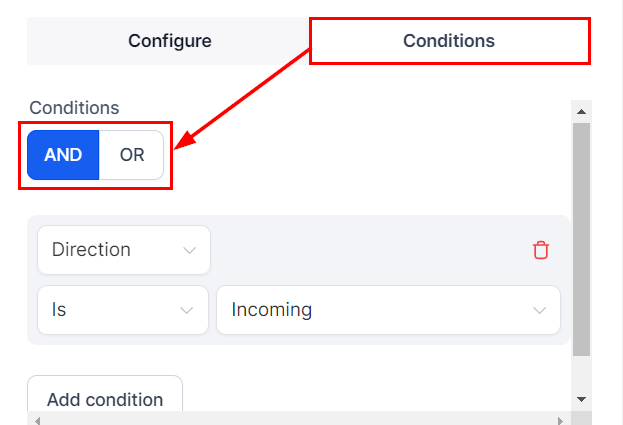
Widget conditions panel
Available condition operators:
OperatorBehavior
IsSelect one option
Is NotExclude one option
Is One OfInclude multiple options
Is None OfExclude multiple options
Is Empty / Is Not EmptyFilter on presence of data
Is All OfInclude options with AND logic
If no data is found for a filter, the widget cannot be saved until the filter is adjusted or deleted.

Editing widgets

1

Enter edit mode

Click the Edit button on your dashboard.
2

Open the widget menu

Click the three dots in the top-right corner of the widget you want to edit. Select Edit from the dropdown.
3

Make your changes

Adjust metrics, title, or appearance in the editing panel. Click Save, then Save Changes to finalize.
Widgets in the General section cannot be edited.

Removing a widget

1

Enter edit mode

Click the Edit button on your dashboard.
2

Delete the widget

Click the three dots in the top-right corner of the widget. Select Delete from the dropdown.
3

Save changes

Rearrange the remaining widgets as needed, then click Save Changes to finalize the removal.

Duplicating a widget

1

Enter edit mode

Click the Edit button on your dashboard.
2

Duplicate

Click the three dots on the widget you want to copy and select Duplicate. The copied widget appears on the dashboard ready for customization.
3

Save

Customize the duplicated widget, click Save, then Save Changes.
Custom widgets in the General section cannot be duplicated or edited.

Rearranging widgets

In edit mode, click and drag any widget to reposition it on the dashboard. Click Save Changes to lock in the new layout, or Cancel to revert.

Resizing widgets

In edit mode, use the arrow icons at the corners of a widget to drag and resize it. Click Save Changes to confirm, or Cancel to undo.
Default widgets like the Opportunity Status widget can be rearranged but are not resizable.

Specialized widget guides

The Call Widget provides a visual and analytical overview of call activity — including inbound and outbound calls, call durations, and participant details.To add a call widget:
1

Open edit mode

Navigate to your dashboard and click Edit Dashboard.
2

Add the widget

Click Add Widget, go to the Calls tab, and select the call widget that fits your needs.
3

Configure

Fill in the title, select your metric preferences, and use the Conditions tab to filter by call direction (inbound only, outbound only, etc.). Click Save.
Conversation widgets display metrics related to unread messages, ensuring important communications are never missed. They update in real-time.To add a conversation widget:
1

Open edit mode

Click the Edit Dashboard icon.
2

Select the widget

Click +Add Widget and choose from the Conversations category.
3

Save

Configure and save the widget. It will update automatically as new messages arrive.
The Task Widget shows task details including title, due date, description, contact name, and assigned user. You can edit or delete tasks directly from the widget, filter by user or status, and sort by due date.Clicking a task title navigates directly to the related contact page.
Appointment widgets provide a clear view of upcoming appointments. Available widget types include total upcoming appointments for the next week, total appointments created in the last month, and the number of confirmed appointments within a time frame.Chart types available: numeric, donut, line, bar, horizontal bar, and table.
Opportunity widgets include a date filter that lets you choose which date property to use when calculating data. Options are:
  • Status Change — filter by the date the opportunity status last changed
  • Created On — filter by when the opportunity was created
  • Updated On — filter by when the opportunity was last updated
The filter applies to all opportunity cards on your dashboard. This is useful for comparing opportunities created in a period versus those that closed in the same period.
Filter opportunity widgets by the reason an opportunity was lost to analyze patterns in your sales process.To add a Lost Opportunities by Reason widget:
  1. In edit mode, click Add Widget and choose Lost Opportunities By Reason from the Opportunities section.
  2. In the Conditions tab, set Status IS Lost.
  3. Add a second condition for a specific Lost Reason if needed.
To add a Lost Reason column to a Table widget:
  1. Choose a Table chart type for an opportunities widget.
  2. Click Select Columns in the widget configuration.
  3. Enable the Lost Reason column and save.
Contact and opportunity widgets support filtering by attribution data — including first and last touch attribution — and UTM parameters. This helps you understand where your contacts are coming from.Supported attribution fields:
  • UTM Campaign, Campaign ID, Content, Keyword, Matchtype, Medium, Ad ID, Ad Group ID, Source
  • Session Source and Medium (for grouping donut charts and line graphs)
To add attribution filters:
  1. Add or edit a Contact or Opportunity widget.
  2. In the Conditions tab, click Add Condition and select Attribution.
  3. Choose First or Latest attribution.
  4. Click Add Attribution Fields and select the desired UTM property.
UTM parameters and fields are only visible in Table and Granular Insights views when an Attribution type (First or Latest) is added in the widget conditions.
Narrow opportunity widget data to specific pipeline stages for more targeted analysis.
  1. In edit mode, add or select an Opportunity widget.
  2. In the Conditions tab, select Pipeline from the dropdown.
  3. Click + And and select Stage to filter by specific stages within that pipeline.
Custom Object widgets let you monitor records for objects you’ve created in your account settings. Available types include:
  • Total — shows the total number of records for the object
  • Count Over Time — tracks entry trends based on creation date
  • Table View — displays records with custom fields and filters
Custom object widgets support scheduled reporting and full reporting functionality.

Custom metrics

Custom metrics let you combine multiple metrics from different data sources, apply calculations, and display the results as a widget.
1

Enter edit mode

Click the pencil icon to enter edit mode on the Dashboard, then click Add Widget and switch to the Custom Metrics tab.
2

Create a new metric

Click ”+ Create Custom Metric” and select Start From Scratch.
3

Fill in the details

Enter a Metric Name, select the Data Type (currency, percentage, etc.), and add a Description.
4

Build the formula

Use the formula builder to add metrics, operators, and numbers. The builder validates your formula automatically. Up to 4 metrics per formula are supported.
5

Advanced settings

Optionally choose a date property and specify whether an increase or decrease in the metric is positive.
6

Create and add

Click Create to save the metric. It appears in the Custom Metrics list and can be added to any dashboard as a widget.
Custom metrics created in the Dashboard section are also available in Custom Reports, and vice versa.

Adding widgets from key pages

You can add widgets to your dashboard directly from these pages:
  • Call Report tab in the Reporting section
  • Appointment Report tab in the Reporting section
  • Opportunities tab in the Opportunities section
Look for the grid icon (or three-dot menu in Opportunities) to select a dashboard and send widgets to it. Widgets are added to the bottom of your dashboard where you can reposition and resize them in edit mode.

Frequently asked questions

Account Admins have full view access unless otherwise configured. Account Users have access based on their assigned user permissions. Configure per-user visibility in widget Conditions using the “Logged in User” option under the User condition.
In the widget’s Conditions tab, add a User condition and set it to “Logged in User.” This ensures each team member sees only their own data in that widget.
Check your filter conditions — if conflicting conditions are applied, no data will match. Also verify the date range is set correctly and that data exists for the selected criteria.
Yes. From the main dashboard view, click the three-dot menu and select “Manage Dashboard Time Zone.” You can choose between your user-specific time zone and the default location time zone.
Last modified on March 4, 2026