

You must have a phone number set up in your account before you can use the dialer. Refer to the Phone System section in Settings for instructions.
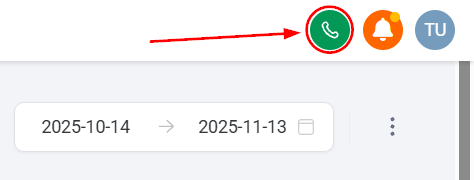
The dialer button in the top-right corner of the platform
Keypad
The keypad is the default view when you open the dialer.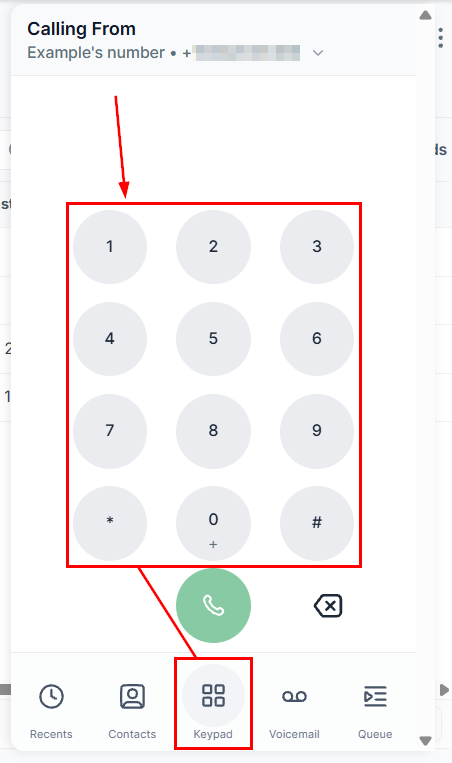
The dialer keypad for entering phone numbers
- Enter a phone number using your keyboard’s numeric keys or click the on-screen number pad
- Use the From dropdown to select which phone number to call from — if you have multiple numbers configured, they will all appear here
- When you are ready to dial, click the green phone button to place the call
Recents
Switch to the Recents view to see a list of your most recently contacted numbers.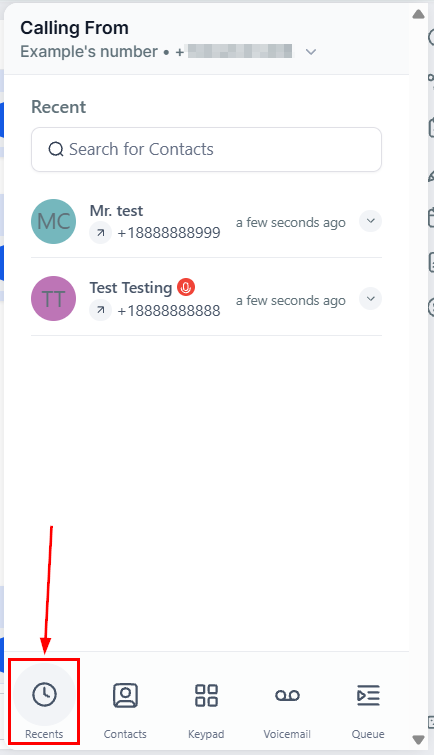
Recents view showing recent calls with quick actions
- Use the search box to find a contact by name or phone number
- Click the arrow next to any call entry to expand its details, where you can:
- View the call date and time
- Open the contact’s full profile
- Review associated notes and tags
- Send a message to the contact
- Redial the number
Contacts
The Contacts view displays all contacts in your account.- Search by name or phone number using the search box
- Click the phone icon next to any contact to call them immediately
Voicemail
When a contact does not answer and has a voicemail inbox set up, you can leave a voicemail message. Voicemails received from contacts also appear in this view.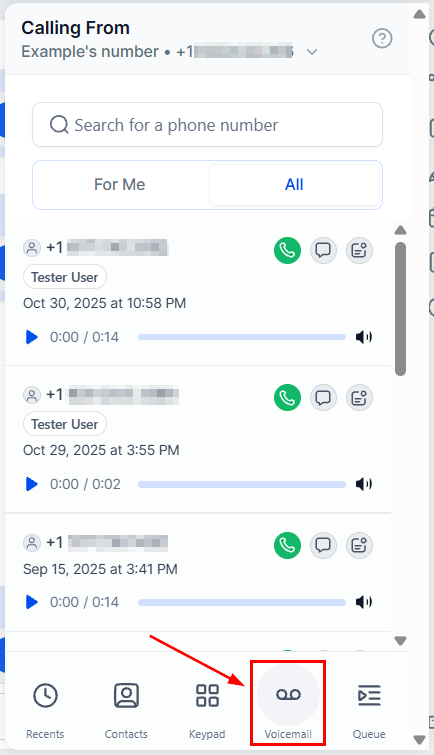
Voicemail view showing received voicemail messages
Queue
The Queue tab displays upcoming calls you have programmed manually, through the quick dialer, or via a workflow. This gives you a centralized view of your scheduled outbound call list.Stay tuned for more details on the Queue feature as it continues to expand.
The dialer creates a unified call record alongside your email, SMS, and other communications — keeping all contact interactions in one place within the HoopAI Platform.
Softphone / web dialer features
The dialer functions as a full softphone built into the web application — no external software or browser extensions are required. Key features include:- Browser-based calling — make and receive calls directly in the browser using WebRTC technology. No downloads or plugins needed.
- Call hold and mute — place a call on hold or mute your microphone during a conversation
- Call transfer — transfer an active call to another team member (warm or cold transfer)
- DTMF tones — use the keypad during a call to navigate phone menus (IVR systems)
- Call recording — calls can be recorded automatically based on your phone system settings
- Simultaneous ring — incoming calls can ring the web dialer and the mobile app simultaneously
For best call quality, use a wired internet connection and a headset with a dedicated microphone. Ensure your browser has microphone permissions enabled for the platform.
Outbound calling from the web app
Place outbound calls from multiple locations across the platform:- Dialer — open the dialer from the top-right corner, enter a number or search for a contact, and click the call button
- Contact record — click the phone icon on any contact record to call them directly
- Conversations inbox — click the phone icon in a conversation thread to call the contact
- Opportunities — click the phone icon on an opportunity card or detail panel to call the associated contact
- Power dialer / queue — load a list of contacts into the dialer queue and call them in sequence without manually dialing each number