Set up an appointment calendar in the HoopAI Platform — choose your calendar type, configure availability, and start accepting bookings from any page or link.
The HoopAI Platform’s calendar feature offers tailored solutions to streamline appointment scheduling. Whether you need one-on-one bookings, round-robin distribution across a team, or group class registrations, the calendar system handles it all — and every confirmed appointment triggers automatic confirmations and reminders.
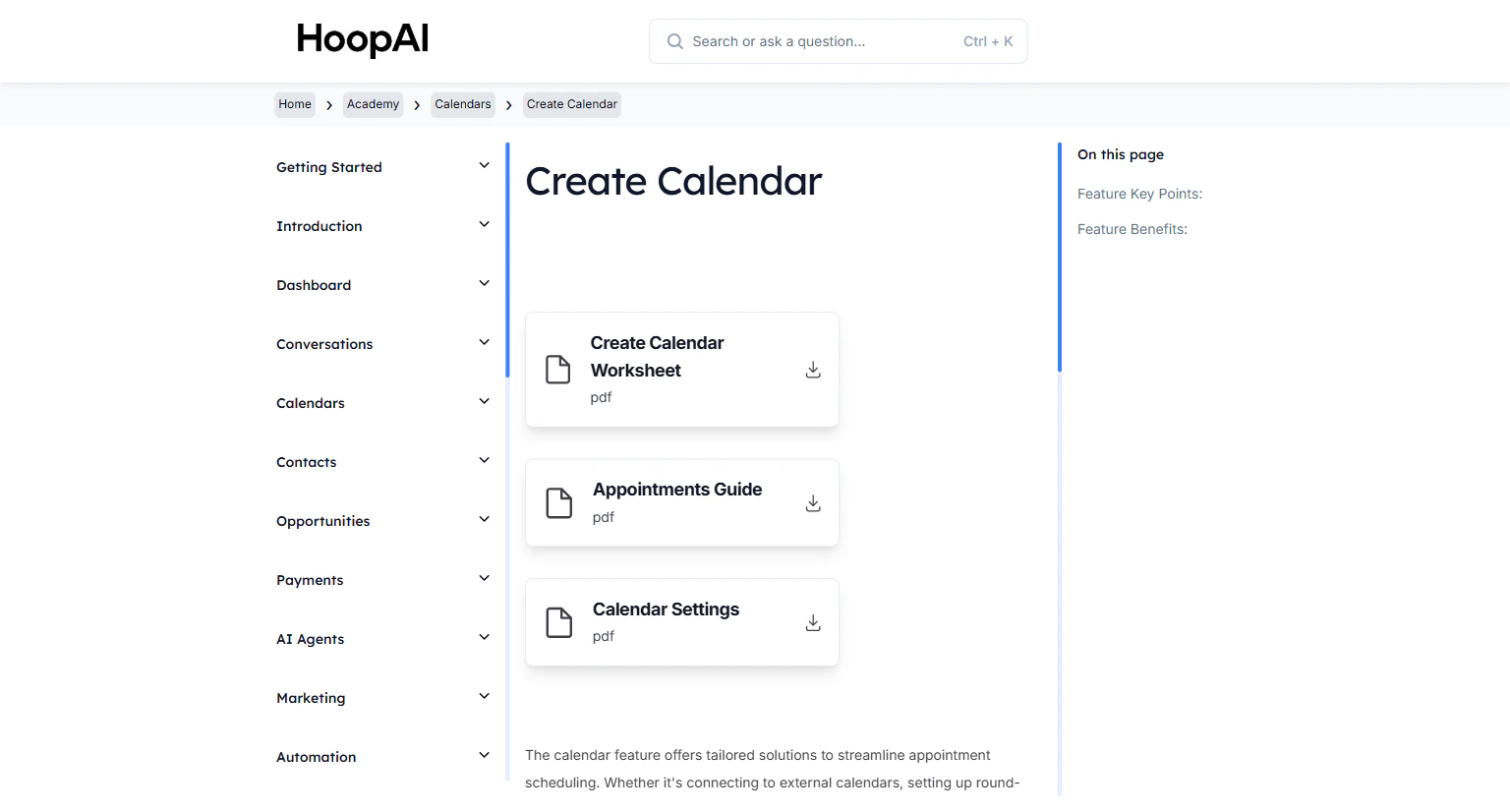
The Create Calendar lesson in the HoopAI Academy Calendars section
Manual appointment scheduling — back-and-forth emails, forgotten follow-ups, missed bookings — wastes hours every week and loses leads who give up waiting. A self-booking calendar lets prospects choose a time 24/7, automatically confirms the appointment, and sends reminders — all without any manual effort from you.
Before creating your calendar, choose the type that fits your use case:
Round Robin
Distributes incoming bookings evenly across multiple team members based on availability. Best for sales teams where any qualified rep can handle a discovery call.
Collective
All listed team members must be available for the appointment to show as open. Best for meetings that require multiple people to attend simultaneously.
Service (one-on-one)
A standard individual booking calendar. One contact books with one specific person. Best for consultations, coaching sessions, and personal appointments.
Class Booking
A group session calendar where multiple contacts can book the same time slot up to a set maximum. Best for workshops, group coaching, or fitness classes.
Go to Calendars > Calendar Settings in the left sidebar. Click Create Calendar.
The Calendar Settings page in the HoopAI Platform
2
Choose your calendar type
Select the calendar type that matches your scheduling needs — Round Robin, Collective, Service, or Class Booking. Give your calendar a clear name that will make sense to the contacts booking it.
3
Set your availability
Configure when appointments can be booked:
Working hours: Set the days and time windows when you are available
Slot duration: How long each appointment is — 15 minutes, 30 minutes, 1 hour, etc.
Buffer time: Gap between appointments — prevents back-to-back bookings
Minimum notice: How far in advance a contact must book — prevents last-minute appointments
Configuring availability, slot duration, and buffer time in the calendar settings
4
Customize the booking page
Configure what the contact sees when they open your booking link:
Calendar title and description
Questions to ask before booking — collect name, phone, company, or custom fields
Confirmation message — what is displayed after a successful booking
Logo and brand colors for a professional, branded experience
5
Connect your calendar integrations
Under the calendar’s integration settings, connect your Google Calendar or Outlook Calendar to check real-time availability and prevent double-bookings. See the Sync Integrations guide for setup.
Always connect your Google or Outlook calendar before going live. Without the integration, the calendar cannot check your real availability — contacts may book times when you are already occupied.
6
Configure confirmation and reminder automation
Set up automatic messages that fire when appointments are booked:
Confirmation email or SMS — sent immediately after booking
Reminder messages — sent 24 hours and 1 hour before the appointment
Follow-up messages — sent after the appointment to collect reviews or next steps