

{{contact.first_name}} and the platform fills it in automatically with the correct value for each recipient.
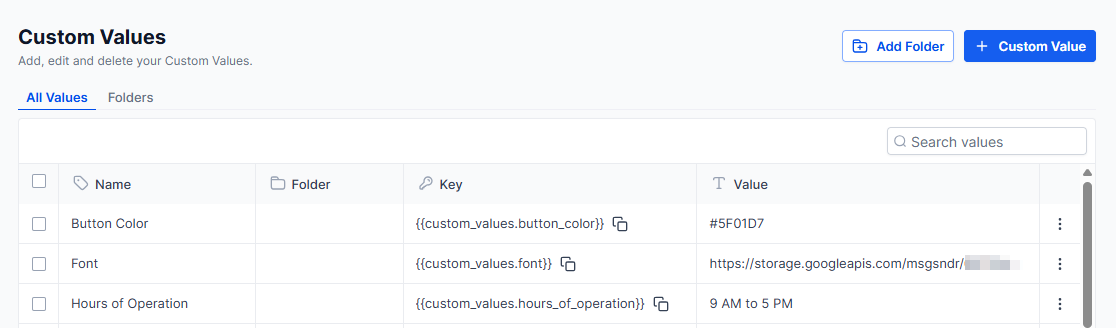
Custom values picker — browse categories and insert merge tags into any message or template
Contact
Contact
Pulls information stored on the contact record.
User
User
Pulls information about the team member assigned to the contact, useful for personalizing outreach with a rep’s details.
Appointment
Appointment
Pulls details about a scheduled appointment — useful in confirmation and reminder messages.
- Start and end date/time
- Timezone
- Cancellation link
- Reschedule link
- Meeting location
- Notes
- Google Calendar and iCal/Outlook add-to-calendar links
Calendar
Calendar
Campaign
Campaign
Provides event date and time variables associated with a campaign.
Message
Message
Account
Account
Pulls your business’s location and contact details — useful for footers, signatures, and general communications.
- Business name
- Full address (street, city, state, country, postal code)
- Phone number
- Website URL
- Logo URL
Right now
Right now
Inserts the current date and time at the moment the message is sent. Available in multiple formats — seconds, minutes, hours, full dates — useful for time-sensitive automation messages.
Attribution
Attribution
Pulls data about how the contact originally found you.
- First and last session source
- Landing page URL
- Campaign name
- UTM parameters (source, medium, campaign, term, content)
- Referrer URL
- Ad click IDs (Google, Facebook)
Invoice
Invoice
Pulls billing details for invoice-related messages — customer name, invoice number, amounts due, line items, due date, and payment links.
Payment link
Payment link
Pulls information about a specific payment link including product details, amounts, and customer information.
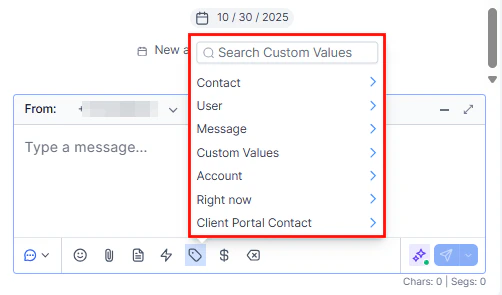
Custom values in a conversation — click the merge tag icon to insert contact and appointment data
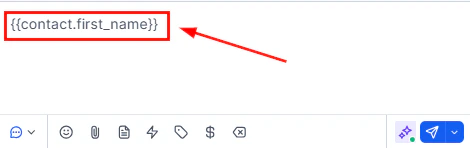
Insert custom values in workflows — use merge tags in SMS and email action steps for personalized automation
How to use custom values
Custom values can be inserted anywhere you compose a message or template — in conversations, email campaigns, SMS, automation workflows, and more.1
Open a message or template
Navigate to a conversation, email campaign, SMS template, or automation workflow where you want to insert dynamic content.
2
Click the custom values icon
Look for the merge tag or variable icon in the message toolbar (often represented by
{} or a person icon). Click it to open the custom values picker.3
Choose a category and variable
Browse the eleven categories and select the variable you want to insert. The tag is added to your message at the cursor position.
4
Preview before sending
Use the preview feature to verify that variables resolve correctly before sending or activating an automation.