

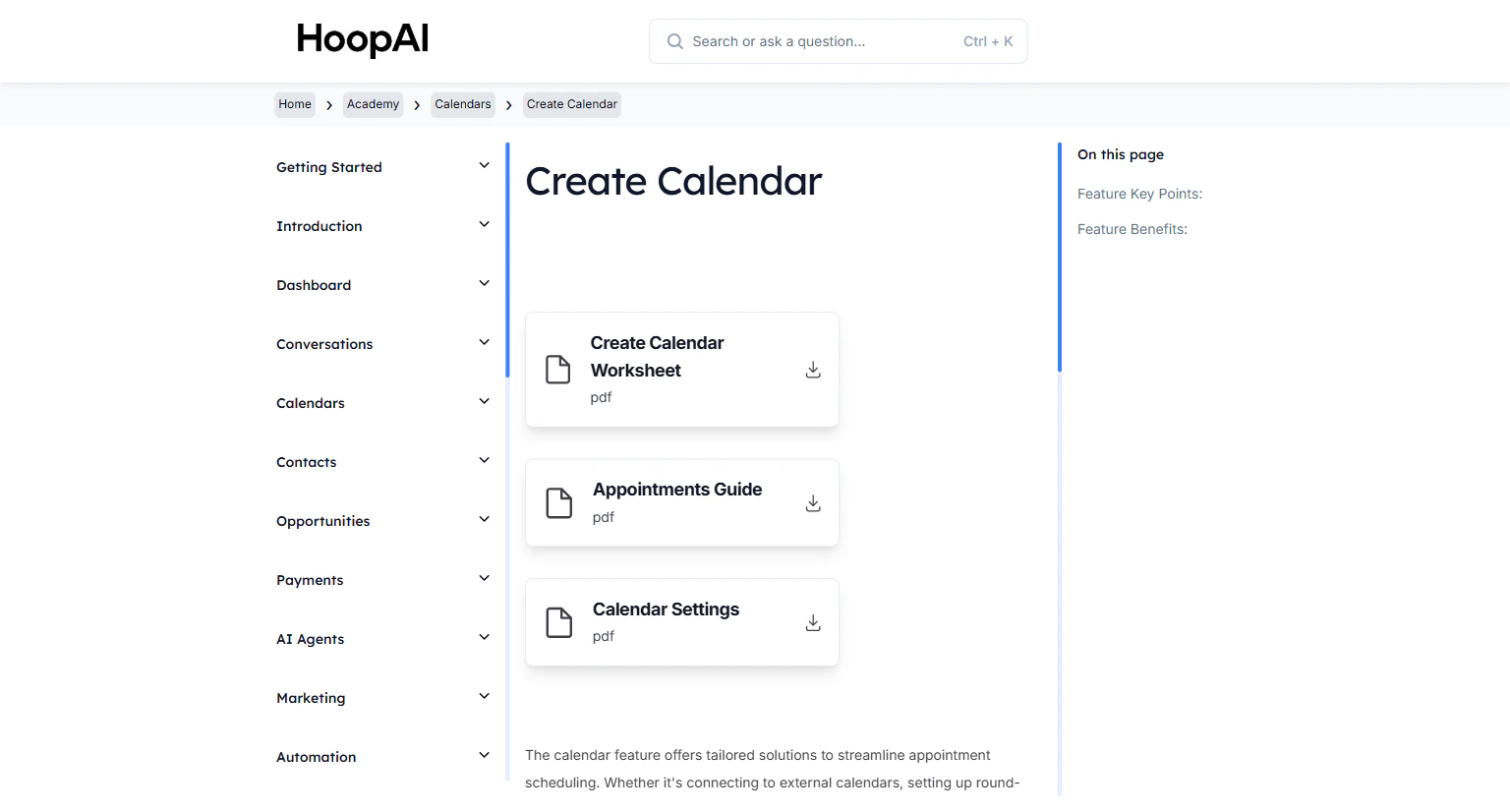
The Create Your Branded Booking Page lesson in the HoopAI Academy Calendars section
Why this matters
A booking page with no logo, mismatched colors, and a generic URL sends a subtle signal that the business is unprofessional or unsecured. Research shows that branded, consistent experiences increase conversion rates — more contacts who land on a branded booking page complete the booking than those who land on a generic one. Your booking page should look as polished as your website.How to create your branded booking page
Open your calendar settings
The Calendar Settings showing the customization options for branding the booking page
Set the calendar title and description
Upload your logo and set brand colors
- Upload your business logo — it displays at the top of the booking page
- Set your primary color — used for the booking button, selected time slot highlights, and accents
- Set the background color — keep it consistent with your website or use white for a clean look
Uploading a logo and setting brand colors for a professional booking page appearance
Configure the intake form questions
- Name and email are collected by default
- Add Phone to enable SMS confirmation and reminders
- Add custom questions — company name, goal for the call, how they heard about you
- Mark fields as required or optional
Set up the confirmation message and redirect
- Confirmation message: The text shown immediately after booking — for example, “You are booked! Check your email for a confirmation and calendar invite.”
- Redirect URL: Instead of a message, redirect the contact to a custom thank you page on your website — your booking confirmation funnel page, a video message, or a resource download
Configuring the post-booking confirmation message and optional redirect to a custom thank you page
Connect your domain
- Go to Settings > Domains and confirm your domain is connected to the platform
- Inside the calendar settings, assign the calendar to your connected domain
- Set a clean URL slug — for example,
yourdomain.com/bookoryourdomain.com/strategy-call
Assigning a custom domain and URL slug to the branded booking page
Preview and publish your booking page
- Logo and colors appear correctly
- Available time slots display accurately
- Form fields are in the right order and labeled clearly
- The confirmation message or redirect works after a test booking
Key points
Custom domain vs. platform URL
Custom domain vs. platform URL
app.hoopai.io/calendar/your-calendar. With a custom domain connected, you can publish the page at yourdomain.com/book — a cleaner, more professional URL that reinforces your brand in every link you share.Redirect vs. confirmation message — which to use?
Redirect vs. confirmation message — which to use?
Form fields and conversion rates
Form fields and conversion rates
Multiple calendar types, one branded experience
Multiple calendar types, one branded experience
Key benefits
Professional first impression
Professional first impression
Higher booking completion
Higher booking completion
Custom intake questions
Custom intake questions
Flexible confirmation options
Flexible confirmation options
Your own domain
Your own domain
yourdomain.com/book for a clean, professional link you can share anywhere.