The HoopAI platform can automatically record inbound and outbound calls on any connected phone number. Recordings are stored directly in the contact’s conversation thread and are accessible to your team for review, training, and compliance purposes.
Call recording laws vary by jurisdiction. Some locations require notifying all parties before recording begins. Consult legal counsel and ensure you comply with all applicable recording consent laws before enabling this feature.
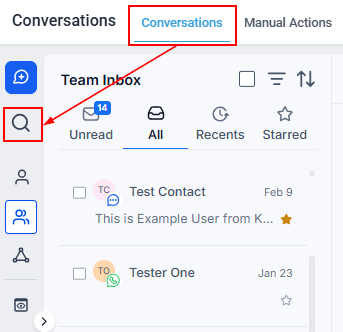
Open the Conversations section in the HoopAI platform.
2
Search for the contact
Use the search bar at the top of the inbox to find the contact by name or phone number.
3
Filter for calls (optional)
Click the three-line icon next to the search bar to open Quick Filters. Under Last message channel, select Calls to show only call-related conversations.
4
Open the conversation
Click the conversation to open it. Scroll to the call entry in the timeline.
5
Locate the recording
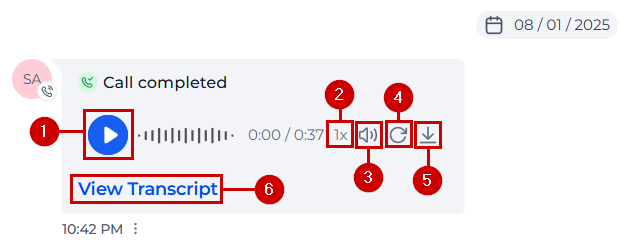
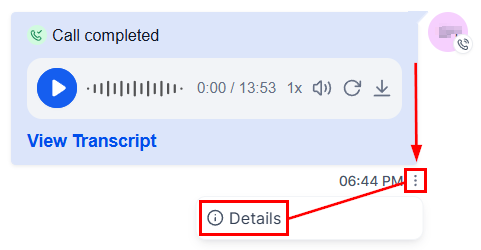
The recording appears as an inline audio player directly beneath the call log entry.
Searching for a contact in the Conversations inbox to find call recordings
Click the Download button on the recording player to save the audio file to your computer. The file downloads in MP3 format. Downloaded recordings can be stored locally, shared with team members, or archived outside the platform.
The HoopAI platform can automatically transcribe call recordings into text. Transcripts make it easy to search for specific moments, document key points, or review calls without listening to the full audio.
1
Open the recording
Find the call recording in the contact’s conversation thread.
2
Request a transcript
Click the Transcript button on the recording player.
3
View the transcript
The transcript generates and appears below the player. Speaker turns are labeled to distinguish your team member’s voice from the contact’s.
Transcripts are especially useful for sales coaching, quality assurance reviews, and quickly extracting action items from long calls without replaying the entire recording.
To share a specific recording, download the file and distribute it through your internal channels, or copy the conversation link and send it to a team member who has access to the contact. Team members with the appropriate permissions can open the conversation and play the recording directly.
Access to recordings follows the same permission rules as the rest of the contact record. Users with restricted data access can only see recordings for contacts within their assigned scope.
Call recordings are stored in the HoopAI platform for as long as the contact’s conversation is retained. There is no automatic expiration period for recordings within the platform. If a conversation is deleted, the associated recordings are deleted with it.
Confirm that Call Recording is toggled on for the specific phone number used in the call. Recording must be enabled before the call takes place — it cannot be applied retroactively.
Recording is present but audio won't play
Try refreshing the page or using a different browser. Chrome is recommended for best compatibility. Also confirm your device’s audio output is not muted.
Transcript is inaccurate
Transcript accuracy depends on audio quality. Poor connections, background noise, or heavy accents may reduce accuracy. Use the audio playback alongside the transcript for verification.
Download button is missing
Download availability may be restricted by your user permissions. Contact your account administrator if you need download access enabled for your role.