Trigger links are special trackable URLs that record when a contact clicks them and can automatically launch workflow automations in response. They are most commonly used in SMS campaigns, email messages, funnels, and websites to track engagement and trigger personalized follow-up sequences. Examples of use:
  • A cart-abandonment link that triggers a re-engagement workflow when clicked.
  • A product info link that kicks off an automated onboarding sequence for new buyers.
  • A confirmation link that records engagement and updates the contact’s record.

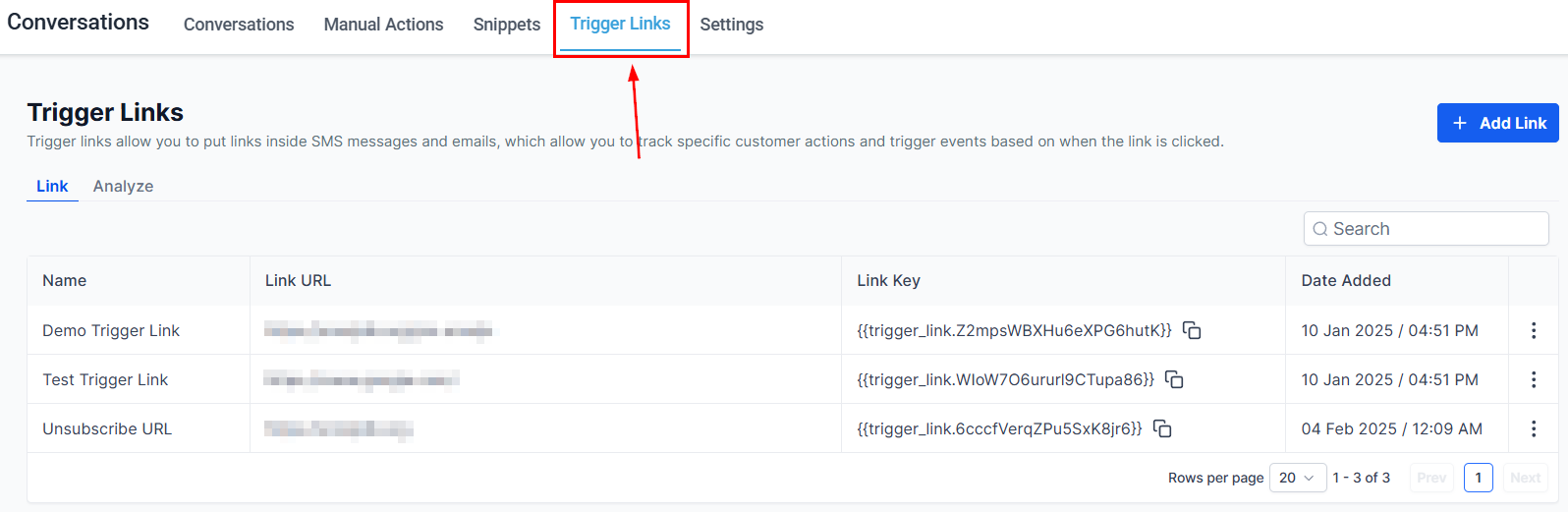
Navigate to Conversations → Trigger Links to see your full list.
Trigger links list
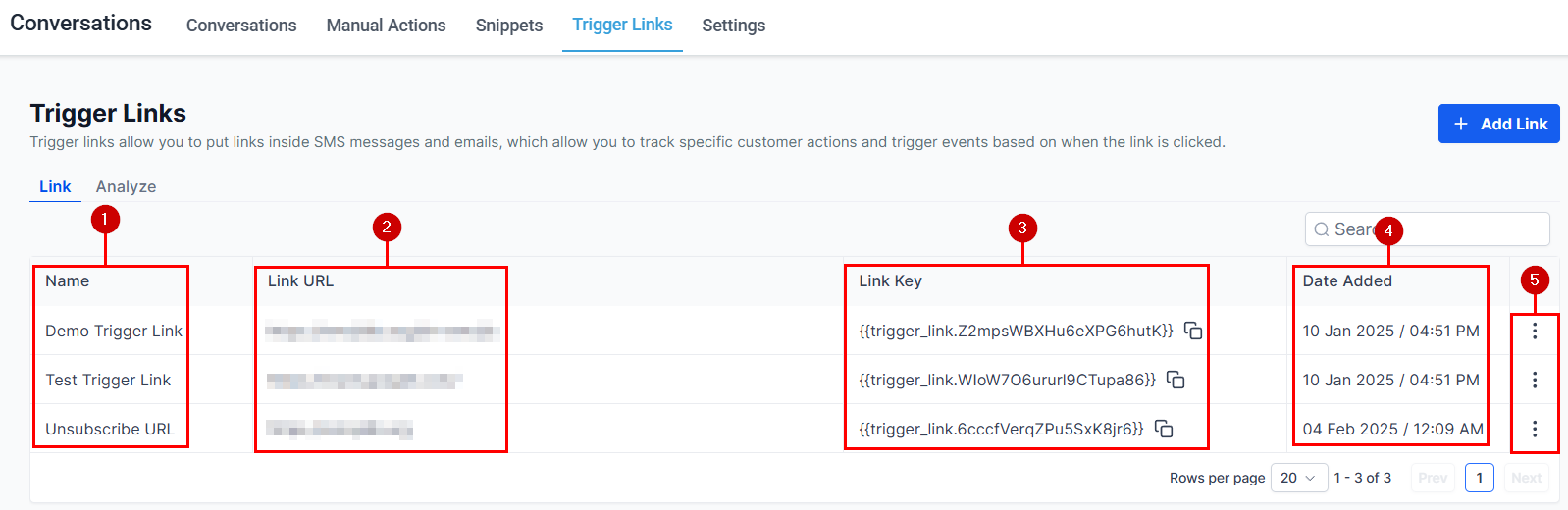
The table shows:
ColumnDescription
NameAlphabetically sorted for easy scanning
Link URLThe unique tracking URL (different from the destination)
Link KeyUnique identifier for each trigger link
Date AddedWhen the link was created
ActionsEdit (pencil) or Delete (trash)
Use the search bar to find a specific trigger link by keyword.
1

Click Add Link

Click the Add Link button. A pop-up appears.
Create trigger link
2

Name the trigger link

Give it a descriptive name that reflects the action it will trigger (e.g., “Pricing Page Click” or “Free Trial CTA”). Use naming conventions if managing many links.
3

Add the destination URL

Paste the URL you want the contact to land on after clicking. This is the actual page — Hoop wraps it with a tracking URL automatically.
4

Save

Click Save. The trigger link is now available to insert into messages, emails, and automations.

Once created, add trigger links to any message in Conversations:
1

Open the message box

In any conversation, open the message composer for your chosen channel.
2

Click the lightning bolt icon

This opens the trigger link selector showing all your saved links.
3

Select a link

Click the link to insert it. Hoop adds a code placeholder that resolves to the full tracking URL when the message is sent.
Trigger links can also be added to email templates and SMS snippets so they are ready to use in any template-based message.

1

Open Analyze

In the Trigger Links section, click the dropdown arrow next to a link and select Analyze.
Trigger links analyze
2

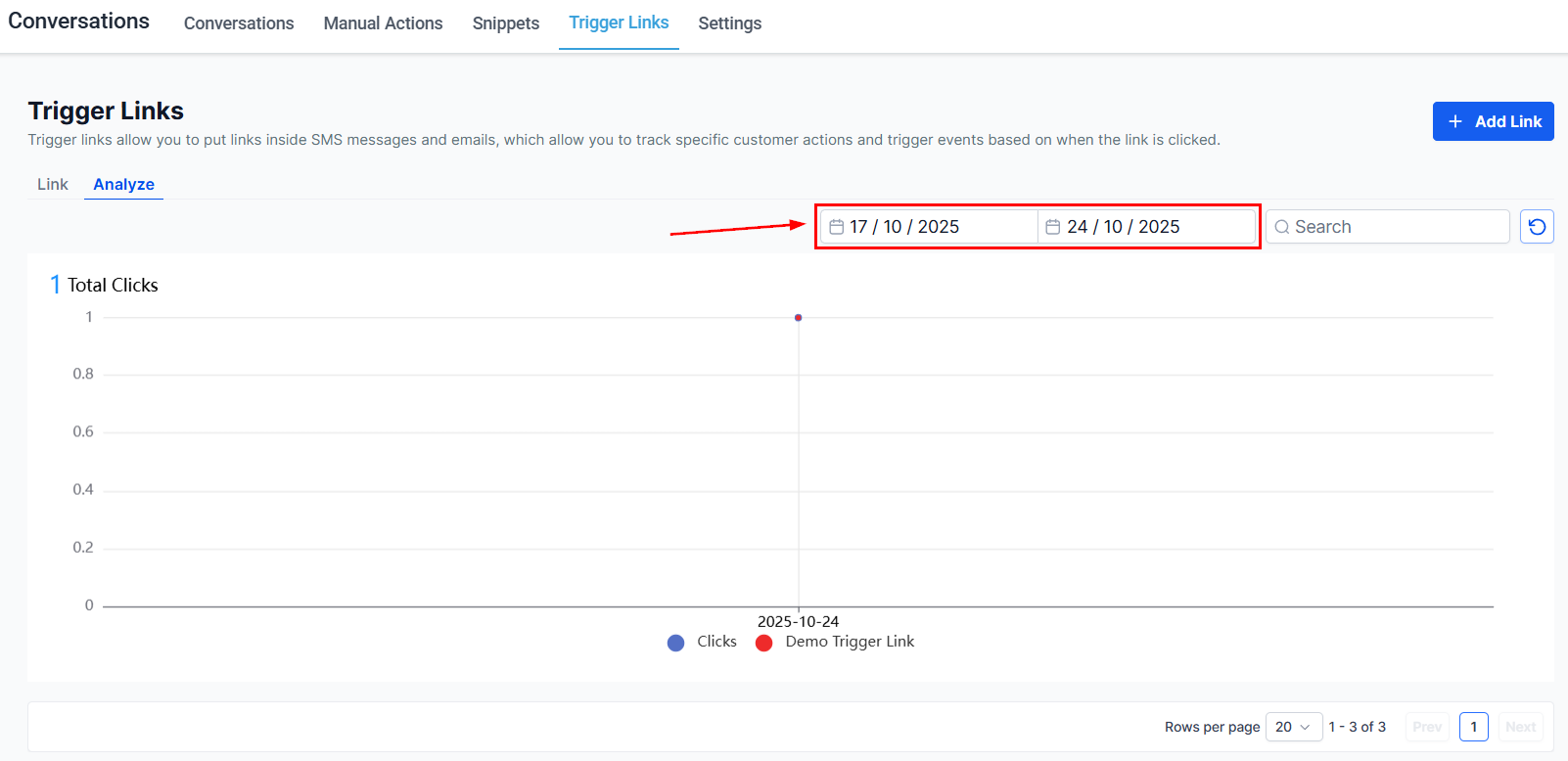
Set a date range

Click the date selector in the top right to choose a custom analysis period.
3

Read the bar chart

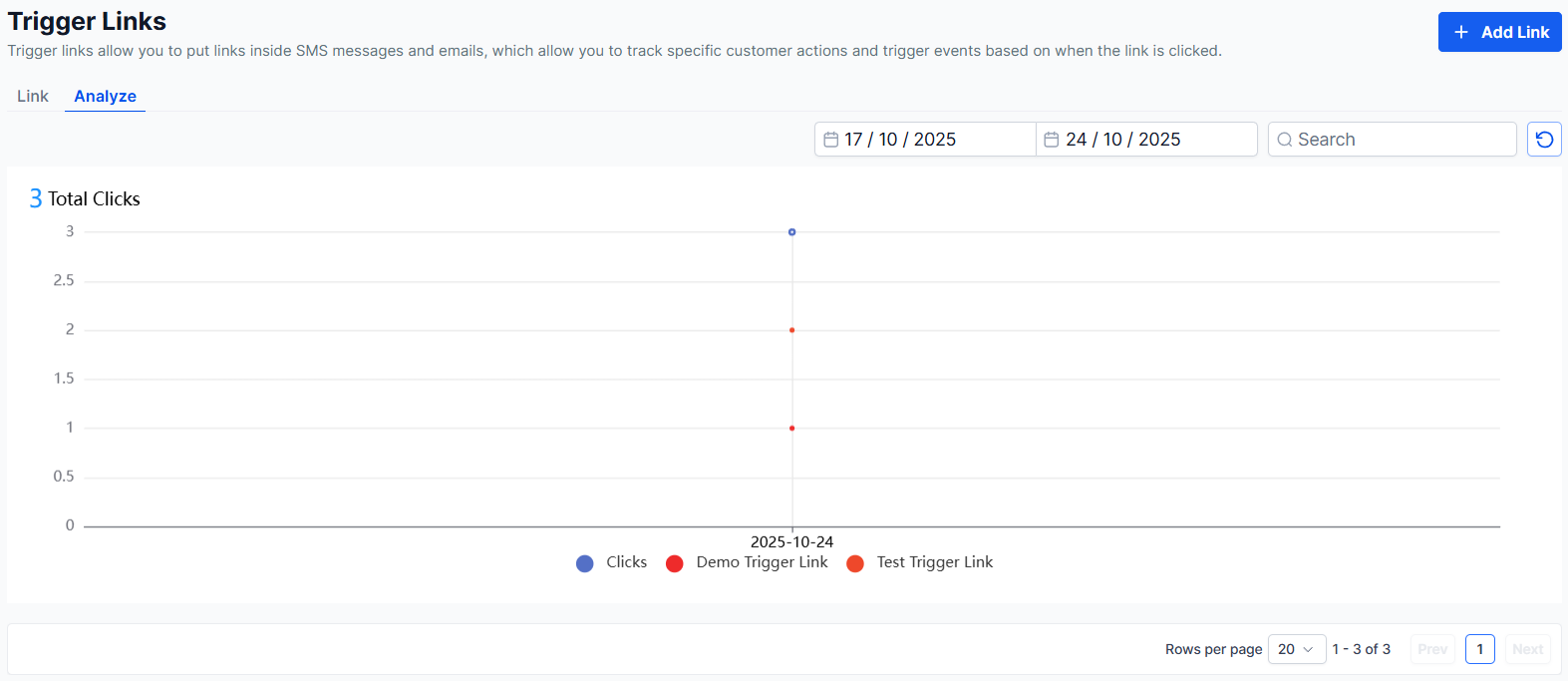
The bar chart shows click volume over time. The Y-axis represents total clicks within the selected range.
Trigger links chart
4

Hover for details

Hover over any bar to see the exact click count for that period — no need to calculate manually.
  • Trends over time — identify when clicks peak (e.g., after a campaign send).
  • Anomalies — sudden drops or spikes may indicate list quality issues or campaign effectiveness.
  • Comparison — run multiple links for A/B testing different CTAs.
Click the refresh icon to reload the chart with the most current click data.
Last modified on March 4, 2026