Handle WhatsApp, Instagram, and Facebook Messenger conversations alongside your other channels in the Hoop inbox.
Hoop consolidates your social messaging channels — WhatsApp, Instagram Direct, and Facebook Messenger — into the same Conversations inbox as your SMS and email. All the standard tools (snippets, trigger links, custom values, payment requests) are available in every social channel.
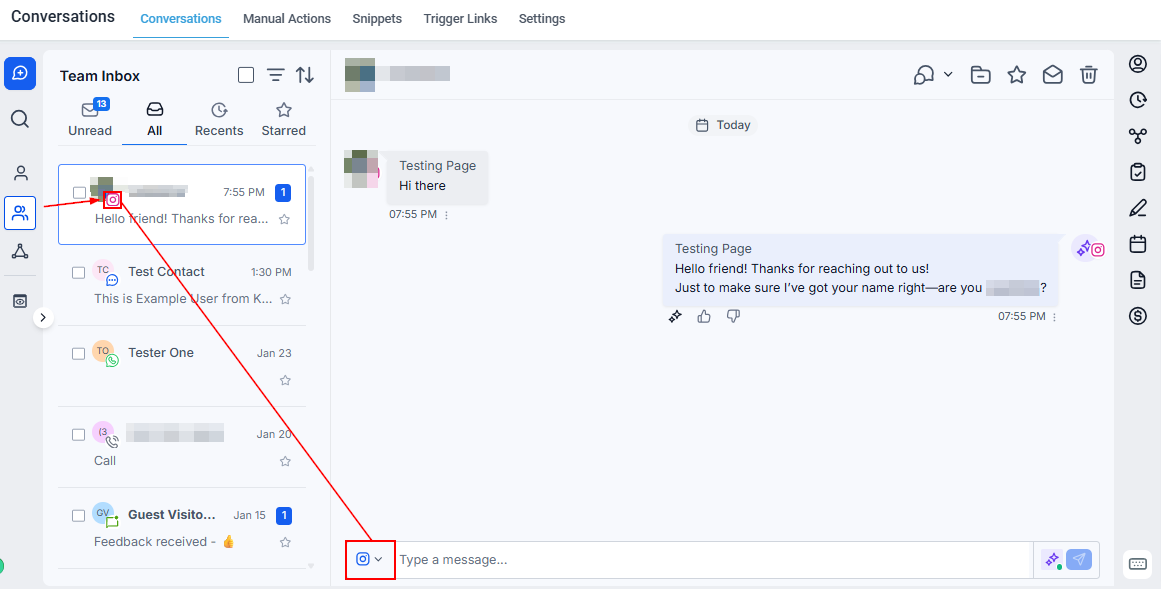
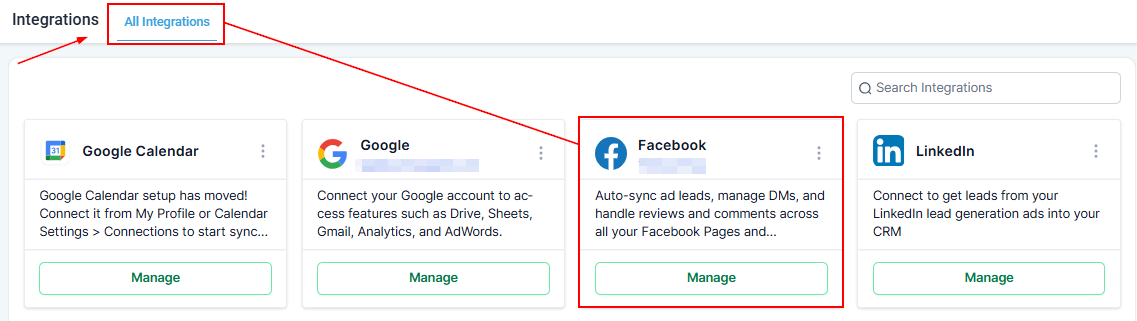
Once you connect your Instagram account (which must be linked to a Facebook Page and Meta Business Suite), incoming Instagram DMs appear in your Conversations tab with the Instagram channel indicator.
Instagram channel indicator in conversations
You can only reply via Instagram DM if the contact has sent your business a message through Instagram first. If they have not, the Instagram option will not appear.
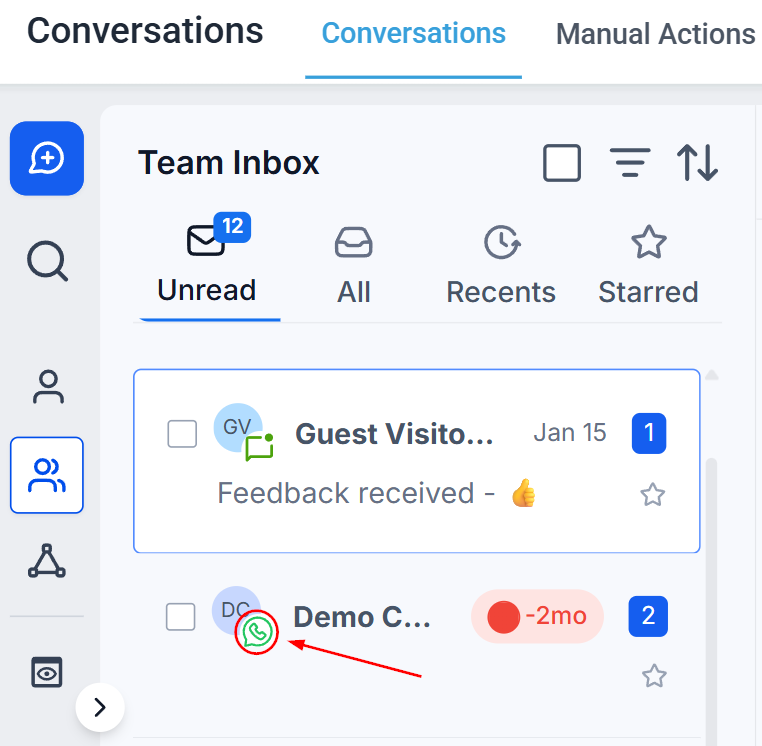
WhatsApp conversations are identifiable in your inbox by the green WhatsApp icon. The 24-hour messaging window applies — you can reply freely within 24 hours of receiving an inbound message; outside that window, you must use an approved WhatsApp template.
Open the contact’s conversation and click the WhatsApp tab.
2
Compose your message
Write your message. You can include links, images, and custom values just like any other channel.
3
Use a WhatsApp template
Click the notebook icon to select from your approved WhatsApp templates.
4
Request payment
Click the $ icon to send a payment link directly through WhatsApp.
5
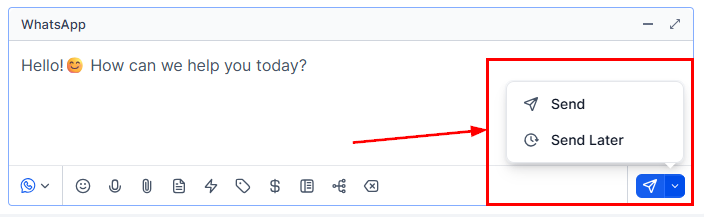
Send or schedule
Click Send for immediate delivery, or click the down arrow to schedule. Scheduled messages can be set up to 24 hours from the last inbound message from the customer.
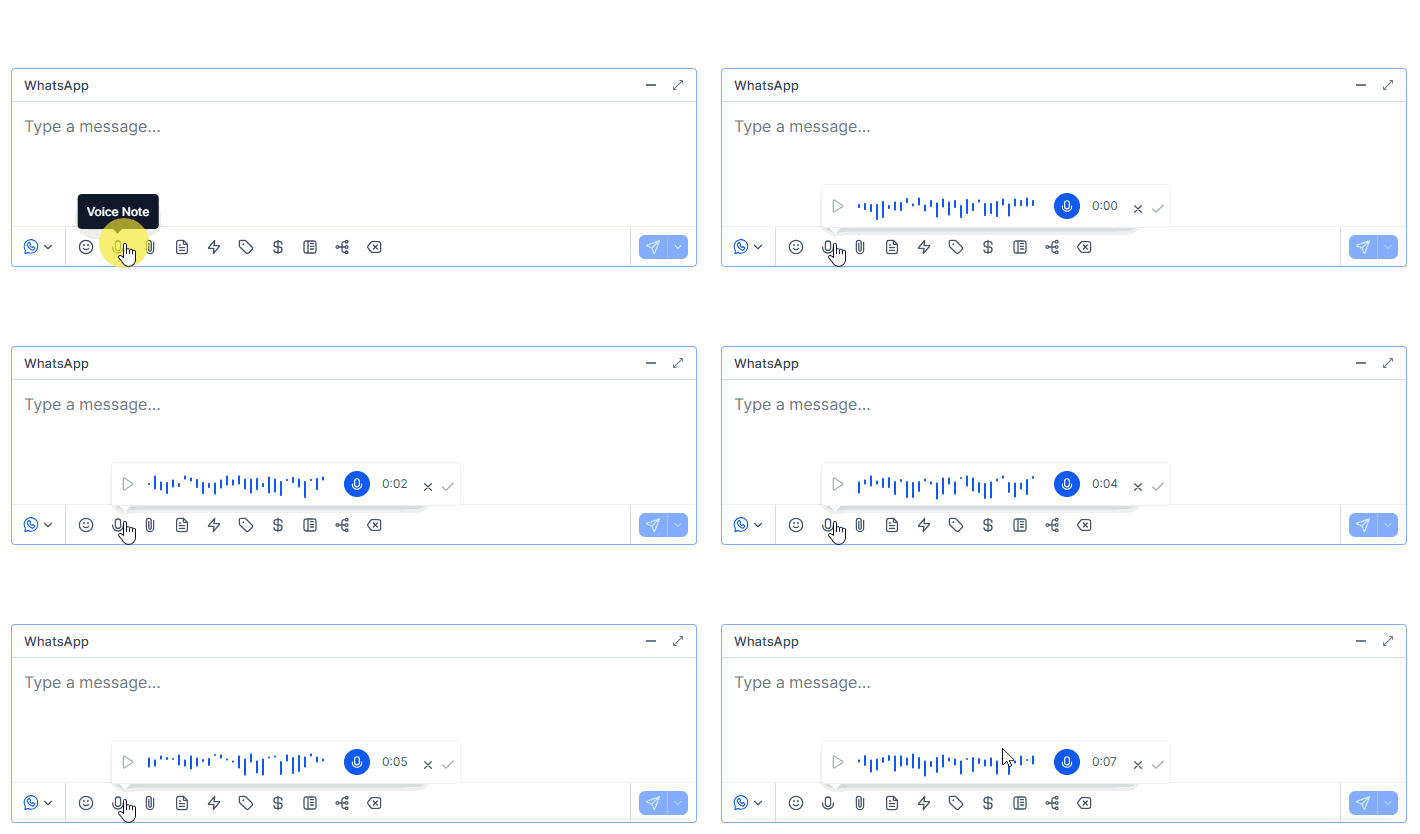
Send audio voice notes directly in WhatsApp conversations.
1
Grant microphone permission
The first time you record, Hoop will request microphone access. Grant it in your browser or device privacy settings.
2
Record
Click the microphone icon to start recording. Speak clearly.
Recording a WhatsApp voice note
Maximum voice note duration is 10 minutes.
3
Send
Click the send button to deliver the voice note in real time.
Use cases for voice notes
Customer support — explain complex issues with a personal, human touch.
Special offers — announce promotions enthusiastically to drive engagement.
Feedback requests — personalized audio requests feel more genuine and get more responses.
Voice note troubleshooting
Microphone not working — check browser or OS permissions for microphone access.
Can’t find the microphone icon — ensure there is an active WhatsApp conversation (voice notes cannot be sent to contacts without an open conversation).
Audio quality issues — minimize background noise and speak directly into the microphone.
Sending issues — refresh the page or restart the browser.
WhatsApp media shared in conversations — images, videos, PDFs — is automatically retained in Hoop for up to one year (inbound files expire on WhatsApp after 7 days; outbound after 30 days). You can also save attachments permanently to a contact’s Documents folder.
1
Click the attachment
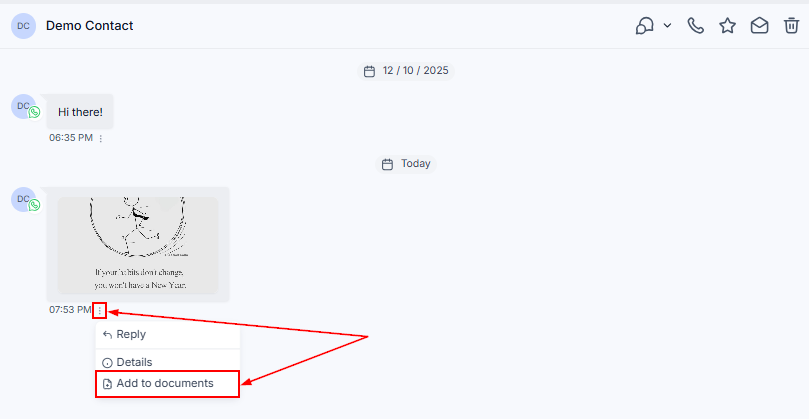
Open the WhatsApp conversation and click on the media attachment.
2
Save to documents
Select Add to Documents from the actions dropdown.
Add WhatsApp media to contact documents
3
Access anytime
The file is saved in the contact’s Documents section. Click the three dots next to the file to download or preview it.