


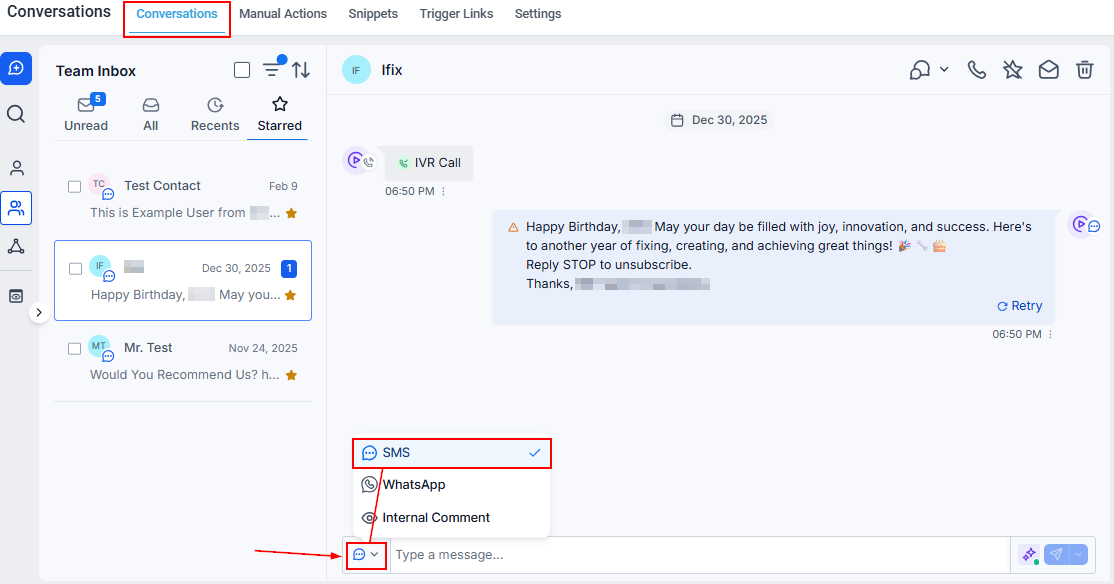
Attaching a file in an SMS conversation — the paperclip icon in the message toolbar
Attaching files in conversations
SMS / MMS attachments
1
Open the SMS channel
Open a conversation and select the SMS tab.
2
Click the paperclip icon
Click the paperclip icon in the message toolbar to attach files.
3
Choose your upload method
Select from your computer, media library, or by URL, then add your file.
4
Send
Click Send to deliver the message with the attachment.
Email attachments
1
Open the email channel
Open a conversation and select the Email tab.
2
Click the paperclip icon
Click the paperclip icon at the bottom of the email composer.
3
Upload your file
Choose a file from your computer or media library.
4
Send
Compose your message and click Send.
SMS attachment size limits — JPEG, PNG, and GIF up to 5 MB total with 10 attachments maximum
SMS attachment size limits
Supported file types for SMS: JPEG, PNG, GIF
Troubleshooting SMS attachments
Troubleshooting SMS attachments
- Verify MMS capability — check your account settings under Phone Numbers to confirm your number supports MMS.
- Reduce file size — if a message fails, try compressing the attachment or using a lower-resolution image.
- Check file type — only JPEG, PNG, and GIF are supported for SMS attachments.
- Toll-free numbers — keep attachments at 600 KB or smaller due to carrier restrictions.
Can I send MP4 files via SMS?
Can I send MP4 files via SMS?
MP4 files cannot be sent directly via SMS. However, recording a video in the mobile app generates a clickable link instead. Ensure the link matches your domain and client’s brand name for carrier compliance.
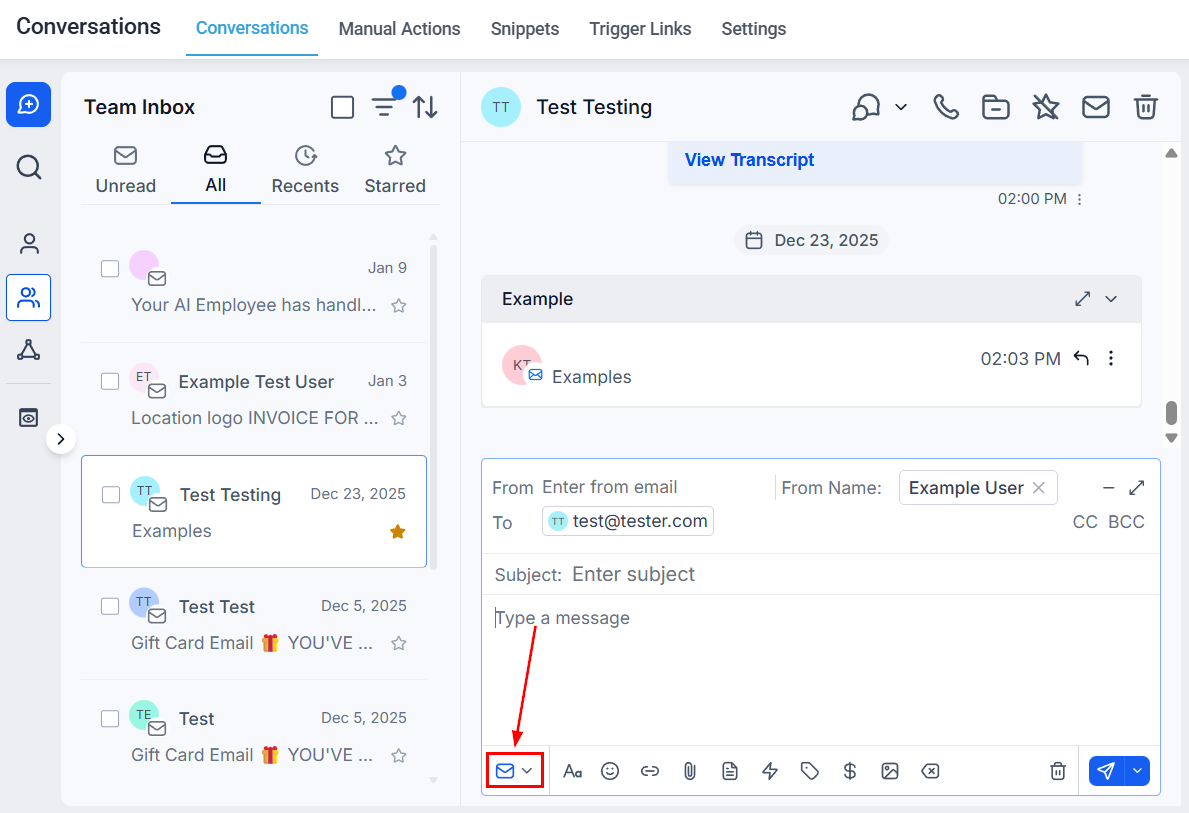
Email attachments — compose with the paperclip icon, keep total size under 25 MB for Mailgun delivery
Email attachment size limits
Email servers impose size limits to prevent overload. Exceeding the limit results in bounced emails. Different email providers have different limits — Mailgun supports up to 25 MB total.
Troubleshooting email attachments
Troubleshooting email attachments
- Compress files — use tools to reduce attachment size before uploading.
- Use lower-resolution images — high-resolution photos are often much larger than necessary for email.
- Cloud links instead — for very large files, upload to a cloud service (Google Drive, Dropbox) and include a download link in your email body.
- Error notification — if an email bounces due to size, you will see an error notification in the Conversations tab indicating the attachment exceeded the allowable limit.
Can I bypass email size limits?
Can I bypass email size limits?
No. Size limits are enforced by email servers and cannot be bypassed. The recommended workaround is to upload the file to a cloud storage service and share a download link in the email instead.