

What two-way SMS is
A two-way SMS number is a standard 10-digit phone number (or a toll-free number) that contacts can text back. When a contact replies to a message sent from your two-way number, their response routes directly into your Conversations inbox. Your team can respond from the same number, maintaining a continuous conversation thread. This is different from short codes used for mass broadcast campaigns — two-way SMS is designed for genuine, conversational exchanges.Getting a dedicated SMS number
1
Navigate to phone number settings
Go to Settings → Phone Numbers.
2
Add a new number
Click + Add Number or Buy Number.
3
Search for available numbers
Filter by:
- Number type — Local (10-digit), Toll-Free, or Mobile
- Area code or region — search by area code to get a local number relevant to your market
4
Select and purchase
Click Select next to the number you want. Confirm the monthly cost and click Buy Number to complete the purchase.
5
Configure the number
After purchase, configure the number’s behavior:
- Friendly name — an internal label to identify the number (e.g., “Main Sales Line”)
- Assigned user — the team member whose conversations use this number by default
- Call handling — configure forwarding, voicemail, and call recording
- Messaging — enable or configure messaging compliance settings
In the United States, texting from a 10-digit local number requires A2P 10DLC registration. Unregistered numbers are subject to carrier filtering and message blocking. Complete your brand and campaign registration before sending at volume.
A2P 10DLC registration (US numbers)
A2P 10DLC (Application-to-Person 10-Digit Long Code) is the US carrier registration framework that allows businesses to send text messages from standard 10-digit numbers at scale. Registration protects your deliverability and prevents your messages from being flagged as spam.Registration steps
1
Open the Trust Center
Navigate to Settings → Trust Center (sometimes listed as Settings → Phone System → Trust Center).
2
Register your brand
Complete the Brand Registration form with your business information: legal business name, tax ID (EIN), address, and business type. Submit for review.
3
Create a messaging campaign
After brand approval, create a Campaign describing how you use SMS: the types of messages you send, sample message content, and opt-in/opt-out procedures. Each use case (e.g., customer service, marketing) requires a separate campaign.
4
Link your numbers
Associate your 10-digit phone numbers with the approved campaign.
5
Await carrier approval
Campaign approval takes 3-5 business days on average. Once approved, your numbers are registered and carrier filtering risk is significantly reduced.
Sending two-way SMS from conversations
Once your number is configured, sending and receiving SMS works through the standard conversations interface.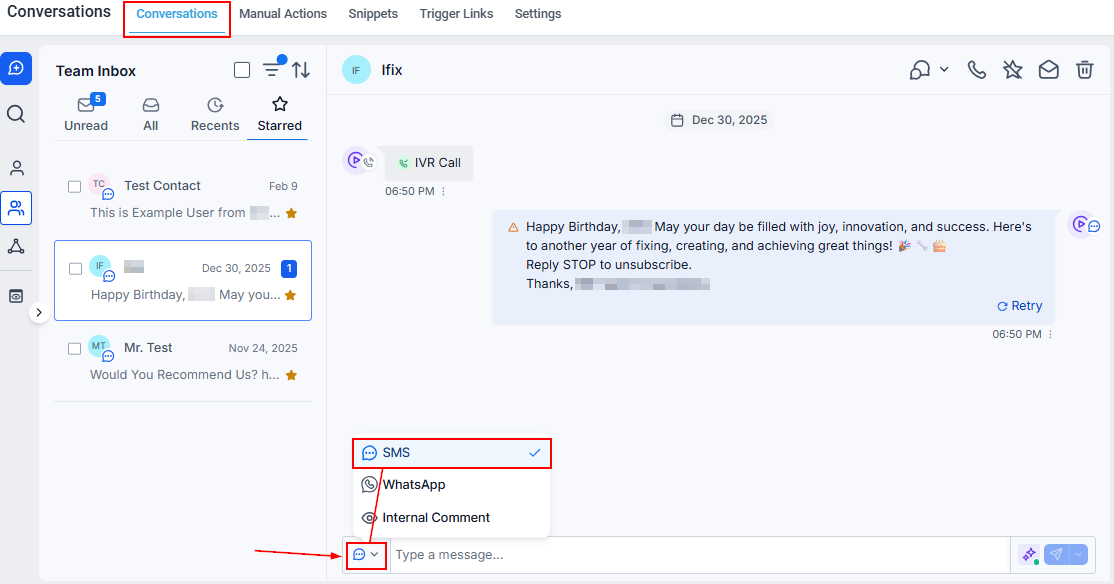
The SMS conversation view with channel selector showing SMS, WhatsApp, and Internal Comment options
Sending a message
1
Open a contact's conversation
Navigate to Conversations and find the contact.
2
Select the SMS channel
Click the SMS tab in the message composer.
3
Choose the sending number
If multiple numbers are configured, select the appropriate one from the sender dropdown. The contact’s assigned number (if configured) is pre-selected.
4
Compose and send
Type your message, add any attachments or snippets, and click Send.
The Conversations inbox showing the SMS channel selector with SMS, WhatsApp, and Internal Comment options
Receiving a reply
When the contact replies, their message appears in the same conversation thread within seconds. The conversation moves to the top of your inbox with an unread indicator. Team members with access to the inbox see the reply immediately.Assigning a default number per user or team member
In multi-user accounts, each team member can have a default SMS number assigned to them. When they send from Conversations, messages go out from their assigned number automatically. To assign a number:- Go to Settings → Phone Numbers.
- Click the three-dot menu next to a number → Edit Configuration.
- Under Assigned User, select the team member.
- Save.
Two-way SMS compliance
Opt-out handling
The HoopAI platform automatically appends an opt-out message to your first SMS to each contact (e.g., “Reply STOP to unsubscribe”). When a contact replies STOP, UNSUBSCRIBE, or CANCEL, their SMS Do Not Disturb (DND) status is automatically enabled and no further messages are sent to them from any number in your account. A contact who has opted out can re-subscribe by texting START to your number.Required message content
Best practices for two-way SMS compliance:- Include your business name in the first message so the recipient knows who is texting them.
- Honor opt-out requests immediately — the platform does this automatically.
- Do not send messages between 9 PM and 8 AM in the recipient’s local timezone.
- Include relevant information in every message so the context is clear without prior history.
Customizing opt-out language
To customize the opt-out language appended to your SMS messages:- Go to Settings → Phone System → Messaging → Messaging Compliance.
- Edit the opt-out message text.
- Save.
Toll-free numbers for two-way SMS
Toll-free numbers (800, 888, 877, etc.) are also supported for two-way SMS and require separate verification through the toll-free verification process (distinct from A2P 10DLC). Toll-free numbers support higher throughput than standard 10-digit numbers and are a good choice for businesses sending significant SMS volume. To verify a toll-free number:- Purchase the toll-free number in Settings → Phone Numbers.
- Navigate to Settings → Trust Center → Toll-Free Verification.
- Complete the verification form with your business details and message use case.
- Submit for carrier review (typically 5-7 business days).
Monitoring SMS delivery
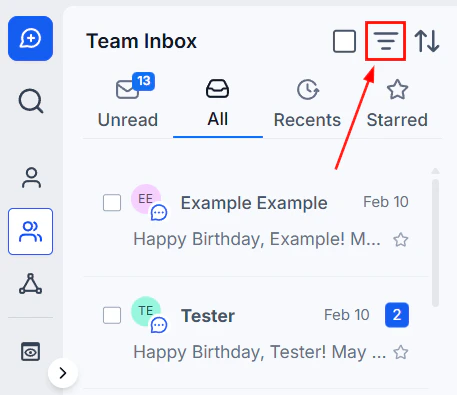
SMS delivery metrics showing sent, delivered, and failed message counts
SMS delivery metrics showing sent, delivered, failed, and clicked counts