

Manual Actions overview
The list shows all queued actions with these columns: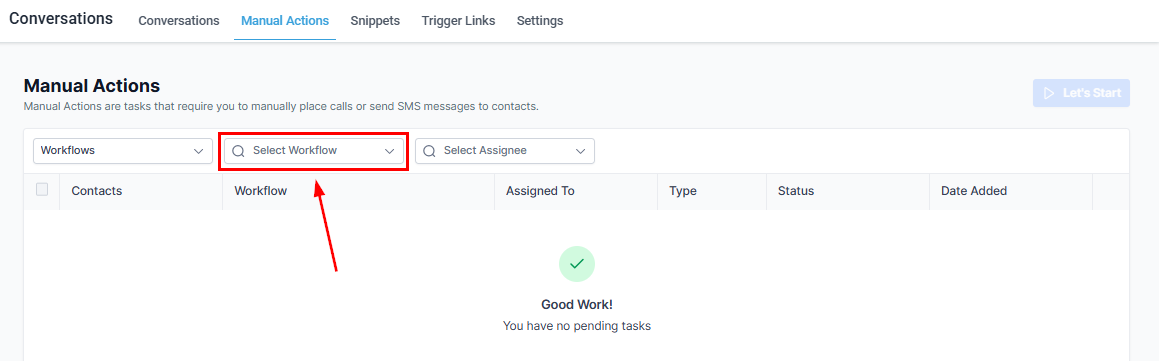
Manual Actions list view
Filter by workflow
Click the Search Workflow dropdown to see actions from a specific workflow. Each workflow may require different types of actions.Filter by assignee
Click Select Assignee to view actions assigned to a specific team member — useful for managers reviewing their team’s queue.If you see “No Manual Actions” for a user, it means all their queued tasks are complete.
Starting manual actions
1
Click Let's Start
Click the Let’s Start button to begin working through the queue. You are taken to the first contact’s details page.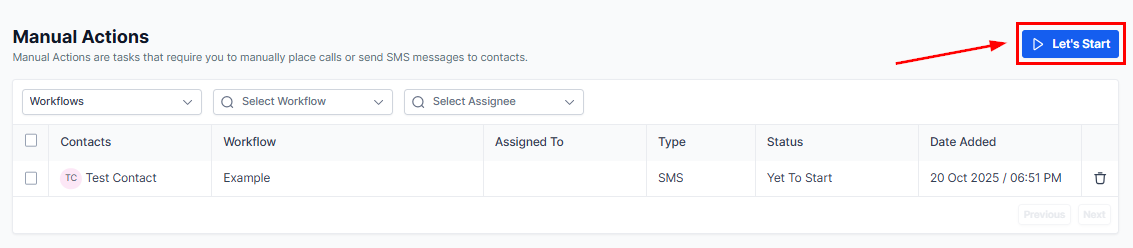
Start button to begin the manual actions queue
2
Or jump to a specific contact
Click the contact’s name to go directly to their record and take action.
3
Complete the action
- Manual SMS — compose and send a text immediately or schedule it.
- Manual Call — click the dialer icon to call the contact directly.
4
Continue the queue
After completing an action, the system automatically moves to the next contact in the queue.
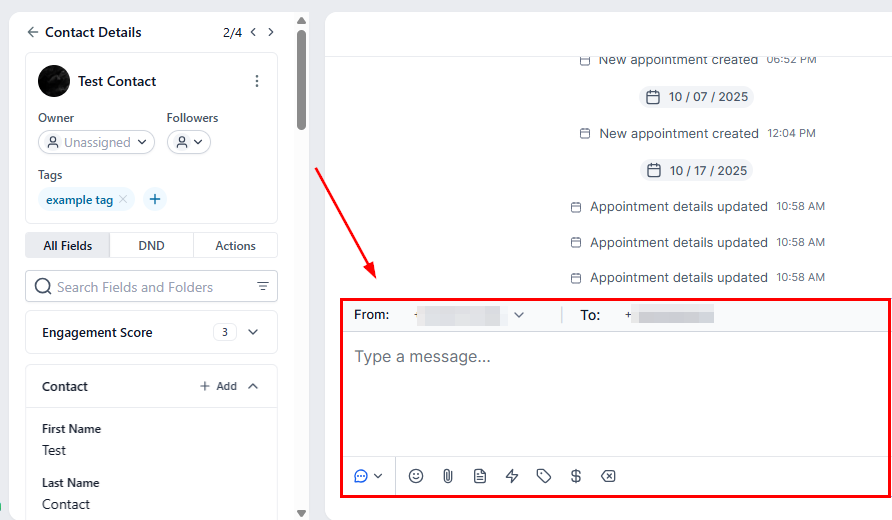
Manual SMS composer
Deleting a manual action
If a manual action was created by mistake, click the trash icon next to it to remove it from the queue.Manual calls
Manual Call Actions let you queue contacts for personal phone outreach from a workflow.Setting up a manual call workflow
1
Create or open a workflow
Go to Automation → Workflows and create a new workflow or open an existing one.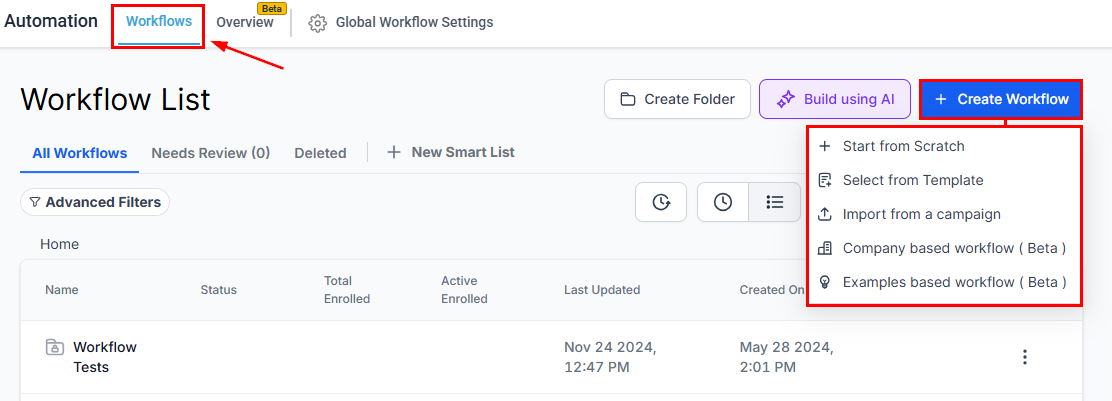
Workflow builder for manual calls
2
Add a Manual Calls action
Click + Add Action, search for Manual Action, then select Manual Calls.
3
Name and save the workflow
Give the workflow a descriptive name, then publish and save it.
4
Add contacts to the workflow
Go to Contacts, select one or more contacts, click Trigger Automation, choose the workflow, set the bulk delivery method, and click Add to Automation.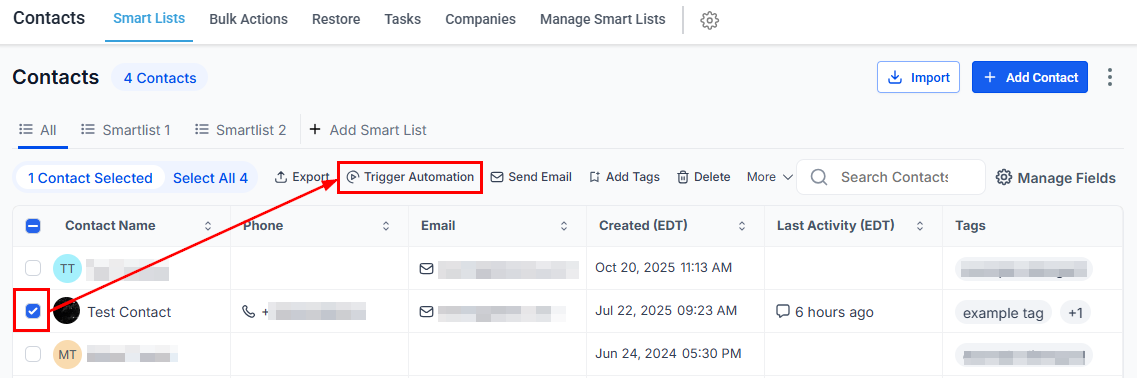
Adding contacts to trigger a manual call workflow
5
Start the calls
Return to Conversations → Manual Actions. Your queued calls appear. Click Let’s Start — the system dials the first contact automatically.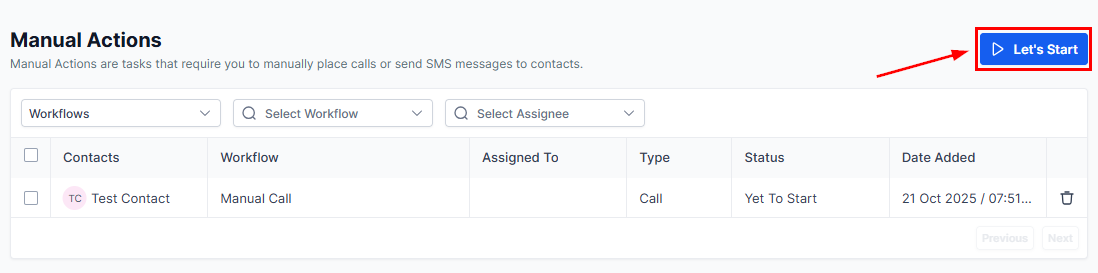
Let's Start button for manual calls
Viewing manual actions in the dashboard
The Hoop dashboard includes a manual actions widget showing:- Total pending actions
- Breakdown of pending calls vs. pending SMS