

How email threading works
When you send an email to a contact and they reply, the reply appears as a new message inside the same conversation thread in your inbox. Subsequent replies from either side continue to nest under the original thread. Each message shows the sender, timestamp, and delivery status at a glance. Thread subject lines carry through the entire exchange. If you need to start a new topic with the same contact, compose a fresh email with a different subject — this creates a separate thread within the same conversation record.Composing a new email
1
Open the conversation
Navigate to Conversations and open the contact you want to email. If no conversation exists yet, click the + icon to start a new one and choose Email as the channel.
2
Select the email channel
Click the Email tab in the message composer at the bottom of the conversation.
3
Fill in the header fields
Complete the required fields before writing your message:
4
Write and format the body
Type your message in the body area. Use the formatting toolbar to apply:
- Bold, italic, underline, and strikethrough
- Ordered and unordered lists
- Headings and block quotes
- Hyperlinks (choose whether they open in the same tab or a new tab)
- Custom merge fields — click the {…} icon and insert values like first name, company, or appointment time
- Saved email templates — click the paper icon to choose from your snippet library
- File attachments — click the paperclip icon to attach documents or images
5
Send or schedule
- Send now — click the Send button.
- Send later — click the dropdown arrow next to Send, select Send Later, set the date, time, and timezone, then click Send Schedule.
- AI Scheduling — let the platform pick the highest-engagement moment within a window you define based on the recipient’s historical open patterns.
Replying to an email thread
When a contact’s reply arrives in your inbox, open the conversation and click Reply inside the thread. The composer opens with the To and Subject fields pre-filled. Your reply is appended to the thread chronologically so neither party needs to scroll through forwarded message history. To reply to all recipients (including anyone on CC), click Reply All instead of Reply. To forward the thread to someone outside the conversation, click Forward, enter the new recipient’s address, and optionally add a note at the top of the forwarded content.CC and BCC
Add CC or BCC recipients by clicking the respective labels next to the To field in the composer. Multiple addresses can be added to each field.- CC recipients are visible to everyone in the thread.
- BCC recipients are hidden from other recipients. They receive the email but cannot see who else was BCC’d.
BCC recipients do not receive subsequent replies in the thread. BCC is intended for one-time copy purposes only.
Email thread indicators
Inside the conversation list, email threads display the subject line and a preview of the most recent message. Unread threads are bolded. The channel icon confirms it is an email thread. Inside an open thread, each message shows:Email attachments in threads
Attachments sent or received in email threads are visible directly in the conversation timeline. Click any attachment to preview it in-browser or download it to your device. Attachments received from contacts are also accessible from the contact’s Documents section.Email drafts
The HoopAI platform saves email drafts automatically as you compose. If you close a conversation before sending, your draft is waiting when you return. Click the minimize icon (line at the top right of the composer) to collapse the message box without losing your work.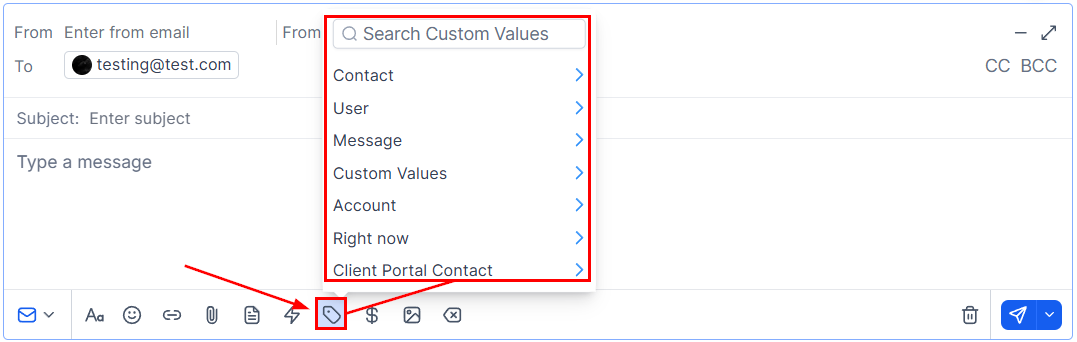
Inserting custom values into the email body using merge fields
Filtering for email threads
Use Quick Filters in the conversation list to isolate email threads:- Click the three-line icon next to the search bar to open Quick Filters.
- Under Last message channel, select Email.
- The inbox updates to show only conversations where the most recent message was an email.
Managing email threads
From the conversation header toolbar, you can:- Archive — move an email thread out of the active inbox without deleting it.
- Star — flag high-priority threads for the Starred tab.
- Mark as Read / Unread — control the notification badge for follow-up tracking.
- Delete — permanently remove the thread and all its messages. This action cannot be undone.