Depending on your user permissions, you may not have access to all snippet features.
Creating a snippet
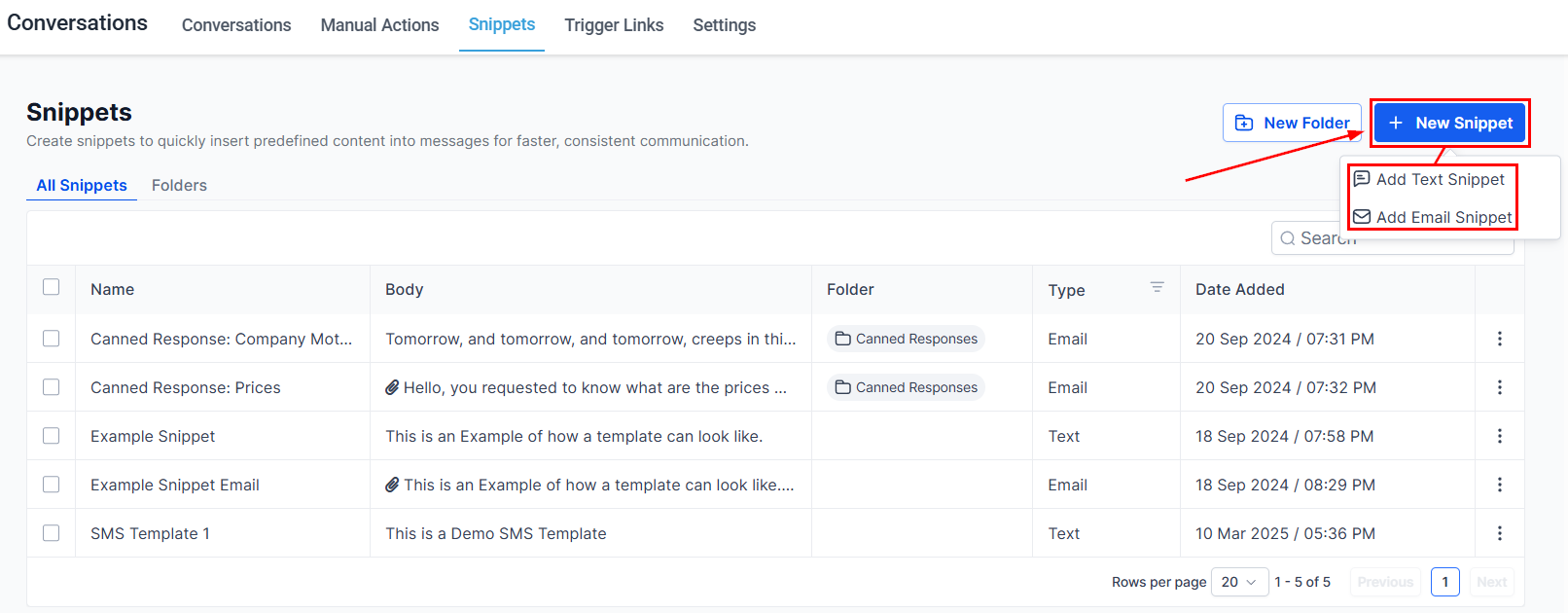
Click New Snippet
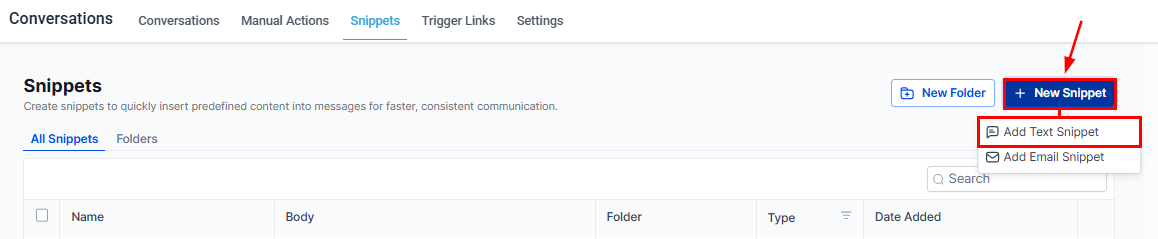
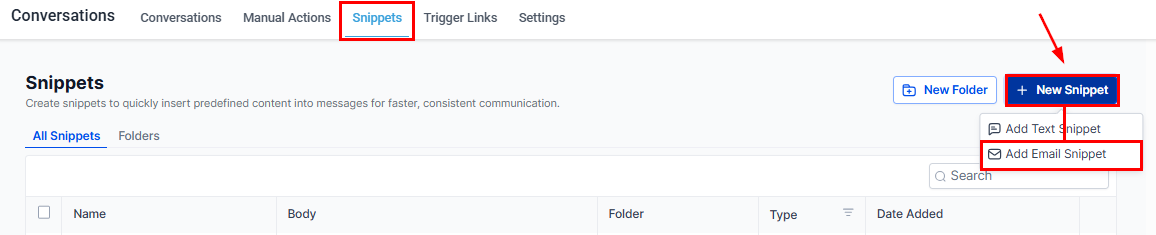
Click the + New Snippet button in the top right. A dropdown appears — choose either Add Text Snippet or Add Email Snippet.

Text snippets
Text snippets are used for SMS, Facebook DMs, Instagram DMs, and short chat messages.
- Name — displayed in the snippet list so your team can find it quickly.
- Snippet Body — the message content. Add custom values (tag icon) and trigger links (lightning bolt icon) for dynamic personalization.
- Attachments — click Add Attachment or paste a file URL and click + Add to include images or documents.
- Test SMS — enter a phone number and click Send Test to preview how the snippet looks when received.
Email snippets
Email snippets are for quick email replies — confirmation messages, follow-ups, and similar responses that do not need a full campaign template.
- Name
- Subject — the email subject line shown to recipients.
- Snippet Body — the email content. Use the tag icon for custom values and thunderbolt icon for trigger links.
- Add Attachment — attach files from your computer.
- Test Email — enter From and To addresses, then click Send Test to verify how the email renders.
Using snippets in conversations
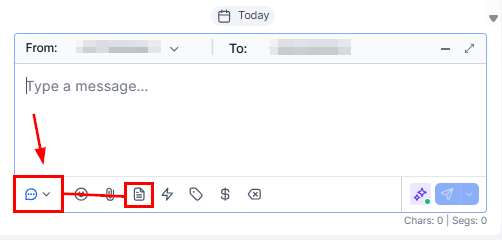
SMS / chat channels
Managing snippets
Click the three-dot icon (⋮) next to any snippet for management options:| Action | Description |
|---|---|
| Move to Folder | Organize snippets into topic-based folders |
| Edit Snippet | Modify name, body, or attachments |
| Duplicate Snippet | Copy as a starting point for a new variant |
| Delete Snippet | Permanently remove (cannot be undone) |
Organizing snippets with folders
Create a folder
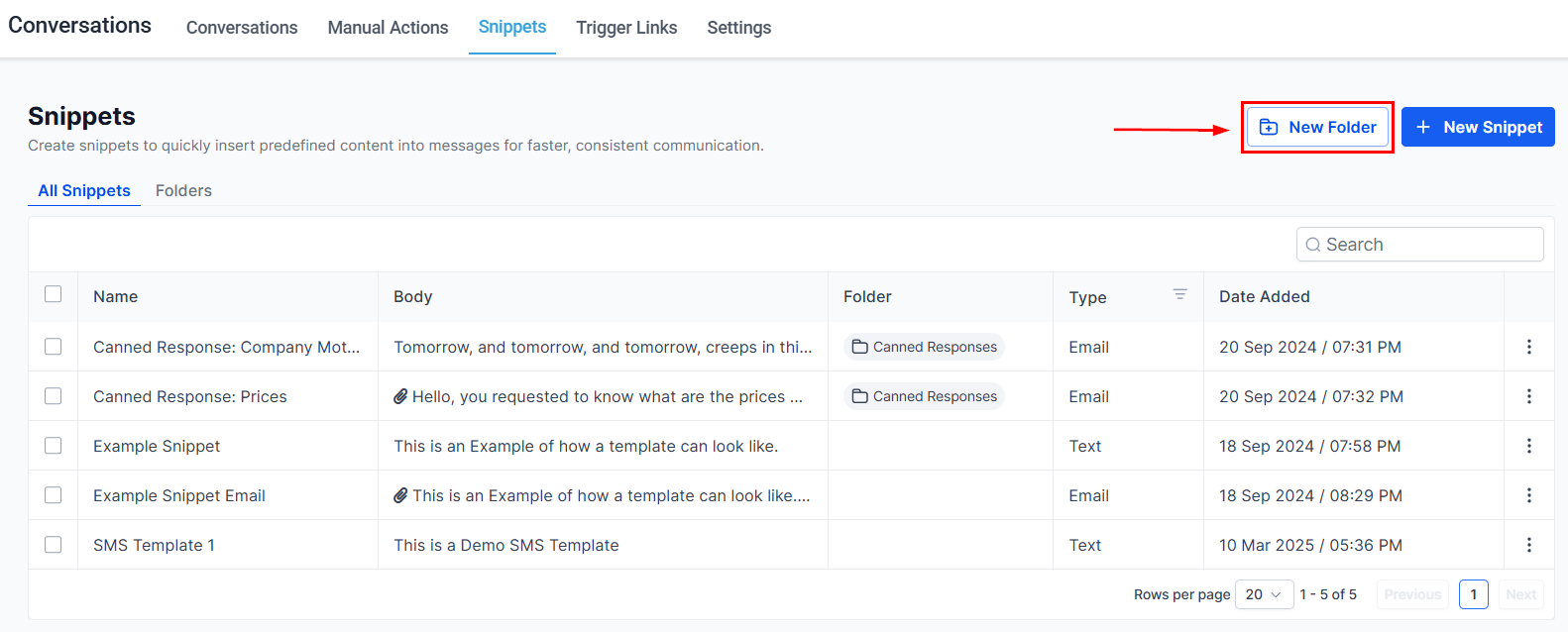
Click + New Snippet → Add Folder (or the folder button), enter a name, and click Save.
Move snippets
Click the three-dot icon next to a snippet → Move to Folder → select the folder → Move.
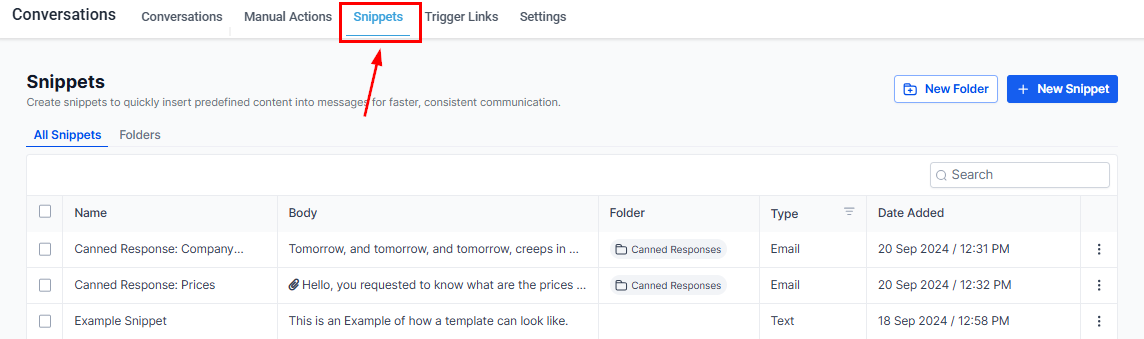
Snippet library columns
When viewing all snippets, four columns help you identify each one at a glance:| Column | Description |
|---|---|
| Name | Snippet identifier — make it descriptive |
| Snippet Body | Preview of the message content |
| Folder | Which folder the snippet belongs to |
| Type | Text or Email |
.png?fit=max&auto=format&n=EQK5eX9kTD8NzWwA&q=85&s=878008bf159fcc4964d0c0d508b6e400)
.png?fit=max&auto=format&n=EQK5eX9kTD8NzWwA&q=85&s=e7fddd192d86dd299bb26a190e6a7e96)