

Inbound voicemail
When a contact calls your CRM phone number and no one answers, the caller is routed to your voicemail greeting. The recorded message is then automatically stored in the contact’s conversation thread.Setting up your voicemail greeting
1
Go to phone number settings
Navigate to Settings → Phone Numbers.
2
Edit the number configuration
Click the three-dot icon next to your phone number and select Edit Configuration.
3
Configure the voicemail greeting
Scroll to the Voicemail section. You have two options:
- Text-to-speech — type your greeting text and choose a voice. The platform converts it to an audio greeting automatically.
- Upload an audio file — record a professional greeting externally and upload it in MP3 or WAV format.
4
Save your changes
Click Save. The greeting becomes active immediately.
Finding voicemails in conversations
Voicemails appear in the contact’s conversation thread as audio player entries, labeled as Voicemail.1
Open Conversations
Navigate to the Conversations section.
2
Search for the contact
Use the search bar to find the contact by name or phone number, or scroll your inbox to find conversations with the voicemail indicator.
3
Open the conversation
Click to open the conversation. Voicemail entries are displayed inline in the timeline.
4
Play the voicemail
Click the play button on the audio player to listen. Use the seek bar to skip forward or back.
Voicemail player controls
Voicemail transcription
Click the Transcript button on any voicemail player to automatically generate a text transcript. Transcripts let you read the contact’s message at a glance without playing the audio — useful when you are reviewing multiple voicemails in quick succession or in a quiet environment where audio is not practical.Voicemail drops
Voicemail drops let you deposit a pre-recorded audio message directly into a contact’s voicemail inbox without the phone ringing on their end. This is particularly effective during manual calling campaigns or power dialer sessions — you can move on to the next call immediately while leaving a polished, consistent message every time.How voicemail drops work
When you attempt to call a contact and reach their voicemail, rather than waiting through the greeting and recording live, you click the Voicemail Drop button. The system instantly delivers your pre-recorded message to their voicemail and the call ends on your side. The contact receives the message as a normal voicemail on their device.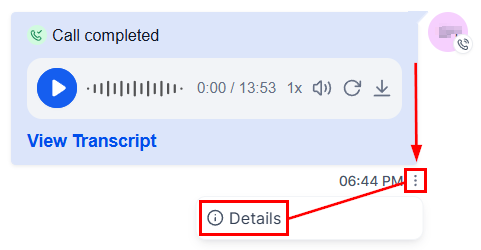
Call entry details showing the three-dot menu to access call details including voicemail status
Setting up voicemail drop recordings
1
Navigate to voicemail drop settings
Go to Settings → Phone System → Voicemail (or via your user profile settings, depending on your account configuration).
2
Add a new recording
Click Add Voicemail Drop and give the recording a descriptive name (for example, “Follow-up after missed call” or “Demo offer”).
3
Record or upload
Choose how to create the audio:
- Record now — use your browser microphone to record directly.
- Upload file — provide a pre-recorded MP3 or WAV file.
- Text-to-speech — type the script and the platform generates the audio.
4
Save
Click Save. The recording is now available to all users during calls.
Using a voicemail drop during a call
1
Start a call
Initiate an outbound call from a contact’s conversation or from the power dialer.
2
Detect the voicemail
Listen for the contact’s voicemail greeting to begin. Once the beep sounds (or when you hear the greeting), proceed to the next step.
3
Click Voicemail Drop
Click the Voicemail Drop button in the call controls panel. A list of your pre-recorded messages appears.
4
Select a recording
Choose the recording that matches the context of the call. The message is sent instantly.
5
End the call
The call ends on your side automatically. The contact receives the voicemail on their device.
Voicemail drops are only available for outbound calls where the contact does not answer. They cannot be used mid-call with a live person.
Best practices for voicemail drops
- Keep recordings concise — under 30 seconds is ideal. Most people do not listen to long voicemails.
- State your name, company, and a clear reason for calling in the first 10 seconds.
- Include a specific callback number and the best time to return the call.
- Create multiple recordings for different scenarios: initial outreach, follow-up, re-engagement, and last-attempt.
- Use a calm, clear speaking pace and minimize background noise.
Can I use voicemail drops without the power dialer?
Can I use voicemail drops without the power dialer?
Yes. Voicemail drops are available during any manual outbound call from the HoopAI platform, not just power dialer sessions. The Voicemail Drop button appears in the call controls whenever you are on an outbound call.
Will the contact know the message was pre-recorded?
Will the contact know the message was pre-recorded?
The contact receives the voicemail exactly as they would a live recorded message. There is no indication it was delivered as a drop rather than recorded in real time.
How many voicemail drop recordings can I create?
How many voicemail drop recordings can I create?
There is no hard limit on the number of recordings. Create as many as you need for different outreach scenarios and campaigns.
Can I edit a recording after saving it?
Can I edit a recording after saving it?
Yes. Navigate back to the voicemail settings, click the recording, and choose Edit to re-record or re-upload the audio.