Troubleshoot poor call quality, read HoopAI call status codes, and locate call recordings inside your conversations inbox.
This page covers three call-related topics: troubleshooting bad call quality, reading call status details, and finding call recordings in Conversations.
Poor call quality in Hoop is usually caused by internet instability, device interference, or network misconfiguration. When Hoop detects a network issue in real time, it displays an error code to help you identify the root cause.
Connect your device directly to the router via Ethernet. Wi-Fi is more prone to packet loss and instability.
2
Close bandwidth-heavy applications
Pause streaming services, file downloads, and cloud backups during calls. These compete for bandwidth with VoIP traffic.
3
Restart your router and modem
Unplug the power cable from both devices, wait 30 seconds, then plug them back in and wait for full reconnection.
4
Update your browser
Outdated browsers can cause compatibility issues. Keep Chrome or your preferred browser up to date.
5
Use headphones with a built-in microphone
A headset reduces echo and improves microphone quality significantly over laptop speakers and mics.
6
Disable conflicting extensions or third-party apps
Some browser extensions consume bandwidth or conflict with audio. Disable them to isolate the issue.
7
Check your internet speed
Go to speedtest.net and verify you have at least 5 Mbps upload and download with minimal packet loss.
8
Check firewall and port settings
Ask your IT team to confirm that UDP Ports 10000–20000 are open, as some firewalls block SIP traffic used for VoIP.
Can I make calls over Wi-Fi?
Yes, but a wired connection offers better stability and quality. Use Wi-Fi only when Ethernet is not available.
Which browser is best for calling?
Google Chrome offers the best compatibility and performance for Hoop calls.
Why can't the other person hear me?
Check your microphone input settings and confirm Chrome has permission to access your microphone (browser settings → Privacy and security → Microphone).
If none of the above steps improve quality, contact Hoop support with specific examples and the error codes you saw.
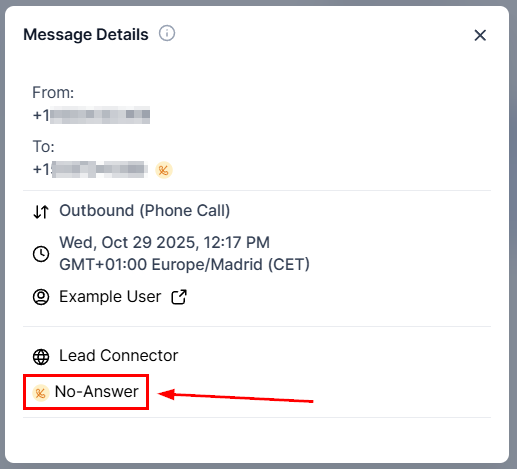
Call status information helps you understand the outcome of power dialer calls and manual calls. It is also used as a trigger condition in workflow automations.
1
Open the contact's conversation
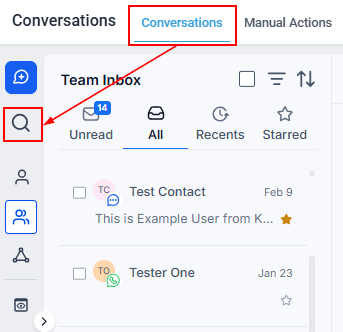
Navigate to Conversations and open the contact.
2
Find the call record
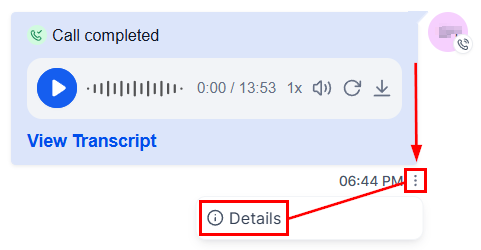
Locate the call entry in the conversation thread.
Call entry in conversation thread
3
View call details
Click the three dots next to the call to open its details.