Respond to website visitors in real time through the Hoop web chat widget without leaving your conversations inbox.
Live Chat is a real-time communication tool that lets website visitors reach your team instantly through the web chat widget. Conversations appear directly in your Hoop inbox alongside all your other channels, so no separate platform is needed.
Before you can receive live chat messages, you need a Chat Widget configured in your account.
1
Create a Chat Widget
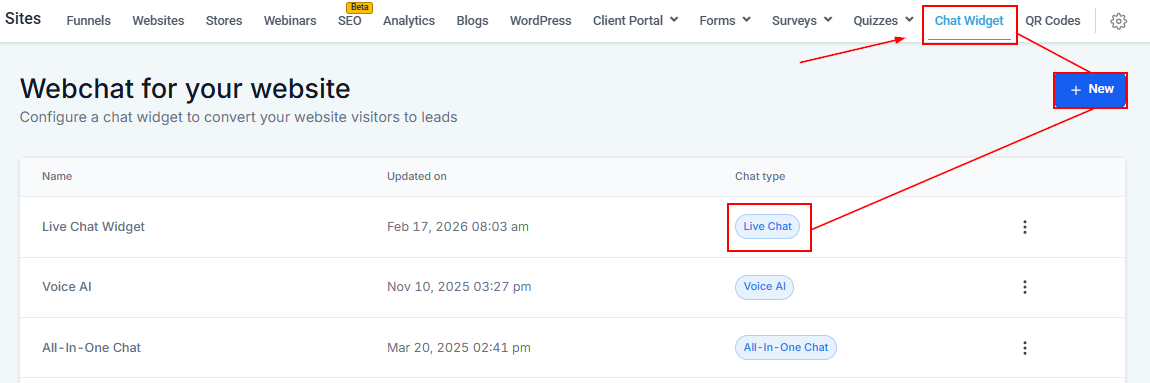
Go to Sites → Chat Widget and create a new widget. Customize its appearance and behavior, then embed it on your website or CRM pages. For full setup instructions, refer to the Chat Widget article.
2
Receive messages
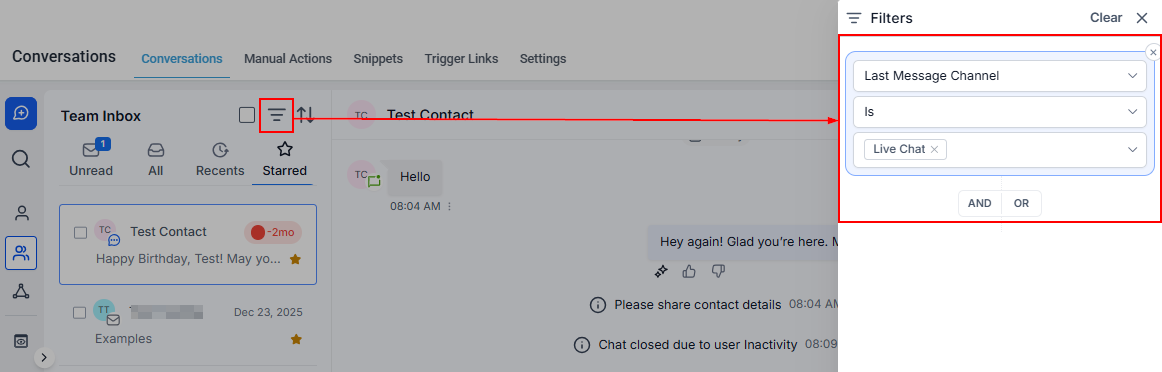
Once a visitor sends a message through the widget, it appears in your Conversations inbox with the Live Chat channel indicator.
Two special actions are available within live chat conversations:
End live chat
Click End Live Chat to close the session once the matter has been resolved. This signals to the visitor that the conversation is complete.
Request contact details
Click Request Contact Details to send a form to the visitor, inviting them to share their name, email, and phone number. This opens the door for extended follow-up communication.
Live chat manual actions — end the session or request contact details for extended follow-up
Web chat messages from your website’s chat widget appear directly in your Conversations inbox, unified alongside SMS, email, and social messages. This section covers managing web chat from the conversations side.
Connect a Conversation AI bot to your web chat channel to handle initial interactions automatically. The bot can qualify leads, answer FAQs, and book appointments before handing off to a human agent when needed.Configure bot assignment in AI Agents > Conversation AI > Channel Assignment and toggle on Web Chat.